
Ọrọ Iṣaaju
The Logitech Z-640 is a 6-speaker surround sound system designed to enhance audio experiences for computer games and DVD movies. This system includes four satellite speakers, one center-channel speaker, and a powered subwoofer. It delivers immersive sound with deep bass, suitable for various multimedia applications.

Aworan: Iwaju view of the Logitech Z-640 subwoofer, featuring a large speaker grille.
Awọn ẹya pataki:
- Six-speaker system with a patented subwoofer design for enhanced bass.
- Innovative satellite design with rotating pedestals for flexible placement (wall or desk).
- Internal power supply, eliminating the need for bulky external adapters.
- Includes an adapter cable for easy connection to video game consoles.
- Total output power: 71.2 Watts RMS.
Awọn ilana iṣeto
Follow these steps to correctly set up your Logitech Z-640 speaker system.
1. Ṣiṣii ati Gbigbe:
Carefully unpack all components. The system includes four satellite speakers, one center speaker, one subwoofer, and necessary cables. Place the subwoofer on the floor, ideally near your computer or console. Position the four satellite speakers (two front, two rear) and the center speaker around your listening area. The satellite speakers feature rotating pedestals for desk or wall mounting.

Image: Four satellite speakers, still in their protective packaging, ready for setup.
2. Connecting Speakers to Subwoofer:
Connect each satellite speaker and the center speaker to the corresponding ports on the back of the subwoofer. Ensure a secure connection for each speaker cable.
3. Connecting Subwoofer to Audio Source:
The Z-640 system connects to your computer's sound card or a video game console using the provided cables. The input jacks on the subwoofer are color-coded for ease of connection:
- Alawọ ewe: Connects to the front speaker output of your sound card.
- Dudu: Connects to the rear speaker output of your sound card.
- Ọsan: Connects to the subwoofer and center channel output of your sound card.
For video game consoles, use the included adapter cable to connect to the console's audio output.

Image: Rear panel of the Logitech Z-640 subwoofer, showing the color-coded input jacks for front, rear, and center/subwoofer channels, along with the sub volume knob and power cable.
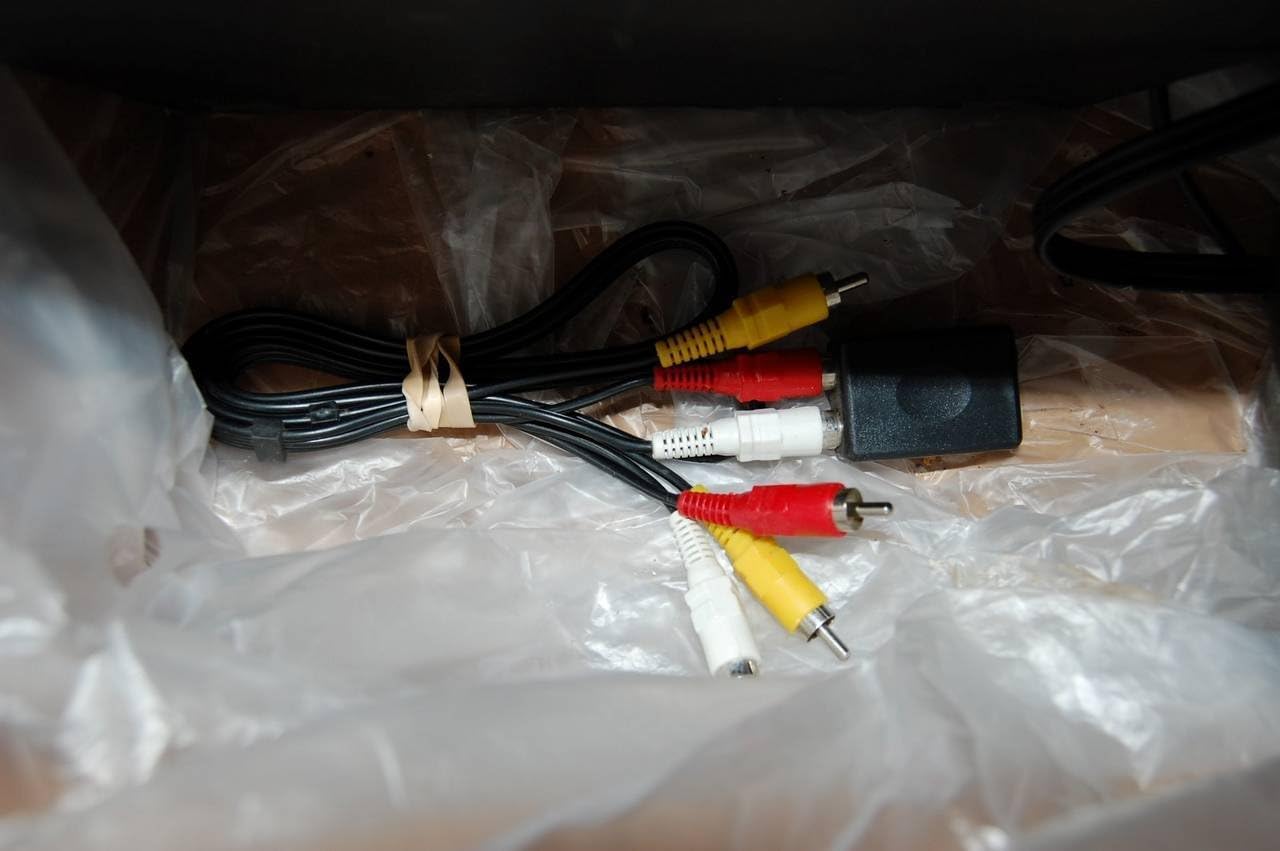
Image: Various RCA adapter cables, including a console adapter, used for connecting the Z-640 system to different audio sources.
Rí i dájú pé gbogbo àwọn ìsopọ̀ wà ní ìdúró ṣinṣin kí o tó tan ẹ̀rọ náà.
Awọn ilana Iṣiṣẹ
Once the system is set up, you can control its functions using the controls located on the center speaker and the subwoofer.
Center Speaker Controls:

Image: Close-up of the Logitech Z-640 center speaker, displaying the control panel with buttons for power, volume, matrix mode, fader, and a headphone jack.
- Bọtini agbara: Turns the speaker system on or off.
- Iṣakoso iwọn didun: Ṣe atunṣe iwọn didun gbogbogbo ti eto naa.
- Matrix Button: Engages or disengages the Matrix mode, which mixes two front channels to create a surround sound effect for stereo sources.
- Iṣakoso Fader: Adjusts the balance between the front and rear speakers. Turning it up increases the volume of the rear speakers relative to the front.
- Jack agbekari: For private listening. Plugging in headphones will mute the speakers.
Iṣakoso Subwoofer:
- Sub Volume Knob: Located on the back of the subwoofer, this knob adjusts the bass level independently.
Eto Orisun Olohun:
For optimal sound, adjust the equalizer settings on your computer's sound card or audio player software. Experiment with different presets (e.g., Rock, New Age) to find the sound profile that best suits your preferences and content.
Itoju
To ensure the longevity and performance of your Logitech Z-640 speaker system, follow these simple maintenance guidelines:
- Ninu: Use a soft, dry cloth to wipe down the speakers and subwoofer. Avoid using liquid cleaners or abrasive materials, as they can damage the finish or internal components.
- Ibi: Keep speakers away from direct sunlight, excessive heat, and moisture. Ensure adequate ventilation around the subwoofer to prevent overheating.
- Iṣakoso USB: Lokọọkan ṣayẹwo gbogbo awọn asopọ okun lati rii daju pe wọn wa ni aabo ati ominira lati awọn kinks tabi ibajẹ.
- Agbara Pa: When not in use for extended periods, it is advisable to power off the system using the power button on the center speaker.
Laasigbotitusita
Tí o bá ní ìṣòro pẹ̀lú ètò Z-640 rẹ, wo àwọn ìṣòro àti ojútùú tó wọ́pọ̀ wọ̀nyí:
| Isoro | Owun to le Fa / Solusan |
|---|---|
| Ko si ohun lati awọn agbohunsoke. |
|
| Ohùn alailagbara tabi daru. |
|
| No bass or weak bass. |
|
| Rear speakers are too quiet or too loud. |
|
| Bright blue LED on center speaker is distracting. |
|
Awọn pato
- Nọmba awoṣe: 970073-0403
- Lapapọ Agbara RMS: 71.2 Wattis
- Satellite Speaker Power: 7.3 Watts RMS per satellite (x4)
- Center Channel Speaker Power: 16.3 Wattis RMS
- Agbara Subwoofer: 25 Wattis RMS
- Idahun Igbohunsafẹfẹ: Down to 35 Hz (subwoofer)
- Asopọmọra: Stereo analog (RCA), Multi-channel analog (for 4- or 6-channel sound cards)
- Aabo: All speakers are video shielded for distortion-free placement near monitors.
- Awọn iwọn ọja: 16.7 x 13.4 x 13.1 inches (overall package/subwoofer)
- Ìwọ̀n Nkan: 1 pound (system weight)
- Èdè: English
Alaye atilẹyin ọja
The Logitech Z-640 6 Speaker Surround Sound System is covered by a meji-odun lopin atilẹyin ọja from the date of purchase. This warranty covers defects in materials and workmanship under normal use. For warranty service or claims, please retain your proof of purchase and contact Logitech customer support.
Atilẹyin
Fun iranlọwọ siwaju, atilẹyin imọ-ẹrọ, tabi lati wọle si awọn orisun afikun, jọwọ ṣabẹwo si atilẹyin Logitech osise website. You can often find FAQs, driver downloads, and contact information for customer service there.
Ṣabẹwo si Logitech itaja lori Amazon for product information (Note: This link is for product information, not direct support).