
Ọrọ Iṣaaju
The Cisco 2821 Integrated Services Router is designed to provide secure, wire-speed delivery of concurrent data, voice, video, and wireless services. This router integrates data, security, voice, and wireless capabilities into a single, resilient system, offering enhanced business agility and investment protection for enterprise and small-to-midsize businesses.

olusin 1: Iwaju view of the Cisco CISCO2821 Integrated Services Router.
Ṣeto
1. Fifi sori ti ara
Before powering on the router, ensure it is placed on a stable, flat surface or properly mounted in a rack. Provide adequate ventilation around the unit to prevent overheating.
Nsopọ Agbara
Connect the provided AC power cord to the power input on the rear panel of the router and then to a grounded electrical outlet. The router supports 100-240V AC, 50/60 Hz power input.

Figure 2: Rear panel detail showing the power input and console port.
Awọn isopọ Nẹtiwọọki
Connect your network cables (Ethernet) to the appropriate ports on the router. The Cisco 2821 features Gigabit Ethernet ports for high-speed connectivity. Additional modules can be installed for various connectivity options.

olusin 3: Ẹyìn view of the router, illustrating available module slots and network interfaces.
Console Asopọ
For initial configuration and management, connect a console cable (typically an RJ-45 to DB-9 serial cable) from your computer's serial port to the CONSOLE port on the router's rear panel. Use terminal emulation software (e.g., PuTTY, Tera Term) with appropriate serial port settings (9600 baud, 8 data bits, no parity, 1 stop bit, no flow control).

Figure 4: Included power cable and console cable for initial setup.
2. Iṣeto ni ibẹrẹ
Upon first power-up, the router will typically enter setup mode or load its default configuration. Follow the prompts in the console interface to configure basic network settings, such as IP addresses, hostname, and enable passwords. Refer to the Cisco IOS Command Reference for detailed configuration instructions.
Ṣiṣẹ́ olulana náà
The Cisco 2821 Integrated Services Router operates on Cisco IOS (Internetwork Operating System), providing a robust and feature-rich environment for network management. Once configured, the router will manage network traffic, provide security services, and support integrated voice and video communications.
Awọn iṣẹ ipilẹ
- Ipa ọna: Directs network traffic between different networks.
- Yipada: Provides local area network (LAN) connectivity through integrated switch ports or modules.
- Aabo: Offers features like firewalls, intrusion prevention, and VPN services.
- Voice and Video: Supports IP telephony and video conferencing capabilities with appropriate modules.
Monitoring Router Status
The router features LED indicators on its front panel to display operational status. Common indicators include:
- Awọn ọna: System status (e.g., green for normal operation).
- ÌṢE: Activity on interfaces.
- PWR: Ipo agbara.
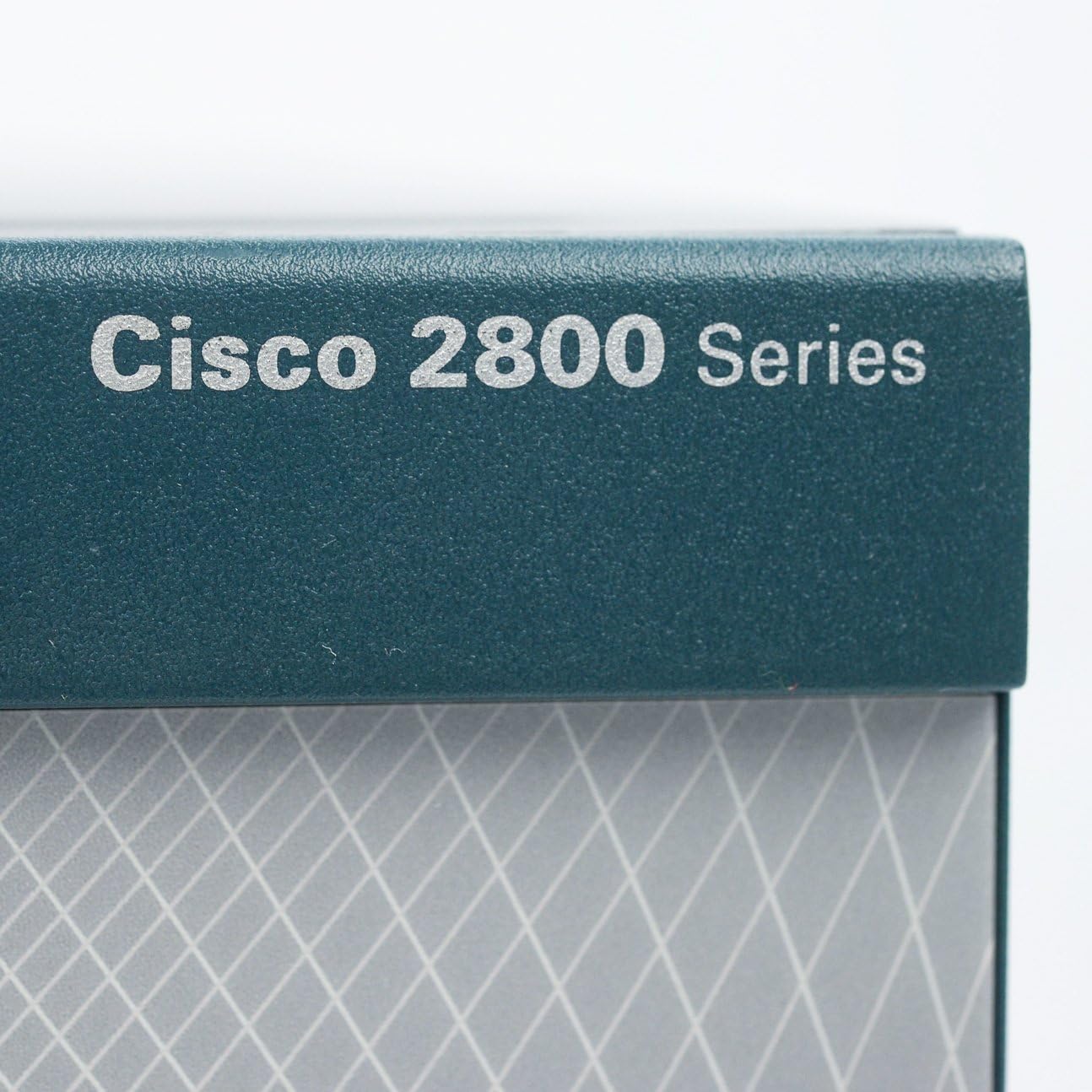
Figure 5: Branding detail, indicating the Cisco 2800 Series.
Itoju
Regular maintenance ensures optimal performance and longevity of your Cisco 2821 router.
Famuwia Awọn imudojuiwọn
Lorekore ṣayẹwo Cisco support website for the latest IOS software updates. Applying updates can provide new features, security patches, and performance improvements. Always follow Cisco's recommended procedures for software upgrades to avoid service interruptions.
Ninu
Keep the router free from dust and debris. Use a soft, dry cloth to clean the exterior. Ensure ventilation openings are clear to maintain proper airflow. Do not use liquid cleaners directly on the device.
Laasigbotitusita
If you encounter issues with your Cisco 2821 router, consider the following troubleshooting steps:
- Ko si Agbara: Verify the power cord is securely connected to both the router and the electrical outlet. Check the power switch on the rear panel.
- Ko si Asopọmọra Nẹtiwọọki: Ensure all Ethernet cables are properly connected. Check the link/activity LEDs on the network ports. Verify IP configurations.
- Console Access Issues: Confirm the console cable is correctly attached and your terminal emulation software settings match the router's console port settings.
- Àwọn Àṣìṣe Ètò: Observe the system status LEDs. If the SYS LED indicates an error (e.g., amber or red), consult the Cisco documentation for specific error codes and their meanings.
- Awọn ọran Iṣe: Check CPU utilization and memory usage via the command-line interface (CLI). Ensure adequate cooling.
For advanced troubleshooting, refer to the official Cisco documentation or contact Cisco technical support.
Awọn pato
| Ẹya ara ẹrọ | Ẹ̀kúnrẹ́rẹ́ |
|---|---|
| Brand | Sisiko |
| Orukọ awoṣe | CISCO2821 |
| Asopọmọra Technology | Ethernet, Wi-Fi (with optional modules) |
| LAN Port bandiwidi | 1000 Mbps (Gigabit Ethernet) |
| Nọmba ti Ports | 2 (Ethernet, base configuration) |
| Eto isesise | Cisco IOS |
| Iwọn Nkan | 25 iwon |
| Igbohunsafẹfẹ Band Class | Meji-Band (pẹlu iyan modulu) |
| Alailowaya Ibaraẹnisọrọ Alailowaya | 802.11ac (with optional modules) |
| UPC | 763615825115 |
| GTIN | 00746320911922 |
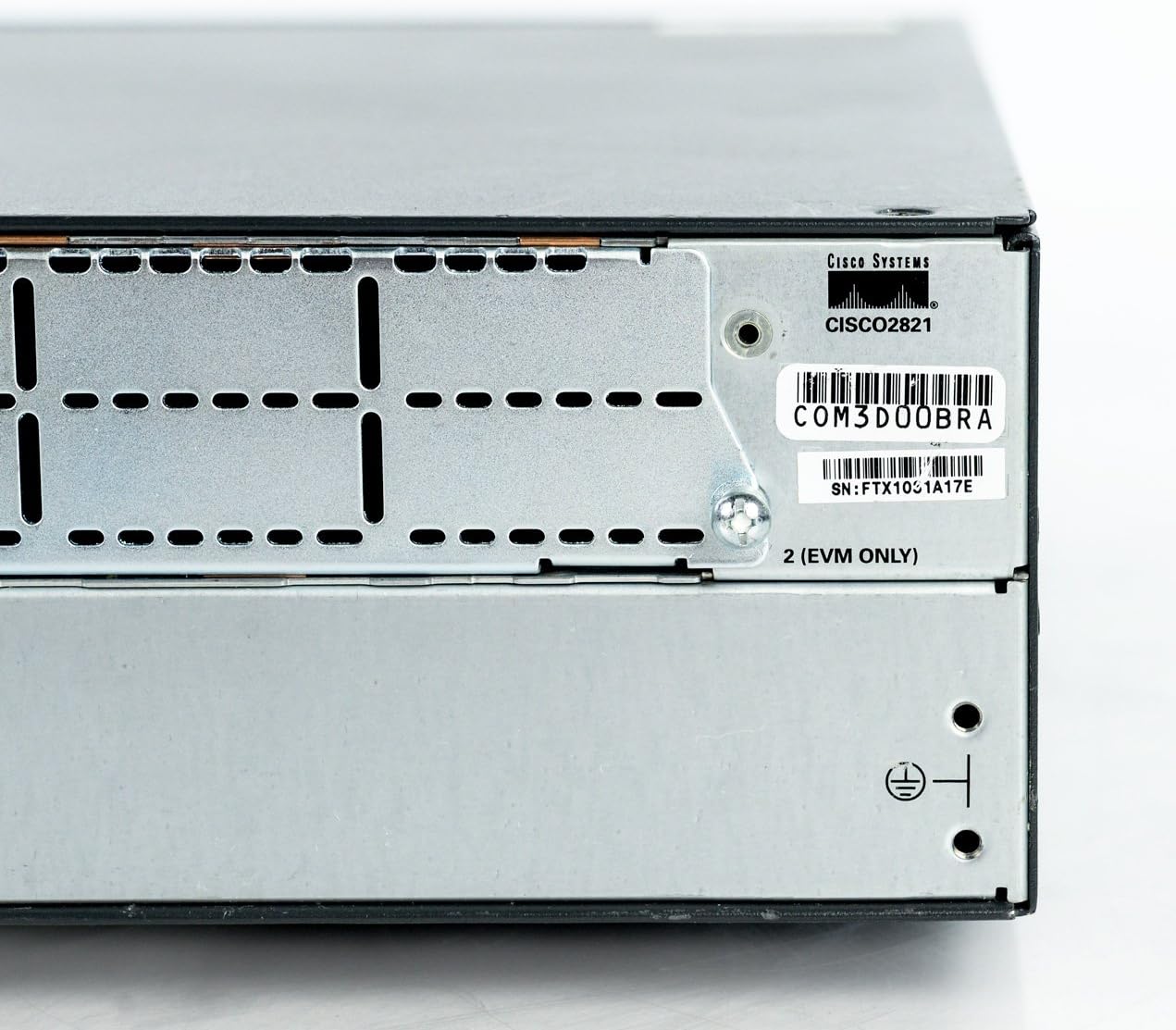
Figure 6: Model and serial number label on the router.
Alaye atilẹyin ọja
This Cisco CISCO2821 Integrated Services Router comes with a Five Year Advanced Replacement Warranty from Pure. For detailed terms and conditions, including how to initiate a warranty claim, please refer to the warranty documentation provided with your purchase or contact Pure directly.
Atilẹyin
For further assistance, technical support, or to access comprehensive documentation, please visit the official Cisco support website. You can find drivers, software, and detailed configuration guides for the Cisco 2821 series routers.
Cisco Support Webojula: www.cisco.com/support
For product-specific information, you may also refer to the Cisco itaja on Amazon.