
1. Ifihan
This manual provides essential information for the safe and efficient operation of your Sharp Aquos LC42D64U 42-Inch 1080p LCD HDTV. Please read these instructions thoroughly before using your television and retain them for future reference. The Sharp Aquos D64 series offers a slim design, Full HD 1080p resolution, and advanced features for an enhanced viewiriri iriri.
2. Alaye Aabo pataki
Nigbagbogbo tẹle awọn iṣọra aabo ipilẹ nigba lilo tẹlifisiọnu yii lati dinku eewu ina, mọnamọna, ati ipalara.
- Orisun Agbara: Connect the TV only to the power supply indicated on the label.
- Afẹfẹ: Rii daju pe fentilesonu to dara. Ma ṣe dina awọn ṣiṣi atẹgun.
- Omi ati Ọrinrin: Ma ṣe fi TV han si ojo tabi ọrinrin. Maṣe gbe awọn nkan ti o kun fun olomi sori TV.
- Ninu: Yọ TV kuro ninu ibudo ogiri ṣaaju ki o to nu. Lo aṣọ rirọ ati gbigbẹ.
- Ṣiṣẹ: Maṣe gbiyanju lati ṣiṣẹ ọja yi funrararẹ. Tọkasi gbogbo iṣẹ si oṣiṣẹ oṣiṣẹ ti o peye.
- Iṣagbesori: If wall-mounting, ensure the mount is compatible and installed by qualified personnel.
- Awọn ọmọde: Ṣe abojuto awọn ọmọde lati ṣe idiwọ fun wọn lati gun lori tabi ṣere pẹlu TV.
3. Ohun ti o wa ninu Apoti
Daju pe gbogbo awọn paati wa ṣaaju ki o to tẹsiwaju pẹlu iṣeto.
- Sharp Aquos LC42D64U 42-Inch LCD HDTV
- Isakoṣo latọna jijin
- Iduro tabili
- Okun agbara
- Afowoyi Olumulo (iwe-ipamọ yii)
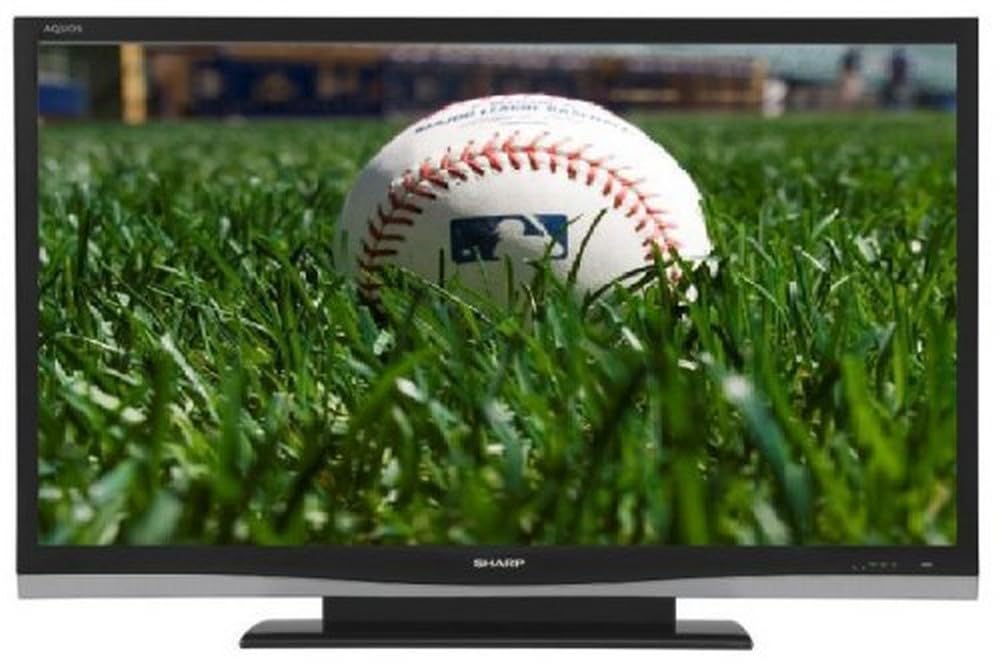
Aworan: Iwaju view of the Sharp Aquos LC42D64U 42-Inch LCD HDTV with its included table stand.
4. Eto
4.1 Attaching tabili Iduro
If you are not wall-mounting the television, attach the included table stand. Refer to the separate assembly guide for detailed instructions on securing the stand to the TV. Ensure all screws are tightened securely.
4.2 Nsopọ Awọn ẹrọ ita
Connect your external devices (e.g., cable box, Blu-ray player, game console) to the appropriate input terminals on the rear or side of the TV.
- HDMI: For high-definition digital video and audio. The TV features three HDMI 1.3 inputs (two rear, one side).
- Fidio paati (Y, Pb, Pr): For high-definition analog video. Two inputs are available.
- Composite Video (A/V): For standard-definition analog video and audio. One side and one rear input.
- S-Fidio: For standard-definition video. One side and one rear input.
- PC Input (D-Sub 15-pin): So kọ̀ǹpútà pọ̀ láti lò ó gẹ́gẹ́ bí àtẹ̀gùn.
- RF Antenna Inputs: Two inputs for connecting an antenna or cable TV.
- Àjọlò Port: For network connectivity (DLNA).
4.3 Asopọ agbara
After connecting all desired devices, plug the power cord into the TV's power inlet and then into a wall outlet. The TV will enter standby mode.
5. Awọn ilana Iṣiṣẹ
5.1 Agbára Àkọ́kọ́ àti Ṣíṣètò Ikanni
- Tẹ awọn AGBARA bọ́tìnì lórí ìṣàkóso latọna jijin tàbí TV láti tan-an.
- The first time you power on, the TV will guide you through the initial setup process, including language selection and channel scanning.
- Select your preferred language (English, Spanish, or French).
- Perform an "Easy Setup" or "Channel Setup" scan to detect available digital (ATSC, QAM) and analog (NTSC) channels.
5.2 Ipilẹ Latọna jijin Awọn iṣẹ
- AGBARA: Turns the TV on or off (standby).
- Fi sii: Cycles through available input sources (HDMI, Component, PC, etc.).
- CH +/-: Ayipada awọn ikanni.
- VOL +/-: Ṣatunṣe iwọn didun.
- Akojọ: Nwọle si akojọ aṣayan loju iboju fun awọn atunṣe eto.
- ÀWỌN BÁTỌ́ ÌTAFA: Lilö kiri nipasẹ awọn aṣayan akojọ aṣayan.
- Tẹ: Jẹrisi awọn aṣayan.
- EXIT/RETURN: Ó jáde kúrò nínú àwọn àkójọ oúnjẹ tàbí ó padà sí ìbòjú tí ó ti kọjá.
5.3 Akojọ Lilọ kiri ati Eto
Tẹ awọn Akojọ button to access various settings categories:
- Aworan: Adjust brightness, contrast, color, tint, sharpness, and backlight. The OPC function automatically adjusts brightness based on room conditions.
- Ohun: Control volume, bass, treble, balance, and select audio modes.
- Ikanni: Rescan channels, add/delete channels, and set up favorite channels.
- Ṣeto: General settings like language, time, sleep timer, and parental controls (V-Chip).
- Awọn ẹya to ti ni ilọsiwaju: Access settings for DLNA, Picture-in-Picture, and AQUOS LINK.
6. Awọn ẹya ara ẹrọ ti ilọsiwaju
6.1 AQUOS LINK (HDMI-CEC)
AQUOS LINK allows convenient control of compatible Sharp devices connected via HDMI using just your AQUOS TV remote. Ensure connected devices also support HDMI-CEC (Consumer Electronics Control) and are enabled in their respective settings.
6.2 DLNA Compatibility
The TV is DLNA-compatible, enabling interoperability with other DLNA-certified electronics, computers, and mobile devices. Connect the TV to your home network via the Ethernet port to access and share digital content (photos, videos, music) from compatible devices on your network.
6.3 Picture-in-Picture (PIP)
The Picture-in-Picture function allows simultaneous viewing of a TV program and a video or PC source. Consult the on-screen menu for PIP activation and source selection.
6.4 V-Chip System
The V-Chip system allows you to block TV and movie programs based on their rating, providing parental control over objectionable content. Access V-Chip settings through the TV's setup menu.
7. Itọju
7.1 Ninu iboju
Rọra nu iboju naa pẹlu asọ ti ko ni lint. Fun awọn ami alagidi, fẹẹrẹ dampen awọn asọ pẹlu omi tabi a specialized iboju regede. Maṣe ṣe use harsh chemicals, abrasive cleaners, or spray liquids directly onto the screen.
7.2 Ninu awọn Minisita
Wipe the TV cabinet with a soft, dry cloth. Avoid using solvents or abrasive materials.
7.3 Itọju Gbogbogbo
- Yọ TV kuro lakoko iji manamana tabi nigbati a ko lo fun igba pipẹ.
- Pa TV kuro lati orun taara, awọn orisun ooru, ati eruku ti o pọju.
- Ensure adequate space around the TV for proper ventilation.
8. Laasigbotitusita
Ṣaaju ki o to kan si atilẹyin alabara, gbiyanju awọn ojutu wọnyi fun awọn iṣoro ti o wọpọ:
| Isoro | Owun to le Solusan |
|---|---|
| Ko si agbara | Ṣàyẹ̀wò bóyá okùn agbára náà so mọ́ TV àti ibi tí a ti ń ta ohun èlò ìtajà náà dáadáa. Rí i dájú pé ibi tí a ti ń ta ohun èlò náà ní agbára. |
| Ko si aworan, ṣugbọn ohun wa | Daju pe orisun titẹ sii to pe ti yan. Ṣayẹwo awọn asopọ okun si awọn ẹrọ ita. |
| Ko si ohun, ṣugbọn aworan wa | Ṣàyẹ̀wò ipele iwọn didun ati eto ipalọlọ. Rí i dájú pé àwọn okùn ohùn so pọ̀ dáadáa. |
| Isakoṣo latọna jijin ko ṣiṣẹ | Rọpo awọn batiri. Rii daju pe ko si awọn idena laarin isakoṣo latọna jijin ati sensọ IR ti TV. |
| "Hotel Mode" issue (as per customer review) | If the TV is stuck in a limited functionality mode, contact Sharp customer support for assistance in disabling "Hotel Mode." This typically requires a specific service menu sequence. |
9. Awọn pato
| Ẹya ara ẹrọ | Ẹ̀kúnrẹ́rẹ́ |
|---|---|
| Nọmba awoṣe | LC42D64U |
| Iwon iboju | 42 inches |
| Ifihan ọna ẹrọ | LCD |
| Ipinnu | 1080p (HD ni kikun) |
| Ipin Itansan | 10,000:1 Dynamic |
| Akoko Idahun | 4 Milise-aaya |
| Awọn ibudo HDMI | 3 (ẹhin 2, ẹgbẹ 1) |
| Component Video Inputs | 2 |
| Awọn igbewọle Fidio Apapo | 3 (ẹgbẹ 1, ẹhin 2) |
| S-Video Inputs | 2 (ẹgbẹ 1, ẹhin 1) |
| PC Input | 1 (D-Sub 15-pin) |
| Àjọlò Port | Bẹẹni |
| Tuner Iru | ATSC, QAM, NTSC |
| Iṣakoso Obi | V-Chip |
| Iwọn | 70.2 iwon (isunmọ.) |
| Odun awoṣe | 2008 |
10. Atilẹyin ọja ati Support
10.1 Atilẹyin ọja to lopin
This Sharp Aquos LC42D64U television comes with a 1 Year Parts and 1 Year Labor Warranty from the date of original purchase. This warranty covers manufacturing defects in materials and workmanship under normal use. It does not cover damage caused by misuse, accident, modification, or unauthorized repair.
Jọwọ ṣe idaduro ẹri rira rẹ fun awọn iṣeduro atilẹyin ọja.
10.2 Onibara Support
For technical assistance, troubleshooting beyond this manual, or warranty service, please contact Sharp Customer Support. Refer to the contact information provided with your product documentation or visit the official Sharp webAaye fun awọn alaye atilẹyin lọwọlọwọ julọ.
When contacting support, please have your model number (LC42D64U) and serial number ready.