
1. Ifihan
The IOGEAR GHDMIFDVIMW6 adapter facilitates the connection between an HDMI-enabled source device and a DVI-enabled display device. This adapter features a gold-plated HDMI female connector on one end and a DVI-D Dual Link male connector on the other, ensuring a reliable digital video signal transmission.
2. Ọja Ipariview
The IOGEAR GHDMIFDVIMW6 is designed for high-quality video signal conversion. Its gold-plated connectors resist corrosion and enhance signal integrity.
- Asopọ 1: HDMI Female (19-pin Type A)
- Asopọ 2: DVI-D Dual Link Male (24-pin)
- Idi: Connects HDMI output to DVI input.
- Awọn ẹya: Gold-plated connectors for optimal signal transfer.
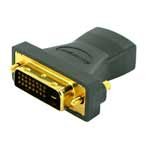
Nọmba 2.1: IOGEAR GHDMIFDVIMW6 Adapter. This image shows the compact adapter with an HDMI female port on one side and a DVI-D Dual Link male connector on the other.
3. Package Awọn akoonu
- 1 x IOGEAR GHDMIFDVIMW6 HDMI Female to DVI-D Dual Link Male Adapter
4. Awọn ilana iṣeto
Follow these steps to connect your HDMI source device to a DVI display:
- Ṣe idanimọ Awọn ibudo: Locate the HDMI output port on your source device (e.g., computer, game console, media player) and the DVI-D input port on your display (e.g., monitor, projector).
- Connect Adapter to Display: Plug the DVI-D Dual Link male connector of the IOGEAR GHDMIFDVIMW6 adapter directly into the DVI-D input port on your display device. Ensure a secure connection.
- So okun HDMI pọ: Take a standard HDMI cable (not included) and plug one end into the HDMI output of your source device.
- Connect HDMI Cable to Adapter: Plug the other end of the HDMI cable into the HDMI female port on the IOGEAR GHDMIFDVIMW6 adapter.
- Agbara Lori Awọn ẹrọ: Rí i dájú pé ẹ̀rọ orísun àti ẹ̀rọ ìfihàn rẹ ti ṣiṣẹ́.
The connection is now complete.
5. Awọn ilana Iṣiṣẹ
Once the physical connection is established as described in the Setup section:
- Yan Igbewọle: On your DVI display, use its menu or input selection button to choose the correct DVI input source.
- Ṣatunṣe Ipinnu: If the image does not appear correctly or is distorted, adjust the display resolution settings on your source device to match the native resolution of your DVI display. Refer to your source device's operating manual for instructions on changing display settings.
- Ohun: Note that DVI connections transmit video signals only. For audio, a separate audio cable connection from your source device to an audio system or speakers will be required.
6. Itọju
The IOGEAR GHDMIFDVIMW6 adapter requires minimal maintenance.
- Ninu: Use a soft, dry cloth to gently wipe the adapter if it becomes dusty. Do not use liquid cleaners or solvents.
- Ibi ipamọ: Tọ́jú ohun tí a fi ń ṣe àtúnṣe náà sí ibi gbígbẹ tí ó tutù, tí ó jìnnà sí oòrùn tààrà àti àwọn igbóná tí ó le koko nígbà tí a kò bá lò ó.
- Mimu: Avoid bending or twisting the adapter excessively, as this can damage the internal wiring or connectors.
7. Laasigbotitusita
If you encounter issues, refer to the following troubleshooting steps:
- Ko si Ifihan fidio:
- Ensure all connections (HDMI cable, adapter, DVI cable if applicable) are secure and fully seated.
- Verify that both the source device and the display are powered on.
- Confirm that the correct DVI input is selected on your display.
- Test with a different HDMI cable or DVI display if possible to rule out faulty components.
- Distorted or Incorrect Resolution:
- Adjust the display resolution settings on your source device. DVI displays often have a native resolution that provides the best picture quality.
- Ensure your source device's graphics driver is up to date.
- Ko si Ohun:
- This adapter transmits video only. For audio, a separate audio connection is required from your source device to an audio system.
8. Awọn pato
| Ẹya ara ẹrọ | Ẹ̀kúnrẹ́rẹ́ |
|---|---|
| Nọmba awoṣe | GHDMIFDVIMW6 |
| Connector Type (Left) | 19 pin HDMI Type A Female |
| Connector Type (Right) | 24 pin DVI-Digital (Dual-Link) Male |
| Awọn iwọn Ọja (L x W x H) | 0.63 x 0.63 x 1.73 inches |
| Iwọn Nkan | 0.96 iwon (isunmọ 0.06 lbs) |
| Pari Iru | Gold-plated HDMI |
| Olupese | IOGEAR |
9. Alaye Aabo
- Ma ṣe fi ohun ti nmu badọgba han si omi, ọrinrin, tabi awọn iwọn otutu to gaju.
- Ma ṣe gbiyanju lati ṣajọ tabi yi ohun ti nmu badọgba pada.
- Jeki kuro ni arọwọto awọn ọmọde.
- Use only as intended for connecting HDMI to DVI-D video signals.
10. Atilẹyin ọja ati Support
IOGEAR products are backed by a manufacturer's warranty. For specific warranty details, technical support, or customer service, please visit the official IOGEAR webaaye tabi kan si atilẹyin alabara wọn taara.
IOGEAR Official Webojula: www.iogear.com