
1. Ifihan
This manual provides essential information for the safe and efficient use of your Lexmark E260D Monochrome Laser Printer. Please read these instructions carefully before operating the device and retain them for future reference. The Lexmark E260D is designed for fast, high-quality black and white document printing, featuring automatic two-sided printing for efficiency.
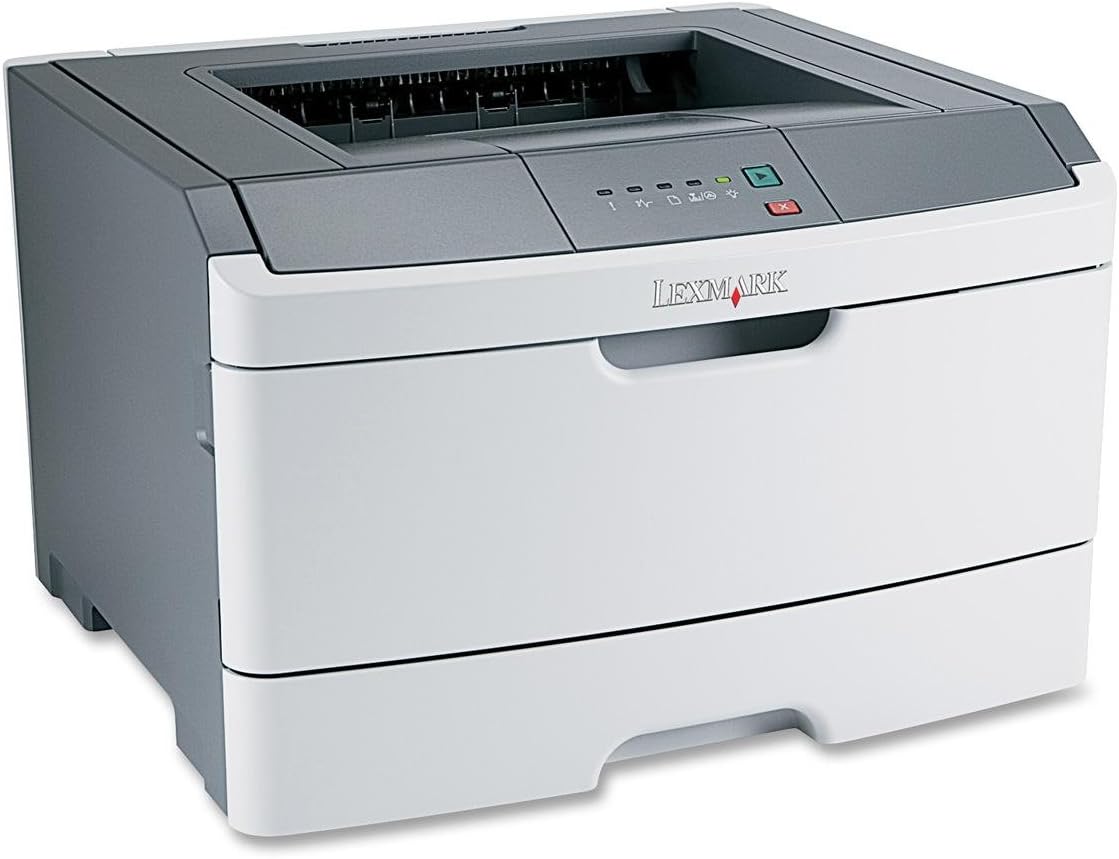
Nọmba 1: Lexmark E260D Monochrome Laser Printer. This image shows the printer from a front-right angle, highlighting its compact design with a white body and a dark gray top cover. The output tray is visible on top, and the Lexmark logo is displayed on the front panel above the paper input tray.
2. Alaye Aabo
- Nigbagbogbo so itẹwe pọ mọ iṣan agbara ti ilẹ.
- Maṣe ṣe idiwọ awọn ṣiṣi eefin.
- Keep the printer away from water or excessive moisture.
- Use only specified power cords and accessories.
- Avoid touching the fuser area, as it can be hot.
3. Package Awọn akoonu
Jẹrisi pe gbogbo awọn ohun kan wa ninu package:
- Lexmark E260D Monochrome Laser Printer
- Okun agbara
- Starter Toner Cartridge (may vary by region)
- Setup Guide or Documentation
- USB Cable (may be sold separately)
4. Eto
4.1 Ṣiṣii itẹwe
- Yọ itẹwe kuro ninu apoti rẹ.
- Yọ gbogbo ohun èlò ìdìpọ̀, àwọn téèpù, àti àwọn fíìmù ààbò kúrò ní òde àti inú ẹ̀rọ ìtẹ̀wé náà.
- Gbe itẹwe sori iduro, ipele ipele pẹlu fentilesonu to peye.
4.2 Nsopọ itẹwe
- So okun agbara pọ mọ itẹwe ati lẹhinna si iṣan itanna ti ilẹ.
- So opin okun USB kan pọ mọ ibudo USB ti ẹrọ itẹwe ati opin keji mọ kọmputa rẹ.
4.3 Fifi Katiriji Toner sori ẹrọ
- Ṣí ìlẹ̀kùn iwájú ẹ̀rọ ìtẹ̀wé náà.
- Carefully remove the toner cartridge from its packaging and shake it gently to distribute the toner.
- Fi káàtírì toner sínú ẹ̀rọ ìtẹ̀wé náà títí tí yóò fi tẹ ibi tí ó wà.
- Close the front access door securely.
4.4 ikojọpọ Iwe
- Fa jade ni iwe atẹ.
- Ṣatunṣe awọn itọsọna iwe lati baamu iwọn iwe ti o n ṣajọpọ.
- Gbe iwe sinu atẹ, ni idaniloju pe o jẹ alapin ati pe ko kọja laini kikun ti o pọju.
- Push the paper tray back into the printer until it locks.
4.5 Driver fifi sori
After connecting the printer, your operating system may automatically detect and install the necessary drivers. If not, follow these steps:
- Insert the driver CD (if included) into your computer's CD/DVD drive, or download the latest drivers from the official Lexmark support webojula.
- Tẹle awọn ilana loju iboju lati pari fifi sori awakọ.
- Tun kọmputa rẹ bẹrẹ ti o ba ṣetan.
5. Ṣiṣẹ itẹwe
5.1 Ipilẹ titẹ sita
- Rii daju pe itẹwe ti wa ni titan ati ti sopọ si kọnputa rẹ.
- Ṣii iwe ti o fẹ lati tẹ sita lori kọnputa rẹ.
- Yan File > Tẹjade (tabi aṣẹ deede ninu ohun elo rẹ).
- Choose the Lexmark E260D from the list of available printers.
- Adjust print settings as needed (e.g., number of copies, page range).
- Tẹ Titẹ sita.
5.2 Ìtẹ̀wé Onípele Méjì (Ẹgbẹ́ Méjì)
The Lexmark E260D supports automatic two-sided printing.
- When sending a print job, access the printer properties or preferences.
- Wa aṣayan kan ti o ni ibatan si Ile oloke meji Printing or Tẹjade lori Awọn ẹgbẹ mejeeji.
- Yan àṣàyàn duplex tí o fẹ́ (fún àpẹẹrẹ, ìdè gígùn, ìdè kúkúrú).
- Jẹrisi awọn eto rẹ ki o tẹ Titẹ sita.
6. Itọju
6.1 Ninu itẹwe
- Òde: Mu ese ita gbangba pẹlu asọ, damp, lint-free asọ. Ma ṣe lo abrasive ose tabi epo.
- Inu inu: Periodically open the front access door and gently remove any loose toner dust with a dry, lint-free cloth. Avoid touching sensitive components.
6.2 Toner katiriji Rirọpo
When the toner level is low, the printer's control panel will indicate it. Replace the toner cartridge as follows:
- Rii daju pe itẹwe ti wa ni titan.
- Ṣí ìlẹ̀kùn iwájú.
- Carefully remove the old toner cartridge by pulling it straight out.
- Unpack the new Lexmark E260D compatible toner cartridge and shake it gently.
- Fi katiriji tuntun sinu ẹrọ itẹwe titi ti yoo fi di ibi ti o yẹ.
- Ti ilẹkun ẹnu-ọna iwaju.
7. Laasigbotitusita
7.1 Iwe Jams
If a paper jam occurs, the printer's control panel will display an error. Follow these general steps:
- Turn off the printer and unplug it from the power outlet.
- Open all accessible covers (front door, rear door, etc.).
- Carefully remove any jammed paper, pulling it in the direction of the paper path to avoid tearing.
- Ti gbogbo awọn ideri naa ni aabo.
- Pulọọgi sinu ati ki o tan-an itẹwe.
7.2 Print Didara oran
- Àwọn ìtẹ̀jáde tí ó ti bàjẹ́ tàbí tí ó fẹ́lẹ́fẹ́lẹ́: The toner cartridge may be low. Try shaking the cartridge gently or replace it.
- Àwọn ìkọlù tàbí àwọn ìfọ́: Clean the interior of the printer, especially around the toner cartridge area. Ensure the paper type setting matches the loaded paper.
- Awọn oju-iwe ti o ṣofo: Ensure the toner cartridge is properly installed and has toner. Check printer drivers and print settings.
7.3 Asopọmọra Isoro
- A ko ri ẹrọ itẹwe: Ensure the USB cable is securely connected to both the printer and the computer. Try a different USB port or cable. Reinstall printer drivers if necessary.
- Print Jobs Stuck: Clear the print queue on your computer. Restart both the printer and the computer.
7.4 Envelope Printing on Mac
Users printing envelopes on macOS may encounter issues with incorrect print orientation or partial printing. To resolve this:
- In the print dialogue box, locate the menu that initially reads 'Layout'.
- Select 'Paper Feed' from this menu.
- Change the 'Auto Select' option to 'Manual Envelope'.
- Tẹsiwaju pẹlu titẹ sita.
8. Awọn pato
| Ẹya ara ẹrọ | Sipesifikesonu |
|---|---|
| Orukọ awoṣe | E260D |
| Imọ-ẹrọ titẹ sita | Lesa |
| Ijade itẹwe | Monochrome |
| Iyara Titẹjade ti o pọju (Monochrome) | 35ppm |
| Ìpinnu Ìtẹ̀wé Tó Pọ̀ Jùlọ (Dúdú àti Fúnfun) | 1200 dpi |
| Ile oloke meji Printing | Laifọwọyi |
| Asopọmọra Technology | USB 2.0 |
| O pọju Input dì Agbara | 250 iwe |
| Supported Print Media | Envelopes, Labels, Paper (plain), Transparencies |
| Agbara Ibi ipamọ Iranti | 32 MB |
| Ọja Mefa | 16.5 x 18.1 x 14 inches |
| Iwọn Nkan | 29.8 poun (13.53 kg) |
| Lilo Agbara (Lori-ipo) | 16 Wattis |
9. atilẹyin ọja Information
The Lexmark E260D Monochrome Laser Printer comes with an Exchange Warranty. For specific terms, conditions, and duration of your warranty, please refer to the warranty documentation included with your product or visit the official Lexmark support webojula.
10. Onibara Support
For further assistance, technical support, or to order replacement parts and supplies, please contact Lexmark Customer Support. You can find contact information and additional resources on the official Lexmark webojula:
- Atilẹyin Lexmark Webojula: www.lexmark.com/support (Jọwọ ṣakiyesi: Eyi jẹ aaye ibi URL. Refer to your product documentation for the exact support link.)