
1. Ti pariview
The Microsoft LifeCam Cinema is a high-definition webcam designed for clear and smooth video communication. It features 720p HD video chat capabilities, a high-precision glass element lens for sharp image quality, and is certified for Skype. The webcam offers 360° rotation and incorporates TrueColor Technology with face tracking for bright and colorful video output.
Awọn ẹya pataki:
- 720p HD video chat
- High precision glass element lens for sharp image quality
- Certified for Skype
- 360° yiyi
- TrueColor Technology with face tracking for bright and colorful video
2. Ohun ti o wa ninu Apoti
Nigbati o ba ṣii package, rii daju pe gbogbo awọn paati wọnyi wa:
- Cinema LifeCam Microsoft Webkamẹra
- Okun USB (ṣepọ)
- Afowoyi Olumulo (iwe-ipamọ yii)
- Te alemora Mount
- Mọ́kì ìfìsípò
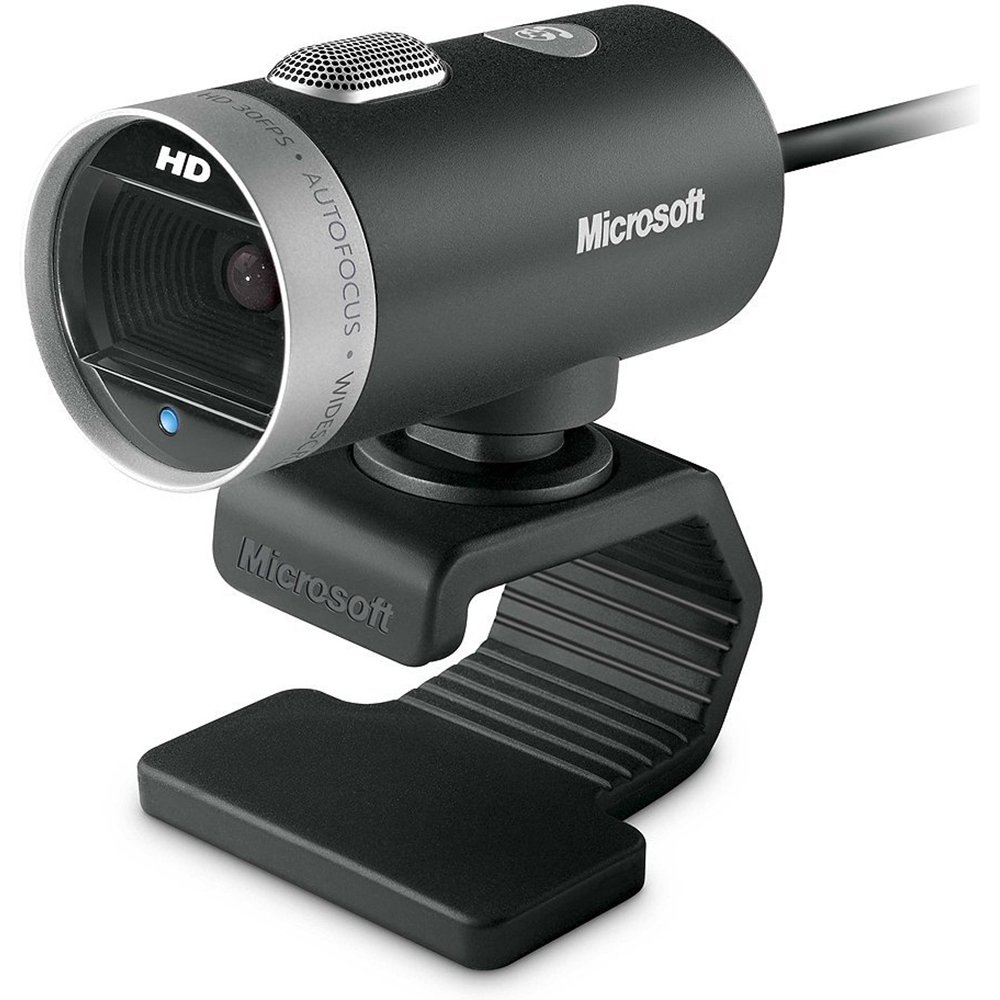
Image: The Microsoft LifeCam Cinema webcam, showing its main body, lens, microphone, and flexible stand with integrated USB cable.
3. Eto
- Ipo awọn Webkamẹra: Place the LifeCam Cinema on top of your monitor or a flat surface. The flexible stand allows for stable placement.
- Nsopọ si Kọmputa rẹ: Plug the integrated USB cable into an available USB port on your computer.
- Fifi sori Awakọ: Your operating system (Windows is supported) should automatically detect the device and install the necessary drivers. If prompted, follow the on-screen instructions. You may need to download the latest drivers from the official Microsoft support webojula fun ti aipe išẹ.
- Fifi sori ẹrọ software: Install any accompanying LifeCam software if desired, which may offer additional features or settings.

Image: The Microsoft LifeCam Cinema webcam securely positioned on top of a computer monitor, demonstrating its stable mounting design.
Video: An official product video demonstrating the features and usage of the Microsoft LifeCam Cinema webcam, including its 720p HD widescreen video, auto focus, high-precision glass element lens, ClearFrame Technology, and digital microphone.
4. Awọn ilana Iṣiṣẹ
- Starting a Video Call: Open your preferred video conferencing application (e.g., Skype, Zoom, Microsoft Teams). The LifeCam Cinema should be automatically recognized as your primary camera and microphone.
- Ipo Iṣatunṣe: Awọn webcam features 360° rotation, allowing you to easily adjust the camera angle without moving the base.
- Idojukọ: The camera automatically adjusts focus to keep you sharp and clear during video calls.
- TrueColor Technology: This feature automatically adjusts exposure for bright and colorful video, even in varying lighting conditions.
- Digital Microphone: The built-in digital microphone provides clear audio capture. Ensure it is selected as the input device in your application settings if you experience audio issues.
5. Itọju
- Fifọ lẹnsi naa: Use a soft, lint-free cloth specifically designed for optics to gently wipe the camera lens. Avoid abrasive materials or harsh chemicals.
- Ninu ara: Mu ese naa nu webcam's body with a soft, damp asọ. Ma ṣe fi omi bọ ẹrọ naa sinu omi tabi lo ọrinrin pupọ.
- Ibi ipamọ: Nigbati ko ba si ni lilo, tọju itaja naa webKame.awo-ori ni ibi ti o mọ, ti o gbẹ kuro ni awọn iwọn otutu to gaju ati imọlẹ orun taara.
- Itọju USB: Yẹra fún títẹ̀ tàbí yíyí okùn USB pọ̀ jù láti dènà ìbàjẹ́ inú.
6. Laasigbotitusita
- A ko ri fidio/kamẹra kankan:
- Rii daju wipe okun USB ti wa ni labeabo edidi sinu mejeji awọn webkamẹra ati kọmputa.
- Gbiyanju pulọọgi webkamẹra sinu ibudo USB ti o yatọ.
- Tun kọmputa rẹ bẹrẹ.
- Check your computer's Device Manager (Windows) to see if the webcam is listed and if there are any driver issues. Reinstall drivers if necessary.
- Verify that your video conferencing software is configured to use the LifeCam Cinema as the video input device.
- Ko si ohun/gbohungbohun Ko Ṣiṣẹ:
- Check your computer's sound settings to ensure the LifeCam Cinema microphone is selected as the default recording device.
- Verify that your video conferencing software is configured to use the LifeCam Cinema as the audio input device.
- Ensure the microphone is not muted in your system settings or within the application.
- Didara fidio ti ko dara:
- Rii daju pe lẹnsi kamẹra jẹ mimọ.
- Check your internet connection speed; a slow connection can affect video quality.
- Ensure adequate lighting in your environment. TrueColor Technology helps, but sufficient ambient light is always best.
- Pa awọn ohun elo miiran ti o le jẹ jijẹ awọn orisun eto.
7. Awọn pato
| Ẹya ara ẹrọ | Ẹ̀kúnrẹ́rẹ́ |
|---|---|
| Brand | Microsoft |
| Nọmba awoṣe | H5D-00001 |
| Ipinnu Yaworan fidio | 720p |
| Fọto sensọ Technology | CMOS |
| Asopọmọra Technology | USB |
| Àwọ̀ | Dudu |
| Awọn ẹya ara ẹrọ | Low Light, Auto Focus, TrueColor Technology, Digital Microphone |
| Awọn iwọn Nkan (D x W x H) | 0.71"D x 2.19"W x 1.81"H |
| Iwọn Nkan | 0.87 iwon |
| Eto isesise | Windows |
| Viewigun igun | 360 Degrees (rotation) |
| Iyara Yaworan Aworan | 30 fps |
| Awọn ẹrọ ibaramu | PCs with specified system requirements; Skype |
8. Atilẹyin ọja ati Support
The Microsoft LifeCam Cinema (Model H5D-00001) comes with a 3 Ọdun Atilẹyin ọja Lopin from the manufacturer, Microsoft.
For technical support, driver downloads, or further assistance, please visit the official Microsoft support webaaye tabi tọka si alaye olubasọrọ ti a pese ninu apoti ọja rẹ.
You can also find additional resources and FAQs on the Microsoft support pages for LifeCam products.