
1. Ifihan
Thank you for choosing the LiteOn eSAU108-97 External Recording DVD Drive. This portable optical drive offers reliable DVD and CD reading and writing capabilities, powered conveniently via a single USB connection. It is designed for use with laptops and other compatible devices, providing a compact and efficient solution for your optical media needs.
Jọ̀wọ́ ka ìwé ìtọ́ni yìí dáadáa kí o tó lo ẹ̀rọ náà láti rí i dájú pé ó ń ṣiṣẹ́ dáadáa àti láti mú kí ó pẹ́ sí i.
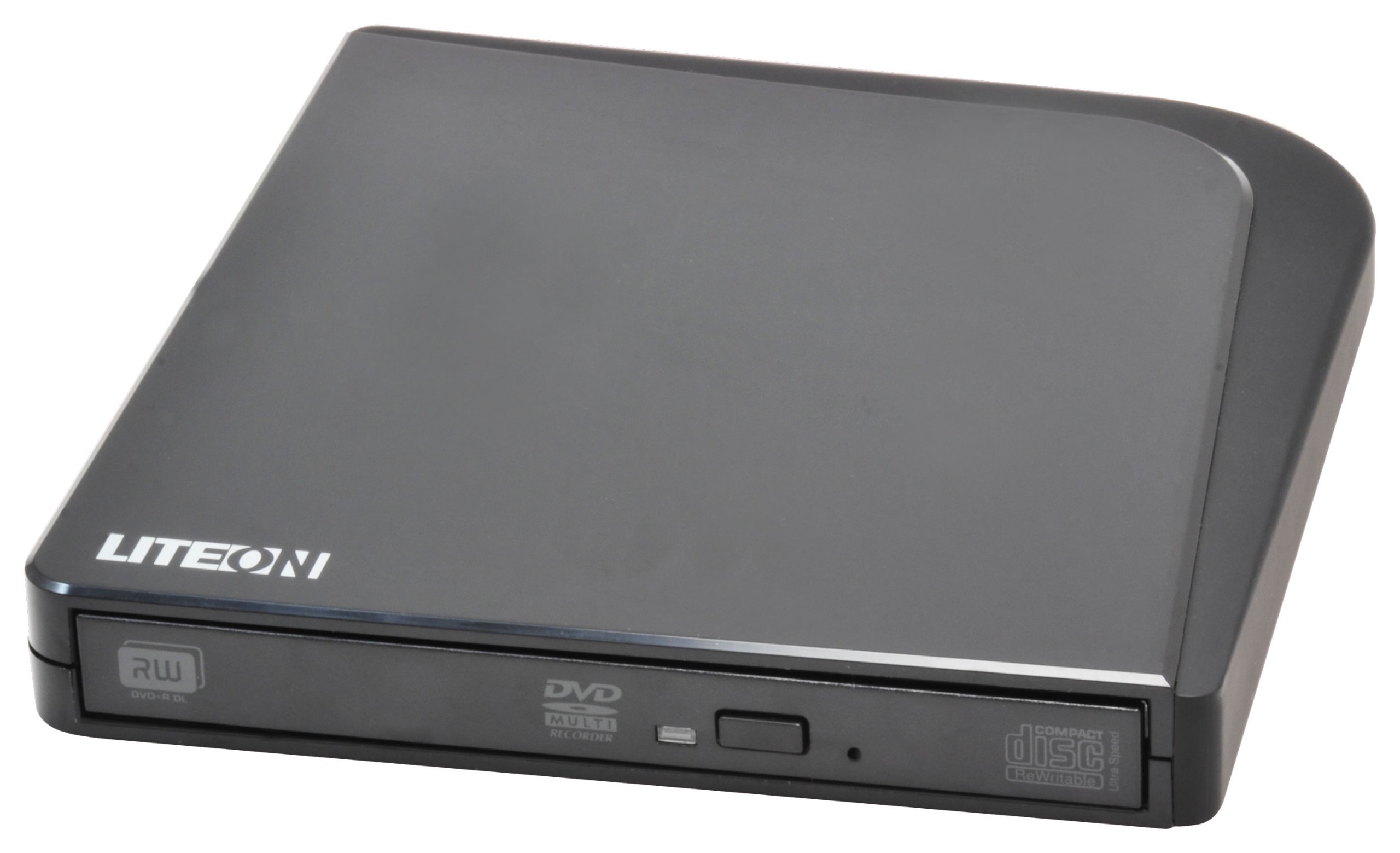
Nọmba 1: LiteOn eSAU108-97 External Recording DVD Drive. This image displays the compact, black external DVD drive, highlighting its sleek design and the USB port for connectivity.
2. Package Awọn akoonu
Jọwọ ṣe àyẹ̀wò ohun tó wà nínú àpótí náà dáadáa. Tí àwọn nǹkan kan bá sọnù tàbí tí wọ́n bá bàjẹ́, kàn sí olùtajà rẹ lẹ́sẹ̀kẹsẹ̀.
- LiteOn eSAU108-97 External Recording DVD Drive
- USB Data/Power Cable
- Itọsọna Ibẹrẹ Yara (Itọnisọna yii)
3. Eto
3.1 System Awọn ibeere
- Operating System: Windows XP/Vista/7/8/10/11, macOS 10.x or later, Linux (kernel 2.6 or later)
- Ibudo USB 2.0 tabi 3.0 ti o wa
- O kere 512MB Ramu
- Minimum 10GB free hard disk space (for disc burning software and temporary files)
3.2 Nsopọ Drive
- Locate an available USB port on your laptop or computer.
- Connect the smaller end of the provided USB cable to the USB port on the LiteOn eSAU108-97 drive.
- So opin okun USB pọ si ibudo USB lori kọnputa rẹ.
- The drive is bus-powered, meaning it draws power directly from the USB port. No external power adapter is required.
- Ẹrọ iṣẹ rẹ yẹ ki o ṣawari laifọwọyi ati fi awọn awakọ pataki sii. Ilana yii le gba awọn iṣẹju diẹ.
3.3 Driver fifi sori
The LiteOn eSAU108-97 is a plug-and-play device. Most modern operating systems will automatically install the required drivers upon connection. No manual driver installation is typically needed. If the drive is not recognized, try connecting it to a different USB port or restarting your computer.
4. Ṣiṣẹ Drive
4.1 Nfi Disiki kan si
- Press the eject button on the front of the drive to open the disc tray.
- Carefully place a CD or DVD onto the tray with the label side facing up. Ensure the disc is centered on the spindle.
- Rọra Titari atẹ disiki naa pada sinu kọnputa titi ti o fi tẹ ku. Maṣe fi agbara mu atẹ naa.
4.2 Playing/Reading Discs
Once a disc is loaded, your operating system may automatically prompt you to choose an action (e.g., play a movie, open files). If not, navigate to 'My Computer' or 'This PC' (Windows) or 'Finder' (macOS), locate the optical drive icon, and double-click it to access the disc's contents.
4.3 Recording/Burning Discs
To record data, music, or video onto a blank CD-R/RW or DVD-R/RW disc, you will need compatible disc burning software (e.g., Windows Media Player, Nero, Roxio, or built-in macOS utilities). Follow the instructions provided with your chosen software to perform burning operations.
4.4 Lílo Díìsìkì
- Sọfitiwia Kọ: Right-click on the drive icon in 'My Computer'/'This PC' or 'Finder' and select 'Eject'.
- Kọ jade pẹlu ọwọ: Tẹ bọtini jade ni iwaju awakọ naa.
- Ilọkuro pajawiri: In case of power failure or if the eject button does not work, locate the small pinhole on the front of the drive. Insert a straightened paperclip into the pinhole and push gently until the tray partially opens. Then, pull the tray out manually.
5. Itọju
5.1 Nu awakọ naa mọ
Keep the drive clean and free from dust. Use a soft, dry, lint-free cloth to wipe the exterior. Do not use liquid cleaners or abrasive materials. Avoid opening the drive casing, as this can damage internal components and void your warranty.
5.2 Àwọn Díìsì Mímú
Always handle discs by their edges. If a disc is dirty, gently wipe it from the center outwards with a soft, lint-free cloth. Do not use circular motions, as this can cause scratches. For stubborn smudges, use a specialized disc cleaning solution.
5.3 Ibi ipamọ
When not in use, store the drive in a cool, dry place, away from direct sunlight, extreme temperatures, and high humidity. Keep it protected from dust and physical impact.
6. Laasigbotitusita
| Isoro | Owun to le Fa | Ojutu |
|---|---|---|
| Wakọ ko ṣe idanimọ nipasẹ kọnputa | Loose USB connection, insufficient power, driver issue, faulty USB port. | Ensure USB cable is securely connected. Try a different USB port. Restart your computer. Check Device Manager (Windows) or System Information (macOS) for the drive. |
| Disc not reading/writing | Dirty or scratched disc, incorrect disc type, faulty disc, drive lens dirty, incompatible software. | Clean the disc. Try a different disc. Ensure the disc type is compatible (CD-R/RW, DVD-R/RW). Use appropriate burning software. |
| Àwo disiki kò ṣí/típa | Obstruction, mechanical issue, power issue. | Check for obstructions. Ensure the drive is powered (connected via USB). Use the emergency eject hole if necessary. |
| O lọra išẹ | USB 1.1 port, background processes, fragmented hard drive. | Connect to a USB 2.0 or 3.0 port. Close unnecessary applications. Ensure your computer meets system requirements. |
7. Awọn pato
- Awoṣe: eSAU108-97
- Ni wiwo: USB 2.0 (ibaramu pẹlu USB 3.0)
- Iru: External Portable DVD Drive
- Platform Hardware: Kọǹpútà alágbèéká
- Ìwọ̀n Nkan: Isunmọ 1.2 poun (0.54 kg)
- Awọn iwọn idii: 8.27 x 7.72 x 2.87 inches (21 x 19.6 x 7.3 cm)
- Àwọ̀: Dudu
- Iwọn kaṣe: 2 MB
- Agbara: USB akero Agbara
- Awọn ọna kika Disiki ti o ni atilẹyin: DVD-ROM, DVD-R, DVD-RW, DVD+R, DVD+RW, CD-ROM, CD-R, CD-RW
8. Atilẹyin ọja ati Support
LiteOn products are designed and manufactured to the highest quality standards. This product is covered by a limited warranty from the date of purchase. Please refer to the warranty card included in your package or visit the official LiteOn webAaye fun alaye atilẹyin ọja ofin ati ipo.
For technical support, troubleshooting assistance, or service inquiries, please visit the LiteOn support website or contact their customer service department. Contact information can typically be found on the official LiteOn webaaye tabi ninu apoti ọja rẹ.