
1. Ifihan ati Loriview
The Avision AV 320D2+ is a high-performance A3 document scanner designed for efficient and reliable document digitization. Featuring a 600 dpi optical resolution and USB connectivity, it is capable of handling a wide range of document sizes up to A3, making it suitable for various professional environments. This manual provides essential information for setting up, operating, maintaining, and troubleshooting your scanner.
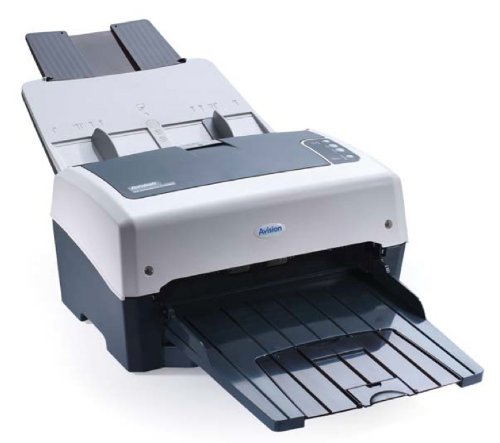
Figure 1: Avision AV 320D2+ A3 Document Scanner. This image displays the Avision AV 320D2+ A3 Document Scanner from a front-right perspective. The scanner is light grey and dark grey, featuring an automatic document feeder (ADF) at the top with paper guides visible, and an extended output tray at the front. The Avision logo is visible on the front panel.
2. Eto
2.1 Ṣiṣii silẹ
- Ni ifarabalẹ yọ ọlọjẹ ati gbogbo awọn ẹya ẹrọ kuro ninu apoti.
- Daju pe gbogbo awọn paati ti a ṣe akojọ si ninu atokọ iṣakojọpọ wa.
- Remove all protective tapes and packing materials from the scanner, including any inside the document feeder and output tray.
2.2 Nsopọ Scanner
- Place the scanner on a stable, flat surface near your computer.
- Connect the power adapter to the scanner's power input and then plug it into an electrical outlet.
- Connect one end of the supplied USB cable to the USB port on the scanner and the other end to an available USB port on your computer.
- Power on the scanner using the power button, typically located on the side or rear panel.
2.3 Software fifi sori
Before using the scanner, you must install the necessary drivers and scanning software. Refer to the included software CD or visit the official Avision website for the latest drivers and utilities.
- Insert the software installation CD into your computer's CD/DVD drive, or download the software package from the Avision support webojula.
- Follow the on-screen instructions to install the scanner drivers and bundled scanning applications. It is recommended to install all provided software for full functionality.
- Tun kọmputa rẹ bẹrẹ ti o ba ṣetan lẹhin fifi sori ẹrọ ti pari.
3. Ṣiṣẹ Scanner
3.1 Awọn iwe aṣẹ ikojọpọ
- Ifunni iwe aladaaṣe (ADF): Open the ADF input tray. Adjust the paper guides to fit the width of your documents. Place the documents face-down with the top edge first into the ADF. The standard sheet capacity is 50 sheets.
- Ensure documents are free of staples, paper clips, or any foreign objects that could damage the scanner.
- For mixed-size documents, ensure they are aligned properly to prevent skewing.
3.2 Basic Scanning Procedures
- Load your documents into the ADF as described above.
- Open your preferred scanning application (e.g., Avision Button Manager, TWAIN/ISIS compatible software).
- Select the Avision AV 320D2+ as your scanner.
- Choose your desired scanning settings (e.g., color mode, resolution, destination folder).
- Initiate the scan from the software interface. The scanner will automatically feed and scan the documents.
- Review Àwọn àwòrán tí a ti ṣàyẹ̀wò kí o sì fi wọ́n pamọ́ sí ibi tí o fẹ́.
3.3 Ṣiṣayẹwo Eto
The scanner supports various settings to optimize scan quality and file iwọn:
- Ipinnu: Adjustable up to 600 dpi. Higher resolution provides better image quality but results in larger file awọn iwọn.
- Ipo awọ: Options typically include Color, Grayscale, and Black & White (Binary).
- Ṣiṣayẹwo Meji: The AV 320D2+ supports duplex (two-sided) scanning, allowing you to capture both sides of a document in a single pass.
- Ọna igbejade: Common output formats include PDF, JPEG, TIFF, and searchable PDF.
4. Itọju
4.1 Ninu Scanner
Ninu deede ṣe idaniloju iṣẹ ṣiṣe to dara julọ ati fa igbesi aye ọlọjẹ rẹ pọ si.
- Òde: Mu ese ita gbangba pẹlu asọ, damp, lint-free asọ. Ma ṣe lo abrasive ose tabi epo.
- Awọn oju gilasi: Lo asọ asọ dampened with a non-abrasive glass cleaner to clean the scanner's glass surfaces (if applicable).
- Rollers: Periodically clean the feed rollers with a lint-free cloth lightly dampened with isopropyl alcohol to remove paper dust and residue.
- Pa agbara nigbagbogbo ki o yọọ ẹrọ ọlọjẹ ṣaaju ṣiṣe mimọ.
5. Laasigbotitusita
This section addresses common issues you might encounter with your Avision AV 320D2+ scanner.
| Isoro | Owun to le Fa | Ojutu |
|---|---|---|
| Scanner ko ṣe awari nipasẹ kọnputa | Loose USB cable, power off, driver issue | Check USB connection, ensure scanner is powered on, reinstall drivers. |
| Awọn jamba iwe | Misaligned documents, worn rollers, foreign objects | Remove jammed paper carefully, align documents properly, clean rollers. |
| Dídára ìṣàyẹ̀wò tí kò dára (àwọn ìlà tí ó wà ní ìsàlẹ̀, àwọn àwòrán tí kò hàn gbangba) | Dirty glass, incorrect settings, worn rollers | Clean scanner glass and rollers, adjust resolution/color settings. |
| Àwọn ìwé tí kò ní oúnjẹ | Incorrectly loaded, worn feed rollers | Ensure documents are loaded correctly, clean or replace feed rollers if worn. |
6. Awọn pato
Key technical specifications for the Avision AV 320D2+ scanner:
- Iru ọja: Scanner iwe
- Ilana iwe: A3
- Ipinnu: 600 dpi (Ojú ìwò)
- Asopọmọra: USB
- Àwọ̀: Dudu/funfun
- Ìwúwo: Isunmọ 26.46 poun (12 kg)
- Lilo Agbara: 38.4 Wattis
- Agbara Iwe Didara (ADF): 50 iwe
- Imọ-ẹrọ Sensọ Opitika: CMOS
- Orukọ awoṣe: AV320D2+
- Nọmba Awoṣe Nkan: FT-0807H
7. Atilẹyin ọja ati Support
7.1 Olupese ká atilẹyin ọja
The Avision AV 320D2+ scanner typically comes with a 2-odun olupese ká atilẹyin ọja. This warranty covers defects in materials and workmanship under normal use. Please retain your proof of purchase for warranty claims. For specific terms and conditions, refer to the warranty card included with your product or visit the official Avision webojula.
7.2 Imọ Support
For technical assistance, driver updates, or further troubleshooting not covered in this manual, please contact Avision customer support. Support contact information can usually be found on the Avision official webojula tabi ni awọn iwe ti a pese pẹlu rẹ scanner.
Note: Availability of spare parts and software updates may vary. Please check the manufacturer's official channels for the most current information.