
1. Ifihan
The EDUP EP-MS150N is a 150Mbps Wireless USB WiFi Adapter designed to provide high-speed wireless connectivity for your desktop or laptop computer. Featuring an external 5dBi antenna, it enhances signal reception and transmission, ensuring a stable and reliable connection to your wireless network. This adapter supports IEEE 802.11n, 802.11g, and 802.11b standards, operating on the 2.4 GHz frequency band.
2. Eto Itọsọna
2.1 Package Awọn akoonu
- EDUP EP-MS150N Wireless USB WiFi Adapter
- Driver CD (may vary by package)
- Awọn ọna fifi sori Itọsọna
2.2 Fifi sori ẹrọ Hardware
- Fi Adapter sii: Locate an available USB port on your computer. Carefully insert the EDUP EP-MS150N USB WiFi Adapter into the USB port. Ensure it is firmly seated.
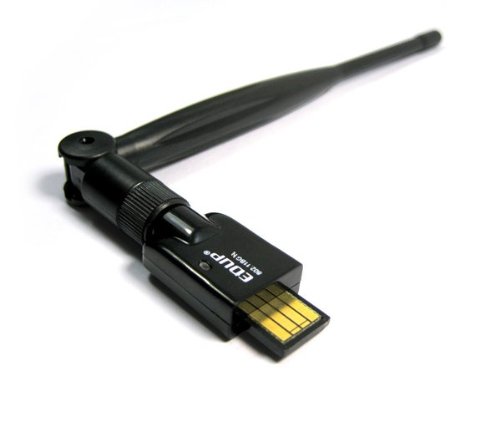
Image: The EDUP EP-MS150N Wireless USB WiFi Adapter, showing its compact design and USB connector, ready for insertion into a computer's USB port.
2.3 Driver fifi sori
For optimal performance and compatibility, it is recommended to install the latest drivers for your operating system.
- Lilo CD Awakọ: If your package includes a driver CD, insert it into your computer's CD-ROM drive. Follow the on-screen instructions to install the drivers.
- Gbigba Awọn Awakọ Lori Ayelujara: If you do not have a CD drive or wish to obtain the latest drivers, visit the official EDUP support website. Navigate to the support section, find your model (EP-MS150N), and download the appropriate drivers for your operating system (Windows, macOS, Linux). Run the downloaded installer and follow the prompts.
- Jẹrisi fifi sori ẹrọ: After installation, check your computer's Device Manager (Windows) or System Information (macOS/Linux) to ensure the adapter is recognized and functioning correctly.
2.4 Nsopọ si Nẹtiwọọki Alailowaya
- Wọlé sí Àwọn Ètò Nẹ́tíwọ́ọ̀kì: On your computer, open the wireless network settings. This is typically found in the system tray (Windows) or menu bar (macOS/Linux).
- Ṣayẹwo fun Awọn nẹtiwọki: Adapta naa yoo ṣe ayẹwo laifọwọyi fun awọn nẹtiwọọki alailowaya ti o wa.
- Yan Nẹtiwọọki: Choose your desired wireless network (SSID) from the list.
- Tẹ ọrọ igbaniwọle sii: If prompted, enter the network security key or password (WPA/WPA2-PSK).
- Sopọ: Click 'Connect' to establish a connection. Once connected, you should have internet access.
3. Awọn ilana Iṣiṣẹ
3.1 Checking Connection Status
To verify your wireless connection status:
- Windows: Click the network icon in the system tray. It will display the name of the connected network and its status.
- MacOS: Click the Wi-Fi icon in the menu bar. It will show the connected network.
- Lainos: Check the network manager applet in your desktop environment.
3.2 Disconnecting from a Network
To disconnect from a wireless network:
- Access your network settings as described above.
- Select the currently connected network.
- Choose the 'Disconnect' option.
4. Itọju
4.1 Driver Updates
Periodically check the EDUP official website for updated drivers. Keeping your drivers current can improve performance, stability, and compatibility with new operating system versions or network technologies.
4.2 Ìtọ́jú ara
- Jeki ohun ti nmu badọgba di mimọ ati ofe kuro ninu eruku. Lo asọ asọ ti o gbẹ fun mimọ.
- Yago fun ṣiṣafihan ohun ti nmu badọgba si awọn iwọn otutu to gaju, ọriniinitutu, tabi oorun taara.
- Má ṣe gbìyànjú láti tú tàbí tún ohun tí a fi ń ṣe àtúnṣe fúnra rẹ, nítorí pé èyí yóò sọ àtìlẹ́yìn náà di òfo.
5. Laasigbotitusita
5.1 Ko si Wiwọle Ayelujara
- Ṣàyẹ̀wò Rútà: Ensure your wireless router is powered on and functioning correctly.
- Jẹrisi Asopọmọra: Confirm that the adapter is properly connected to your computer's USB port and that you are connected to the correct wireless network.
- Tun awọn ẹrọ bẹrẹ: Try restarting your computer and your wireless router.
- Ṣayẹwo Awakọ: Ensure the drivers are correctly installed and up to date. Reinstall them if necessary.
5.2 Iyara Asopọmọra Lọra
- Agbara ifihan agbara: Move closer to your wireless router to improve signal strength. Obstacles like walls and large appliances can degrade signal quality.
- Ìjánu: Other electronic devices (e.g., cordless phones, microwaves) operating on the 2.4 GHz band can cause interference. Try changing your router's wireless channel.
- Awọn Eto olulana: Ensure your router is configured for optimal performance (e.g., using WPA2 encryption, appropriate channel width).
- Imudojuiwọn Awakọ: Rii daju pe o ti fi awọn awakọ tuntun sori ẹrọ.
5.3 Adapter Not Detected
- Ibudo USB: Try plugging the adapter into a different USB port on your computer.
- Tun Kọmputa bẹrẹ: Atunbere tuntun ti o rọrun le yanju awọn iṣoro wiwa nigbagbogbo.
- Fifi sori Awakọ: Reinstall the drivers for the adapter.
- Olùṣàkóso Ẹ̀rọ (Windows): Check Device Manager to see if the adapter appears under 'Network adapters' or 'Other devices'. If it has a yellow exclamation mark, reinstall drivers.
6. Awọn pato
| Nọmba awoṣe | EP-MS150N |
| Brand | EDUP |
| Alailowaya Standards | IEEE 802.11n, IEEE 802.11g, IEEE 802.11b |
| Iwọn Igbohunsafẹfẹ | 2.4 - 2.4835 GHz |
| Iyara Alailowaya | Titi di 150Mbps |
| Eriali Iru | Ita 5dBi Eriali |
| Ni wiwo | USB |
| Effective Working Distance | Up to 200 meters indoors, 830 meters outdoors (environment dependent) |
| UPC | 847231017403 |
7. Atilẹyin ọja & Atilẹyin
7.1 Atilẹyin ọja
EDUP products typically come with a limited warranty. Please refer to the warranty card included with your product or visit the official EDUP website for detailed warranty terms and conditions specific to the EP-MS150N model. Keep your purchase receipt as proof of purchase for warranty claims.
7.2 Imọ Support
For technical assistance, driver downloads, or further inquiries, please visit the official EDUP support website. You may find FAQs, troubleshooting guides, and contact information for customer service there. When contacting support, please have your product model number (EP-MS150N) and a description of your issue ready.