BlackBerry BB 9900 Bold Touch Smartphone User Manual
Model: BB 9900
1. Ifihan
This manual provides essential instructions for setting up, operating, and maintaining your BlackBerry BB 9900 Bold Touch smartphone. Please read this guide thoroughly to ensure proper use and to maximize the device's capabilities. The BlackBerry BB 9900 Bold Touch combines a capacitive touchscreen with a full QWERTY keyboard, running on BlackBerry OS 7.
2. Package Awọn akoonu
Jẹrisi pe package rẹ ni awọn nkan wọnyi ninu:
BlackBerry BB 9900 Bold Touch Smartphone
Batiri gbigba agbara
Ṣaja Odi
Okun USB
Afowoyi Olumulo (iwe-ipamọ yii)
3. Ẹrọ Loriview
Familiarize yourself with the physical features of your BlackBerry BB 9900 Bold Touch.
3.1 Iwaju View
Aworan: Iwaju view of the BlackBerry BB 9900 Bold Touch, highlighting the 2.8-inch touchscreen and the physical QWERTY keyboard below it. The device also features a trackpad and call/end buttons.
Ifihan iboju ifọwọkan: 2.8-inch capacitive display for interactive navigation.
Keyboard QWERTY: Full physical keyboard for efficient typing.
Optical Trackpad: For precise navigation and selection.
Awọn bọtini ipe/ipari: Standard telephony controls.
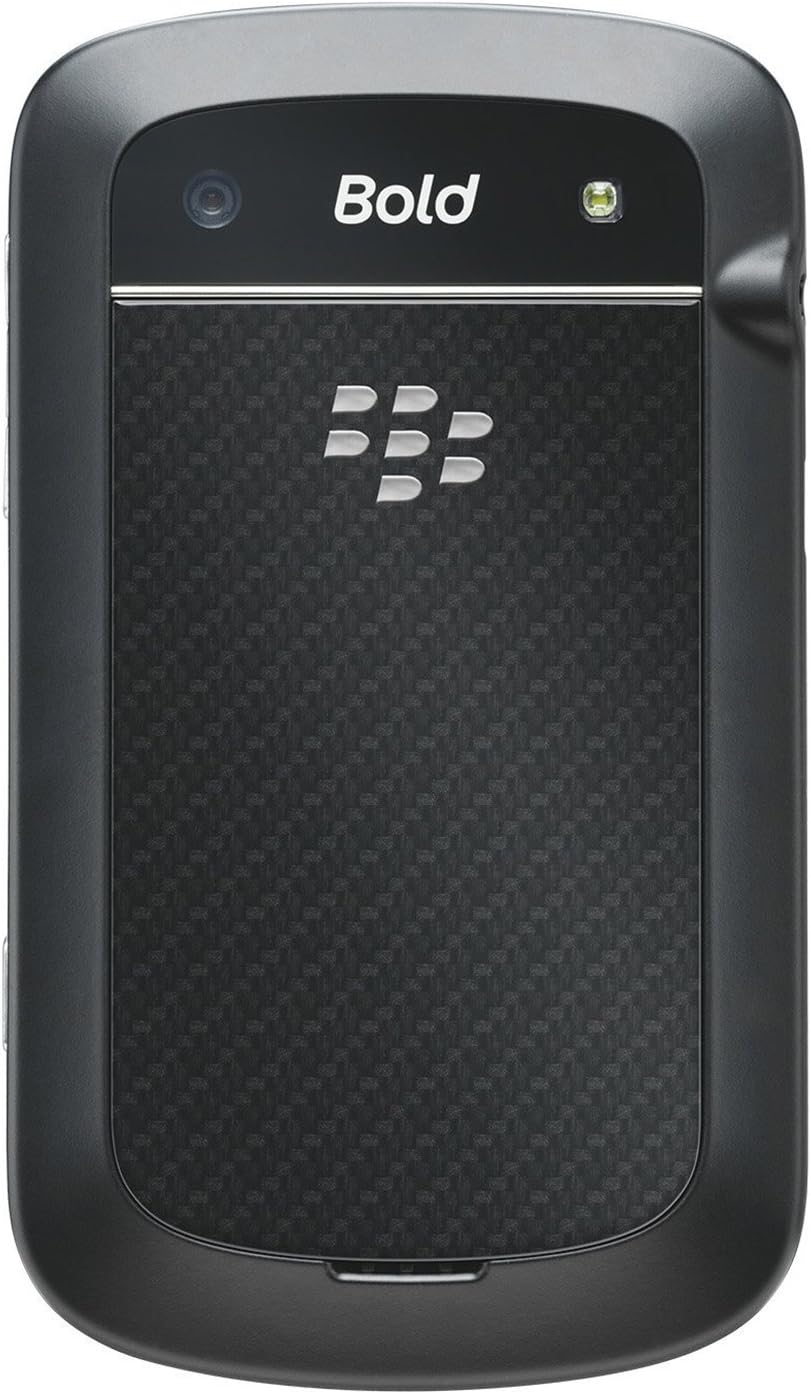
3.2 Ẹyìn View
Aworan: Ẹyin view of the BlackBerry BB 9900 Bold Touch, featuring the 5-megapixel camera lens, LED flash, and the BlackBerry logo.
Kamẹra 5MP: Primary camera with autofocus and LED flash.
Ideri Batiri: Removable cover for battery and SIM card access.
3.3 Ẹgbẹ View
Aworan: Apa view of the BlackBerry BB 9900 Bold Touch, illustrating the placement of the volume control buttons and a customizable convenience key.
Awọn bọtini iwọn didun: Ṣatunṣe awọn ipele ohun.
Convenience Key: Customizable shortcut button.
4. Eto
4.1 Fi kaadi SIM sii
Remove the battery cover from the back of the device.
Wa iho kaadi SIM naa.
Fi kaadi SIM sii pẹlu awọn olubasọrọ goolu ti nkọju si isalẹ ati igun ge ni ibamu pẹlu Iho.
Ensure the SIM card is securely in place.
4.2 Fi sii Batiri naa
After inserting the SIM card, align the battery's gold contacts with the contacts in the battery compartment.
Rọra tẹ batiri naa sinu aaye titi ti o fi tẹ.
Rọpo ideri batiri naa.
4.3 Ngba agbara si Ẹrọ
Connect the USB cable to the charging port on your device.
Plug the other end of the USB cable into the wall charger, then into a power outlet.
Gba ẹrọ laaye lati gba agbara ni kikun ṣaaju lilo akọkọ. Atọka batiri loju iboju yoo fi ipo gbigba agbara han.
4.4 Titan / Pa a
Lati Fi agbara: Press and hold the Power/Lock button (usually located on the top edge) until the BlackBerry logo appears.
Lati Paarẹ: Press and hold the Power/Lock button until the 'Power Off' option appears on the screen. Tap 'Power Off' to confirm.
5. Awọn ilana Iṣiṣẹ
5.1 Lilọ kiri Iboju Ifọwọkan
Fọwọ ba: Touch the screen briefly to open applications, select items, or activate buttons.
Ra: Drag your finger across the screen to scroll through lists or switch between home screen panels.
Fun pọ-si- Sun-un: Use two fingers to zoom in or out on photos, web ojú ìwé, tàbí àwọn máàpù.
5.2 Lilo Bọtini QWERTY
The physical QWERTY keyboard allows for fast and accurate text entry. Each key corresponds to a letter, number, or symbol. Use the 'Alt' key for alternate characters and the 'Shift' key for capitalization.
5.3 Ṣiṣe awọn ipe
From the home screen, tap the Phone icon or press the green Call button.
Enter the phone number using the keyboard.
Press the green Call button to initiate the call.
To end a call, press the red End Call button.
5.4 Fifiranṣẹ Awọn ifiranṣẹ
Tap the Messages icon from the home screen.
Select 'Compose New' or similar option.
Tẹ nọmba olugba sii tabi yan lati awọn olubasọrọ.
Type your message using the QWERTY keyboard.
Tap 'Send'.
5.5 Lilo Kamẹra
Fọwọ ba aami kamẹra lati ṣii ohun elo kamẹra.
Ṣe fireemu ibọn rẹ nipa lilo iboju bi a viewoluwari.
Tap the screen or press the convenience key (if configured) to take a photo.
The 5MP camera features autofocus and an LED flash for improved image quality.
5.6 Nsopọ si Wi-Fi
Go to 'Options' > 'Networks and Connections' > 'Wi-Fi'.
Turn Wi-Fi on. The device will scan for available networks.
Yan nẹtiwọki ti o fẹ ki o tẹ ọrọ igbaniwọle sii ti o ba ṣetan.
Once connected, the Wi-Fi indicator will appear in the status bar.
5.7 Using NFC (Near Field Communication)
The BlackBerry BB 9900 Bold Touch supports NFC for short-range wireless communication. This allows for quick pairing with compatible accessories or sharing data with other NFC-enabled devices by tapping them together.
Rii daju pe NFC ti ṣiṣẹ ni awọn eto ẹrọ rẹ.
Hold your device close to another NFC-enabled device or tag.
Follow on-screen prompts to complete the desired action (e.g., pairing, data transfer).
6. Itọju
6.1 Ninu ẹrọ rẹ
Lo aṣọ rirọ, ti ko ni awọ lati nu iboju ati ara ẹrọ naa.
Yẹra fun lilo awọn kẹmika ti o lewu, awọn olutọpa abrasive, tabi awọn ohun elo aerosol.
Ma ṣe fi ẹrọ naa han si ọrinrin pupọ.
6.2 batiri Itọju
Yẹra fún àwọn iwọn otutu tó le koko, èyí tó lè ba iṣẹ́ bátírì jẹ́.
Lo atilẹba nikan tabi ṣaja ti a fọwọsi.
Maṣe lu tabi ba batiri jẹ.
6.3 Software imudojuiwọn
Periodically check for software updates to ensure your device has the latest features and security enhancements. Updates can typically be found in the device's 'Options' or 'Settings' menu under 'Software Updates'.
7. Laasigbotitusita
7.1 Ẹrọ Ko Nṣiṣẹ Tan-an
Rii daju pe batiri ti fi sii daradara ati gbigba agbara.
Connect the device to the charger and wait a few minutes before attempting to power on again.
If the issue persists, try removing and reinserting the battery.
7.2 Network Asopọmọra Oran
Check if your SIM card is correctly inserted and activated with your carrier.
Verify that cellular data or Wi-Fi is enabled in your device settings.
Tun ẹrọ naa bẹrẹ.
If using Wi-Fi, ensure your router is working and you have entered the correct password.
7.3 Iboju Ifọwọkan Ko dahun
Tun ẹrọ naa bẹrẹ.
Rii daju pe iboju jẹ mimọ ati laisi idoti tabi ọrinrin.
If the issue is intermittent, check for any recent software installations that might be causing conflicts.
8. Awọn pato
Ẹya ara ẹrọ
Ẹ̀kúnrẹ́rẹ́
Orukọ awoṣe
BB 9900
Eto isesise
BlackBerry OS 7
Ifihan
2.8-inch Capacitive Touchscreen, 640 x 480 Resolution
isise
Not specified (typically 1.2 GHz for this model)
Àgbo
768 MB
Ibi ipamọ inu
8 GB
Kamẹra ẹhin
5 MP, Autofocus, LED Flash
Asopọmọra
Wi-Fi 802.11 b/g/n, NFC, Bluetooth, GPS
Nẹtiwọọki Support
Quad-band GSM/GPRS/EDGE, Tri-band HSPA+
Awọn iwọn
4.53 x 2.6 x 0.41 inches (115 x 66 x 10.5 mm)
Iwọn
4.6 iwon (130 giramu)
Jack ohun
3.5 mm
9. Atilẹyin ati Atilẹyin ọja
9.1 Onibara Support
For technical assistance, troubleshooting beyond this manual, or service inquiries, please visit the official BlackBerry support website or contact your local service provider. Refer to the packaging or official webojula fun pato olubasọrọ awọn alaye.
9.2 atilẹyin ọja Alaye
Your BlackBerry BB 9900 Bold Touch is covered by a limited warranty. Please refer to the warranty card included in your product packaging or visit the official BlackBerry webAaye fun awọn ofin ati ipo alaye, pẹlu akoko atilẹyin ọja ati awọn alaye aabo. Pa ẹri rira rẹ mọ fun awọn ibeere atilẹyin ọja.
Ask a question about this manual
Ask about setup, troubleshooting, compatibility, parts, safety, or missing instructions. Manuals+ will review the question and use this page’s manual context to help answer it.