
1. Ifihan
This manual provides instructions for the setup, operation, and maintenance of your ViewSonic VX2770SMH-LED 27-inch IPS 1080p Frameless LED Monitor. This monitor features a sleek design, Full HD 1920x1080 resolution, and an IPS panel for wide viewing angles and accurate color reproduction. It includes HDMI, DVI, and VGA inputs, along with integrated speakers.
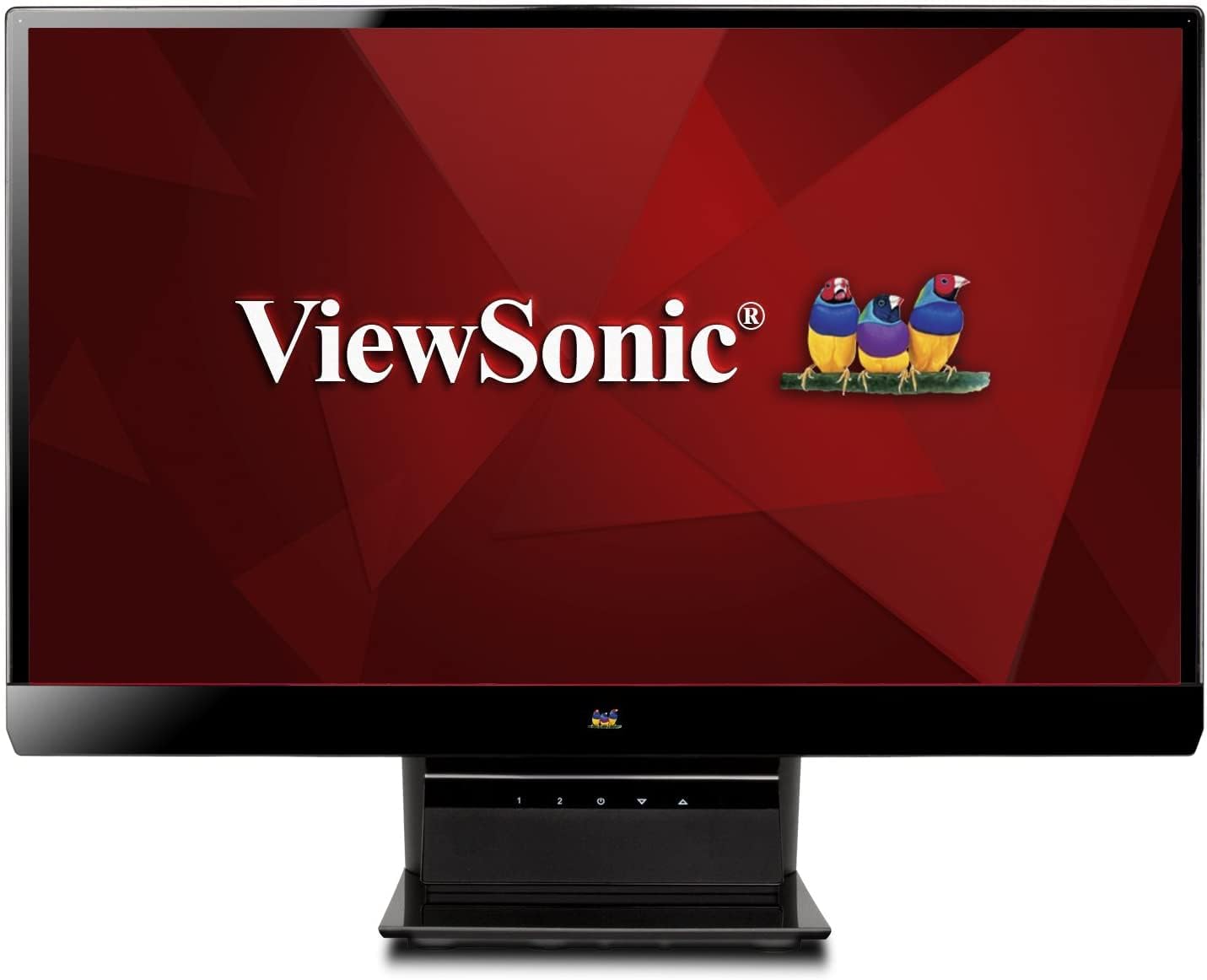
Nọmba 1: ViewSonic VX2770SMH-LED 27-inch monitor displaying a tropical beach scene.
2. Package Awọn akoonu
Daju pe gbogbo awọn ohun kan wa ninu akopọ ọja rẹ:
- VX2770Smh-LED display
- Okun agbara
- AC / DC ohun ti nmu badọgba
- okun VGA
- HDMI okun
- Quick Bẹrẹ Itọsọna
- ViewSonic oso CD
3. Eto
Tẹle awọn igbesẹ wọnyi lati ṣeto atẹle rẹ:
- Ṣe apejọ Iduro naa: Carefully attach the monitor panel to the stand base according to the Quick Start Guide. Ensure it is securely fastened.
- So agbara: Connect the AC/DC adapter to the monitor's power input, then plug the power cable into the adapter and a power outlet.
- So Cable Fidio: Connect one end of the appropriate video cable (HDMI, DVI, or VGA) to the corresponding port on the back of the monitor and the other end to your computer's video output port.
- Agbara Tan: Tẹ bọtini agbara lori atẹle lati tan-an.

olusin 2: Ẹyìn view of the monitor, illustrating the stand attachment area and overall design.
4. Ṣiṣẹ Atẹle
The monitor features capacitive control buttons located on the stand for easy access to settings and power functions.

olusin 3: Iwaju view of the monitor, showing the control buttons on the stand.
Titan / Paa
Press the power button (usually indicated by a power symbol) to turn the monitor on or off.
Lori-iboju Ifihan (OSD) Akojọ aṣyn
Use the control buttons to navigate the OSD menu. This menu allows you to adjust various display settings such as brightness, contrast, color temperature, input source, and more. Refer to the digital manual on the ViewSonic Wizard CD for detailed OSD navigation.
5. Asopọmọra
Awọn ViewSonic VX2770SMH-LED monitor offers multiple input options for versatile connectivity:
- HDMI: Fun fidio oni-nọmba giga-giga ati ohun.
- DVI-D: For digital video input.
- VGA: Fun afọwọṣe fidio igbewọle.
The monitor also features integrated speakers with SRS Premium Sound for audio output.

olusin 4: Isunmọ view of the HDMI, DVI, and VGA input ports on the monitor's rear panel.
Video 1: Official product video demonstrating the features and design of the ViewSonic VX2770SMH-LED monitor, including its frameless design, IPS panel technology, connectivity options, and energy efficiency.
6. Ifihan Awọn ẹya ara ẹrọ
- Imọ-ẹrọ Igbimọ IPS: Provides consistent and accurate colors with wide 178/178-degree viewing angles, ensuring clear images from nearly any perspective.
- Ipinnu HD 1080p ni kikun: Delivers sharp and detailed images (1920x1080) for an enhanced viewiriri iriri.
- Apẹrẹ Ailopin: The ultra-thin bezel creates a seamless visual experience, ideal for multi-monitor setups.
- MEGA Dynamic Contrast Ratio: A 30,000,000:1 dynamic contrast ratio enhances image depth and detail.
- Imọlẹ ẹhin LED: Energy-efficient LED backlighting contributes to lower power consumption.
- Ipo-agbegbe: Further reduces power consumption and extends the monitor's lifespan.
- sRGB Color Correction: Ensures accurate color reproduction for various applications.
7. Itọju
Lati rii daju igbesi aye gigun ati iṣẹ to dara julọ ti atẹle rẹ, tẹle awọn itọnisọna itọju wọnyi:
- Ninu iboju: Rọra nu iboju naa pẹlu asọ ti ko ni lint. Fun awọn ami alagidi, fẹẹrẹ dampen the cloth with water or a mild, non-abrasive screen cleaner. Avoid spraying liquid directly onto the screen.
- Ninu ile Casing: Lo asọ ti o rọ, ti o gbẹ lati nu atẹle's casing.
- Afẹfẹ: Rii daju pe awọn ṣiṣi atẹgun ti atẹle naa ko ni idinamọ lati ṣe idiwọ igbona.
- Agbara Paa Nigbati Ko Si Lo: Turn off the monitor when not in use to save energy and prolong its life.
8. Laasigbotitusita
Ti o ba pade awọn ọran pẹlu atẹle rẹ, tọka si awọn igbesẹ laasigbotitusita ti o wọpọ wọnyi:
- Ko si Agbara: Check if the power cable and AC/DC adapter are securely connected to the monitor and a working power outlet.
- Ko si ifihan agbara: Verify that the video cable is correctly connected to both the monitor and your computer. Ensure the correct input source is selected via the OSD menu.
- Image Issues (Blurry, Distorted, Incorrect Colors): Adjust the display settings through the OSD menu. Ensure your computer's display resolution is set to the monitor's native resolution (1920x1080).
- Ko si Ohun: Check the audio cable connection (if using VGA) or ensure HDMI audio is selected. Adjust the volume settings on both the monitor and your computer.
For more detailed troubleshooting, consult the digital manual on the ViewSonic oso CD.
9. Awọn pato
| Ẹya ara ẹrọ | Sipesifikesonu |
|---|---|
| Iwọn ifihan iboju duro | 27 inches |
| Ipinnu iboju | 1920x1080 |
| Ipinnu Iboju ti o pọju | 1920 x 1080 |
| jara | Viewsonic VX2770SMH-LED |
| Nọmba awoṣe ohun kan | VX2770SMH-LED |
| Iwọn Nkan | 11 iwon |
| Ọja Mefa | 7.6 x 24.5 x 18.1 inches |
| Àwọ̀ | Dudu |
| Iwon iboju | 27 inches |
| Ipinnu | FHD 1080p |
| Apakan Ipin | 1.78:1 |
| Iboju Dada Apejuwe | Didan |

Figure 5: Monitor dimensions for planning your workspace.
10. Atilẹyin ọja ati Support
Eyi ViewSonic monitor is covered by a 3-odun Atilẹyin ọja Limited. For warranty claims or technical support, please refer to the contact information provided in your Quick Start Guide or visit the official ViewSonic support webojula.