
Plugable UD-3900
Plugable UD-3900 Universal Laptop Docking Station
Afowoyi Itọsọna olumulo
Ọrọ Iṣaaju
This manual provides detailed instructions for setting up, operating, and troubleshooting your Plugable UD-3900 Universal Laptop Docking Station. This docking station is designed to expand the connectivity of your laptop, offering dual HDMI display outputs, multiple USB ports, Gigabit Ethernet, and audio jacks through a single connection to your host computer.
Ọja Pariview
The Plugable UD-3900 is a versatile docking solution for both Windows and Mac laptops. It features a hybrid 2-in-1 USB 3.0 and USB-C cable for broad compatibility.

olusin 1: Iwaju ati ru View of the Plugable UD-3900 Docking Station
Kini o wa ninu apoti:
- Plugable UD-3900 USB Docking Station
- Power Adapter (UL 62368-1 Certified)
- Hybrid 2-in-1 USB 3.0 and USB-C Cable

Nọmba 2: Awọn akoonu Package
Awọn ẹya ara ẹrọ ati Ports
The UD-3900 docking station provides a comprehensive set of ports to expand your laptop's capabilities:

Figure 3: Port Layout and Features
- Dual HDMI Video Outputs: Supports resolutions up to 1920x1200 @ 60Hz for two displays. A single HDMI display can reach 2560x1440 @ 50Hz. Note: 4K resolution is not supported.
- Gigabit-Eternet: Pese asopọ nẹtiwọọki ti firanṣẹ ni iduroṣinṣin ati iyara.
- Awọn Jacks Audio: Separate 3.5mm jacks for headphone output and microphone input.
- Awọn ibudo USB 3.0: Two (2) USB 3.0 ports for high-speed data transfer.
- Awọn ibudo USB 2.0: Four (4) USB 2.0 ports for connecting various peripherals like keyboards, mice, and printers.
- Hybrid USB 3.0 / USB-C Cable: A single cable connects the dock to your host laptop, supporting both USB-A and USB-C ports.
Ibamu
The Plugable UD-3900 docking station is designed for universal compatibility with a wide range of operating systems and devices:

Figure 4: Operating System and Device Compatibility
- Windows: Compatible with Windows 11, 10, 8.x, and 7. Driver installation is typically plug-and-play via Windows Update.
- MacOS: Compatible with macOS 10.14 or later. A manual DisplayLink driver installation is required. Instructions are provided with the product.
- ChromeOS: Compatible with ChromeOS 100 or later, requiring no additional setup.
- Àwọn ètò tí kò báramu: Not compatible with Linux/Unix systems. Does not support some non-DisplayLink adapters, DisplayPort connections, or HDCP protected content.
Eto Itọsọna
Follow these steps to set up your Plugable UD-3900 docking station:
- So agbara: Connect the included power adapter to the DC 5V/4A input port on the back of the docking station, then plug the adapter into a wall outlet.
- Sopọ mọ Kọǹpútà alágbèéká Alejo: Use the provided hybrid 2-in-1 USB 3.0 and USB-C cable to connect the docking station to an available USB 3.0 (USB-A) or USB-C port on your laptop.
- Fi Awọn awakọ sii (ti o ba jẹ dandan):
- For Windows: Drivers typically install automatically via Windows Update upon first connection.
- For macOS: A manual DisplayLink driver installation is required. Please refer to the included instructions or the Plugable support website for the latest driver and installation guide.
- For ChromeOS: No additional driver installation is needed.
- Awọn diigi Sopọ: Connect your HDMI monitors to the two HDMI output ports on the back of the docking station using HDMI cables.
- Awọn Agbeegbe Sopọ: Plug your USB devices (keyboard, mouse, external drives), Ethernet cable, and audio devices into the corresponding ports on the docking station.
Awọn ilana Iṣiṣẹ
Iṣeto ni Ifihan:
Once connected, your operating system should detect the external monitors. You can configure your display settings (extend, duplicate, or primary display) through your computer's display settings. For optimal performance, ensure your display drivers are up to date.
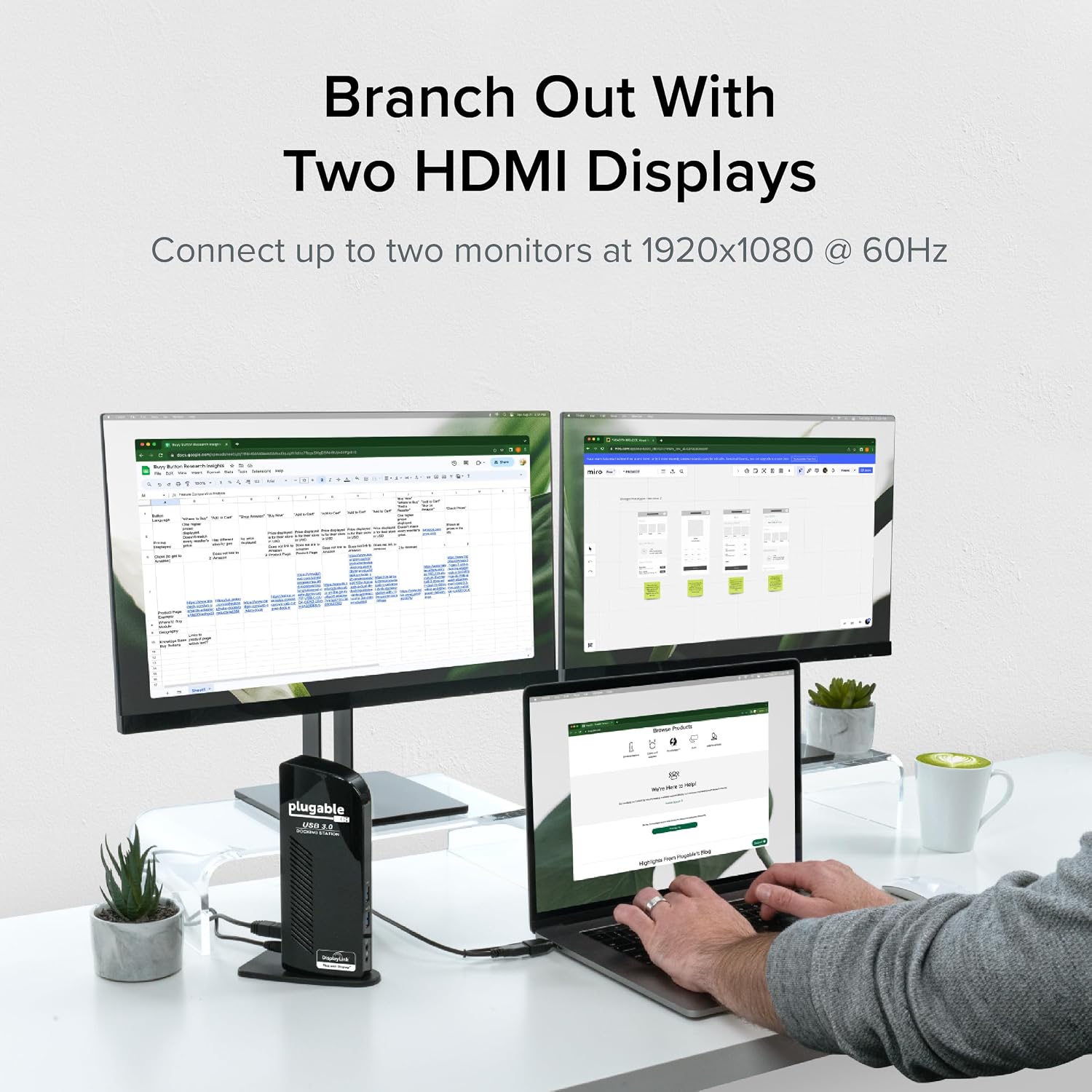
Figure 5: Dual Monitor Setup Example
Gbigba agbara Kọǹpútà alágbèéká:
Important Note: This USB docking station does not charge the host laptop.
An external power supply is needed to charge your host system. The docking station provides power to its own internal components and connected USB peripherals, but not to the laptop itself.

Figure 6: Dock Does Not Charge Laptop
Awọn iṣeduro Lilo:
The UD-3900 is ideal for web browsing, productivity software, and general office tasks. It is not recommended for gaming or applications requiring high-performance graphics due to the nature of DisplayLink technology.
Itoju
Lati rii daju igbesi aye gigun ati iṣẹ to dara julọ ti ibudo docking rẹ:
- Jẹ́ kí ẹ̀rọ náà wà ní àyíká tí ó mọ́ tónítóní tí ó sì gbẹ.
- Yago fun ṣiṣafihan ẹrọ naa si awọn iwọn otutu to gaju tabi oorun taara.
- Do not block the ventilation slots on the sides of the docking station.
- Mọ ode pẹlu asọ ti o gbẹ. Maṣe lo awọn olutọpa olomi tabi awọn aerosols.
- Disconnect the power adapter when the device is not in use for extended periods.
Laasigbotitusita
If you encounter issues with your Plugable UD-3900 docking station, please refer to the following common solutions or consult the official troubleshooting guide:
- Ko si Abajade Ifihan: Ensure all cables (power, host, HDMI) are securely connected. Verify that the correct DisplayLink drivers are installed and up to date for your operating system. Try restarting your computer.
- Awọn ẹrọ USB Ko Ṣiṣẹ: Confirm the docking station is powered on and connected to your host. Try connecting the USB device to a different port on the dock or directly to your computer to isolate the issue.
- Awọn ọran Asopọmọra Nẹtiwọọki: Check the Ethernet cable connection to both the dock and your router/modem. Verify network settings on your computer.
- Awọn iṣoro Olohun: Ensure speakers/headphones are properly connected to the audio output jack. Check your computer's sound settings to confirm the docking station's audio output is selected as the default device.
- Awọn ọran Awakọ: If displays are not functioning correctly, reinstall the DisplayLink drivers. For macOS, manual installation is always required.
For more detailed troubleshooting steps, you can refer to the official Itọsọna Laasigbotitusita (PDF).
Alaye Abo:
Standard USB ports on the docking station are not primarily designed for charging USB devices. While some devices may charge in certain scenarios, USB device charging behavior can vary. For detailed information on device-specific charging behaviors, please consult the product listing page on the Plugable webojula.
Awọn pato
| Ẹya ara ẹrọ | Sipesifikesonu |
|---|---|
| Nọmba awoṣe | UD-3900 |
| Connectivity to Host | Hybrid USB 3.0 (USB-A) and USB-C |
| Awọn abajade fidio | 2x HDMI |
| Ìpinnu Tó Pọ̀ Jùlọ (Ìfihàn Méjì) | 1920x1200 @ 60Hz |
| Max Resolution (Single Display) | 2560x1440 @ 50Hz |
| Awọn ibudo USB | 2x USB 3.0, 4x USB 2.0 (Total 6 USB Ports) |
| Àjọlò | Gigabit àjọlò |
| Ohun | 3.5mm Headphone Output, 3.5mm Microphone Input |
| Orisun agbara | DC Power Adapter (20 watts) |
| Awọn iwọn (LxWxH) | 6.45 x 3.22 x 4.02 inches |
| Iwọn Nkan | 13 iwon |
| Hardware Platform | PC |
Atilẹyin ọja ati Support
Every Plugable product, including the UD-3900 docking station, is covered against defects for ọdun meji 2 from the date of purchase. Plugable also provides s'aiye imọ support fún àwọn ọjà rẹ̀.
If you have any questions or require assistance, please do not hesitate to contact the Plugable North American-based support team. You can find contact information and additional resources on the official Plugable webojula tabi nipa lilo si awọn Plugable Store on Amazon.
Ask a question about this manual
Ask about setup, troubleshooting, compatibility, parts, safety, or missing instructions. Manuals+ will review the question and use this page’s manual context to help answer it.