
1. Ọja Ipariview
The TP-Link TL-WA750RE is a 150Mbps Universal Wireless Range Extender designed to expand the coverage of an existing wireless network. It eliminates Wi-Fi dead zones by boosting the wireless signal to previously unreachable or hard-to-wire areas. Its compact, wall-mounted design allows for flexible deployment and easy relocation within your home or office.
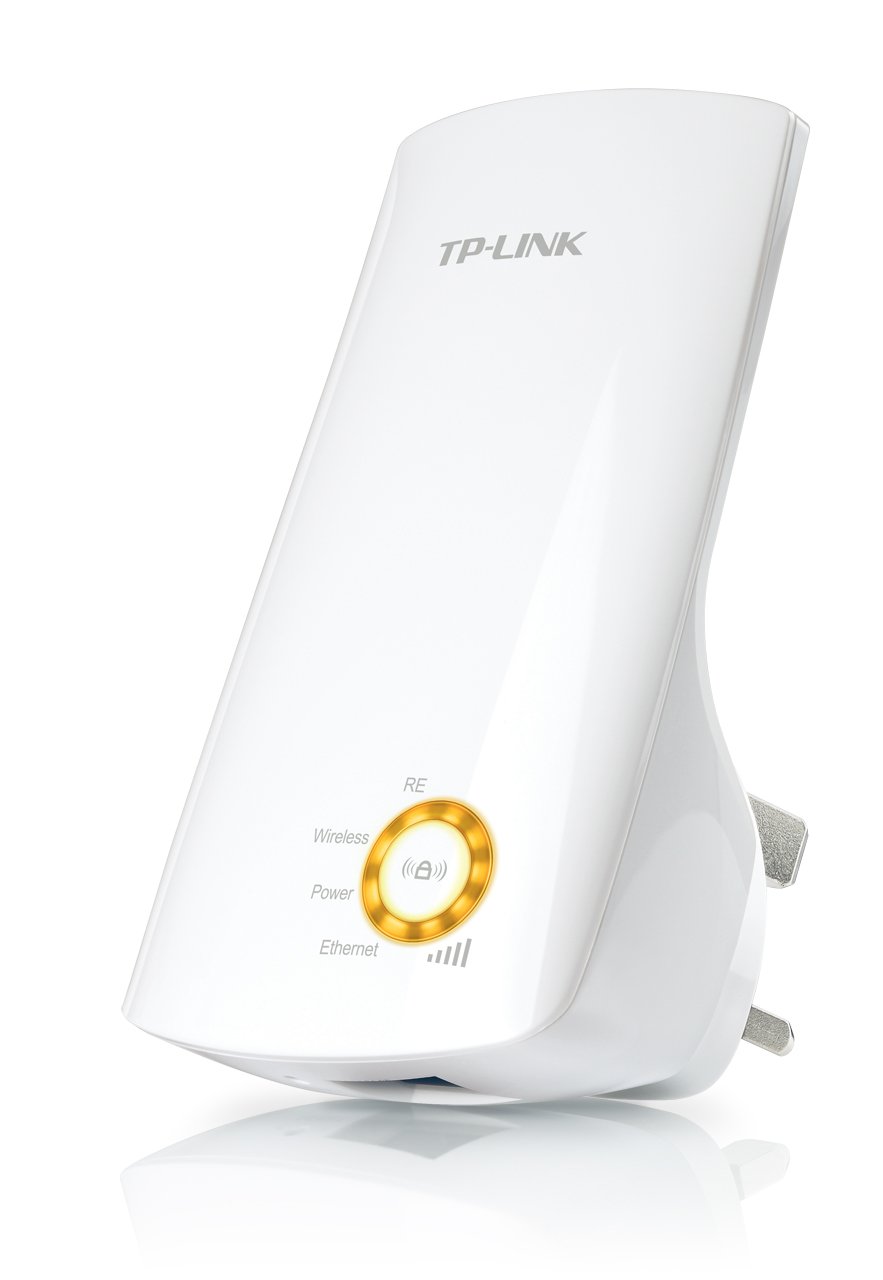
Nọmba 1: TP-Link TL-WA750RE Universal Wireless Range Extender. This image shows the device in its retail packaging, highlighting its compact design and wall-plug form factor.
2. Key Awọn ẹya ara ẹrọ
- Ipo Extender Range: Boosts wireless signal to eliminate Wi-Fi dead zones and extend network coverage.
- Apẹrẹ Iwapọ: Small size and wall-mounted design for easy deployment and flexible movement.
- Bọtini WPS: Allows for instant setup and secure connection with compatible routers.
- Atọka Ifiranṣẹ Smart: Helps users find the optimal location for placing the range extender for best performance.
- Ibamu Agbaye: Works seamlessly with all 802.11n/g/b wireless devices.
3. Package Awọn akoonu
Ni gbogbogbo, apoti ọja naa pẹlu awọn nkan wọnyi:
- TP-Link TL-WA750RE 150Mbps Universal Wireless Range Extender
- Ilana itọnisọna
4. Eto Itọsọna
4.1. Ṣíṣeto kíákíá nípa lílo Bọ́tìnì WPS
- Wọle: Plug the TL-WA750RE into an electrical outlet near your wireless router.
- Mu WPS ṣiṣẹ lori olulana: Press the WPS button on your main wireless router. Refer to your router's manual for the exact location and procedure.
- Mu WPS ṣiṣẹ lori Extender: Within two minutes, press the WPS button on the TL-WA750RE. The Signal LED on the extender should begin to flash.
- Duro fun Asopọmọra: The Signal LED will turn solid blue or green when a successful connection is established.
- Gbe Extender pada: Unplug the extender and move it to a location between your router and the Wi-Fi dead zone. Ensure the Signal LED indicates a strong connection (e.g., solid blue or green) in the new location.
4.2. Manual Setup via Web Aṣàwákiri
- Wọle: Plug the TL-WA750RE into an electrical outlet near your computer.
- Sopọ si Extender: Connect your computer to the extender's Wi-Fi network (e.g., "TP-LINK_Extender_XXXXXX"). No password is required initially.
- Wiwọle Web Ni wiwo: Ṣii a web kiri ati iru http://tplinkrepeater.net or the extender's default IP address (usually 192.168.0.254) into the address bar.
- Wo ile: Enter "admin" for both the username and password when prompted.
- Tẹle Awọn itọnisọna loju-iboju: Use the Quick Setup wizard to select your main Wi-Fi network and enter its password.
- Gbe Extender pada: Once configured, unplug the extender and move it to an optimal location between your router and the desired coverage area.
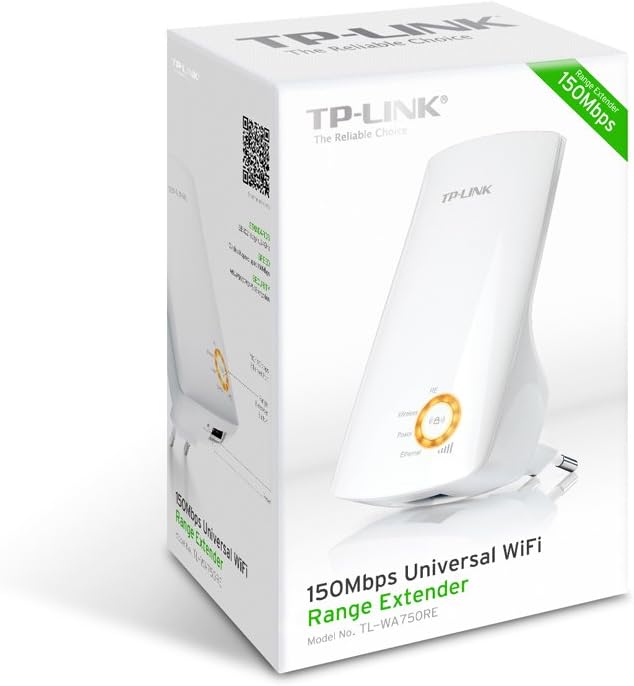
Nọmba 2: Apa view of the TL-WA750RE. This image illustrates the physical layout of the device, including the WPS button and Ethernet port, which are crucial for setup and operation.
5. Ṣiṣẹ́ Ifaagun Range
Once the TL-WA750RE is successfully set up, it will automatically extend your existing Wi-Fi network. Devices within the extended range can connect to the network name created by the extender (e.g., "YourNetworkName_EXT").
5.1. Smart Signal Indicator
The Smart Signal Indicator LEDs on the front of the device provide real-time feedback on the signal strength received from your main router. This helps you determine the best placement for the extender:
- Buluu/Awọ ewe ti o lagbara: O tayọ ifihan agbara.
- Pupa ti o lagbara: Weak signal strength. Consider relocating the extender closer to your router.
- Paa: No connection to the main router.
5.2. Ethernet Port Usage
The TL-WA750RE includes an Ethernet port. This port can be used to connect a wired device, such as a desktop computer, gaming console, or smart TV, to your wireless network, providing a stable wired connection in the extended Wi-Fi area.
6. Itọju
- Ninu: Lo aṣọ rírọrùn tí ó gbẹ láti nu ẹ̀rọ náà. Má ṣe lo ohun èlò ìfọmọ́ omi tàbí aerosol.
- Ibi: Avoid placing the extender in direct sunlight, near heat sources, or in areas with high humidity.
- Awọn imudojuiwọn famuwia: Lojoojumọ ṣayẹwo osise TP-Link webaaye fun awọn imudojuiwọn famuwia lati rii daju iṣẹ ṣiṣe ati aabo to dara julọ.
- Yiyipo Agbara: If the device experiences issues, try unplugging it from the power outlet for 10 seconds and then plugging it back in.
7. Laasigbotitusita
- Q1: What should I do if I cannot access the extender's web oju-iwe iṣakoso?
- A1: Ensure your computer is connected to the extender's network. Verify that http://tplinkrepeater.net is correctly typed in the browser. If issues persist, try using the extender's IP address (e.g., 192.168.0.254) or reset the extender to factory defaults.
- Q2: My extended network has poor signal or frequent disconnections.
- A2: Check the Smart Signal Indicator on the extender. If it's red or off, the extender is too far from your main router. Relocate the extender to a position where the indicator shows a strong signal (solid blue/green). Ensure there are no major obstructions between the router and the extender.
- Q3: How do I reset the extender to factory default settings?
- A3: With the extender powered on, use a pin to press and hold the Reset button (usually a small hole) for approximately 5-10 seconds until all LEDs flash briefly. The extender will then restart with factory default settings.
8. Awọn pato
| Brand | TP-Link |
| Nọmba awoṣe | TL-WA750RE |
| Boṣewa alailowaya | 802.11b/g/n |
| Data Gbigbe Oṣuwọn | 150 Mbps |
| Igbohunsafẹfẹ | 2.4 GHz |
| Pataki Awọn ẹya ara ẹrọ | Smart Signal Indicator, WPS Button |
| Asopọmọra Iru | RJ45 (Eternet Port) |
| Iwọn Nkan | 0.4 iwon |
| Àwọ̀ | Funfun |
9. Atilẹyin ọja ati Support
9.1. atilẹyin ọja Information
This TP-Link TL-WA750RE device comes with a 2-odun atilẹyin ọja lati ọjọ ti o ra. Jọwọ ṣe idaduro ẹri rira rẹ fun awọn iṣeduro atilẹyin ọja. Atilẹyin ọja ni wiwa awọn abawọn ninu awọn ohun elo ati iṣẹ-ṣiṣe labẹ lilo deede.
9.2. Imọ Support
For technical assistance, troubleshooting, or further inquiries, please visit the official TP-Link support website or contact their customer service. You can find detailed support resources, FAQs, and contact information at www.tp-link.com/support.