
1. Ifihan
This manual provides essential information for the safe and efficient operation of your InFocus IN2126a WXGA Network Projector. Please read this manual thoroughly before using the projector and retain it for future reference. The InFocus IN2126a is designed for versatile use in various environments, offering high brightness and network capabilities.
2. Alaye Aabo
Ṣe akiyesi awọn iṣọra ailewu atẹle lati yago fun ibajẹ si pirojekito ati rii daju aabo olumulo:
- Ma ṣe dina awọn ṣiṣi atẹgun. Rii daju pe sisan afẹfẹ ni ayika pirojekito.
- Ma wo taara sinu pirojekito lẹnsi nigbati awọn lamp wa lori. Imọlẹ didan le fa ibajẹ oju.
- Avoid placing the projector in direct sunlight, near heat sources, or in environments with high humidity or excessive dust.
- Lo okun agbara nikan ti a pese pẹlu pirojekito.
- Tọkasi gbogbo iṣẹ si awọn oṣiṣẹ iṣẹ ti o peye. Maṣe gbiyanju lati ṣii tabi tun pirojekito naa funrararẹ.
3. Ọja Ipariview
Familiarize yourself with the components and features of your InFocus IN2126a projector.
3.1 pirojekito irinše
olusin 1: Iwaju-ẹgbẹ view of the InFocus IN2126a projector, showing the lens and ventilation.

olusin 2: Apa view of the InFocus IN2126a projector, highlighting the ventilation grilles.
3.2 Ru Panel Awọn isopọ
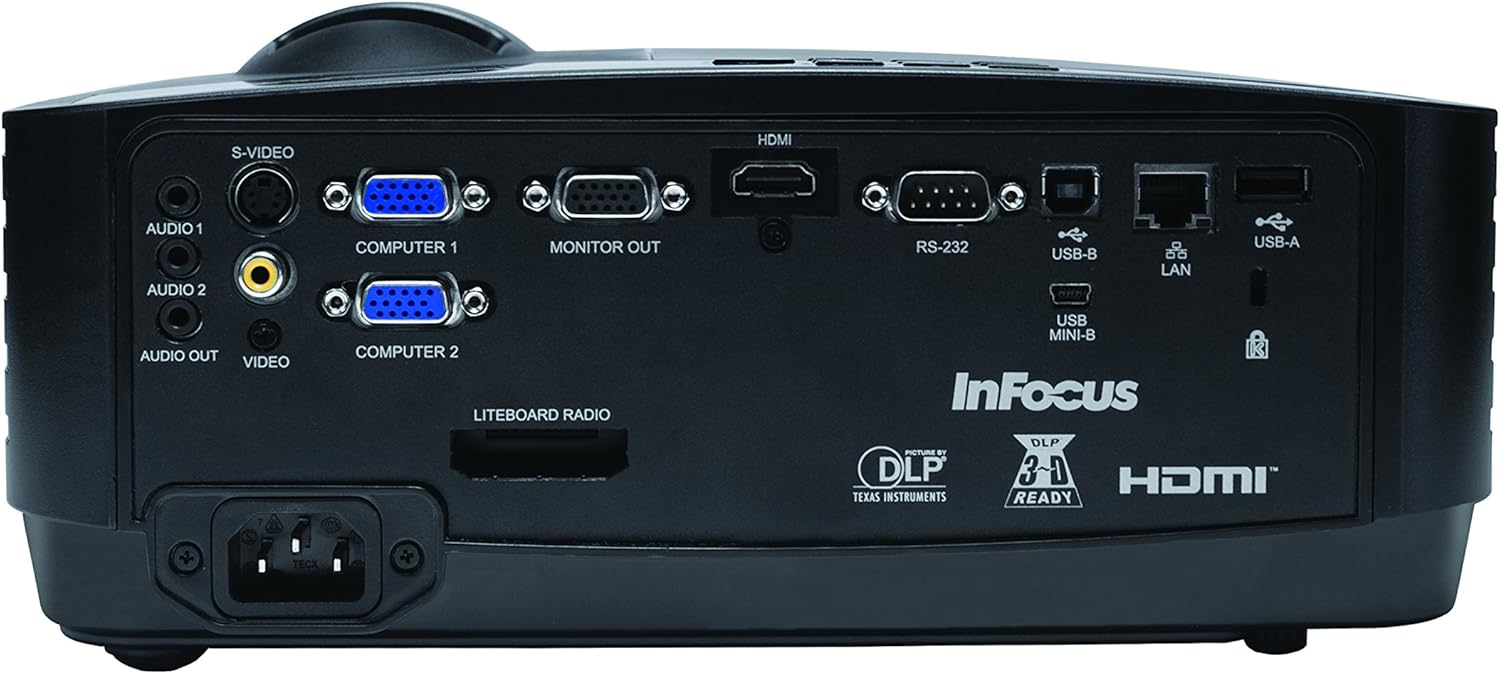
The rear panel provides various input and output ports for connecting external devices.
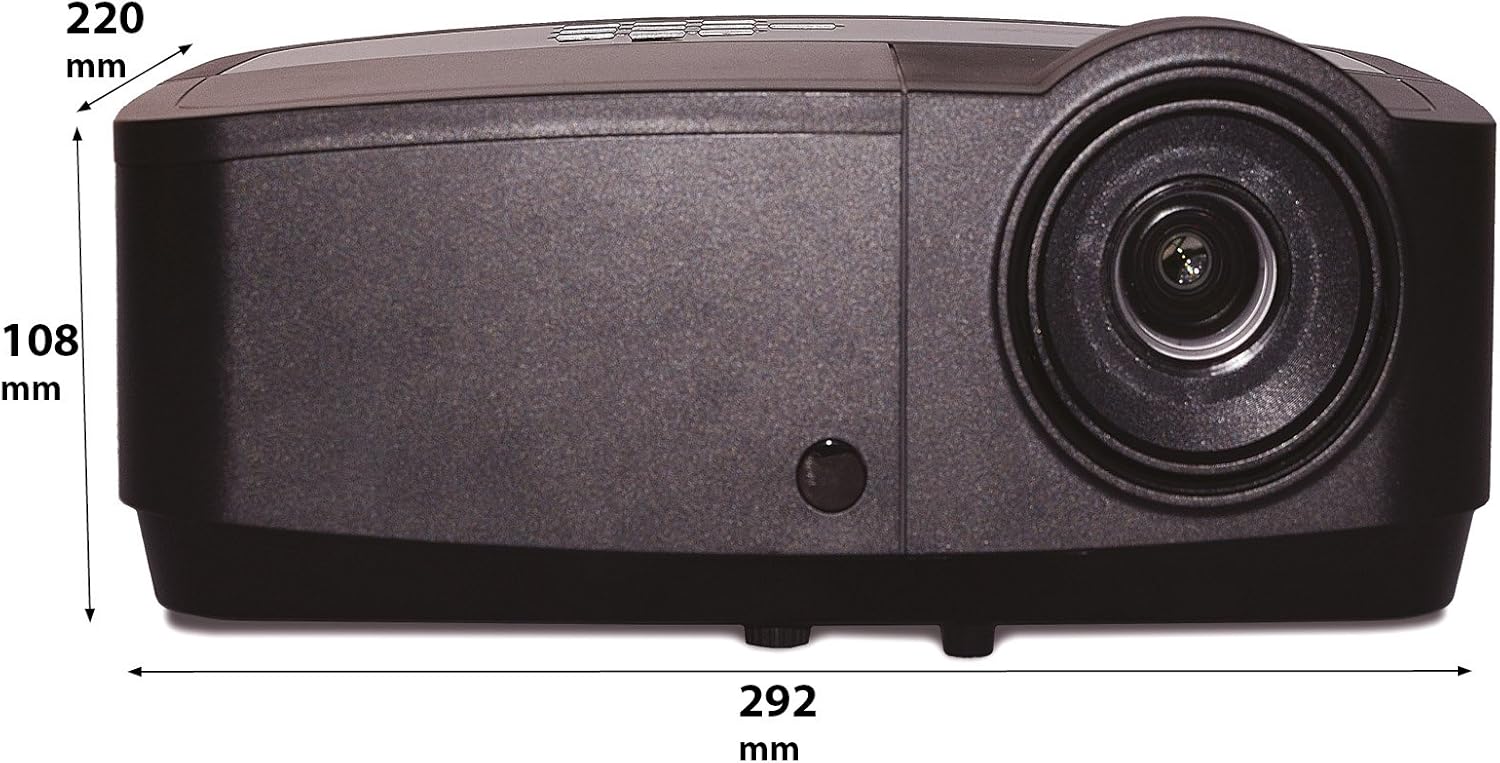
Figure 3: Rear panel of the InFocus IN2126a projector, displaying various connectivity ports including HDMI, VGA, USB, and LAN.
- HDMI: Fun fidio oni-nọmba ati igbewọle ohun.
- COMPUTER 1 / COMPUTER 2 (VGA): For analog video input from computers.
- MONITOR OUT (VGA): For connecting an external monitor.
- USB-B / USB Mini-B: For service or specific USB functions.
- USB-A: For connecting USB devices, such as a wireless adapter.
- LAN (RJ45): Fun nẹtiwọki Asopọmọra.
- RS-232: Fun iṣakoso ni tẹlentẹle.
- AUDIO 1 / AUDIO 2 (RCA): Fun igbewọle ohun.
- AUDIO JADE: Fun pọ ita iwe awọn ọna šiše.
- VIDEO (RCA): Fun titẹ sii fidio akojọpọ.
- FIDIO: For S-Video input.
- Iwọle agbara: Fun asopọ okun agbara.
3.3 Top Panel idari
The top panel features controls for basic projector functions and image adjustments.

Figure 4: Top panel of the InFocus IN2126a projector, showing the control buttons and focus/zoom rings.
- Bọtini agbara: Yi pirojekito tan tabi pa.
- Menu/Exit Button: Accesses or exits the on-screen display (OSD) menu.
- Awọn bọtini lilọ kiri (Soke, Isalẹ, Osi, ọtun): N lọ kiri nipasẹ awọn aṣayan akojọ aṣayan.
- Tẹ Bọtini: Jẹrisi awọn aṣayan ninu akojọ aṣayan.
- Bọtini Orisun: Yan awọn orisun titẹ sii.
- Blank Button: Temporarily blanks the screen.
- Bọtini Aifọwọyi: Ni adaṣe ṣatunṣe awọn eto aworan.
- Idojukọ Oruka: Ṣe atunṣe didasilẹ aworan.
- Oruka Sun-un: Ṣe atunṣe iwọn aworan.
3.4 Awọn iwọn
Understanding the physical dimensions is important for installation and placement.

Figure 5: Diagram illustrating the dimensions of the InFocus IN2126a projector (292mm length, 220mm width, 108mm height).
4. Eto
4.1 Pirojekito Placement
Place the projector on a stable, flat surface or mount it securely. Ensure the projector is positioned at an appropriate distance from the screen to achieve the desired image size. Maintain sufficient space around the projector for proper ventilation.
4.2 Awọn ẹrọ Nsopọ
- Asopọ agbara: Connect the power cord to the projector's power inlet and then to a grounded electrical outlet.
- Orisun fidio:
- For digital sources (e.g., Blu-ray player, laptop), use an HDMI cable to connect to the HDMI port.
- For analog computer sources, use a VGA cable to connect to the COMPUTER 1 or COMPUTER 2 port.
- For other video sources, use the appropriate S-VIDEO or VIDEO (RCA) connections.
- Orisun Olohun: If your video source does not transmit audio via HDMI, connect audio cables to the AUDIO 1 or AUDIO 2 ports.
- Isopọ nẹtiwọki: For wired network access, connect an Ethernet cable to the LAN port.
- Asopọ Alailowaya: If using a compatible wireless adapter (sold separately), insert it into the USB-A port.
4.3 Titan / Pa a
- Lati Fi agbara: Press the Power button on the projector's top panel or the remote control. The power indicator light will illuminate.
- Lati Paarẹ: Press the Power button again. The projector will enter a cooling cycle before shutting down completely. Do not unplug the projector during the cooling cycle.
5. Ṣiṣẹ Pirojekito
5.1 Orisun Aṣayan
After powering on, the projector may automatically detect an active input source. If not, or to switch sources:
- Tẹ awọn Orisun bọtini lori pirojekito tabi isakoṣo latọna jijin.
- Use the navigation buttons to highlight the desired input source (e.g., HDMI, Computer 1, Video).
- Tẹ Wọle lati yan orisun.
5.2 Aworan Atunṣe
- Idojukọ: Yiyi awọn Idojukọ ring on the projector lens until the image appears sharp and clear.
- Sun-un: Yiyi awọn Sun-un ring on the projector lens to adjust the image size to fit your screen.
- Atunse okuta bọtini: If the image appears trapezoidal, use the keystone correction feature in the OSD menu to square the image.
5.3 Lori-iboju Ifihan (OSD) Akojọ aṣyn
The OSD menu allows you to configure various projector settings.
- Tẹ awọn Akojọ aṣyn bọtini lati ṣii akojọ aṣayan OSD.
- Lo awọn Soke / Isalẹ navigation buttons to select a menu category.
- Lo awọn Osi/Ọtun navigation buttons to adjust settings or enter sub-menus.
- Tẹ Wọle lati jẹrisi awọn ayipada.
- Tẹ Jade lati pa OSD akojọ.
5.4 Asopọmọra Alailowaya
The IN2126a is wireless-ready. To enable wireless display, a compatible InFocus wireless adapter (sold separately) must be connected to the USB-A port. Refer to the wireless adapter's specific instructions for setup and connection procedures.
Iṣẹ́ 3D 5.5
The projector supports 3D content. To view 3D content, you will need a compatible 3D source, 3D glasses, and appropriate 3D content. Refer to the projector's OSD menu for 3D settings and ensure your source device is configured for 3D output.
6. Itọju
Itọju deede ṣe idaniloju iṣẹ ṣiṣe to dara julọ ati fa igbesi aye pirojekito rẹ pọ si.
6.1 Lamp Rirọpo
Pirojekito lamp has a limited lifespan (approximately 4000 hours). When the lamp Atọka naa tan imọlẹ tabi imọlẹ aworan naa dinku ni pataki, lamp needs replacement. Always use an authorized InFocus replacement lamp. Refer to the full service manual for detailed lamp replacement instructions or contact customer support.
6.2 Filter Cleaning
Dust accumulation on the air filter can impede airflow and cause overheating. Regularly clean the air filter to maintain proper ventilation. Turn off and unplug the projector before cleaning. Use a soft brush or vacuum cleaner to remove dust from the filter cover.
6.3 Gbogbogbo Cleaning
- Pirojekito Casing: Lo asọ rirọ, ti ko ni lint dampened with a mild, non-abrasive cleaner. Do not use harsh chemicals.
- Lẹnsi: Use a lens cleaning cloth and specialized lens cleaning solution. Avoid touching the lens surface with your fingers.
7. Laasigbotitusita
Ti o ba pade awọn ọran pẹlu pirojekito rẹ, tọka si awọn iṣoro ti o wọpọ ati awọn ojutu wọnyi:
| Isoro | Owun to le Fa | Ojutu |
|---|---|---|
| Ko si aworan loju iboju | A ti yan orisun titẹ sii ti ko tọ; Asopọ okun alaimuṣinṣin; Projektọ wa ni ipo imurasilẹ. | Verify input source; Check all cable connections; Press power button to wake from standby. |
| Aworan jẹ blurry | Idojukọ ko ṣatunṣe; Pirojekito ju sunmo / jina lati iboju. | Adjust the focus ring; Reposition the projector and adjust zoom. |
| Aworan jẹ trapezoidal | Pirojekito ko papẹndikula si iboju. | Use keystone correction in the OSD menu. |
| Ko si ohun | Audio cables not connected; Volume too low; Muted. | Check audio cable connections; Adjust volume; Unmute projector. |
| Pirojekito overheats ati ki o ku | Afẹ́fẹ́ dí; Àlẹ̀mọ́ afẹ́fẹ́ ẹlẹ́gbin. | Ensure clear airflow around projector; Clean the air filter. |
For more detailed troubleshooting, consult the complete user manual or contact InFocus customer support.
8. Awọn pato
Key technical specifications for the InFocus IN2126a WXGA Network Projector:
- Orukọ awoṣe: IN2126a
- Iru ifihan: DLP
- Ipinnu abinibi: 1280 x 800 (WXGA)
- Imọlẹ: 3500 Lumens
- Ipin Itansan: 15000:1
- Atunse Awọ: 1.07 Billion Colors (30-bit)
- Igbesi aye Ṣiṣẹ Orisun Imọlẹ: Awọn wakati 4000
- Imọ-ẹrọ Asopọmọra: Wireless-ready, HDMI 1.4, VGA (x2), USB (Type-A, Mini-B, Type-B), LAN (RJ45), RS-232, Audio In (x2), Audio Out, Video (RCA), S-Video
- Awọn ẹya pataki: 3D-Ready, Network Projector
- Okunfa Fọọmu: Gbigbe
- Iru fifi sori: Tabletop Oke
- Ìwọ̀n Nkan: 7.1 iwon
9. Atilẹyin ọja ati Support
For information regarding your product's warranty, please refer to the warranty card included with your purchase or visit the official InFocus website. For technical support, service, or to purchase accessories, please contact InFocus customer service through their official channels.