
1. Ifihan
1.1 Ọja Loriview
The CELLULARLINE Interphone F5MC is a advanced Bluetooth communication system designed for motorcycle helmets. It provides hands-free communication, music streaming, and GPS navigation audio, compatible with both open and closed helmets. This device features a new microchip for enhanced performance and offers robust functionality for riders.
1.2 Key Awọn ẹya ara ẹrọ
- Bluetooth Connectivity for wireless communication.
- Integrated Microphone for clear audio transmission.
- Waterproof design for use in various weather conditions.
- Touch control method for intuitive operation.
- Compatible with smartphones, tablets, and car audio systems.
- Designed for motorcycle riding applications.
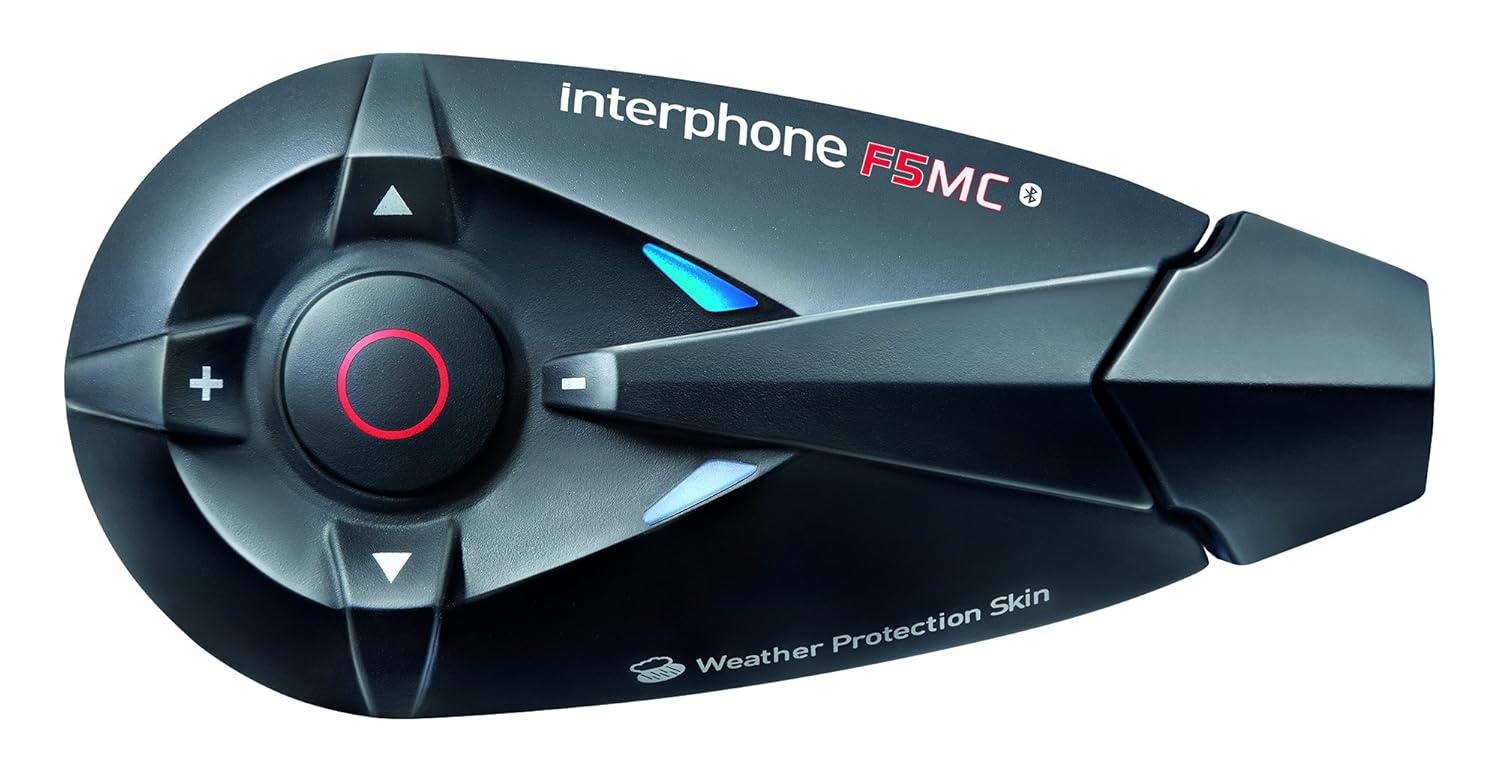
Nọmba 1.1: The Interphone F5MC Bluetooth Headset. This image displays the main unit of the Interphone F5MC, highlighting its ergonomic design and control buttons, including the central multifunction button and volume controls.
2. Package Awọn akoonu
The Interphone F5MC package typically includes the following components:
- Interphone F5MC Main Unit(s)
- Ear Cushions / Speakers
- Microphone for full-face helmet
- Microphone for jet helmet
- DC Power Charging & Music Line In Cable
- Mounting Brackets (clip and adhesive options)
- Okun Ngba agbara USB

Nọmba 2.1: Interphone F5MC Product Packaging. This image shows the retail box for the Interphone F5MC, indicating it is a dual unit package suitable for two helmets, highlighting features like multi-user conference and long distance communication.

Nọmba 2.2: Interphone F5MC Component Diagram. This diagram illustrates the various components included with the Interphone F5MC system, such as the main unit, different microphone types (for full-face and jet helmets), speakers, and charging/audio cables, along with their connections.
3. Eto
3.1 Ngba agbara si Unit
- Connect the DC power charging cable to the charging port on the Interphone F5MC unit.
- Plug the other end of the cable into a suitable USB power source (e.g., computer USB port, USB wall adapter).
- The status LED will indicate charging status. A full charge is recommended before first use.
3.2 Mounting the Unit to a Helmet
- Choose between the clip mount or adhesive mount option based on your helmet type and preference.
- Securely attach the chosen mounting bracket to the side of your helmet. Ensure it is positioned where the unit will not obstruct vision or movement.
- Slide the Interphone F5MC main unit onto the mounted bracket until it clicks into place.
3.3 Fifi sori ẹrọ Gbohungbohun ati Agbọrọsọ
- Select the appropriate microphone for your helmet type (full-face or jet).
- Attach the speakers inside the helmet, aligning them with your ears for optimal audio. Use the provided adhesive pads if necessary.
- Position the microphone close to your mouth, ensuring it is not directly in the path of wind noise.
- Connect the speaker and microphone cables to the corresponding ports on the Interphone F5MC main unit. Refer to Figure 2.2 for connection details.
3.4 Ni ibẹrẹ Bluetooth Sisopọ
- Ensure the Interphone F5MC unit is powered off.
- Press and hold the Multi-Function Button (MFB) until the status LED flashes rapidly, indicating pairing mode.
- Lori foonuiyara tabi ẹrọ Bluetooth miiran, mu Bluetooth ṣiṣẹ ki o wa awọn ẹrọ to wa.
- Select "Interphone F5MC" from the list of found devices.
- If prompted, enter the PIN code (usually "0000").
- Once paired, the status LED will change to a slow flash or solid blue, depending on the unit's status.
4. Awọn ilana Iṣiṣẹ
4.1 Agbara Tan / Pa
- Lati Fi agbara: Press and hold the MFB for approximately 3 seconds until you hear an audible tone and the LED illuminates.
- Lati Paarẹ: Press and hold the MFB for approximately 5 seconds until you hear a descending tone and the LED turns off.
4.2 Intercom ibaraẹnisọrọ
The F5MC supports multi-user intercom communication. Refer to the full manual for detailed pairing instructions for multiple units.
- Bibẹrẹ Intercom: Briefly press the Intercom button (specific button may vary, refer to unit's markings).
- Ipari Intercom: Briefly press the Intercom button again.
4.3 Awọn ipe foonu
- Idahun Ipe: Ni soki tẹ MFB.
- Ipe Ipari: Ni soki tẹ MFB.
- Kọ Ipe: Tẹ mọlẹ MFB fun iṣẹju-aaya 2.
- Pipe pẹlu ohun: With the unit in standby, briefly press the MFB twice to activate your phone's voice assistant (if supported).
4.4 Sisisẹsẹhin Orin
Ensure your Interphone F5MC is paired with a music source (e.g., smartphone).
- Ṣiṣẹ/Daduro: Ni soki tẹ MFB.
- Orin t’okan: Press the 'Volume Up' button for 2 seconds.
- Tẹlẹ Orin: Press the 'Volume Down' button for 2 seconds.
- Atunse iwọn didun: Briefly press the 'Volume Up' or 'Volume Down' buttons.
4.5 Redio FM
- Turn On/Off Radio: Press a dedicated FM button or a combination of buttons (refer to specific unit markings).
- Àwọn Ibùdó Ṣíṣàyẹ̀wò: Press and hold the 'Volume Up' or 'Volume Down' buttons to scan for the next/previous station.
5. Itọju
5.1 Ninu
- Mu ese kuro pẹlu rirọ, damp asọ. Maṣe lo awọn kẹmika ti o lewu tabi awọn afọmọ abrasive.
- Rí i dájú pé gbogbo àwọn èbúté gbẹ kí o tó gba agbára tàbí so àwọn ohun èlò pọ̀.
5.2 Ibi ipamọ
- Tọju ẹyọ naa ni itura, aye gbigbẹ kuro lati orun taara ati awọn iwọn otutu to gaju.
- Ti o ba wa ni ipamọ fun akoko ti o gbooro sii, gba agbara si batiri si isunmọ 50% ni gbogbo oṣu diẹ lati tọju igbesi aye batiri.
5.3 batiri Itọju
- Yago fun gbigba agbara si batiri ni kikun nigbagbogbo.
- Use only the provided charging cable and compatible power sources.
6. Laasigbotitusita
6.1 Ko si Agbara
- Rí i dájú pé ẹ̀rọ náà ti gba agbára tán pátápátá. So ó pọ̀ mọ́ orísun agbára kí o sì ṣàyẹ̀wò àmì ìgba agbára náà.
- Verify that the power button is being pressed and held for the correct duration (approximately 3 seconds).
6.2 Ko si Audio
- Check that the speakers are correctly connected to the main unit and properly positioned inside the helmet.
- Ensure the volume is not set to minimum. Adjust using the volume buttons.
- Verify that the unit is successfully paired with your audio source (e.g., smartphone).
6.3 Sisọ ọrọ
- Ensure both devices are in pairing mode and within close proximity.
- Turn off and restart both the Interphone F5MC and the device you are trying to pair.
- Pa àwọn ìbáṣepọ̀ Bluetooth tó ti kọjá rẹ́ kúrò láti inú àwọn ẹ̀rọ méjèèjì kí o sì gbìyànjú láti so wọ́n pọ̀ lẹ́ẹ̀kan síi.
6.4 Ìjápọ̀ Intercom
- Ensure units are within the specified intercom range and have a clear line of sight.
- Ṣàyẹ̀wò bóyá àwọn ẹ̀rọ itanna míràn lè dí ọ lọ́wọ́.
- Attempt to re-establish the intercom connection by briefly pressing the intercom button.
7. Awọn pato
| Ẹya ara ẹrọ | Ẹ̀kúnrẹ́rẹ́ |
|---|---|
| Orukọ awoṣe | INTERPHONEF5MCTP |
| Asopọmọra Technology | Bluetooth |
| Imọ-ẹrọ Ibaraẹnisọrọ Alailowaya | Bluetooth |
| Awọn irinše to wa | Ear Cushions, Microphones |
| Ohun elo | Ṣiṣu |
| Awọn Lilo Ni pato Fun Ọja | Motorcycle Riding |
| Awọn ẹrọ ibaramu | Smartphones, Tablets, Car Audio Systems |
| Omi Resistance Ipele | Mabomire |
| Ọna Iṣakoso | Fọwọkan |
| Olupese | CELLULARLINE |
| Ọja Mefa | 8.99 x 4.5 x 2.01 cm |
| Iwọn Nkan | 54.4 g (0.12 iwon) |
| Awọn batiri | 1 Batiri litiumu polima (pẹlu) |
| Pataki Awọn ẹya ara ẹrọ | Gbohungbo To wa |
| Àwọ̀ | Dudu |
| Gbigbe Eti | Ṣii Eti |
| Fọọmù ifosiwewe | Lori Eti |
8. Atilẹyin ọja ati Support
For warranty information, technical support, or service inquiries, please refer to the documentation provided with your purchase or contact CELLULARLINE customer service directly. Details regarding warranty periods and support procedures are typically available on the manufacturer's official webojula tabi nipasẹ rẹ alagbata.