
Ọrọ Iṣaaju
The Logitech K830 Illuminated Living-Room Wireless Keyboard and Touchpad is designed to simplify text entry and entertainment control for your Internet-connected TV or PC. Featuring bright, backlit keys and an integrated touchpad, it offers a convenient and comfortable experience from your couch. This manual provides essential information for setting up, operating, maintaining, and troubleshooting your device.
Ohun ti o wa ninu Apoti
- Logitech K830 Illuminated Living-Room Wireless Keyboard
- Logitech Unifying Receiver (USB dongle)
- Okun Ngba agbara USB
Ṣeto
1. Ngba agbara si Keyboard
Before initial use, fully charge your Logitech K830 keyboard. Connect the supplied USB charging cable to the micro-USB port on the side of the keyboard and the other end to a USB power source, such as a computer's USB port, a USB wall adapter, or a PlayStation 4 console.
2. Nsopọ Olugba Iṣọkan
Locate the Logitech Unifying Receiver (USB dongle) included in the package. Plug this receiver into an available USB port on your Internet-connected TV, PC, or PlayStation 4. The keyboard uses a 2.4 GHz wireless connection via this receiver.
3. Agbara lori / Paa
Slide the power switch located on the side of the keyboard to the 'On' position to begin using the device. Slide it to the 'Off' position to conserve battery life when not in use.
Awọn ilana Iṣiṣẹ
Typing and Navigation
The K830 features a standard QWERTY keyboard layout with well-spaced keys for comfortable and efficient typing. Use the keys for text input in search bars, web browsers, and messaging applications.
Ese Touchpad
The large, responsive touchpad on the right side of the keyboard provides precise cursor control. It supports multi-touch gestures such as swiping, scrolling, and zooming, similar to a laptop touchpad. Akiyesi: Touchpad functionality may vary depending on the operating system or application you are using. For example, some PlayStation 4 applications may not fully utilize the touchpad for navigation.
Awọn bọtini itanna
The keys are backlit, allowing for easy visibility and typing in dark or dimly lit environments. The backlighting automatically adjusts based on ambient light and illuminates when you touch the keys, dimming after a few seconds of inactivity to conserve battery. You can also manually adjust the brightness levels.
Awọn bọtini Media
Dedicated media keys (often integrated into the F-keys) provide quick access to volume control, playback functions, and other common media actions.
PLAYSTATION 4 ibamu
The Logitech K830 keyboard is compatible with PlayStation 4 for text input. This is particularly useful for typing messages, entering search queries, and adding descriptions when sharing gameplay videos or screenshots. While native PS4 applications generally support keyboard input, third-party streaming apps like Netflix or Amazon Video may not fully recognize the keyboard for search functions.
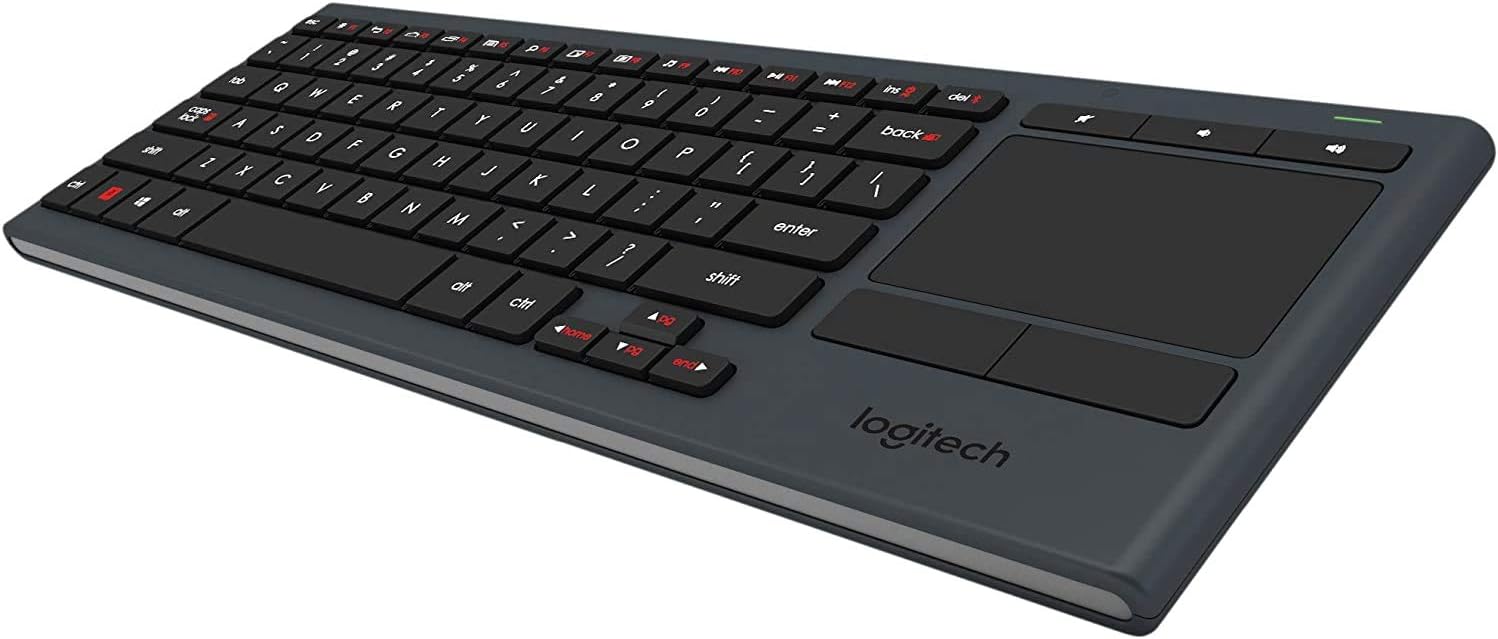
An angled view of the Logitech K830 keyboard, showcasing its compact design, full QWERTY layout, and integrated touchpad on the right side.

A person comfortably holding the Logitech K830 keyboard on their lap, demonstrating its suitability for living room use with an internet-connected TV.
Itoju
Ninu Keyboard
To clean your keyboard, first ensure it is powered off using the side switch. Use a soft, lint-free cloth, lightly dampened with a screen cleaner or mild cleaning solution. Gently wipe the keys and surfaces. Avoid harsh chemicals or abrasive materials. The keys are designed to be durable and resist falling out during cleaning.
Itọju Batiri
The Logitech K830 features a long-lasting rechargeable battery. To maximize battery life, power off the keyboard when not in use. Recharge the keyboard when the battery indicator light signals low power. Charging is quick and convenient via the included USB cable.
Laasigbotitusita
Keyboard Ko Dahun
- Ensure the keyboard's power switch is in the 'On' position.
- Verify that the Logitech Unifying Receiver is securely plugged into a working USB port on your device.
- Check the keyboard's battery level and recharge if necessary.
- Try plugging the Unifying Receiver into a different USB port.
Touchpad Not Working or Inconsistent
- Confirm that the application or operating system you are using supports touchpad input.
- Rí i dájú pé keyboard ti gba agbára tán pátápátá.
- Nu oju iboju ifọwọkan naa lati yọ eyikeyi ẹgbin tabi idoti ti o le da ipa lori itẹlọrọ kuro.
Keys Not Illuminating
- Check the keyboard's battery level; low battery can affect backlighting.
- Rii daju pe sensọ ina ibaramu ko ni idiwọ.
- Manually adjust the brightness settings to ensure they are not set to the lowest level.
Awọn pato
| Brand | Logitech |
| Orukọ awoṣe | K830 |
| Nọmba awoṣe | 920-006081 |
| Asopọmọra Technology | Alailowaya RF (2.4 GHz) |
| Awọn ẹrọ ibaramu | PC, Internet-Connected TVs, PlayStation 4 |
| Ifilelẹ bọtini itẹwe | QWERTY |
| Nọmba ti Awọn bọtini | 85 |
| Keyboard Backlighting | Single Color, Adjustable Brightness |
| Orisun agbara | Batiri Agbara (Agba agbara) |
| Ohun elo | Ṣiṣu |
| Iwọn Nkan | 1.1 iwon |
Atilẹyin ọja ati Support
Fun alaye atilẹyin ọja alaye, atilẹyin imọ-ẹrọ, ati awọn orisun afikun, jọwọ ṣabẹwo si atilẹyin Logitech osise webO le ri iforukọsilẹ ọja, awọn ibeere ti a beere nigbagbogbo, ati alaye olubasọrọ fun iṣẹ alabara nibẹ.
Logitech Osise Webojula: www.logitech.com