
Ọrọ Iṣaaju
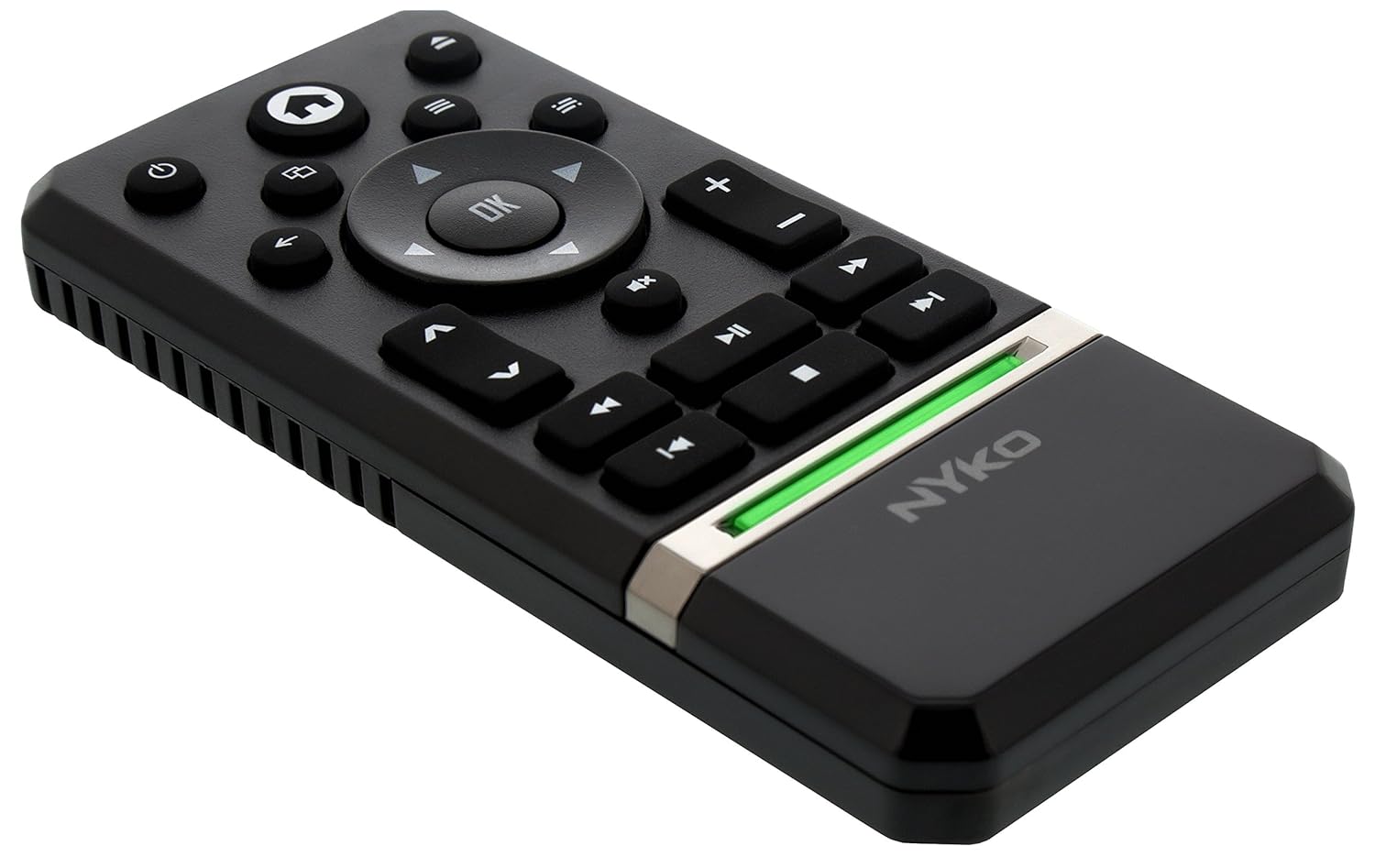
The Nyko Media Remote for Xbox One provides convenient control over your Xbox One console and various media applications. This remote simplifies navigation and playback of streaming content and physical media, offering dedicated buttons for common functions. It also features the ability to power your Xbox One on and off, and control basic functions of your television.

Image: Nyko Media Remote for Xbox One, front view.
Package Awọn akoonu
- Nyko Media Remote for Xbox One (Model: 86116)
- Àkíyèsí: Àwọn bátírì AAA kò sí nínú wọn, wọ́n sì gbọ́dọ̀ ra wọ́n lọ́tọ̀ọ̀tọ̀.

Image: Nyko Media Remote for Xbox One in its retail packaging.
Ṣeto
1. Fifi sori batiri
- Wa yara batiri ni ẹhin isakoṣo latọna jijin.
- Gbe ideri batiri si isalẹ lati ṣii.
- Fi awọn batiri AAA meji (2) sii, ki o rii daju pe polarity (+/-) tọ gẹgẹ bi a ti fihan ninu yara naa.
- Rọpo ideri batiri naa nipa gbigbe e soke titi ti yoo fi tẹ sinu ipo rẹ.
Aworan: Ẹyin view of the remote with the battery cover removed, illustrating the AAA battery placement.
2. Isopọmọ akọkọ
The Nyko Media Remote uses infrared (IR) technology. No manual pairing is required for the Xbox One. Simply ensure a clear line of sight between the remote's IR emitter and the Xbox One's IR receiver.
For TV control functions (volume, channels, power), your TV must be configured to respond to the Xbox One's IR signals, typically through the Xbox One's OneGuide settings. The remote sends commands to the Xbox One, which then relays them to your TV via its IR blaster (if configured) or Kinect sensor.
Awọn ilana Iṣiṣẹ
The Nyko Media Remote provides comprehensive control for your Xbox One and various media applications. Refer to the diagram below for button identification and their primary functions.

Aworan: Iwaju view of the Nyko Media Remote, displaying all control buttons.
Awọn iṣẹ bọtini:
| Bọtini | Išẹ |
|---|---|
| Bọtini agbara (⏻) | Powers the Xbox One console on or off. |
| Bọtini Ile (⌂) | Returns to the Xbox One Home screen. |
| View Bọtini (🗀) | Accesses additional information or options within an app or game. |
| Bọtini Akojọ aṣyn (☰) | Opens context-sensitive menus or options. |
| Paadi Itọnisọna (D-paadi) | Ó ń lọ kiri nípasẹ̀ àwọn àkójọ àti àkóónú. |
| Bọtini O dara | Confirms selections. Can also function as Play/Pause in some apps. |
| Bọtini Pada (←) | Pada si iboju ti tẹlẹ tabi akojọ aṣayan. |
| OneGuide Button (📱) | Launches the Xbox OneGuide for live TV and media. |
| Iwọn didun Up / Isalẹ (⏸ / ⏷) | Adjusts the television volume (requires TV setup via Xbox One). |
| Bọtini dakẹjẹẹ (🔇) | Mutes or unmutes television audio. |
| Ikanni Up / Isalẹ (▲ / ▼) | Changes television channels (requires TV setup via Xbox One). |
| Pada sẹhin (⏪) | Ṣe šišẹsẹhin media pada. |
| Ṣiṣẹ / Sinmi (⏯) | Ṣiṣẹ tabi daduro ṣiṣiṣẹsẹhin media. |
| Sare Siwaju (⏩) | Sare siwaju media Sisisẹsẹhin. |
| Ti tẹlẹ Track (⏮) | Ó fò sí ìbẹ̀rẹ̀ orin ìsinsìnyí tàbí orin ìṣáájú. |
| Duro (⏹) | Da ṣiṣiṣẹsẹhin media duro. |
| Next Track (⏭) | Ó fò lọ sí orin tàbí orí tó tẹ̀lé e. |
Media and App Control:
The remote is designed for seamless control of various Xbox One applications, including:
- OneGuide
- Netflix
- Hulu Plus
- Amazon Instant Video
- Other streaming services and Blu-ray/DVD playback
Dedicated playback buttons (Play, Pause, Fast Forward, Rewind, Stop, Skip) provide intuitive control for movies, music, and other media.
Itoju
Rirọpo Batiri:
When the remote's performance diminishes or it stops responding, it is likely time to replace the batteries. Follow the "Battery Installation" steps in the Setup section to replace the two AAA batteries.
Ninu:
To clean the remote, gently wipe it with a soft, dry cloth. Avoid using harsh chemicals, abrasive cleaners, or excessive moisture, as these can damage the remote's finish or internal components.
Laasigbotitusita
- Latọna jijin Ko Dahun:
- Ensure fresh AAA batteries are correctly installed.
- Verify there is a clear line of sight between the remote and the Xbox One console. Obstructions can block the infrared signal.
- Move closer to the Xbox One console. The remote has a maximum effective range of approximately 9 meters (25 feet).
- TV Control (Volume, Channel, Power) Not Working:
- Confirm that your Xbox One's OneGuide settings are properly configured for your television. The remote sends commands to the Xbox One, which then controls the TV.
- Ensure any necessary IR blasters or Kinect sensors are correctly set up and positioned.
- Intermittent Response:
- This can sometimes occur due to weak batteries or environmental interference. Replace batteries and ensure a clear line of sight.
Awọn pato
| Ẹya ara ẹrọ | Ẹ̀kúnrẹ́rẹ́ |
|---|---|
| Brand | Nyko |
| Orukọ awoṣe | Latọna jijin Media |
| Nọmba awoṣe | 86116 |
| Asopọmọra Technology | Infurarẹẹdi (IR) |
| Awọn ẹrọ ibaramu | Xbox One, Television (via Xbox One IR blaster/Kinect) |
| Batiri Iru | Awọn batiri 2 x AAA (kii ṣe pẹlu) |
| Ibiti o pọju | Titi de awọn mita 9 (25 ẹsẹ) |
| Iwọn Nkan | 0.1 iwon (to 45 giramu) |
| Àwọ̀ | Grẹy Dudu |
| Afikun Awọn ẹya ara ẹrọ | Ergonomic design, dedicated media playback controls. |
Atilẹyin ọja ati Support
Nyko products are designed for quality and reliability. For specific warranty details, please refer to the documentation included with your purchase or visit the official Nyko website. The product includes warranty information in multiple languages.
Atilẹyin Onibara:
- Imeeli: customer.support@nyko.com
- Foonu: + 1-888-400-6956
- Iforukọsilẹ lori ayelujara: www.nyko.com
- Alaye ni Afikun: http://uqr.me/nykotechnologies/qr/83215

Aworan: Ẹyin view of the product packaging, detailing features and customer support contact information.