
1. Ọja Ipariview
The Comfast CF-WR150N is a versatile 150M high-speed 802.11n wireless device designed to enhance and extend your Wi-Fi network. It functions as a personal assistant for your existing router, improving transfer rates and expanding coverage.
This device supports three primary operating modes: Access Point (AP), Repeater, and Router, offering flexible solutions for various networking needs. It is backward compatible with all 802.11b/g/n devices.
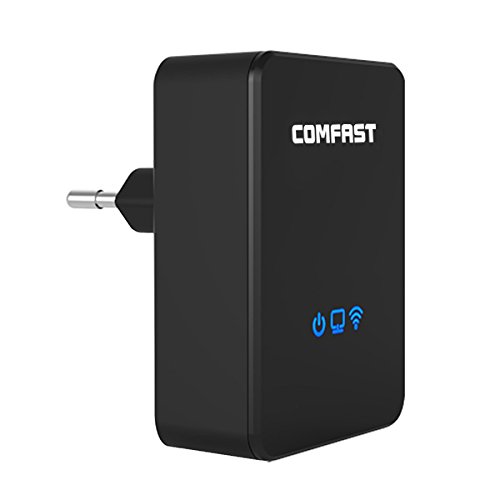
olusin 1.1: Iwaju view of the Comfast CF-WR150N Wireless Repeater.
2. Package Awọn akoonu
Ṣaaju ki o to tẹsiwaju pẹlu iṣeto, jọwọ rii daju pe gbogbo awọn ohun kan wa ninu package:
- 1 x Comfast CF-WR150N Wireless Repeater
- 1 x Network Cable (Ethernet Cable)
- 1 x Itọsọna olumulo (iwe yii)
- 1 x Kaadi idaniloju
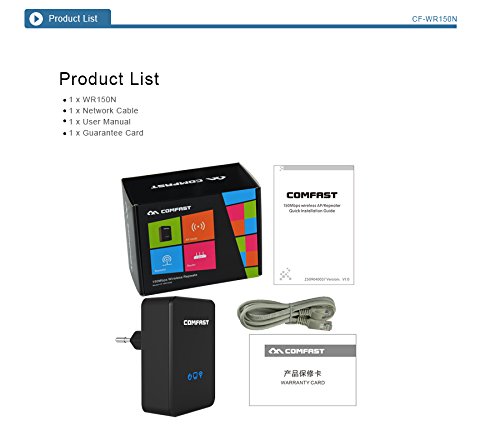
Figure 2.1: Contents included in the Comfast CF-WR150N product package.
3. Device irinše
Familiarize yourself with the various parts and indicators of the CF-WR150N device:
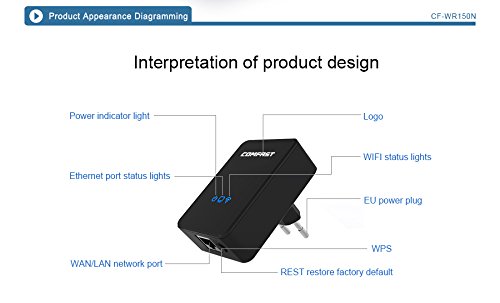
Figure 3.1: Detailed diagram of the CF-WR150N's external components and indicators.
- Ina Atọka Agbara: Ṣe afihan ipo agbara.
- Ethernet Port Status Lights: Indicate activity on the WAN/LAN port.
- WAN/LAN Network Port: Used for wired connections.
- EU Power Plug: Fun asopọ si ibudo agbara.
- Bọtini WPS: For quick and secure wireless setup.
- REST (Reset) Button: Lo lati mu pada factory aiyipada eto.
- Logo: Comfast brand logo.
- WIFI Status Lights: Tọkasi iṣẹ nẹtiwọki alailowaya.
4. Eto ati iṣeto ni
The Comfast CF-WR150N can be configured to operate in three distinct modes: Access Point (AP) Mode, Repeater Mode, and Router Mode. Choose the mode that best suits your network requirements.
4.1. General Setup Steps
- Agbara Tan: Plug the CF-WR150N into a standard power outlet. Wait for the power indicator light to stabilize.
- Sopọ si Ẹrọ:
- Ailokun Asopọmọra: On your computer or mobile device, search for available Wi-Fi networks. Connect to the network named "COMFAST_XXXX" (where XXXX are the last four digits of the device's MAC address). No password is required for the initial connection.
- Asopọ onirin: Connect your computer directly to the CF-WR150N's WAN/LAN port using the provided Ethernet cable.
- Wiwọle Web Ni wiwo: Ṣii a web browser and enter the default IP address (usually 192.168.10.1 or 192.168.1.254) into the address bar. Refer to the label on the device or the quick start guide for the exact IP.
- Wo ile: Enter the default username and password (typically "admin" for both).
- Yan Ipo Ṣiṣẹ: Once logged in, you will be prompted to select the desired operating mode (AP, Repeater, or Router).
4.2. Operating Modes Explained
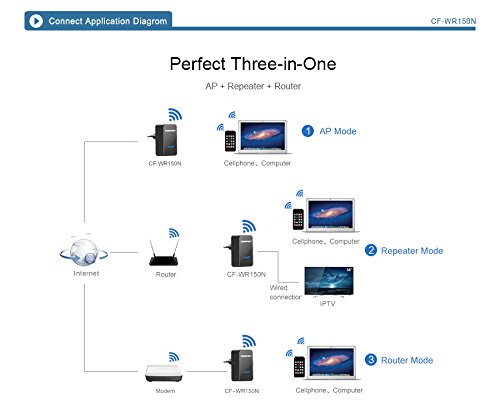
Figure 4.1: Application diagram showing AP, Repeater, and Router modes.
- Ipo AP (Ibi Iwọle): In this mode, the CF-WR150N connects to a wired network (e.g., from a modem or router) and broadcasts a new wireless network. This is ideal for adding Wi-Fi capability to a wired-only network.
- Repeater Mode (Range Extender): This mode extends the coverage of an existing wireless network. The CF-WR150N connects wirelessly to your main router's Wi-Fi signal and re-broadcasts it, effectively eliminating Wi-Fi dead zones.
- Ipo olulana: When configured as a router, the CF-WR150N connects directly to your internet service provider's modem via the WAN/LAN port and creates a new wireless network, providing internet access to connected devices.
4.3. WPS Setup (Wireless Protected Setup)
For a quick and secure wireless connection to your existing router in Repeater Mode, you can use the WPS function:
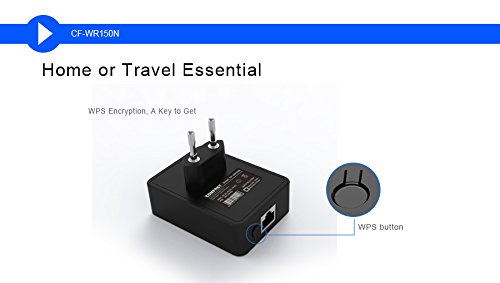
Figure 4.2: Location of the WPS button on the CF-WR150N.
- Plug the CF-WR150N into a power outlet near your main router.
- Tẹ bọtini WPS lori olulana akọkọ rẹ.
- Within two minutes, press the WPS button on the CF-WR150N.
- The devices will automatically establish a secure connection. The Wi-Fi status light on the CF-WR150N will indicate a successful connection.
5. Isẹ ati Lilo
Once configured, the CF-WR150N operates automatically based on the selected mode. Ensure the device is placed in an optimal location for signal coverage.
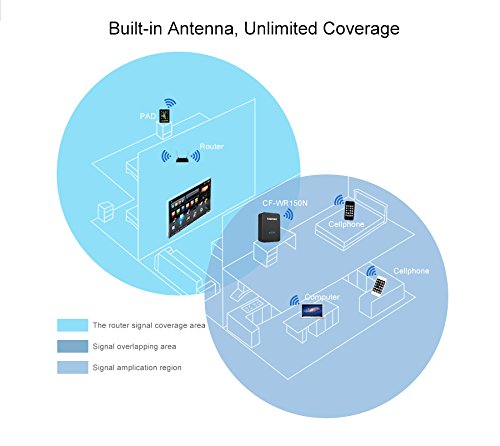
Figure 5.1: Illustration of signal coverage extension with the CF-WR150N.
For Repeater Mode, place the CF-WR150N approximately halfway between your router and the area where you need improved Wi-Fi signal. Avoid placing it in areas with significant interference or physical obstructions.
6. Itọju
To ensure optimal performance and longevity of your Comfast CF-WR150N, consider the following maintenance tips:
- Awọn imudojuiwọn famuwia: Lojoojumọ ṣayẹwo osise Comfast website for any available firmware updates. Updating firmware can improve performance, add new features, and fix bugs.
- Ninu: Jeki ẹrọ naa di mimọ ati ofe kuro ninu eruku. Lo asọ asọ ti o gbẹ lati nu ita. Maṣe lo awọn olutọpa olomi tabi awọn aerosols.
- Afẹfẹ: Ensure the device has adequate ventilation to prevent overheating. Do not cover the device or place it in an enclosed space.
- Tun bẹrẹ: If you experience network issues, a simple restart of the device (unplugging and re-plugging after 10 seconds) can often resolve minor glitches.
7. Laasigbotitusita
This section addresses common issues you might encounter with your Comfast CF-WR150N.
| Isoro | Owun to le Fa | Ojutu |
|---|---|---|
| Ko le wọle si awọn web ni wiwo isakoso. | Incorrect IP address, device not powered on, or network configuration issue. |
|
| Ko si wiwọle si intanẹẹti lẹhin iṣeto. | Incorrect mode configuration, weak signal (Repeater Mode), or ISP issue. |
|
| Frequent disconnections or slow speeds. | Interference, poor placement, or network congestion. |
|
| Forgot login password or device settings are corrupted. | Password forgotten or misconfiguration. |
|
8. Awọn pato
| Ẹya ara ẹrọ | Ẹ̀kúnrẹ́rẹ́ |
|---|---|
| Brand | Kofast |
| Nọmba awoṣe | CF-WR150N |
| Iru Asopọmọra | Wi-Fi |
| Alailowaya Iru | 802.11b, 802.11g, 802.11n |
| Alailowaya Ibaraẹnisọrọ Alailowaya | 802.11b, 802.11g, 802.11n |
| Data Gbigbe Oṣuwọn | 150 Megabits Per Second (as per product description, not 750 from spec list) |
| Igbohunsafẹfẹ Band Class | Single-Band (implied by 802.11n 150M, Dual-Band from spec list seems incorrect for 150M) |
| Pataki Awọn ẹya ara ẹrọ | Ipo Ibojuwọle, Atọka LED |
| Iwọn Nkan | 180 g |
| Package Mefa | 13.8 x 10.4 x 6.2 cm |
| Akọkọ Wa Ọjọ | 1 Oṣu Keje ọdun 2014 |
Note: Data Transfer Rate and Frequency Band Class are based on the primary product description. Some specification lists may contain discrepancies.
9. Atilẹyin ọja ati Support
For detailed information regarding the product warranty, please refer to the Kaadi idaniloju included in your product package. This card contains specific terms, conditions, and duration of the warranty.
For technical support, troubleshooting assistance beyond this manual, or service inquiries, please contact Comfast customer support through the channels provided on the Guarantee Card or the official Comfast webojula.