
1. Ifihan
This manual provides instructions for setting up, operating, and maintaining your D-Link Wi-Fi AC750 Dual Band Router (DIR-813). The DIR-813 is designed to deliver high-speed wireless connectivity for your home network, supporting both 2.4 GHz and 5 GHz bands for optimal performance.
Awọn ẹya pataki pẹlu:
- Wireless AC750 Technology: Optimized performance for HD video streaming, fast file transfers, and lag-free video chatting.
- Dual Band Performance: Up to 300Mbps (2.4GHz) + 433Mbps (5GHz) for fast wireless speeds and reduced interference.
- Ibamu sẹhin: Works with older 802.11a/b/g/n devices.
- Asopọmọra Alailowaya: Four Fast Ethernet ports for connecting wired devices.
- High-Performance Antennas: Three external antennas for maximum range.
2. Package Awọn akoonu
Jẹrisi pe package rẹ ni awọn nkan wọnyi ninu:
- D-Link Wi-Fi AC750 Dual Band Router (DIR-813)
- Adapter agbara
- àjọlò Cable
- Quick Installation Guide (not included in this digital manual)
Ti eyikeyi ninu awọn ohun ti o wa loke ba sonu tabi bajẹ, jọwọ kan si alatunta D-Link ti agbegbe rẹ.
3. Hardware Loriview
3.1 Igbimọ iwaju
The front panel of the DIR-813 router features LED indicators that provide status information.
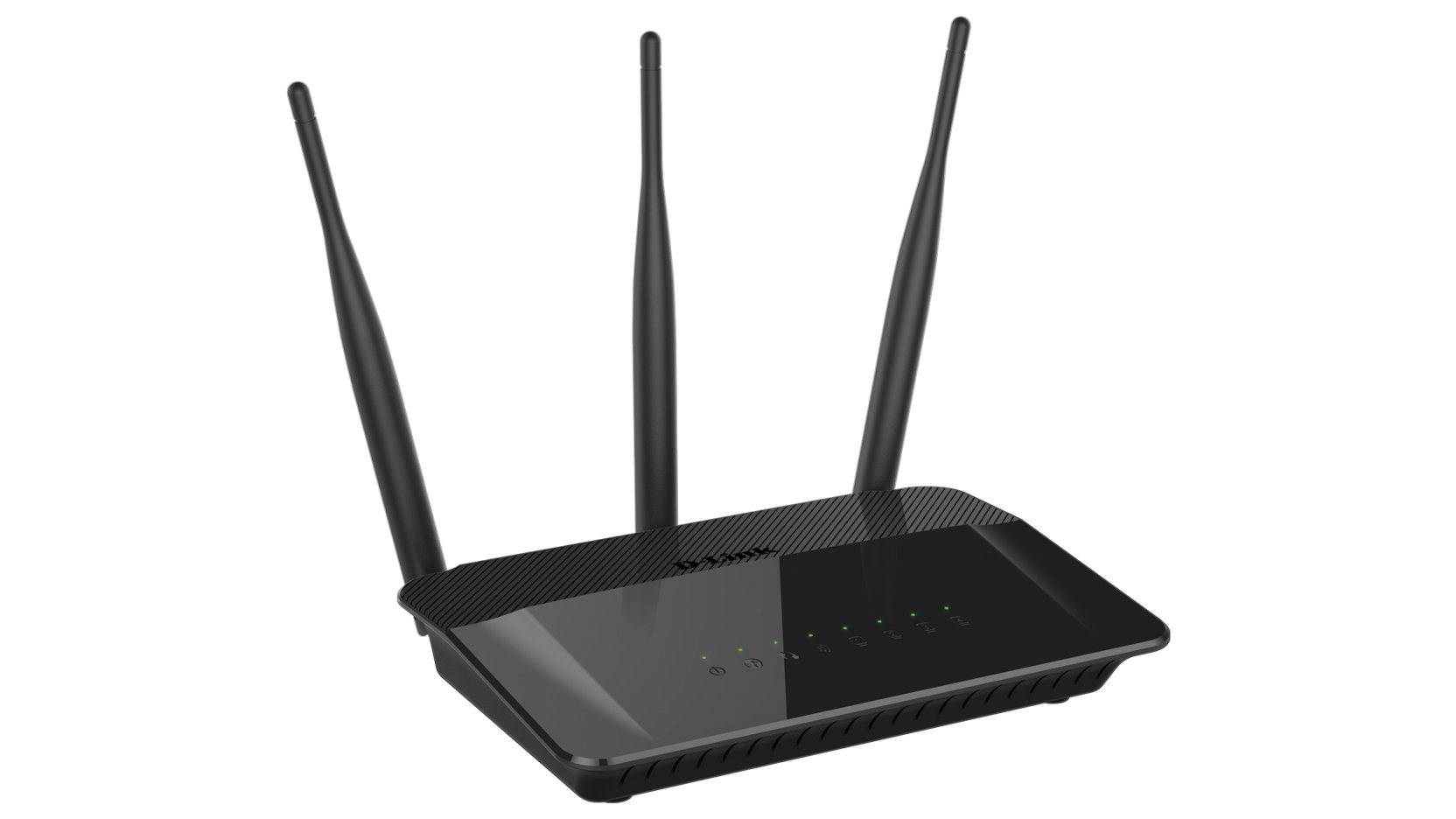
Nọmba 1: Iwaju view of the D-Link DIR-813 router. This image shows the router's top surface with three external antennas and a row of LED indicators for power, internet, and wireless status.
- LED agbara: Ṣe afihan ipo agbara.
- LED Ayelujara: Tọkasi ipo asopọ intanẹẹti.
- WLAN LEDs (2.4GHz/5GHz): Indicate wireless activity for each band.
- Awọn LED LAN: Indicate activity on the wired Ethernet ports.
3.2 ru Panel
The rear panel contains all the physical connection ports and buttons.
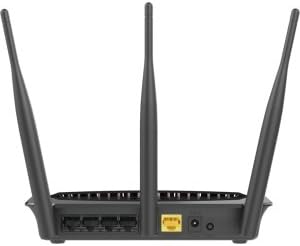
Nọmba 2: Ẹyìn view of the D-Link DIR-813 router. This image displays the back of the router, showing the power input, WAN port (yellow), four LAN ports, and a WPS/Reset button.
- Asopọ Agbara: So oluyipada agbara ti o wa nibi.
- Ibudo WAN (ofeefee): So modẹmu rẹ pọ si ibudo yii nipa lilo okun Ethernet kan.
- Awọn ibudo LAN (1-4): Connect your wired devices (computers, gaming consoles, etc.) to these ports.
- WPS/Bọtini atunto:
- Press and hold for 2 seconds to activate WPS (Wi-Fi Protected Setup).
- Tẹ mọlẹ fun iṣẹju-aaya 10 lati ṣe atunto ile-iṣẹ kan.
4. Eto
4.1 Ṣaaju ki o to bẹrẹ
Ensure you have an active internet connection from your Internet Service Provider (ISP) and a modem (if required by your ISP).
4.2 Fifi sori ẹrọ Hardware
- Agbara Pa: Disconnect the power from your modem and router (if replacing an old router).
- So Modẹmu pọ: Connect an Ethernet cable from your modem's Ethernet port to the yellow WAN port on the back of your DIR-813 router.
- So agbara: Connect the included power adapter to the power connector on the router and then plug it into a power outlet.
- Agbara Tan: Power on your modem first, wait for it to fully boot up (usually indicated by stable internet lights). Then, power on your DIR-813 router.
- Ṣayẹwo awọn LED: Wait for the Power LED and Internet LED on the router's front panel to turn solid.
4.3 Iṣeto akọkọ (Web-based Setup)
O le tunto rẹ olulana nipa lilo a web kiri ayelujara.
- Sopọ si olulana:
- Ti fiwe: So okun Ethernet kan pọ lati ọkan ninu awọn ebute LAN ti olulana si ibudo Ethernet kọmputa rẹ.
- Ailokun: Connect to the default Wi-Fi network name (SSID) printed on the label at the bottom of your router. The default Wi-Fi password (WPA Key) is also on this label.
- Ṣii Web Aṣàwákiri: Ṣii a web aṣàwákiri (fun apẹẹrẹ, Chrome, Firefox, Edge) ati iru
http://dlinkrouter.localor192.168.0.1sinu awọn adirẹsi igi. - Wo ile: Orukọ olumulo aiyipada jẹ
admin. Leave the password field blank. Click Wo ile. - Ṣiṣe Oluṣeto Iṣeto: Follow the on-screen instructions of the D-Link Setup Wizard to configure your internet connection and wireless settings. It is recommended to change the default Wi-Fi name (SSID) and password for security.
- Fi Eto pamọ: After completing the wizard, save your settings.
4.4 Awọn ẹrọ Nsopọ
Once the router is configured, you can connect your devices.
- Awọn ẹrọ ti a firanṣẹ: Connect computers, gaming consoles, or other network devices to the available LAN ports using Ethernet cables.
- Awọn ẹrọ Alailowaya: Connect smartphones, tablets, laptops, and other Wi-Fi enabled devices to your new Wi-Fi network using the SSID and password you configured.
5. Ṣiṣẹ olulana rẹ
Wọle si awọn olulana web-orisun ni wiwo (http://dlinkrouter.local or 192.168.0.1) to manage its settings.
5.1 Alailowaya Eto
You can modify the Wi-Fi network name (SSID), password, and security type for both 2.4 GHz and 5 GHz bands.
- Lilö kiri si Eto > Alailowaya ninu awọn web ni wiwo.
- Select the 2.4 GHz or 5 GHz band to modify its settings.
- Yipada awọn Orukọ Wi-Fi (SSID) ati Wi-Fi Ọrọigbaniwọle bi o ṣe fẹ.
- Rii daju WPA2-PSK or WPA2/WPA3 Mixed Mode is selected for optimal security.
- Tẹ Fipamọ lati lo awọn ayipada.
5.2 Wi-Fi alejo
Create a separate Wi-Fi network for guests to provide internet access without giving them access to your main network.
- Lọ si Settings > Guest Wi-Fi.
- Enable the Guest Wi-Fi network.
- Set a unique SSID and password for the guest network.
- Configure access restrictions if needed (e.g., internet only).
- Tẹ Fipamọ.
5.3 Aabo Eto
Manage firewall rules, VPN passthrough, and other security features.
- Wiwọle Features > Firewall to configure firewall rules.
- Review Advanced > Port Forwarding if you need to open specific ports for applications or gaming.
5.4 Awọn iṣakoso Obi
Control internet access for specific devices or users on your network.
- Lilö kiri si Features > Parental Control.
- Set up schedules for internet access or block specific websites for selected devices.
- Tẹ Fipamọ after making changes.
6. Itọju
6.1 Imudojuiwọn Famuwia
Keeping your router's firmware up to date ensures optimal performance and security.
- Download the latest firmware for your DIR-813 model from the official D-Link support webojula.
- Wọle si awọn olulana ká web ni wiwo.
- Lọ si Management > Firmware Update.
- Lọ kiri si famuwia ti a gbasile file and follow the on-screen instructions to upload and update.
- Do not power off the router during the firmware update process.
6.2 Afẹyinti ati mimu-pada sipo iṣeto ni
Save your router's configuration settings to a file, which can be restored later if needed.
- Wọle si awọn olulana ká web ni wiwo.
- Lilö kiri si Management > System > Configuration Backup and Restore.
- Tẹ Afẹyinti to save the current configuration to your computer.
- To restore, click Ṣawakiri, select your saved configuration file, ki o si tẹ Mu pada.
6.3 Atunto ile-iṣẹ
A factory reset restores the router to its original default settings. This will erase all custom configurations.
- Sọfitiwia Tunto: Wọle si awọn olulana ká web ni wiwo, lọ si Management > System > Restore to Factory Defaults, ati jẹrisi.
- Tun Hardware Tun: Pẹ̀lú tí a bá ti tan ẹ̀rọ amúṣiṣẹ́, lo paperclip láti tẹ̀ kí o sì di mọ́lẹ̀ WPS / Tunto button on the rear panel for 10 seconds. Release the button when the Power LED starts blinking. The router will restart with factory defaults.
7. Laasigbotitusita
7.1 Ko si Asopọ Ayelujara
- Ṣayẹwo ti o ba ti Intanẹẹti LED on the router is solid green. If not, ensure the Ethernet cable from your modem is securely connected to the router's yellow WAN ibudo.
- Tun modẹmu rẹ bẹrẹ ati lẹhinna olulana rẹ.
- Rí i dájú pé ìsopọ̀ ISP rẹ ń ṣiṣẹ́.
- Wọle si awọn olulana ká web interface and check the internet connection status. Run the setup wizard again if necessary.
7.2 Ko le Sopọ si Wi-Fi
- Ensure the router's WLAN LEDs wa lori.
- Verify you are using the correct Wi-Fi network name (SSID) and password. These are case-sensitive.
- Try restarting your wireless device and the router.
- If you recently changed Wi-Fi settings, ensure your device has forgotten the old network and is trying to connect to the new one.
7.3 Iyara Alailowaya o lọra
- Rí i dájú pé àwọn ẹ̀rọ rẹ so pọ̀ mọ́ ẹ̀rọ tó yẹ (5 GHz fún iyàrá tó yára, 2.4 GHz fún iyàrá tó dára jù).
- Reduce interference by moving the router away from other electronic devices (cordless phones, microwaves).
- Ronú nípa yíyí ikanni alailowaya pada ninu eto olulana si eyi ti ko ni idiwo pupọ.
- Ensure your device's wireless adapter supports 802.11ac for optimal performance.
7.4 Gbagbe Ọrọigbaniwọle Iwọle olulana
If you forgot the password for the router's web interface, you will need to perform a factory reset. Refer to section 6.3 for instructions. After a factory reset, the username will be admin and the password field will be blank.
8. Awọn pato
| Ẹya ara ẹrọ | Apejuwe |
|---|---|
| Brand | D-Ọna asopọ |
| Orukọ awoṣe | DIR-813 |
| Boṣewa alailowaya | 802.11ac (sẹhin ni ibamu pẹlu a/b/g/n) |
| Igbohunsafẹfẹ Band Class | Meji-Band (2.4 GHz ati 5 GHz) |
| Iyara Alailowaya | Up to 300Mbps (2.4GHz) + 433Mbps (5GHz) = AC750 |
| Àjọlò Ports | 4 x Fast Ethernet LAN, 1 x Fast Ethernet WAN |
| Eriali | Àwọn Antenna Iṣẹ́ Gíga Tó Wà Lẹ́ta 3 x |
| Pataki Ẹya | WPS (Eto Idaabobo Wi-Fi) |
| Asopọmọra Technology | WiFi, Alailowaya |
| Àwọ̀ | Dudu |
| Iwọn Nkan | 0.5 iwon |
| Iṣeduro Lilo | Ile |
9. Atilẹyin ọja ati Support
Fun alaye atilẹyin ọja, jọwọ tọka si kaadi atilẹyin ọja ti o wa pẹlu ọja rẹ tabi ṣabẹwo si D-Link osise webojula.
For technical support, product registration, or to download the latest firmware and documentation, please visit the D-Link support portal:
When contacting support, please have your router's model number (DIR-813) and serial number ready.