
Ọrọ Iṣaaju
This manual provides comprehensive instructions for the IOGEAR 4-Port 4K HDMI Switch, Model GHDSW4K4. This device allows you to connect up to four HDMI source devices to a single HDMI display, supporting resolutions up to 4K at 60Hz. It is designed for seamless integration into your home theater or workstation, offering convenient switching between various multimedia devices.
The switch features one HDMI port on the front panel for easy access with portable devices, and three additional HDMI ports on the back for permanent connections. Switching between inputs can be performed using the front panel pushbuttons or the included IR remote control. Front panel LED indicators provide clear status of the active input.
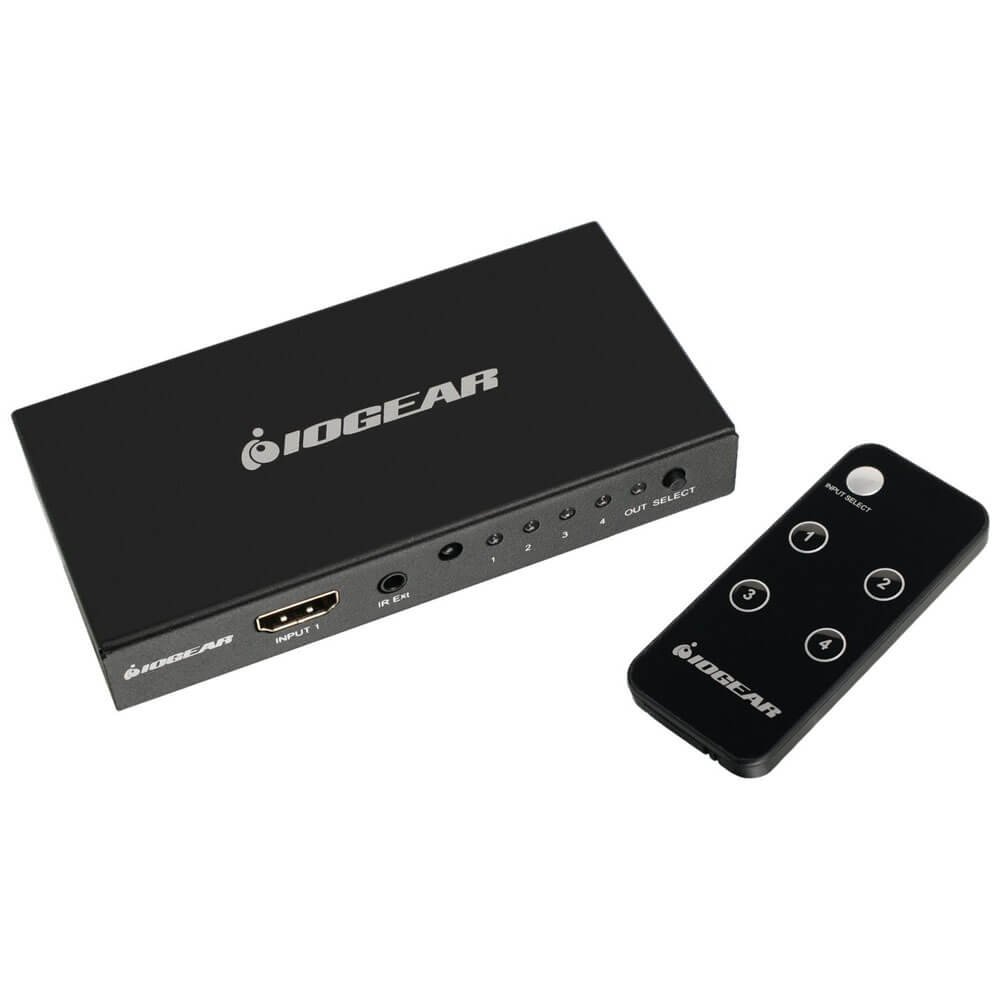
Aworan: Iwaju view of the IOGEAR 4-Port 4K HDMI Switch, showing its compact design.
Package Awọn akoonu
Daju pe gbogbo awọn nkan wa ninu apo rẹ:
- 1 x IOGEAR 4-Port 4K HDMI Switch (Model GHDSW4K4)
- 1 x IR Iṣakoso latọna jijin
Ọja Awọn ẹya ara ẹrọ
- Supports resolutions up to 4K (2160p) at 60Hz, including 480p, 720p, 1080i, and 1080p.
- HDCP 2.2 compliant for seamless compatibility with various devices.
- Supports Dolby True HD and DTS-HD for uncompressed 7.1 digital surround sound.
- Full 3D passthrough and Consumer Electronics Control (CEC) support.
- Effortless switching via front panel button or IR remote control.
- Supports IR extension using a receiver extension cable (not included) for discreet placement.
- Compatible with most standard HDMI devices including game consoles, Blu-ray players, and streaming devices.
- Powered by connected HDMI sources, eliminating the need for an external power adapter in most cases. A micro USB power port is available for additional power delivery if required.
Awọn ilana iṣeto
Follow these steps to set up your IOGEAR 4-Port 4K HDMI Switch:
- Paa awọn ẹrọ: Ensure all HDMI source devices (e.g., Blu-ray player, game console) and your display (TV, monitor) are powered off before making connections.
- So awọn orisun HDMI pọ: Connect your HDMI source devices to the HDMI input ports on the switch. The front panel has one input, and the rear panel has three inputs (Input 2, Input 3, Input 4).
- Sopọ si Ifihan: Connect an HDMI cable from the 'OUTPUT' port on the switch to the HDMI input on your display.
- Asopọ Agbara Aṣayan: The switch is typically powered by the connected HDMI sources. If additional power is needed (e.g., for longer HDMI cables or certain devices), connect a micro USB cable (not included) from the 5V/1A micro USB port on the switch to a USB power source.
- Fi Batiri Latọna sii: Open the battery compartment of the IR remote control and insert the required battery (1 Lithium Ion battery, typically CR2025, not always included). Ensure any plastic pull-tabs are removed.
- Agbara Lori Awọn ẹrọ: Power on your display first, then power on your HDMI source devices.
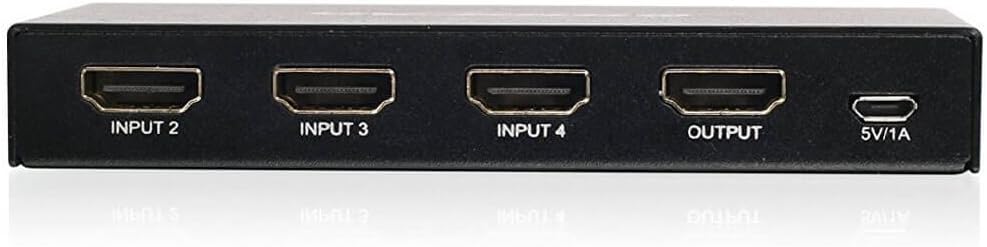
Aworan: Ẹyin view of the IOGEAR 4-Port 4K HDMI Switch, illustrating the HDMI input ports (Input 2, Input 3, Input 4), the HDMI output port, and the 5V/1A micro USB power input.

Image: The IOGEAR 4-Port 4K HDMI Switch shown in a typical desk environment, connecting a laptop, tablet, and external monitor.
Awọn ilana Iṣiṣẹ
The IOGEAR 4-Port 4K HDMI Switch offers two methods for switching between connected devices:
- Front Panel Pushbutton: Press the 'Select' button on the front of the switch to cycle through the connected HDMI input sources. The corresponding LED indicator will illuminate to show the active input.
- IR Isakoṣo latọna jijin: Use the included IR remote control to directly select an input (if numbered buttons are present) or to cycle through inputs. Point the remote towards the IR receiver on the front of the switch.
- Yipada Aifọwọyi: The switch may automatically switch to a newly activated HDMI source. This feature can be convenient but may cause unintended switching if devices periodically send signals.
Itoju
To ensure optimal performance and longevity of your HDMI switch, follow these maintenance guidelines:
- Ninu: Use a soft, dry cloth to clean the exterior of the switch. Avoid using liquid cleaners or aerosols, which may damage the device.
- Afẹfẹ: Rii daju pe a gbe iyipada si agbegbe ti o ni afẹfẹ daradara lati ṣe idiwọ igbona. Ma ṣe dina eyikeyi awọn ṣiṣi atẹgun.
- Iṣakoso USB: Keep HDMI cables neatly organized to prevent strain on the ports and accidental disconnections.
- Ibi ipamọ: When not in use for extended periods, store the switch in a cool, dry place away from direct sunlight and extreme temperatures.
Laasigbotitusita
If you encounter issues with your IOGEAR 4-Port 4K HDMI Switch, refer to the following common solutions:
- Ko si fidio/Ijade ohun:
- Rii daju pe gbogbo awọn kebulu HDMI ti sopọ ni aabo si awọn ẹrọ orisun mejeeji, iyipada, ati ifihan.
- Verify that the correct input on the HDMI switch is selected.
- Confirm that your display is set to the correct HDMI input channel.
- If using a micro USB power cable, ensure it is connected to a reliable power source.
- Try bypassing the switch by connecting a source directly to the display to confirm the source and display are functioning correctly.
- Iṣakoso latọna jijin Ko Ṣiṣẹ:
- Check if the battery in the remote control is correctly inserted and has sufficient charge. Replace if necessary.
- Ensure there are no obstructions between the remote control and the IR receiver on the switch.
- Remove any plastic pull-tabs from the remote's battery compartment.
- 4K Resolution Issues:
- Ensure all connected HDMI cables are rated for 4K (High-Speed HDMI cables).
- Verify that your source device and display both support 4K resolution at the desired refresh rate (e.g., 60Hz).
- Some devices may require specific settings to output 4K through an HDMI switch. Consult your device's manual.
- Unintended Automatic Switching:
- This behavior is often due to the CEC (Consumer Electronics Control) feature or active signal detection. If it becomes disruptive, manually select inputs using the remote or front panel button.
Awọn pato
| Ẹya ara ẹrọ | Ẹ̀kúnrẹ́rẹ́ |
|---|---|
| Nọmba awoṣe | GHDSW4K4 |
| Ọja Mefa | 4.75 x 2.4 x 0.75 inches |
| Iwọn Nkan | 7.2 iwon |
| Awọn ipinnu atilẹyin | 480p, 720p, 1080i, 1080p, 2160p (up to 4K@60Hz) |
| HDMI Ibamu | HDMI 2.0, HDCP 2.2 (also backwards compatible with HDCP 1.2) |
| Ijinle Awọ | 12-bit Jin Awọ |
| Atilẹyin 3D | Full 3D pass-through |
| Atilẹyin ohun | DTS / Dolby / DTS-HD / Dolby True HD / LPCM 7.1 / AC3 |
| Awọn ọna Iṣakoso | Front-panel pushbutton, IR remote control |
| Orisun agbara | HDMI bus-powered (optional Micro USB 5V/1A for additional power) |
| Awọn ẹrọ ibaramu | PC, laptop, Roku, PS4, Xbox, Apple TV, Blu-ray player, DVI devices (with adapter) |
Alaye atilẹyin ọja
IOGEAR products are designed for reliability and performance. For specific warranty details regarding your GHDSW4K4 HDMI Switch, please refer to the warranty card included with your product or visit the official IOGEAR website. Typically, IOGEAR offers a limited warranty covering defects in materials and workmanship under normal use.
Jọwọ ṣe idaduro ẹri rira rẹ fun awọn iṣeduro atilẹyin ọja.
Atilẹyin
For technical assistance, product registration, or further information, please contact IOGEAR customer support:
- Webojula: Visit the official IOGEAR webojú òpó wẹ́ẹ̀bù fún àwọn ìbéèrè tó ń wáyé nígbà gbogbo, àwọn ìgbàsílẹ̀ awakọ̀, àti àwọn ohun èlò ìrànlọ́wọ́.
- Olubasọrọ: Refer to the contact section on the IOGEAR website for phone numbers or email support options.
When contacting support, please have your product model number (GHDSW4K4) and a detailed description of your issue ready.