
1. Eto
1.1 Unpacking ati Awọn akoonu
Carefully remove the TV and all accessories from the packaging. Ensure all components are present:
- Sharp LC-40LE653U 40-Inch Smart LED TV
- Isakoṣo latọna jijin
- 2 AA batiri
1.2 Duro fifi sori
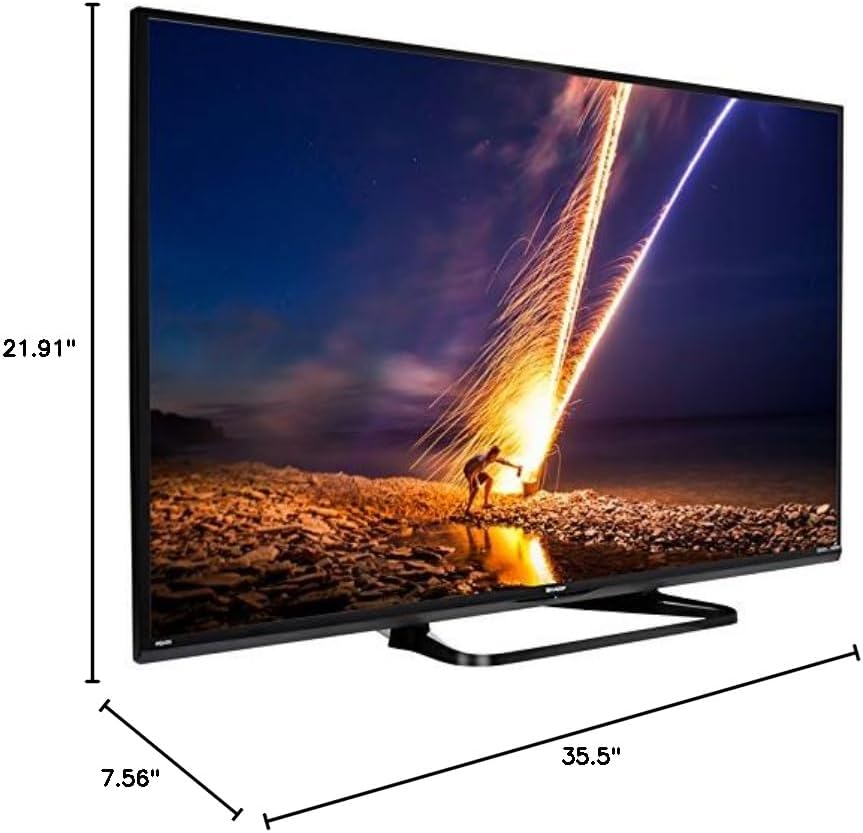
If placing the TV on a table, attach the included stand. Refer to the diagram below for proper assembly. Ensure all screws are securely fastened.
1.3 Nsopọ Awọn ẹrọ ita
Connect your external devices such as cable boxes, Blu-ray players, or gaming consoles to the TV's input ports. The TV features multiple connectivity options.


Available ports include:
- HDMI: 2 ports for high-definition audio and video. One HDMI port supports MHL (Mobile High-Definition Link).
- USB: 1 port for media playback or connecting a USB device.
- Àjọlò: Fun asopọ nẹtiwọki ti a firanṣẹ.
- Component/Video: For older video devices.
- DTV/TV (Antenna): Fún sísopọ̀ eriali tàbí ìfọwọ́sowọ́pọ̀ tẹlifíṣọ̀n oníkábù.
- Ohun Jade: Optical for digital audio, and RCA for analog audio.
1.4 Asopọ agbara
After connecting all necessary devices, plug the TV's power cord into a wall outlet.
1.5 Ni ibẹrẹ Oṣo
Upon first power-on, the TV will guide you through an initial setup process. This includes language selection, time zone, and network configuration. For Wi-Fi setup, select your network and enter the password.
2. Awọn ilana Iṣiṣẹ
2.1 Latọna Iṣakoso Awọn iṣẹ
The remote control allows you to access all TV functions. Insert the two AA batteries into the remote control, ensuring correct polarity.
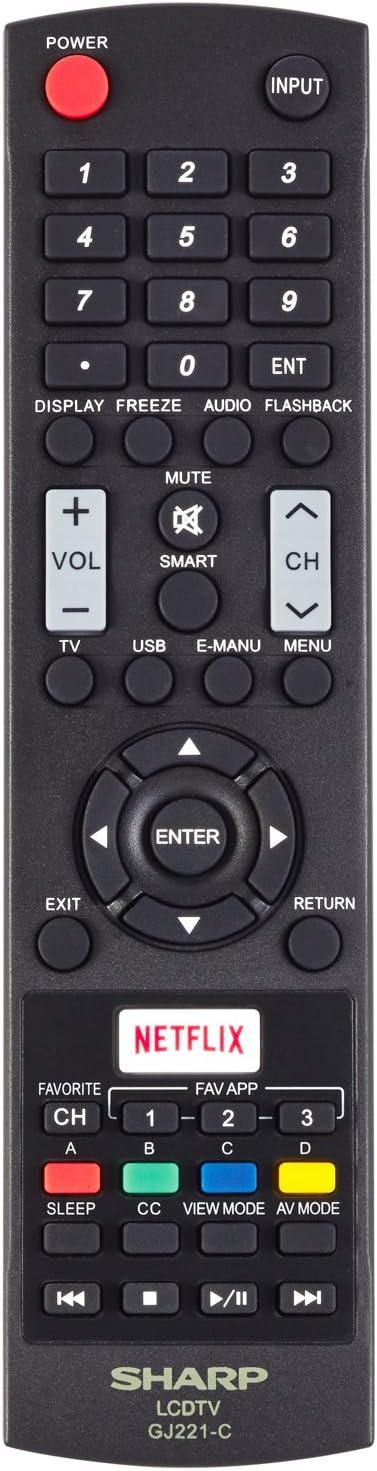
- Agbara (Bọtini pupa): Tan TV si tan tabi paa.
- Iṣawọle: Selects the input source (HDMI, TV, USB, etc.).
- VOL +/-: Ṣe atunṣe ipele iwọn didun.
- CH +/-: Ayipada TV awọn ikanni.
- Navigation Buttons (Up/Down/Left/Right/Enter): Lo lati lilö kiri ni awọn akojọ aṣayan ko si yan awọn aṣayan.
- Smart: Accesses the Smart Central Apps menu.
- Akojọ: Opens the main TV menu for settings adjustments.
- NEFLIX: Direct access button for the Netflix application.
2.2 Smart TV Features (Smart Central Apps)
The Sharp LC-40LE653U features Smart Central Apps, providing access to various online services and a web browser. Ensure your TV is connected to the internet via Wi-Fi or Ethernet.

- Wọle si Awọn ohun elo: Press the 'SMART' button on your remote to open the Smart Central Apps menu.
- Awọn iṣẹ atilẹyin: Includes Hulu Plus, Netflix, Pandora, Vudu, and YouTube.
- Web Aṣàwákiri: Lo awọn itumọ-ni web browser for general internet browsing. Navigation is done via the remote control.
2.3 Wallpaper Mode
When the TV is turned off, Wallpaper Mode can display virtually any image. To use this feature, connect a USB drive containing your desired images to the TV's USB port. Navigate to the Wallpaper Mode settings in the TV menu to select and configure your images.
3. Itọju
3.1 Ninu TV
Lati nu iboju naa, rọra nu rẹ pẹlu asọ, gbẹ, asọ ti ko ni lint. Fun awọn ami alagidi, die-die dampen the cloth with water or a specialized screen cleaner. Avoid using harsh chemicals, abrasive cleaners, or direct spraying of liquids onto the screen or cabinet.
Clean the TV cabinet with a soft, dry cloth. Ensure the TV is unplugged before cleaning.
3.2 Software imudojuiwọn
Periodically check for software updates through the TV's settings menu to ensure optimal performance and access to the latest features. Updates can be performed via the internet connection.
4. Laasigbotitusita
If you encounter issues with your Sharp LC-40LE653U TV, refer to the following common solutions:
- Ko si Agbara: Ensure the power cord is securely plugged into both the TV and a working wall outlet. Check if the power indicator light on the TV is on.
- Ko si Aworan/Ohun: Verify the correct input source is selected using the 'Input' button on the remote. Check all cable connections (HDMI, component, etc.) are secure.
- Didara Aworan Ko dara: Ṣatunṣe awọn eto aworan (imọlẹ, itansan, didasilẹ) ninu akojọ TV. Rii daju pe orisun titẹ sii n pese ifihan agbara to gaju.
- Ko si Asopọ Ayelujara: Check your Wi-Fi router or Ethernet cable connection. Re-enter your Wi-Fi password in the TV's network settings. Restarting your router may resolve connectivity issues.
- Iṣakoso latọna jijin Ko Ṣiṣẹ: Rọpo awọn batiri ni isakoṣo latọna jijin. Rii daju pe ko si awọn idena laarin isakoṣo latọna jijin ati sensọ IR ti TV.
For more detailed troubleshooting steps, consult the full online manual or contact customer support.
5. Awọn pato
Key technical specifications for the Sharp LC-40LE653U 40-Inch Smart LED TV:
| Ẹya ara ẹrọ | Sipesifikesonu |
|---|---|
| Nọmba awoṣe | LC-40LE653U |
| Iwon iboju | 39.5 inches (kilasi 40-inch) |
| Ifihan ọna ẹrọ | LCD |
| Ipinnu | 1080p (HD ni kikun) |
| Oṣuwọn sọtun | 60 Hz |
| Apakan Ipin | 16:9 |
| Asopọmọra Technology | Wi-Fi |
| Ni wiwo Hardware | Ethernet, HDMI, USB |
| Total Number of HDMI Ports | 2 (one with MHL support) |
| Lapapọ Awọn ibudo USB | 1 |
| Input Audio | HDMI, Optical, USB |
| Agbọrọsọ Agbara Ijade ti o pọju | 20 Wattis |
| Awọn iwọn Ọja (D x W x H) | 7.56" x 35.5" x 21.91" |
| Iwọn Nkan | 16.3 iwon |
| Iṣagbesori Iru | Table Mount |
| Awọn iṣẹ Intanẹẹti atilẹyin | Hulu Plus, Netflix, Pandora, Vudu, YouTube |
| Ifọwọsi Agbara Star | Bẹẹni |
6. Atilẹyin ọja ati Support
6.1 Atilẹyin ọja
This Sharp LC-40LE653U TV comes with a 1-odun lopin atilẹyin ọja. Jọ̀wọ́ pa ẹ̀rí ìrajà rẹ mọ́ fún àwọn ẹ̀tọ́ àtìlẹ́yìn. Àtìlẹ́yìn náà bo àwọn àbùkù iṣẹ́-ṣíṣe lábẹ́ àwọn ipò lílo déédéé.
6.2 Onibara Support
For technical assistance, troubleshooting beyond this manual, or warranty service, please contact Sharp customer support. Refer to the official Sharp webaaye tabi kaadi iforukọsilẹ ọja rẹ fun alaye olubasọrọ lọwọlọwọ julọ.