
1. Ọja Ipariview
The Plugable USB-C Multi-Card Reader (USBC-FLASH3) is a high-performance, driverless card reader designed to enhance your USB 3.1 Type-C (USB-C) device with fast data transfer capabilities. It supports a wide range of memory card formats, making it a versatile accessory for various computing needs.

Figure 1: Plugable USB-C Multi-Card Reader (USBC-FLASH3)
Awọn ẹya pataki:
- Iṣe gbigbona-Yara: Supports USB 3.1 Type-C (USB-C) for high-speed data transfer.
- Ibamu gbooro: Compatible with Late 2016 / 2017 / 2018 MacBook Pro, 12" Retina MacBook, Chromebook Pixel, and most USB-C and Thunderbolt 3 host PCs.
- Atilẹyin Kaadi Pupọ: Easily access Secure Digital (SD), MultiMediaCard (MMC), and Memory Stick (MS) formats, including Micro SD.
- Iṣẹ́ Awakọ Láìsí Awakọ̀: Functions out of the box with Mac, Linux, and Windows Desktop or Laptop systems without requiring additional driver installation.
- Iṣe Kaadi Ti o dara julọ: Offers UHS-I mode support for SD, SDHC, and SDXC cards up to 104 MB/sec and accommodates SDXC / MSXC Cards up to 2 TB in size.
2. Awọn ilana iṣeto
The Plugable USB-C Multi-Card Reader is designed for simple plug-and-play functionality. Follow these steps to begin using your device:
- Sopọ si Ẹrọ Gbalejo: Plug the USB-C connector of the card reader into an available USB-C or Thunderbolt 3 port on your computer.
- Fi Kaadi Iranti sii: Carefully insert your desired memory card (SD, Micro SD, MMC, or MS) into the corresponding slot on the card reader. Ensure the card is inserted correctly and fully seated.

Figure 2: Inserting an SD Card into the Reader
Awọn akọsilẹ ibamu:
- Compatible with Windows (11, 10, 8.1/8), Mac OS X (10.10 Yosemite and newer), and Linux (3.x Kernel and newer versions).
- For Mac users, some ports may require extra force for full insertion.
- Mobile platforms, especially most Android devices with USB-C ports, generally DO NOT SUPPORT adding mass storage devices without rooting/jailbreaking. Verify with your device manufacturer before attempting to use the card reader with mobile devices.
3. Awọn ilana Iṣiṣẹ
Once connected and a memory card is inserted, your computer should automatically recognize the card reader as an external storage device. You can then access the contents of the memory card as you would with any other drive.
Awọn oriṣi Kaadi Atilẹyin:
- Oni to ni aabo (SD)
- Kaadi MultiMedia (MMC)
- Memory Stick (MS)
- Micro SD
Gbigbe Data:
The card reader supports high-speed data transfer, leveraging USB 3.1 Type-C capabilities. Transfer speeds for UHS-I mode SD, SDHC, and SDXC cards can reach up to 104 MB/sec.
Yiyọ kuro lailewu:
Always safely eject the memory card from your operating system before physically removing it from the card reader or disconnecting the card reader from your computer. This prevents data corruption.
4. Itọju
To ensure the longevity and optimal performance of your Plugable USB-C Multi-Card Reader, follow these simple maintenance guidelines:
- Ninu: Use a soft, dry, lint-free cloth to clean the exterior of the device. Avoid using liquid cleaners or solvents.
- Ibi ipamọ: Tọju oluka kaadi ni itura, aye gbigbẹ kuro lati orun taara ati awọn iwọn otutu to gaju.
- Mimu: Yago fun sisọ ẹrọ naa silẹ tabi fifisilẹ si awọn ipa to lagbara. Ma ṣe fi agbara mu awọn kaadi iranti sinu awọn iho.
5. Laasigbotitusita
If you encounter issues with your Plugable USB-C Multi-Card Reader, please refer to the following common solutions:
- Ohun elo Ko Damọ:
- Ensure the USB-C connector is fully inserted into your computer's port. Mac ports may sometimes require extra force.
- Try connecting the card reader to a different USB-C or Thunderbolt 3 port on your computer.
- Tun kọmputa rẹ bẹrẹ ki o tun gbiyanju lẹẹkansi.
- Rii daju pe ẹrọ iṣẹ rẹ ti wa ni imudojuiwọn.
- A ko ri kaadi iranti:
- Verify the memory card is inserted correctly and completely into the appropriate slot.
- Test with a different memory card to rule out a card issue.
- Note that the physical write-protect switch on SD cards is not supported by this reader. Ensure your card is not write-protected if you intend to write data.
- Awọn iyara Gbigbe lọra:
- Ensure your computer's USB-C port supports USB 3.1 (or Thunderbolt 3) for optimal speeds. Connecting to a USB 2.0 port will result in slower speeds.
- The performance of the memory card itself can affect transfer speeds. Use high-speed cards for best results.
- Ibamu Ẹrọ Alagbeka: As noted in the setup section, most Android devices with USB-C ports do not natively support external mass storage without modifications. If you are experiencing issues on a mobile device, this is likely the cause.
If these steps do not resolve your issue, please contact Plugable Support for further assistance.
6. Awọn pato

Figure 3: Product Packaging with Specifications
| Ẹya ara ẹrọ | Ẹ̀kúnrẹ́rẹ́ |
|---|---|
| Brand | Plugable |
| Nọmba awoṣe | USBC-FLASH3 |
| Asopọmọra Technology | USB Type C (USB 3.1) |
| Awọn oriṣi Media atilẹyin | SD, SDHC, SDXC, Micro SD, MMC, MS, MSXC |
| Max Card Capacity | Up to 2 TB (SDXC / MSXC) |
| Awọn ọna ṣiṣe | Windows, MacOS, Lainos |
| Iwọn Nkan | 1.6 iwon |
| Awọn iwọn Ọja (LxWxH) | 7.28 x 4.53 x 0.79 inches |
| Àwọ̀ | Flash Silver (Product appears green in images) |
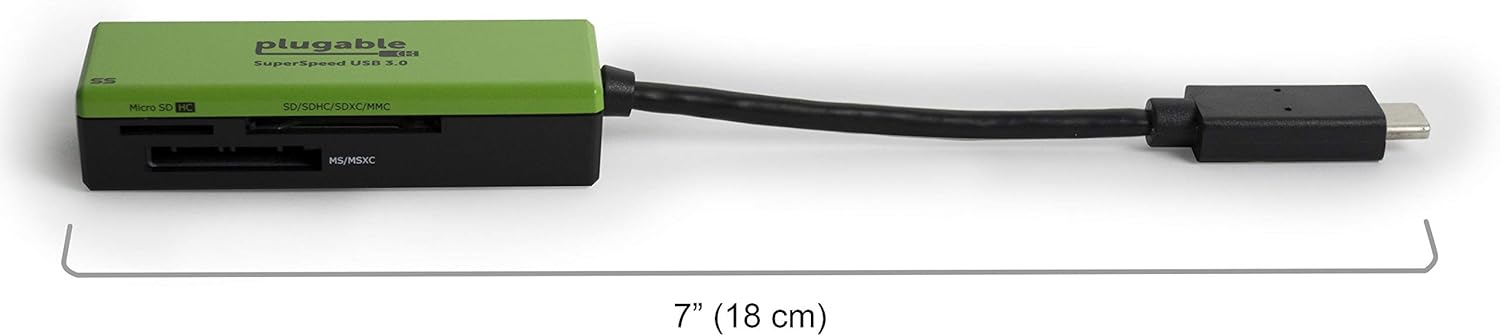
olusin 4: Awọn iwọn Ọja
7. atilẹyin ọja Information
Plugable products typically come with a limited warranty. For detailed information regarding the warranty period, coverage, and terms for your USBC-FLASH3 Multi-Card Reader, please refer to the official Plugable webaaye tabi kan si atilẹyin alabara wọn.
8. Atilẹyin
For technical assistance, troubleshooting, or any questions regarding your Plugable USB-C Multi-Card Reader, please contact Plugable Support:
- Imeeli Atilẹyin: support@plugable.com
- Ọja Oju-iwe: Visit the official product page for the USBC-FLASH3 on the Plugable website for FAQs, drivers, and additional resources. You can often find this by searching for "Plugable USBC-FLASH3" online.
No relevant instructional videos from the seller were available for direct embedding in this manual.