
1. Bibẹrẹ
1.1 Package Awọn akoonu
Verify that all items are present in your Ultimate Ears Boom 2 package:
- Ultimate Ears Boom 2 Bluetooth Speaker
- Micro-USB Ngba agbara USB
- Adapter agbara (le yatọ nipasẹ agbegbe)
1.2 Gbigba agbara Agbọrọsọ rẹ
Before initial use, fully charge your Ultimate Ears Boom 2 speaker. Connect the micro-USB cable to the charging port on the speaker and the other end to the power adapter, then plug into a wall outlet. The LED indicator will show charging status.

The Ultimate Ears Boom 2 speaker, ready for charging.
1.3 Sisopọ Bluetooth
Láti so agbọ́hùnsọ rẹ pọ̀ mọ́ ẹ̀rọ tí ó ní Bluetooth:
- Press and hold the Power button on the top of the speaker until you hear a tone and the LED flashes white.
- Lori ẹrọ alagbeka rẹ, lilö kiri si awọn eto Bluetooth.
- Select 'UE Boom 2' from the list of available devices.
- Once connected, you will hear a confirmation tone from the speaker.

Oke view of the speaker, highlighting the power and Bluetooth pairing buttons.
1.4 Ultimate Ears App
For enhanced control and additional features, download the Ultimate Ears app from your device's app store (iOS 9.0 or later required for Apple devices, Android compatible). The app allows for remote power control, equalizer adjustments, and PartyUp mode.
2. Speaker Operation
2.1 Agbara Tan / Pa
Press the Power button located on the top of the speaker to turn it on or off. A distinct sound will indicate the power status.
2.2 Iṣakoso iwọn didun
Adjust the volume using the large '+' and '-' buttons located on the side of the speaker. You can also control the volume from your connected Bluetooth device.
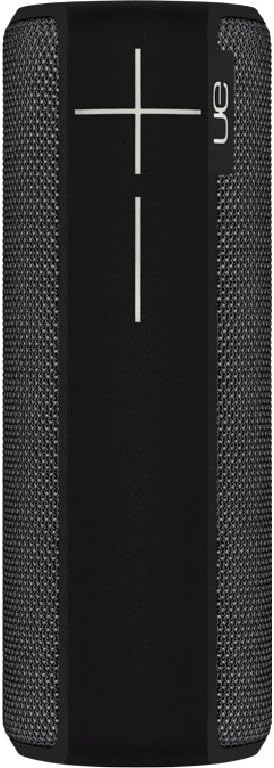
Apa view of the speaker, featuring the prominent volume control buttons.
2.3 Music Control (Tap Gestures)
The Boom 2 features tap controls for music playback:
- Tẹ ni kia kia Tap the top of the speaker once to play or pause the current track.
- Tẹ lẹẹmeji: Tap the top of the speaker twice to skip to the next track.
2.4 Ipo Batiri
To check the battery level, press both the '+' and '-' volume buttons simultaneously. The speaker will announce the remaining battery percentage.
2.5 Waterproof and Durability Features
The Ultimate Ears Boom 2 is designed to be waterproof (IPX7 rated) and shockproof. It can be immersed in water up to 1 meter for 30 minutes. Ensure the charging port cover is securely closed before exposing the speaker to water.

The speaker's waterproof design allows for use in various environments.

The Ultimate Ears Boom 2 demonstrating its water resistance.
2.6 PartyUp Mode (Connecting Multiple Speakers)
Use the Ultimate Ears app to connect multiple Boom speakers together for a more expansive sound experience. Follow the instructions within the app to activate PartyUp mode.
3. Itọju ati Itọju
3.1 Cleaning Awọn ilana
Lati nu agbọrọsọ rẹ nu, lo asọ, damp cloth. Avoid using harsh chemicals or abrasive cleaners, as these can damage the speaker's finish or waterproof seals. Ensure the charging port is dry before charging.
3.2 Batiri Longevity
To maximize battery life, avoid fully discharging the speaker frequently. Charge the speaker regularly, and if storing for an extended period, ensure it has at least a 50% charge.
3.3 Ibi ipamọ
Store the speaker in a cool, dry place away from direct sunlight and extreme temperatures. Ensure the charging port cover is closed to prevent dust and debris from entering.
4. Itọsọna Laasigbotitusita
4.1 Ko si Agbara
- Ensure the speaker is charged. Connect it to the power adapter and allow it to charge for at least 15 minutes before attempting to power on.
- Press and hold the Power button firmly for a few seconds.
4.2 Bluetooth Asopọ oran
- Ensure the speaker is in pairing mode (flashing white LED).
- Pa Bluetooth ati tan lori ẹrọ alagbeka rẹ.
- Forget 'UE Boom 2' from your device's Bluetooth list and attempt to re-pair.
- Move the speaker closer to your device; the maximum range is approximately 33 meters (100 feet).
4.3 Ko si Ohun tabi Iwọn kekere
- Mu iwọn didun pọ si mejeeji agbọrọsọ ati ẹrọ ti o sopọ.
- Rii daju pe agbọrọsọ ti sopọ daradara nipasẹ Bluetooth.
- Check if the audio source on your device is playing correctly.
4.4 Sound Distortion
- Lower the volume on both the speaker and your connected device.
- Ṣe idaniloju ohun ohun file tàbí dídára sísanwó kò kéré.
- Yẹra fún àwọn orísun ìdènà tó lè fa ìdènà (fún àpẹẹrẹ, àwọn olùdarí Wi-Fi, àwọn ẹ̀rọ Bluetooth mìíràn).
4.5 App Asopọmọra Oran
- Ensure your mobile device's operating system meets the app's requirements (iOS 9.0+).
- Restart the app or reinstall it.
- Ensure the speaker's firmware is up to date via the app.
5. Imọ ni pato
| Ẹya ara ẹrọ | Sipesifikesonu |
|---|---|
| Orukọ awoṣe | Ariwo 2 |
| Nọmba awoṣe | 984-000557 |
| ASIN | B0141208EA |
| Asopọmọra Technology | Bluetooth, USB |
| Imọ-ẹrọ Ibaraẹnisọrọ Alailowaya | Bluetooth |
| Awọn ẹrọ ibaramu | Computers, Smartphones (Android, iOS) |
| Igbesi aye batiri | Titi di wakati 15 |
| Mabomire Rating | IPX7 (to mita 1 fun iṣẹju 30) |
| Ibiti o pọju | 33 mita (100 ẹsẹ) |
| Agbọrọsọ o wu Power | 25 Wattis |
| Ọja Mefa | 6.7D x 6.7W x 18H cm (approx. 15 x 5 x 5 cm; 0.54 grams) |
| Ipo Ijade Ohun | Ayika |
| Orisun agbara | Agbara Batiri (Batiri litiumu polima 1 to wa) |
6. Atilẹyin ọja ati Onibara Support
6.1 Atilẹyin ọja to lopin
The Ultimate Ears Boom 2 comes with a Limited Warranty. For specific details regarding warranty coverage, terms, and conditions, please refer to the warranty documentation included with your product or visit the official Ultimate Ears webojula.
6.2 Onibara Support
If you encounter any issues not covered in this manual or require further assistance, please contact Ultimate Ears customer support through their official website. For return policies or issues related to your purchase, consult the retailer's (e.g., Amazon.it) help pages.