
Akuvox SP-R50P
Ìwé Ìtọ́sọ́nà Olùlò Foonu IP Akuvox SP-R50P
Model: SP-R50P
1. Ifihan
This manual provides detailed instructions for the setup, operation, and maintenance of your Akuvox SP-R50P IP Phone. The SP-R50P is a high-definition voice IP phone designed for clear communication and efficient call management.
Awọn ẹya pataki pẹlu:
- HD Voice capability for superior audio quality.
- 2.6" 132x64 Graphical LCD with backlight for clear display.
- 31 Keys, including 4 soft keys and 10 programmable keys, for versatile control.
- Multiple connectivity options: 1 RJ9 Handset jack, 1 RJ9 Headset Jack, 2 RJ45 10/100m Ethernet Jacks.
- Power over Ethernet (PoE) support (IEEE 802.3af) for simplified installation.
- Support for 1 SIP account, call waiting, call forward, call transfer, call on hold, mute, auto-answer, redial, DND, local 3-way conference, volume adjustment, selectable ringtones, speed dial, hotline, and more.
2. Awọn akoonu Apoti
Carefully unpack your Akuvox SP-R50P IP Phone and verify that all items listed below are present and in good condition. If any items are missing or damaged, please contact your reseller immediately.
- Akuvox SP-R50P Base Unit
- Aimudani
- Handset Connector Cable
- Iduro foonu
- Itọsọna Ibẹrẹ kiakia (tọkasi itọnisọna yii fun awọn alaye ni kikun)
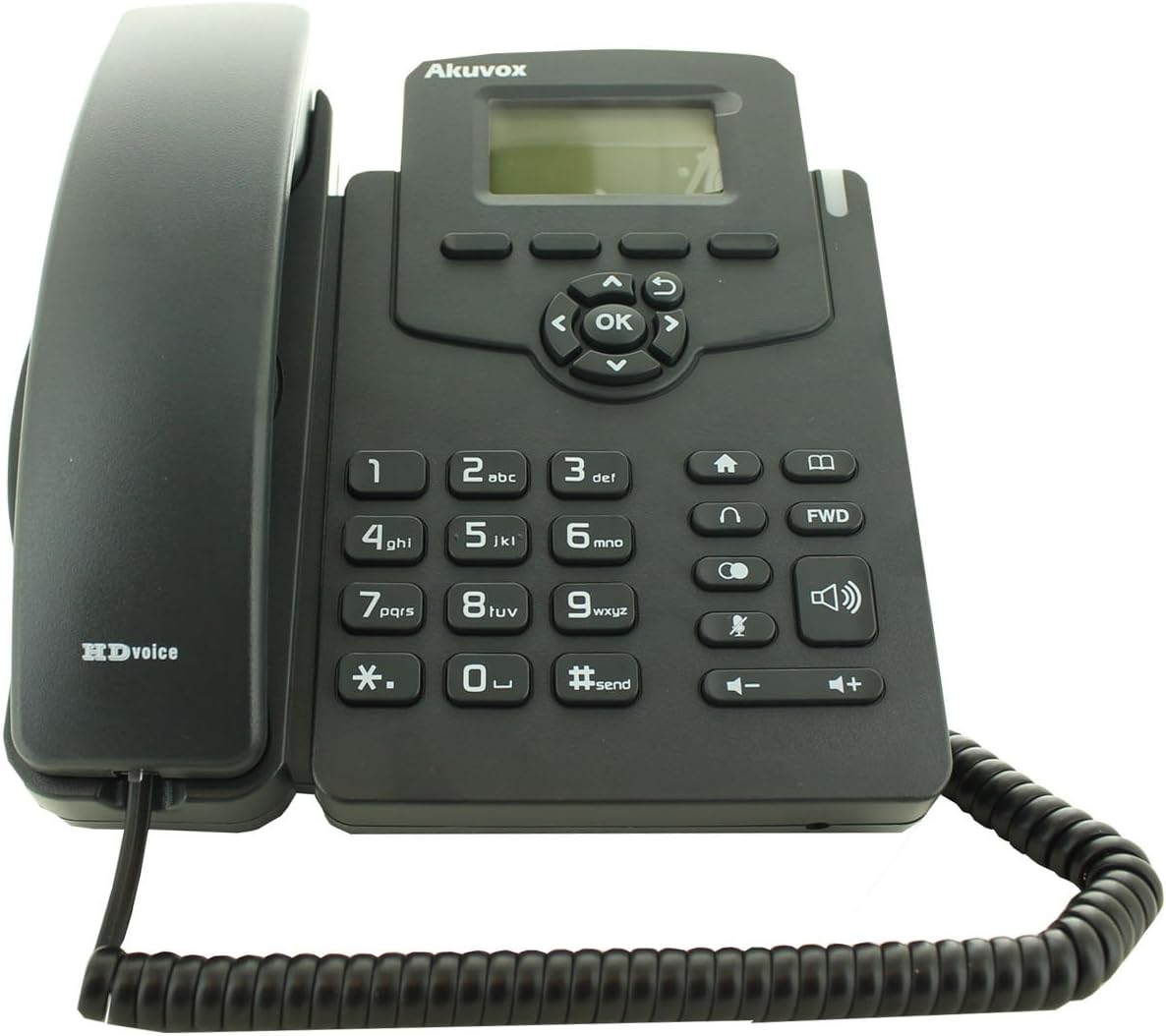
Figure 2.1: Akuvox SP-R50P IP Phone components. The image displays the main phone unit, the handset resting on its cradle, and the coiled handset cable. The phone features a display screen, navigation keys, a numeric keypad, and function buttons.
3. Eto
Follow these steps to set up your Akuvox SP-R50P IP Phone for first-time use.
- So Iduro Foonu naa: Align the tabs on the phone stand with the slots on the back of the phone base unit. Slide the stand into place until it clicks securely.
- So foonu pọ: Plug one end of the coiled handset cable into the handset jack on the side of the phone base unit and the other end into the handset.
- Sopọ si Nẹtiwọọki ati Agbara:
- Lilo PoE (Agbara lori Ethernet): If your network switch supports PoE, connect an Ethernet cable from the LAN port on the back of the phone to a PoE-enabled port on your network switch. The phone will power on automatically.
- Using a Power Adapter (Optional, not included): If PoE is not available, connect a compatible 5V DC power adapter (not included) to the power jack on the back of the phone, then plug the adapter into a power outlet. Connect an Ethernet cable from the LAN port on the back of the phone to your network router or switch.
- Ibẹrẹ ibẹrẹ: The phone will power on and begin its boot-up sequence. The LCD screen will display the Akuvox logo and then proceed to load the operating system. This may take a few moments.
- Iṣeto Nẹtiwọọki: Once booted, the phone will attempt to obtain an IP address via DHCP. If your network requires static IP configuration or specific SIP server settings, these can be configured via the phone's web interface or directly on the phone's menu (refer to Section 4.2 for menu navigation).
4. Awọn ilana Iṣiṣẹ
This section details the basic and advanced functions of your Akuvox SP-R50P IP Phone.
4.1 Ipilẹ Ipe Awọn iṣẹ
- Npe Ipe:
- Mu agbekọri naa tabi tẹ Agbọrọsọ bọtini.
- Tẹ nọmba foonu ti o fẹ nipa lilo bọtini foonu.
- Tẹ awọn #send button or wait a few seconds for the call to connect automatically.
- Ndahun ipe kan: Nigbati foonu ba ndun, gbe foonu tabi tẹ awọn Agbọrọsọ bọtini.
- Pari ipe kan: Gbe foonu soke tabi tẹ awọn Agbọrọsọ bọtini lẹẹkansi.
- Titun: Tẹ awọn Redial button (often represented by a curved arrow or a dedicated key) to redial the last dialed number.
- Pa ẹnu mọ́: Lakoko ipe, tẹ awọn Pa ẹnu mọ́ button (microphone icon) to mute your microphone. Press it again to unmute.
- Atunse iwọn didun: Lo awọn Iwọn didun +/- buttons during a call to adjust the handset, headset, or speaker volume. When idle, use them to adjust the ringer volume.
4.2 Awọn ẹya ara ẹrọ Ipe To ti ni ilọsiwaju
- Ipe Ipe: Nigba ipe ti nṣiṣe lọwọ, tẹ Dimu button (often represented by a pause icon or two vertical lines). The call will be placed on hold. Press the Dimu button again or the flashing line key to resume the call.
- Gbigbe ipe:
- Gbigbe afọju: Nigba ipe ti nṣiṣe lọwọ, tẹ Gbigbe soft key or button. Dial the number to transfer to, then press the Gbigbe asọ bọtini lẹẹkansi.
- Gbigbe lọ: Nigba ipe ti nṣiṣe lọwọ, tẹ Gbigbe soft key or button. Dial the number to transfer to and wait for the party to answer. Announce the call, then press the Gbigbe bọtini asọ lẹẹkansi lati pari awọn gbigbe.
- Apejọ 3-Ọna:
- Nigba ipe ti nṣiṣe lọwọ, tẹ Conf soft key or button. The first call will be placed on hold.
- Dial the number of the third party and wait for them to answer.
- Tẹ awọn Conf soft key again to join all three parties in a conference call.
- Maṣe daamu (DND): Tẹ awọn DND button (often represented by a crossed-out bell or similar icon) to activate or deactivate Do Not Disturb mode. When active, incoming calls will be redirected or sent to voicemail without ringing your phone.
- Pe Siwaju: Access the phone's menu (usually via a Akojọ aṣyn or Eto soft key) to configure call forwarding options (Always, Busy, No Answer).
- Iwe foonu: The phone supports a local phonebook of up to 500 groups. Access it via the Iwe foonu soft key or menu option. You can add, edit, and delete contacts.
- Awọn bọtini eto: The 10 programmable keys can be configured for various functions such as speed dial, busy lamp field (BLF), or line keys. Refer to your system administrator or the phone's web interface for configuration details.
4.3 LCD Ifihan ati Lilọ kiri
The 2.6" graphical LCD displays call information, menu options, and status indicators. Use the navigation cluster (Up, Down, Left, Right arrows, and OK button) to navigate through menus and select options. The soft keys below the display change their function based on the current context.
5. Itọju
Proper care and maintenance will ensure the longevity of your Akuvox SP-R50P IP Phone.
- Ninu: Lo asọ asọ ti o gbẹ lati nu dada foonu naa. Fun awọn ami alagidi, die-die dampen the cloth with water. Do not use harsh chemicals, abrasive cleaners, or solvents, as these can damage the phone's finish and internal components.
- Ayika: Keep the phone away from direct sunlight, excessive heat sources, and moisture. Ensure it is placed on a stable, flat surface to prevent accidental falls.
- Awọn kebulu: Periodically check all connected cables (handset, Ethernet) for any signs of wear or damage. Replace damaged cables immediately.
- Afẹfẹ: Ensure the ventilation slots on the phone are not blocked to prevent overheating.
6. Laasigbotitusita
If you encounter issues with your Akuvox SP-R50P IP Phone, refer to the following common problems and solutions.
| Isoro | Owun to le Fa | Ojutu |
|---|---|---|
| Foonu ko ṣiṣẹ. | No power supply; PoE not active or faulty; power adapter faulty. |
|
| Ko si ohun orin ipe. | Network connection issue; SIP registration failure; handset cable loose. |
|
| Ko le ṣe tabi gba awọn ipe wọle. | SIP registration failure; network firewall blocking VoIP traffic; DND active. |
|
| Didara ohun ti ko dara (iwoyi, aimi). | Network congestion; faulty cable; microphone/speaker issue. |
|
If the problem persists after trying these solutions, please contact your system administrator or Akuvox technical support.
7. Awọn pato
Detailed technical specifications for the Akuvox SP-R50P IP Phone.
| Ẹya ara ẹrọ | Apejuwe / iye |
|---|---|
| Nọmba awoṣe | SP-R50P |
| Brand | Akuvox |
| Ifihan | 2.6" 132x64 Graphical LCD with backlight |
| Awọn bọtini | 31 Keys (4 Soft Keys, 10 Programmable keys) |
| Didara ohun | HD Ohun |
| Awọn iroyin SIP | 1 Line (Support 1 SIP account) |
| Àjọlò Ports | 2 RJ45 10/100m Ethernet Jacks |
| Agbekọri Jack | 1 RJ9 Headset Jack |
| Jack Handset | 1 RJ9 Handset jack |
| DARA | IEEE 802.3af |
| Ipe alapejọ | Local 3-Way Conference |
| Agbara Iwe foonu | 500 awọn ẹgbẹ |
| Awọn akọọlẹ ipe | 100 awọn titẹ sii |
| Ohun elo | Ṣiṣu |
| Àwọ̀ | Dudu |
| Package Mefa | 20.8 x 19.8 x 9 cm |
| Iwọn | 859.99 g |
| Akọkọ Wa Ọjọ | Oṣu Kẹjọ Ọjọ 26, Ọdun 2015 |
8. Atilẹyin ọja ati Support
For warranty information, please refer to the warranty card included with your product or contact your point of purchase. Akuvox provides technical support for its products. For further assistance, please visit the official Akuvox webojula tabi kan si wọn onibara iṣẹ Eka.
A gba ọ niyanju lati tọju iwe rira rẹ bi ẹri rira fun awọn ẹtọ atilẹyin ọja.
Awọn iwe aṣẹ ti o jọmọ - SP-R50P
 |
Akuvox SP-R50P IP Phone User Manual - Comprehensive Guide This user manual provides detailed information on the Akuvox SP-R50P IP Phone, covering installation, features, functions, settings, web interface configuration, and troubleshooting. Learn how to set up and utilize your SP-R50P for optimal communication. |
 |
Akuvox E12 Smart Intercom Quick Itọsọna Itọsọna ṣoki kan si Akuvox E12 Smart Intercom, ibora ṣiṣi silẹ, fifi sori ẹrọ, topology nẹtiwọọki, sisọ ẹrọ, ikede IP, iṣẹ ṣiṣe, iṣeto ni, ati ipo itọkasi. Pẹlu awọn apejuwe ọrọ alaye ti awọn aworan atọka ati awọn paati. |
 |
Akuvox R20K Flush-iṣagbesori fifi sori Quick Itọsọna Itọsọna ṣoki kan fun fifi sori ẹrọ intercom smart Akuvox R20K ni lilo ọna fifin-fifọ. O ṣe alaye awọn ẹya ẹrọ ṣiṣi silẹ, awọn ero agbegbe, awọn ilana fifi sori igbese-nipasẹ-igbesẹ, wiwọ ẹrọ, ati awọn akiyesi ile-iṣẹ pataki. |
 |
Awọn ẹya jara PizzaMaster 700/800/900 ti o wa lokeview ati Akojọ Awọn ẹya kikun ni kikunview àti àkójọ àwọn ààrò PizzaMaster 700, 800, àti 900. Wá àwọn nọ́mbà apá, àpèjúwe, àti àwòrán fún àwọn èròjà ààrò pàtàkì. |
 |
Краткое руководство по накладному монтажу Akuvox R20K Краткое руководство по накладному монтажу и настройке IP-домофона Akuvox R20K. Описывает распаковку, установку, подключение, сетевую конфигурацию доступом и индикацию состояния. |
 |
Ìtọ́sọ́nà Ìfisílẹ̀ Ibòrí Tonneau MaxMate Soft Roll Up Ìtọ́sọ́nà ìfisẹ́lé tó péye fún MaxMate Soft Roll Up Tonneau Cover, pẹ̀lú àwọn irinṣẹ́ tó yẹ, àkójọ àwọn ohun kan, ìgbésẹ̀ ìṣàkójọ, ipò, dídì, yíyípo sókè/sẹ́lẹ̀, ìṣàkóso ìfọ́kàn, àwọn ìtọ́ni pàtàkì fún àkójọpọ̀, àti ṣíṣe àtúnṣe. |
Ask a question about this manual
Ask about setup, troubleshooting, compatibility, parts, safety, or missing instructions. Manuals+ will review the question and use this page’s manual context to help answer it.