
1. Ifihan
This manual provides essential instructions for the safe and efficient use of your Epson LQ-310 24-Pin Narrow Carriage Impact Printer. Please read this manual thoroughly before operating the printer and keep it for future reference.
The Epson LQ-310 is a compact and reliable dot matrix printer designed for fast and efficient printing of various documents, including multi-part forms, invoices, and reports. It features versatile connectivity options including USB, Serial, and Parallel ports.
2. Alaye Aabo
Observe the following safety precautions to ensure safe operation and to prevent damage to the printer or injury to yourself.
- Máa gbé ẹ̀rọ ìtẹ̀wé náà sí orí ilẹ̀ tí ó dúró ṣinṣin, tí ó tẹ́jú nígbà gbogbo.
- Do not block or cover the ventilation slots on the printer.
- Lo okun agbara nikan ti a pese pẹlu itẹwe.
- Do not expose the printer to water, moisture, or excessive heat.
- Yọ ẹ̀rọ ìtẹ̀wé náà kúrò nínú ihò agbára kí o tó sọ ọ́ di mímọ́ tàbí kí o ṣe àtúnṣe.
- Jeki kuro ni arọwọto awọn ọmọde.
3. Package Awọn akoonu
Jẹrisi pe gbogbo awọn ohun kan wa ninu package:
- Epson LQ-310 Printer Unit
- Okun agbara
- Ribbon Katiriji
- Afowoyi Olumulo (iwe-ipamọ yii)
- Driver CD (may vary by region)
4. Eto
4.1 Ṣiṣii ati Gbe
- Yọ itẹwe kuro ninu apoti rẹ.
- Remove all protective tapes and packing materials.
- Place the printer on a flat, stable surface with adequate ventilation.
4.2 Nsopọ agbara USB
So okun agbara pọ mọ itẹwe ati lẹhinna si iṣan itanna ti ilẹ.
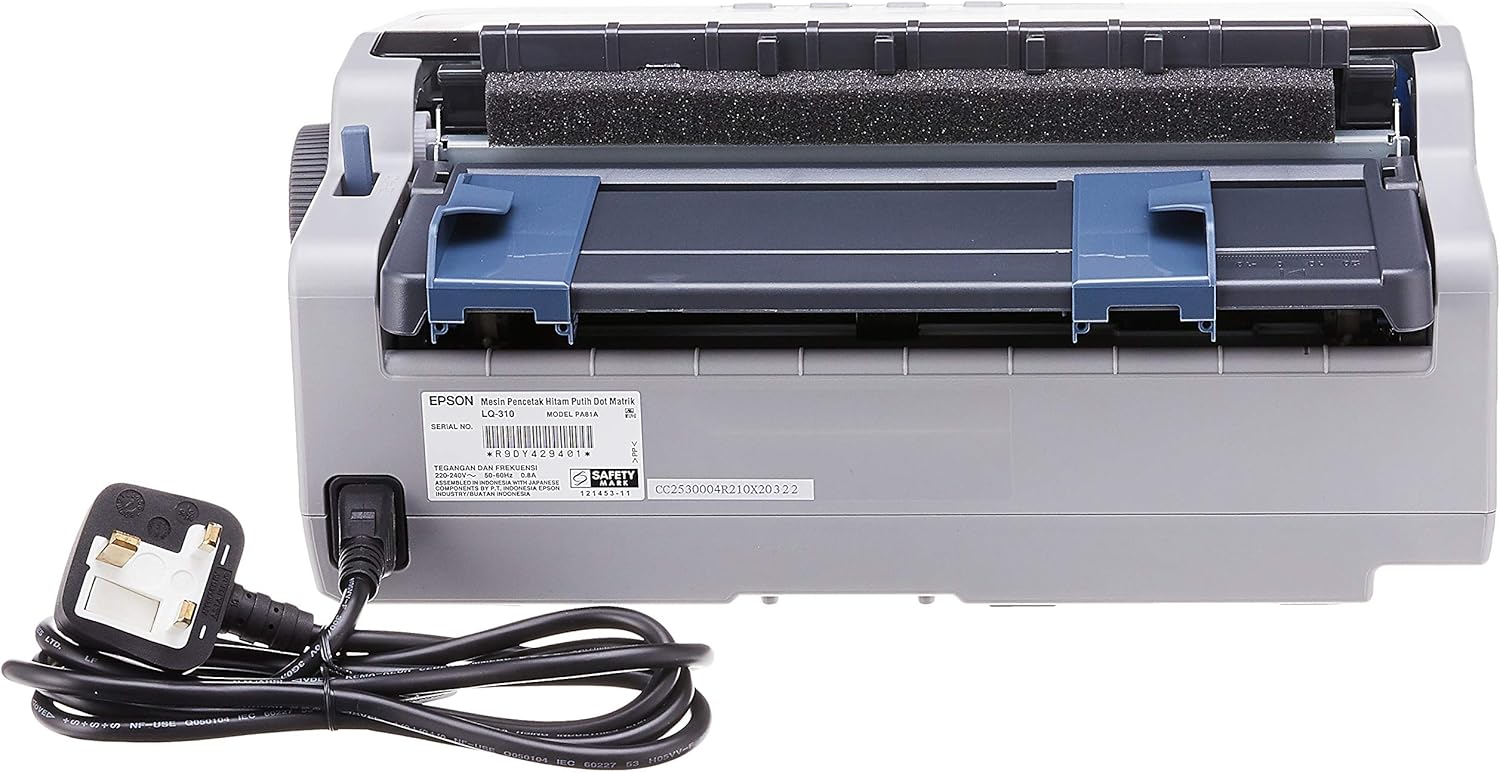
Nọmba 4.2.1: Ẹyìn view of the Epson LQ-310 printer, highlighting the power input and various data ports (USB, Serial, Parallel) for connection to a computer.
4.3 Nsopọ si Kọmputa kan
The LQ-310 supports USB, Serial, and Parallel connections. Choose the appropriate cable for your computer and connect it to the corresponding port on the printer.
- Asopọ USB: Use a standard USB A-B cable.
- Asopọmọra ni tẹlentẹle: Use a serial cable (RS-232C).
- Isopọ ti o jọra: Use a parallel cable (Centronics).
4.4 Installing the Ribbon Cartridge
- Rii daju pe itẹwe ti wa ni pipa.
- Ṣii ideri itẹwe.
- Unpack the new ribbon cartridge.
- Align the ribbon cartridge with the guides inside the printer and press down firmly until it clicks into place.
- Turn the ribbon feed knob on the cartridge to ensure the ribbon is taut and not twisted.
- Pa ideri itẹwe naa.

Nọmba 4.4.1: The ribbon cartridge for the Epson LQ-310 printer, which needs to be installed correctly for printing.
4.5 ikojọpọ Iwe
The LQ-310 can handle various paper types, including continuous forms and single sheets.
- Fun awọn fọọmu ti o tẹsiwaju: Place the forms on the tractor feed mechanism at the rear of the printer. Adjust the tractor guides to match the paper width and engage the pins.
- For Single Sheets: Insert a single sheet into the front paper slot, ensuring it is straight.
4.6 Driver fifi sori
After connecting the printer, install the necessary drivers on your computer. You can typically find these on the included CD or download them from the official Epson support webojula.
5. Awọn ilana Iṣiṣẹ
5.1 Iṣakoso igbimo Loriview
The control panel on the front of the printer allows you to manage basic functions.

Nọmba 5.1.1: Iwaju view of the Epson LQ-310 printer, showing the control panel with buttons for Tear Off, LF/FF, Load/Eject, Paper Out, Pause, Lock, Font, Item, Micro Adjust, and Set.
- Bọtini agbara: Tan-an tabi pa ẹrọ itẹwe naa.
- Paper Out Indicator: Lights up when the printer is out of paper.
- Bọtini idaduro: Duro titẹ sita fun igba diẹ. Tẹ lẹẹkansi lati bẹrẹ pada.
- LF/FF (Ifunni Laini/Ifunni Fọọmu) Bọtini: Advances paper by one line or one page.
- Bọtini fifuye/Ijade: Loads a single sheet of paper or ejects the current sheet.
- Tear Off Button: Advances continuous paper to the tear-off position.
- Font Button: Selects different fonts.
- Item/Set Buttons: Used for menu navigation and setting options.
5.2 Ipilẹ titẹ sita
- Rii daju pe itẹwe ti wa ni titan ati ti sopọ si kọnputa rẹ.
- Load paper according to the instructions in Section 4.5.
- Ṣii iwe ti o fẹ lati tẹ sita lori kọnputa rẹ.
- Select the Epson LQ-310 as your printer in the print dialog.
- Ṣàtúnṣe àwọn ètò ìtẹ̀wé (fún àpẹẹrẹ, ìwọ̀n ìwé, dídára ìtẹ̀wé) bí ó ṣe yẹ.
- Tẹ 'Tẹjade'.
6. Itọju
6.1 Ribbon Cartridge Replacement
Replace the ribbon cartridge when print quality deteriorates or the ribbon is visibly worn.
- Pa ẹrọ itẹwe naa kuro ki o yọọ okun agbara.
- Ṣii ideri itẹwe.
- Ni ifarabalẹ yọ katiriji tẹẹrẹ atijọ kuro nipa gbigbe jade.
- Install a new ribbon cartridge as described in Section 4.4.
- Close the printer cover and reconnect the power.
6.2 Ninu itẹwe
Regular cleaning helps maintain printer performance.
- Pa ẹrọ itẹwe naa kuro ki o yọọ okun agbara.
- Mu ese ita ti itẹwe pẹlu asọ, damp asọ. Ma ṣe lo abrasive ose tabi epo.
- Gently clean the print head area with a soft, lint-free cloth if necessary, being careful not to touch the pins.
- Remove any paper dust or debris from the paper path.
7. Laasigbotitusita
This section addresses common issues you might encounter with your LQ-310 printer.
7.1 Printer Does Not Turn On
- Rii daju pe okun agbara ti sopọ ni aabo si itẹwe mejeeji ati iṣan itanna ti n ṣiṣẹ.
- Ṣayẹwo boya iṣan agbara n ṣiṣẹ nipa sisọ sinu ẹrọ miiran.
7.2 "Paper Out" Indicator is On
- Load paper correctly as described in Section 4.5.
- Ensure the paper sensor is not obstructed.
7.3 Kò sí ìtẹ̀jáde ìtẹ̀wé
- Verify the printer is powered on and connected to the computer.
- Check if the correct printer driver is installed and selected in your application.
- Ensure the ribbon cartridge is installed correctly and has ink.
- Check the printer's status on your computer; clear any pending print jobs.
7.4 Ko dara Print Didara
- The ribbon cartridge may be old or running out of ink. Replace it if necessary.
- Ensure the paper type is suitable for impact printing.
- Clean the print head area if there is visible debris.
8. Awọn pato
| Ẹya ara ẹrọ | Sipesifikesonu |
|---|---|
| Imọ-ẹrọ titẹ sita | 24-Pin Narrow Carriage Impact Dot Matrix |
| Iyara titẹ sita | Up to 347 / 416 cps (10 / 12 cpi) |
| Asopọmọra | 1 Full-Speed USB 2.0, Serial Port, Parallel Port |
| Ijade itẹwe | Colour (Ink Color: Black) |
| Ipinnu | 240 x 170 dpi (Max Print Resolution Black and White: 240 dpi) |
| Iwọn Nkan | 4.1 kilo |
| Awọn iwọn Ọja (D x W x H) | 27.5D x 36.2W x 15.4H sẹntimita |
| O pọju Media Iwon | Lẹta/A4 |
| Media Print | Iwe (pẹtẹlẹ) |
| Orukọ awoṣe | LQ 310 |
| Nọmba awoṣe | LQ-310 |
9. Atilẹyin ọja ati Support
The Epson LQ-310 printer comes with a limited warranty. For detailed warranty information, please refer to the warranty card included with your product or visit the official Epson webojula.
For technical support, driver downloads, or further assistance, please visit the Epson support website or contact your local Epson customer service center. Have your printer model number (LQ-310) and serial number ready when contacting support.