
Ọrọ Iṣaaju
This manual provides detailed instructions for the installation, operation, and maintenance of your INIM Alien/SN Touchscreen User Interface. Please read this manual thoroughly before using the device to ensure proper functionality and to prevent damage. Keep this manual for future reference.
Ọja Pariview
The INIM Alien/SN is a 4.3-inch touchscreen user interface designed for i-bus systems. It integrates several features for enhanced control and monitoring within your environment.
Awọn ẹya pataki:
- Ifihan Iboju Ifọwọkan 4.3-inch
- Sensọ isunmọtosi
- Sensọ otutu Ibaramu
- Integrated Microphone and Speaker
- USB Interface
- SD kaadi Iho
- Designed for i-bus systems
Awọn eroja:
- INIM Alien/SN Touchscreen User Interface
- SD Card (included)
- Mounting hardware (not specified, typically included with wall-mount devices)
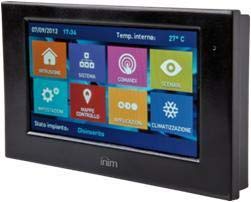
Aworan yii fihan iwaju view of the INIM Alien/SN Touchscreen User Interface, featuring its sleek black design and the 4.3-inch display.
Ṣeto
Follow these steps for the initial setup of your INIM Alien/SN Touchscreen User Interface.
1. Gbigbe Ẹrọ naa:
- Yan Ibi: Choose a suitable wall location, ensuring it is within reach of the necessary electrical cabling and i-bus connection.
- Mura Waya: Ensure all power and i-bus wiring is safely routed to the mounting location.
- Oke ti o ni aabo: Use appropriate wall-mounting hardware to securely attach the device's backplate or mounting bracket to the wall.
- Asopọmọra Waya: Connect the electrical power cable and i-bus communication cables to the designated terminals on the device. Refer to the wiring diagram provided with your i-bus system documentation for specific connections.
- So Ẹrọ: Carefully attach the touchscreen unit to the mounted backplate, ensuring it clicks securely into place.
2. Initial Power-Up:
- Once mounted and wired, apply power to the device. The touchscreen should illuminate.
- Follow any on-screen prompts for initial configuration, such as language selection or network settings.
3. SD Card and USB:
- The included SD card is typically used for firmware updates, configuration backups, or data logging. Insert it into the designated slot if not already pre-installed.
- The USB interface can be used for direct connection to a computer for advanced configuration or diagnostics using INIM software.
Awọn ilana Iṣiṣẹ
The INIM Alien/SN features an intuitive touchscreen interface for easy navigation and control.
1. Touchscreen Navigation:
- Fọwọ ba: Lightly touch the screen to select icons, buttons, or menu items.
- Ra: Drag your finger across the screen to scroll through lists or switch between screens.
- Sensọ isunmọtosi: The screen may automatically activate or adjust brightness when you approach it.
2. Iṣakoso eto:
- Access various functions of your i-bus system, such as arming/disarming security zones, viewing system status, or controlling connected devices.
- Specific menu structures and options will depend on your i-bus system configuration.
3. Audio Functions:
- The integrated microphone and speaker allow for two-way audio communication, typically used for intercom functions or alarm verification within the i-bus system.
- Adjust volume settings through the on-screen menu.
4. Abojuto iwọn otutu:
- The ambient temperature sensor displays the current room temperature.
- If configured as a thermostat, you can view and adjust temperature setpoints for HVAC systems directly from the interface.
Itoju
Regular maintenance ensures the longevity and optimal performance of your touchscreen user interface.
Ninu:
- Iboju: Lo asọ asọ, ti ko ni lint die-die dampened with water or a non-abrasive screen cleaner. Do not spray cleaner directly onto the screen.
- Casing: Wipe the plastic casing with a soft, dry cloth. Avoid harsh chemicals or abrasive materials.
Awọn imudojuiwọn sọfitiwia:
- Periodically check the INIM Electronics website or consult your system installer for available firmware updates.
- Updates can be applied via the USB interface or by loading files onto the SD card, as per specific instructions provided with the update.
Laasigbotitusita
If you encounter issues with your INIM Alien/SN, refer to the following common problems and solutions.
Ẹrọ ti ko ni agbara:
- Ṣayẹwo Asopọ agbara: Ensure the electrical cable is securely connected and receiving power.
- Verify i-bus Connection: Confirm the i-bus communication cable is properly connected, as some systems draw power through this connection.
- Opin Iyika monamona: Check your building's circuit breaker for any tripped circuits.
Iboju ifọwọkan Ko dahun:
- Tun ẹrọ bẹrẹ: If possible, power cycle the device by temporarily disconnecting and reconnecting its power source.
- Mimọ iboju: Ensure the screen is clean and free of dirt or moisture that might interfere with touch detection.
No Audio from Speaker/Microphone:
- Eto iwọn didun: Check the on-screen volume settings to ensure they are not muted or set too low.
- Iṣeto ni Eto: Verify that audio functions are enabled and correctly configured within your i-bus system settings.
For persistent issues, contact your system installer or INIM Electronics technical support.
Awọn pato
| Ẹya ara ẹrọ | Sipesifikesonu |
|---|---|
| Olupese | INIM Electronics |
| Nọmba awoṣe | 8050617014619 |
| Ifihan Iru | 4.3-inch Touchscreen |
| Àwọ̀ | Dudu |
| Ohun elo | Ṣiṣu |
| Orisun agbara | Cable ina |
| Asopọmọra | USB |
| Pataki Awọn ẹya ara ẹrọ | Integrated Microphone, Ambient Temperature Sensor, Proximity Sensor |
| Awọn irinše to wa | Kaadi SD |
| Iṣagbesori Iru | Ògiri Ògiri |
| Ọja Mefa | 15 x 10 x 3 cm |
| Iwọn Ọja | 250 giramu |
Atilẹyin ọja ati Support
For warranty information, please refer to the documentation provided by your retailer or visit the official INIM Electronics website. Warranty terms and conditions may vary by region and purchase location.
For technical support, assistance with installation, or troubleshooting beyond the scope of this manual, please contact your authorized INIM Electronics dealer or system installer. You may also find additional resources and contact information on the official INIM Electronics webojula.
Webojula: www.inim.biz (Please note: This is a generic placeholder for the manufacturer's website. Verify the correct URL if available.)