
1. Ifihan
This manual provides detailed instructions for the Plugable USB-C to DisplayPort Bi-Directional Cable (Model USBC-DP). This cable is designed to connect USB-C enabled devices to DisplayPort monitors or DisplayPort enabled devices to USB-C displays, supporting high-resolution video and audio transmission.

Image: The Plugable USB-C to DisplayPort Bi-Directional Cable, showcasing both the USB-C and DisplayPort connectors.
2. Key Awọn ẹya ara ẹrọ
- Bi-Directional Connectivity: Supports both USB-C to DisplayPort and DisplayPort to USB-C video output, offering flexible connection options.
- Atilẹyin ipinnu giga: Enables resolutions up to 4K at 60Hz (3840x2160).
- Plug-and-Play: No drivers or software installation required for operation.
- Apẹrẹ ti o tọ: Features an aluminum shell on both connectors and a nylon braided cable for enhanced durability.
- Ibamu gbooro: Compatible with systems supporting DisplayPort Alt Mode over USB-C, USB4, or Thunderbolt 3/4, including various MacBooks, iPads, HP, Dell, Lenovo, Microsoft Surface, and LG Gram models.
3. Awọn ilana iṣeto
Follow these steps to connect your device using the Plugable USB-C to DisplayPort Bi-Directional Cable:
- Ṣe idanimọ Awọn ibudo: Ensure your source device (e.g., laptop, tablet) has a USB-C port that supports DisplayPort Alt Mode, USB4, or Thunderbolt 3/4. Ensure your display device (e.g., monitor, TV) has a DisplayPort input.
- So Ipari USB-C pọ: Insert the USB-C connector of the cable into the compatible USB-C port on your source device.
- So Ipari DisplayPort pọ: Insert the DisplayPort connector of the cable into the DisplayPort input on your display device.
- Agbara Lori Awọn ẹrọ: Rí i dájú pé ẹ̀rọ orísun àti ẹ̀rọ ìfihàn rẹ ti ṣiṣẹ́.
- Tunto Awọn Eto Ifihan: Your display should automatically detect the connection. If not, you may need to manually select the DisplayPort input on your monitor or adjust display settings on your source device (e.g., extend, mirror, or primary display mode).

Aworan: Isunmọ view of the USB-C and DisplayPort connectors, illustrating the connection process.
4. Awọn ilana Iṣiṣẹ
Once connected, the cable facilitates video and audio transmission between your devices. Here are common operating modes:
- Ipo digi: Duplicates your source device's screen onto the external display. This is useful for presentations or sharing content.
- Fa Ipo: Extends your desktop across multiple screens, allowing for increased workspace and multitasking.
- Ipo Ifihan Akọkọ: Uses the external display as the sole output, with the source device's screen turned off.
To switch between these modes, access your operating system's display settings:
- Windows: Right-click on the desktop, select "Display settings," and choose your preferred display option.
- MacOS: Go to "System Settings" (or "System Preferences"), then "Displays," and adjust the arrangement or mirroring options.

Image: A laptop connected to an external monitor, demonstrating both extend and mirror display modes for enhanced productivity.
5. Ibamu
The Plugable USB-C to DisplayPort Bi-Directional Cable is compatible with a wide range of devices and operating systems:
Awọn ẹrọ atilẹyin:
- M1–M4 MacBooks (base and Pro/Max models)
- Intel Thunderbolt Macs (late 2016 and newer)
- iPhone 15/16 and Pro models
- iPad Pro/Air/mini
- HP ProBook/EliteBook/Spectre x360
- Dell XPS/Latitude/Inspiron
- Lenovo ThinkPad/IdeaPad/Yoga
- Microsoft Surface Pro/Go/Book/Laptop
- LG Giramu
- Thousands of other standards-compliant USB-C laptops.
Awọn ọna ṣiṣe atilẹyin:
- Windows 10/11
- macOS 11+
- ChromeOS 100+
- Lainos
Akiyesi:
- Requires a system with DisplayPort Alt Mode over USB-C, USB4, or Thunderbolt 3/4.
- Fully compatible with DisplayPort source devices and full-featured USB-C displays.
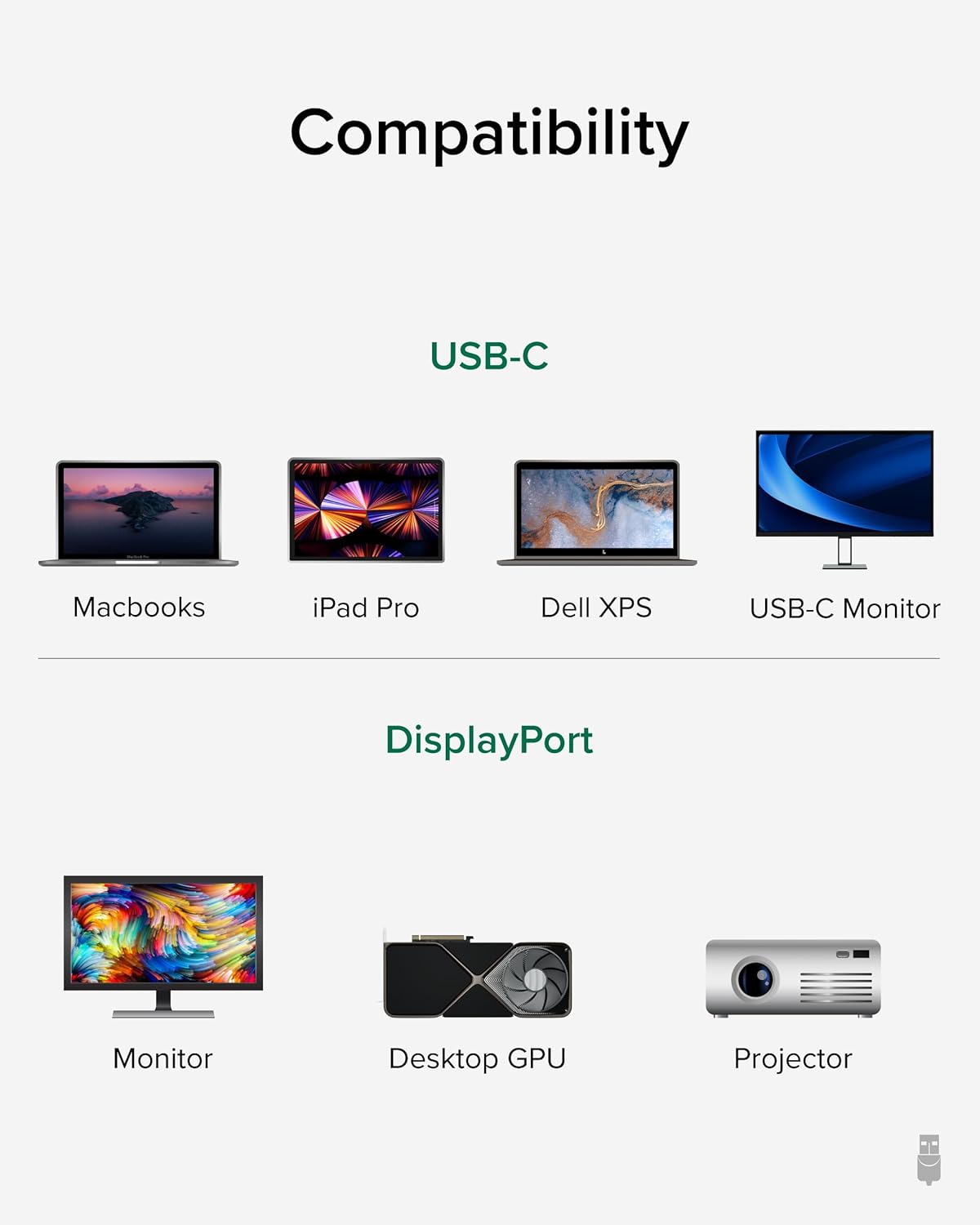
Image: A visual guide illustrating compatibility with various USB-C devices (MacBooks, iPad Pro, Dell XPS, USB-C Monitor) and DisplayPort devices (Monitor, Desktop GPU, Projector).
6. Itọju
To ensure the longevity and optimal performance of your Plugable USB-C to DisplayPort Bi-Directional Cable, follow these maintenance guidelines:
- Mu pẹlu Itọju: Avoid excessive bending, twisting, or pulling on the cable, especially near the connectors.
- Tọju daradara: When not in use, coil the cable loosely and secure it with the included cable tie or a similar fastener. Avoid tight coiling that can stress the internal wires.
- Jeki mimọ: Máa fi aṣọ rírọrùn àti gbígbẹ nu okùn àti àwọn asopọ̀ lẹ́ẹ̀kọ̀ọ̀kan láti mú eruku àti ìdọ̀tí kúrò. Yẹra fún lílo àwọn kẹ́míkà líle tàbí àwọn ohun èlò ìpalára.
- Dáàbò bo àwọn asopọ̀: Ensure connectors are not exposed to liquids or extreme temperatures.
7. Laasigbotitusita
If you encounter issues with your Plugable USB-C to DisplayPort Bi-Directional Cable, consider the following troubleshooting steps:
- Ko si Ifihan/Ifihan:
- Ensure both devices are powered on and the cable is securely connected at both ends.
- Verify that your source device's USB-C port supports DisplayPort Alt Mode, USB4, or Thunderbolt 3/4. Not all USB-C ports support video output.
- Check your display's input source settings and ensure the correct DisplayPort input is selected.
- Ṣe ìdánwò pẹ̀lú okùn tàbí ẹ̀rọ mìíràn tó báramu láti yanjú ìṣòro náà.
- Gbigbọn tabi Ifihan Laarin:
- Rii daju wipe okun ko baje tabi kinked.
- Reduce the display resolution or refresh rate in your device's display settings to see if stability improves.
- Update your graphics drivers on your source device.
- Ko si Ohun:
- Check your computer's sound settings and ensure the DisplayPort output is selected as the audio device.
- Ensure your monitor has built-in speakers or is connected to external audio.
- Resolution/Refresh Rate Not as Expected:
- Verify that both your source device and display support the desired resolution and refresh rate.
- Ensure your device's display settings are configured for the desired output.
8. Awọn pato
| Ẹya ara ẹrọ | Ẹ̀kúnrẹ́rẹ́ |
|---|---|
| Brand | Plugable |
| Nọmba awoṣe | USBC-DP |
| USB Ipari | 6 ẹsẹ (1.8m) |
| Ipinnu Max | 4K (3840x2160) ní 60Hz |
| Asopọ 1 | USB-C Akọ |
| Asopọ 2 | DisplayPort Okunrin |
| Ibamu | DisplayPort Alt Mode over USB-C, USB4, Thunderbolt 3/4 |
| Ohun elo | Aluminum connector shells, Nylon braided cable |
| Iwọn Nkan | 1.6 iwon |
| Ọja Mefa | 0.39 x 6 x 6.5 inches |
9. Official ọja Video
Video: Product Summary: Plugable USB-C to DisplayPort Adapter Cable. This video provides a comprehensive overview of the cable's features, functionality, and benefits.
10. Atilẹyin ọja ati Support
Plugable products are designed for reliability and ease of use. This device includes lifetime support from our North American team of connectivity experts.
For further assistance, please visit the Plugable support webojula tabi kan si wọn onibara iṣẹ.