
Ọrọ Iṣaaju
The mophie Charge Force Desk Mount provides a convenient wireless charging solution for your mophie wireless case-equipped smartphone. This mount allows for effortless attachment, charging, and rotation of your device, ensuring optimal viewing angles. Its magnetic design securely holds your device while charging automatically upon contact. This product is designed to work exclusively with mophie wireless cases (sold separately).
Ohun ti o wa ninu Apoti
- 1 x mophie Charge Force Desk Mount
- 1 x Micro okun USB
- 1 x Itọsọna Ibẹrẹ ni kiakia
Ṣeto
- Yọ awọn ohun elo kuro: Fara yọ gbogbo awọn ohun kan kuro ninu apoti.
- Position the Desk Mount: Place the mophie Charge Force Desk Mount on a clean, flat, and stable surface. The base features an adhesive for secure placement. Ensure the chosen location is free from dust and debris for optimal adhesion.
- So agbara: Connect the included Micro USB cable to the port on the back of the desk mount. Plug the other end of the Micro USB cable into a compatible USB power adapter (not included). A 2 Amp USB adapter is recommended for optimal charging performance.
- Ṣetan Ẹrọ Rẹ: Ensure your smartphone is housed within a compatible mophie wireless case (sold separately). This desk mount is not a standalone charger and requires a mophie wireless case for functionality.

Image: mophie Charge Force Desk Mount components, including the mount and USB cable.
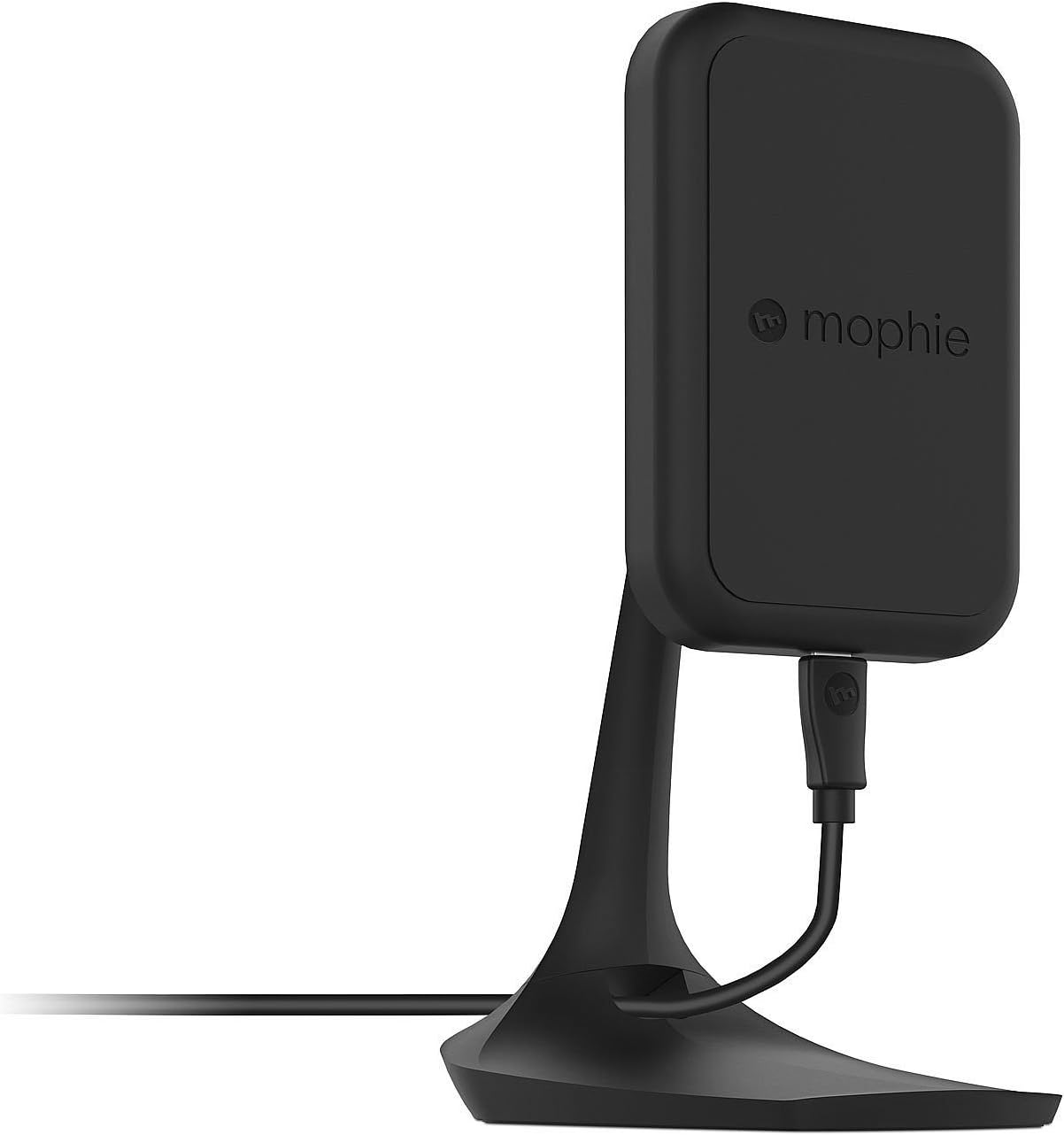
Aworan: Apa view of the mophie Charge Force Desk Mount, showing its profile and cable connection.
Awọn ilana Iṣiṣẹ
- Bibẹrẹ Gbigba agbara: Once the desk mount is powered, simply bring your smartphone (equipped with a mophie wireless case) into contact with the magnetic charging surface of the mount.
- Asomọ to ni aabo: The embedded magnets in the mount will automatically align and securely hold your device in place.
- Ngba agbara laifọwọyi: Charging will commence automatically upon successful magnetic connection. Your device's screen or charging indicator will confirm that it is receiving power.
- Ṣatunṣe Viewigun Angle: The mount is fully adjustable. You can rotate your device between portrait and landscape orientations to achieve your preferred viewing angle without interrupting the charging process.
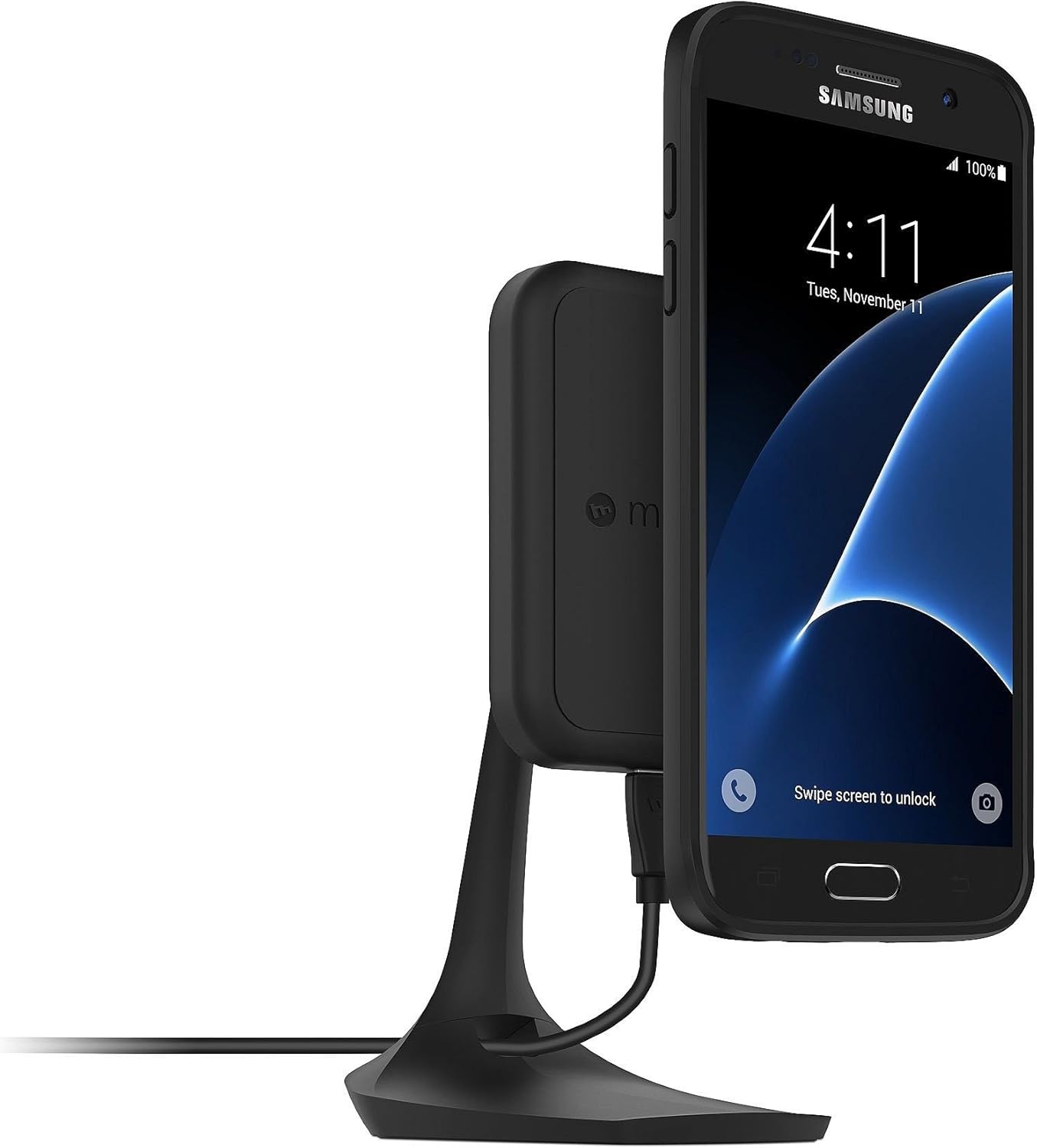
Image: A Samsung smartphone with a mophie wireless case attached to the Charge Force Desk Mount, showing charging in portrait orientation.

Image: An iPhone with a mophie wireless case attached to the Charge Force Desk Mount, showing charging in landscape orientation.
Itoju
To maintain the performance and appearance of your mophie Charge Force Desk Mount, follow these guidelines:
- Ninu: Gently wipe the surface of the desk mount with a soft, slightly damp cloth. Ensure the device is unplugged from its power source before cleaning.
- Yago fun Kemikali lile: Ma ṣe lo awọn afọmọ abrasive, awọn nkanmimu, tabi awọn kẹmika lile, nitori iwọnyi le ba ipari ati awọn paati inu jẹ.
- Jeki Gbẹgbẹ: Prevent moisture from entering any openings.
- Ibi ipamọ: Tí o kò bá lò ó fún ìgbà pípẹ́, tọ́jú àpótí náà sí ibi gbígbẹ tí ó tutù, tí kò sí ìmọ́lẹ̀ oòrùn tààrà.
Laasigbotitusita
- Ohun elo Ko Ngba agbara:
- Ensure the Micro USB cable is securely connected to both the desk mount and a functional USB power adapter.
- Verify that your smartphone is equipped with a compatible mophie wireless case.
- Reposition the phone on the mount to ensure proper magnetic alignment and contact with the charging coils.
- Try using a different USB power adapter and cable to rule out issues with accessories.
- Phone Not Staying on Mount:
- Confirm your phone is in a mophie wireless case specifically designed for magnetic attachment with the Charge Force system.
- Ensure the magnetic surface of the mount and the back of the phone case are clean and free of any debris or foreign objects that might interfere with the magnetic connection.
- Gbigba agbara igba diẹ:
- Check for any obstructions between the phone case and the mount.
- Ensure the power source provides sufficient ampigba (2 Amps recommended) to the desk mount.
- Avoid placing metal objects or cards with magnetic strips between the phone and the charging surface.
Awọn pato
| Brand | mofi |
| Nọmba awoṣe | 3454_WRLS-DESK-BLK |
| Asopọmọra Iru | Micro USB Type B, Wireless USB |
| Awọn ẹrọ ibaramu | Cellular Phones (with mophie charge force wireless power cases) |
| Pataki Ẹya | Oofa |
| Àwọ̀ | Dudu |
| Ampigba | 2 Amps |
| Lapapọ Awọn ibudo USB | 1 |
| Wattage | 10 watt |
| Ijade lọwọlọwọ | 2 Amps |
| O wujade Voltage | 5 Volts |
| Orisun agbara | DC |
| Iwọn Nkan | 210 giramu |
Alaye atilẹyin ọja
The mophie Charge Force Desk Mount is covered by a 1-odun lopin atilẹyin ọja. This warranty covers defects in materials and workmanship under normal use. For specific terms, conditions, and to initiate a warranty claim, please refer to the official mophie website or contact their customer support directly. Proof of purchase may be required.
Atilẹyin
For additional support, product registration, frequently asked questions, or to explore other mophie products, please visit the official mophie webojula:
You may also find contact information for customer service on the mophie webojula fun taara iranlowo.
