
1. Ọja Ipariview
The Paddsun AW-NU231 is a Wireless USB Wi-Fi Adapter designed to provide wireless internet connectivity to compatible devices, primarily certain LG TV models and desktop computers. This adapter supports the IEEE 802.11n standard, operating on the 2.4GHz frequency band with a maximum data transfer rate of 300Mbps. It enables your device to connect to a wireless network for streaming content, browsing, and other internet-dependent functions.
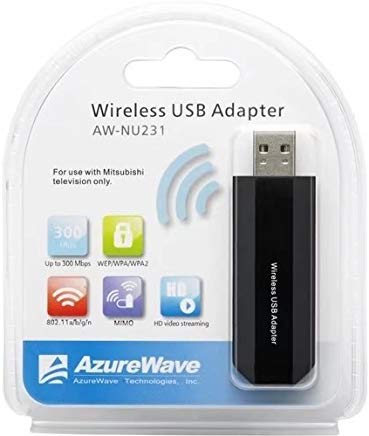
Image: The Paddsun AW-NU231 Wireless USB Wi-Fi Adapter, a compact dongle designed for easy connectivity.
2. Awọn ilana iṣeto
- Ohun elo Agbara: Ensure your television or desktop computer is powered off before proceeding with the installation.
- Fi Adapter sii: Locate an available USB port on your compatible device. Carefully insert the Paddsun AW-NU231 USB Wi-Fi Adapter into the USB port.
- Agbara Lori Ẹrọ: Power on your television or desktop computer.
- Driver Installation (for Desktops):
- For most modern operating systems, the adapter may be recognized automatically (plug-and-play).
- If not, you may need to install drivers. Refer to your operating system's device manager or the manufacturer's support webojula fun awakọ gbigba lati ayelujara.
- Wọlé sí Àwọn Ètò Nẹ́tíwọ́ọ̀kì:
- For LG TVs: Navigate to the TV's settings menu, usually found under "Network" or "Connection" settings.
- For Desktops: Access your operating system's network settings.
- Sopọ si Wi-Fi: Select "Wireless Connection" or "Wi-Fi" from the network options. Your device should scan for available wireless networks. Select your desired network from the list and enter the Wi-Fi password if prompted.
- Jẹrisi Asopọmọra: Once connected, your device should indicate a successful internet connection.
3. Awọn ilana Iṣiṣẹ
Once the Paddsun AW-NU231 adapter is successfully installed and connected to a Wi-Fi network, your device will have internet access. The operation of the Wi-Fi connection is managed through your device's operating system or TV interface.
- Isopọpọ aladaaṣe: The adapter is designed to automatically reconnect to the last known Wi-Fi network when the device is powered on, provided the network is available and the password has not changed.
- Àyípadà Nẹ́tíwọ́ọ̀kì: To connect to a different Wi-Fi network, navigate to your device's network settings and select a new network from the available list.
- Ibamu: This adapter is specifically designed for compatibility with various LG TV models including LM6200-CE, LA6200-CN, LM6400-CE, LM6400-CA, LM6450-CA, LA6500-CC, LM6600-CE, LW5500, LV5700, LW6500, and can also be used with desktop computers.
4. Itọju
Proper care ensures the longevity and optimal performance of your Paddsun AW-NU231 Wi-Fi adapter.
- Ninu: Gently wipe the adapter with a soft, dry cloth. Avoid using liquid cleaners or solvents, which can damage the device.
- Ibi ipamọ: Nigbati o ko ba si ni lilo, tọju ohun ti nmu badọgba ni itura, aye gbigbẹ kuro lati orun taara ati awọn iwọn otutu to gaju.
- Mimu: Avoid dropping the adapter or subjecting it to strong impacts. Do not bend or force the USB connector.
- Awọn imudojuiwọn sọfitiwia: For desktop use, ensure your operating system and any relevant drivers are kept up-to-date to maintain compatibility and performance. For TVs, ensure your TV's firmware is updated.
5. Laasigbotitusita
If you encounter issues with your Paddsun AW-NU231 Wi-Fi adapter, refer to the following common solutions:
- A ko rii Adapter:
- Rii daju pe ohun ti nmu badọgba ti fi sii ni kikun si ibudo USB.
- Gbiyanju ibudo USB ti o yatọ lori ẹrọ rẹ.
- Restart your television or computer.
- For desktops, check Device Manager to see if the adapter is listed and if there are any driver issues.
- Ko le Sopọ mọ Nẹtiwọọki Wi-Fi:
- Verify that your Wi-Fi network is active and broadcasting.
- Double-check the Wi-Fi password for accuracy.
- Ensure the adapter is within range of your wireless router.
- Tun olulana alailowaya ati modẹmu bẹrẹ.
- Iyara Ayelujara ti o lọra:
- Ensure the adapter is not obstructed and has a clear line of sight to the router if possible.
- Ṣàyẹ̀wò fún àwọn ẹ̀rọ mìíràn tó ń lo bandiwidi lórí nẹ́tíwọ́ọ̀kì rẹ.
- Tun olulana ati modẹmu bẹrẹ.
- Update drivers for desktop computers.
- Asopọmọra Laarin:
- Move the device closer to the wireless router.
- Ṣàyẹ̀wò fún àwọn orísun ìdènà (fún àpẹẹrẹ, máìkrówéfù, àwọn fóònù aláìlókùn).
- Ensure your router's firmware is up-to-date.
6. Awọn pato
| Ẹya ara ẹrọ | Ẹ̀kúnrẹ́rẹ́ |
|---|---|
| Brand | Paddsun |
| Awoṣe | AW-NU231 |
| Ni wiwo Hardware | USB |
| Awọn ẹrọ ibaramu | Desktop, Specific LG TV Models (e.g., LM6200-CE, LA6200-CN, LM6400-CE, LM6400-CA, LM6450-CA, LA6500-CC, LM6600-CE, LW5500, LV5700, LW6500) |
| Data Gbigbe Oṣuwọn | 300 Megabits fun iṣẹju keji (Mbps) |
| Boṣewa alailowaya | IEEE802.11n |
| Igbohunsafẹfẹ Band | 2.4 GHz |
| Package Mefa | 12.2 x 10.2 x 1.4 cm |
| Iwọn Nkan | 20 g |
7. atilẹyin ọja Information
The Paddsun AW-NU231 Wireless USB Wi-Fi Adapter comes with a 1 Odun atilẹyin ọja lati ọjọ ti o ra. Atilẹyin ọja yi ni wiwa awọn abawọn iṣelọpọ ati ailagbara labẹ lilo deede. Ko bo ibajẹ to ṣẹlẹ nipasẹ ilokulo, awọn ijamba, awọn iyipada laigba aṣẹ, tabi fifi sori ẹrọ aibojumu.
Please retain your proof of purchase for warranty claims. For detailed terms and conditions, refer to the warranty card included with your product or contact customer support.
8. Atilẹyin
For further assistance, technical support, or warranty inquiries regarding your Paddsun AW-NU231 Wireless USB Wi-Fi Adapter, please refer to the following resources:
- Olupese ká Webojula: Visit the official Paddsun website for updated drivers, FAQs, and support contact information.
- Iṣẹ onibara: Contact the retailer or manufacturer's customer service department directly.
- Awọn orisun Ayelujara: Search online forums or support communities for solutions to common issues.