
1. Ifihan
The Arturia MatrixBrute is a powerful analog matrix synthesizer designed for advanced sound creation and performance. This manual provides essential information for setting up, operating, maintaining, and troubleshooting your instrument. Please read this manual thoroughly to ensure proper use and to maximize your experience with the MatrixBrute.
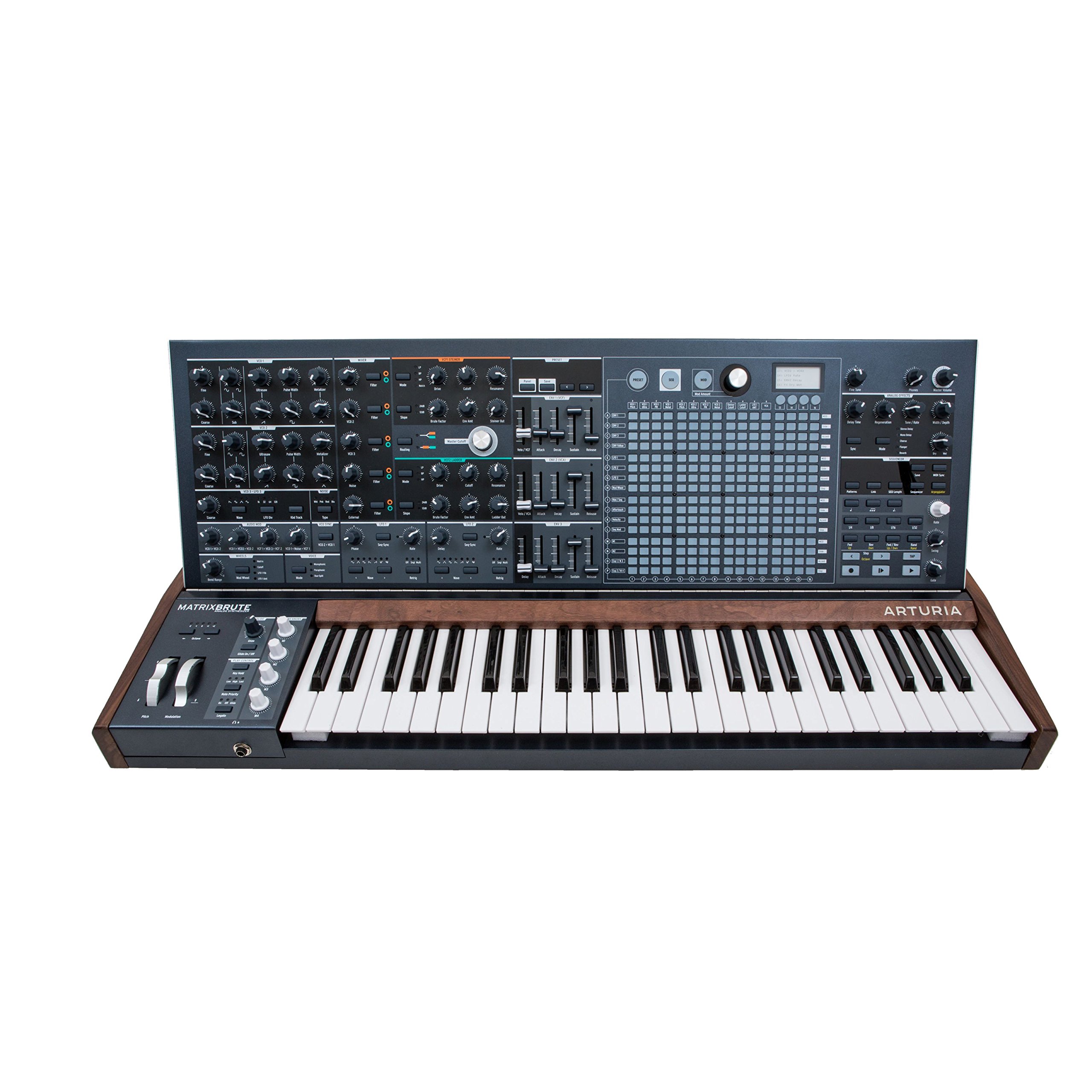
olusin 1: Iwaju view of the Arturia MatrixBrute Analog Matrix Synthesizer.
2. Eto
2.1 Ṣiṣii silẹ
Carefully remove the MatrixBrute from its packaging. Retain all packaging materials for future transport or storage. Verify that all included components are present:
- Arturia MatrixBrute Synthesizer
- Okun agbara
- Afowoyi Olumulo (iwe-ipamọ yii)
- Kaadi Iforukọsilẹ
2.2 Awọn isopọ
Before connecting the MatrixBrute, ensure all audio equipment is powered off. Connect cables firmly to prevent signal loss or damage.

Figure 2: Rear panel showing various input and output connections.
- Asopọ agbara: Connect the supplied power cable to the AC IN socket on the rear panel and then to a suitable power outlet.
- Ijade ohun: Connect the main audio outputs (LEFT/MONO, RIGHT) to your mixer, audio interface, or amplifier using 1/4-inch TS cables.
- Awọn isopọ MIDI: Use standard 5-pin DIN MIDI cables to connect the MIDI IN, OUT, and THRU ports to other MIDI devices.
- Asopọ USB: Connect a USB Type B cable from the MatrixBrute's USB port to your computer for MIDI communication and firmware updates.
- CV/Gate Connections: Utilize the various CV/Gate inputs and outputs for integration with modular synthesizers and other compatible equipment.
- Agbekọri: Connect headphones to the 1/4-inch stereo headphone jack for private monitoring.
2.3 Ibẹrẹ Agbara Lori
After all connections are made, power on your audio system first, then the MatrixBrute using the power switch on the rear panel. The display will illuminate, indicating the unit is ready for use.
3. Operating the MatrixBrute
The MatrixBrute offers extensive control over its analog synthesis engine. This section covers the primary operational aspects.

Nọmba 3: Alaye view of the control panel, showing knobs, faders, and the matrix interface.
3.1 Ipilẹ idari
- Àtẹ bọ́tìnnì The 49-key velocity-sensitive keyboard with aftertouch is your primary interface for playing notes.
- Awọn oscillators: The MatrixBrute features three voltage-controlled oscillators (VCOs) with various waveforms (Saw, Square, Triangle) and sub-oscillators. Adjust the Igbi, Iwọn Pulse, ati Tune controls to shape the initial sound.
- Ajọ: Two filters (Steiner-Parker and Ladder) provide distinct tonal characteristics. Use the Ge kuro, Resonance, ati Wakọ controls to sculpt the sound.
- Awọn apoowe: Three ADSR (Attack, Decay, Sustain, Release) envelopes control the amplitude, filter cutoff, and other parameters over time.
- Awọn LFO: Three Low-Frequency Oscillators (LFOs) can modulate various parameters, adding movement and complexity to your sounds.
3.2 Using the Matrix
The central matrix is a versatile tool for sequencing, arpeggiation, and modulation routing.
- Olutẹle: The 64-step sequencer allows for complex melodic and rhythmic patterns. Use the dedicated sequencer controls to record, edit, and playback sequences.
- Apeggiator: Create dynamic arpeggios from held notes.
- Modulation Matrix: The matrix serves as a powerful modulation router, allowing you to assign sources (e.g., LFOs, envelopes) to destinations (e.g., filter cutoff, oscillator pitch) with adjustable intensity.
3.3 Onboard Effects
The MatrixBrute includes analog effects such as Delay, Chorus, and Flanger. Adjust the dedicated controls in the effects section to integrate them into your sound design.
3.4 CV/MIDI Integration
The MatrixBrute offers extensive connectivity for integrating with other gear:
- MIDI: Control the MatrixBrute from an external MIDI controller or sequence it from a DAW via MIDI IN. Send MIDI data from the MatrixBrute via MIDI OUT/THRU.
- CV/Ẹnubodè: Connect to modular synthesizers using the dedicated CV/Gate inputs and outputs for pitch, gate, and modulation control.
4. Itọju
4.1 Ninu
To maintain the appearance and functionality of your MatrixBrute, follow these guidelines:
- Pa dada nu pẹlu asọ ti o gbẹ.
- Fun idoti alagidi, lo die-die damp asọ pẹlu ọṣẹ kekere, lẹhinna mu ese gbẹ lẹsẹkẹsẹ.
- Avoid abrasive cleaners, solvents, or waxes, as these can damage the finish.
- Do not spray liquids directly onto the instrument.
4.2 Software imudojuiwọn
Arturia periodically releases firmware updates to improve performance, add features, or fix bugs. Visit the official Arturia webAaye (www.arturia.com) for the latest firmware and instructions on how to update your MatrixBrute.
4.3 Ibi ipamọ
When not in use for extended periods, store the MatrixBrute in a dry, dust-free environment. If possible, use the original packaging or a dedicated flight case for protection during transport or storage.
5. Laasigbotitusita
This section addresses common issues you might encounter. If you experience problems not covered here, please contact Arturia support.
| Isoro | Owun to le Fa | Ojutu |
|---|---|---|
| Ko si ohun jade |
|
|
| MIDI not responding |
|
|
| Unexpected behavior / Glitches |
|
|
6. Awọn pato
| Ẹya ara ẹrọ | Ẹ̀kúnrẹ́rẹ́ |
|---|---|
| Brand | Arturia |
| Orukọ awoṣe | Arturia MatrixBrute |
| Nọmba awoṣe | 550101 |
| Awọn Iwọn Nkan (L x W x H) | 40.5 x 22.5 x 7.5 inches |
| Iwọn Nkan | 19 kilo |
| Ohun elo ara | Irin |
| Awọn irinše to wa | Cymbal (Note: This may be a listing error, typically includes power cable and documentation.) |
| UPC | 779177280095 |
| Asopọmọra Iru | USB Type C (Note: Product images show USB Type B, please verify.) |
Note: Specifications are subject to change without notice. Please refer to the official Arturia webojula fun awọn julọ soke-si-ọjọ alaye.
7. Atilẹyin ọja & Atilẹyin
7.1 Atilẹyin ọja
Arturia products are covered by a limited warranty against defects in materials and workmanship. The specific terms and duration of the warranty may vary by region. Please register your product on the Arturia website to activate your warranty and for detailed information regarding warranty coverage.
7.2 Onibara Support
For technical assistance, troubleshooting, or any questions regarding your Arturia MatrixBrute, please visit the official Arturia support page:
You can find FAQs, knowledge base articles, and contact information for direct support.