
Ọrọ Iṣaaju
This manual provides instructions for the proper setup, operation, and maintenance of your Edifier K550 Computer Headphones with Microphone. Please read this manual thoroughly before using the product to ensure optimal performance and longevity.
Package Awọn akoonu
- Edifier K550 Headphones with integrated cable
Ọja Pariview
Familiarize yourself with the components of your Edifier K550 headset.

Nọmba 1: Edifier K550 Computer Headphones. This image displays the overall design of the white headset, including the adjustable headband, earcups, and the microphone boom.
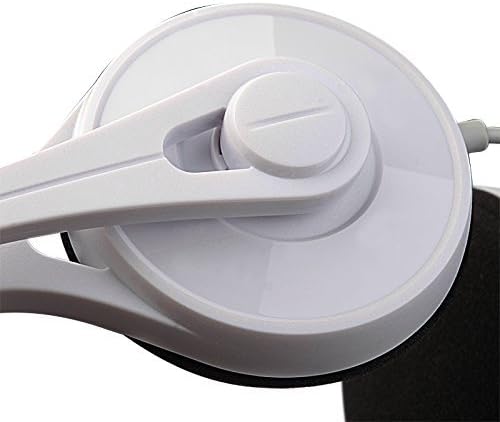
Nọmba 2: Ear Cup Pivot Point. This image highlights the flexible pivot mechanism connecting the ear cup to the headband, allowing for comfortable adjustment.
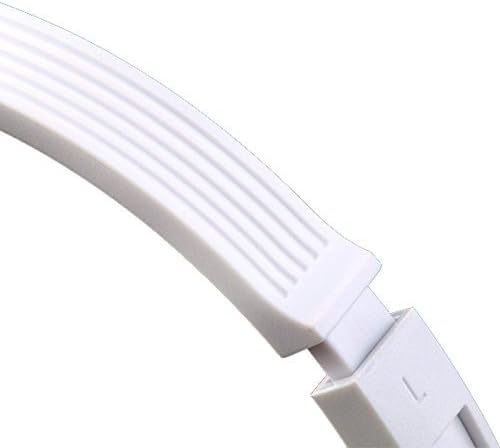
Nọmba 3: Adjustable Headband. This image shows the ribbed design of the headband, indicating its adjustability for various head sizes.

Nọmba 4: Inline Control. This image details the inline control unit on the cable, featuring a volume slider and a microphone on/off switch for easy access.
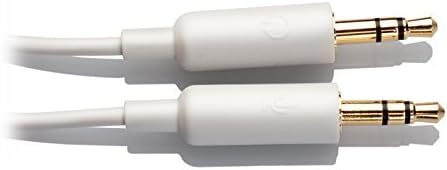
Nọmba 5: Dual 3.5mm Jacks. This image shows the two distinct 3.5mm connectors: one for audio output (headphones) and one for microphone input.
Ṣeto
- Sopọ si Ẹrọ: The Edifier K550 headset features two 3.5mm jacks: one for audio (headphone icon) and one for the microphone (microphone icon).
- For computers with separate audio input and output ports, plug the corresponding jacks into their respective ports.
- For laptops or devices with a single combined 3.5mm audio jack, a Y-splitter adapter (not included) may be required to use both headphone and microphone functions simultaneously. Connect the headset's two jacks to the splitter, then plug the splitter into your device's single audio port.
- Ṣatunṣe Akọkọ: Gently slide the headband to extend or retract it until the earcups rest comfortably over your ears. The K550 is designed for a secure yet comfortable fit for various head sizes.
- Gbohungbohun ipo: Rotate the microphone boom to position the microphone near your mouth for optimal voice capture. The microphone is flexible and can be adjusted up to 120 degrees.
Awọn ilana Iṣiṣẹ
- Iṣakoso iwọn didun: Use the slider on the inline control unit (refer to Figure 4) to adjust the headphone volume. Slide it up to increase volume and down to decrease volume.
- Gbohungbohun Tan/Pa: The inline control unit also features a switch to enable or disable the microphone. Ensure the switch is in the 'ON' position for the microphone to function during calls or recordings.
- Sisisẹsẹhin ohun: Once connected, your device should automatically recognize the headset. Play audio from your computer or device, and sound will be routed through the headphones.
- Voice Communication: For online calls, meetings, or gaming, ensure the microphone is enabled and selected as the input device in your software settings.
Itoju
- Ninu: Use a soft, dry cloth to clean the exterior surfaces of the headphones and earcups. Do not use liquid cleaners or abrasive materials.
- Ibi ipamọ: When not in use, store the headset in a clean, dry place away from direct sunlight and extreme temperatures. Avoid wrapping the cable tightly around the headset to prevent damage.
- Itọju USB: Handle the cable gently. Avoid pulling on the cable when disconnecting the jacks.
Laasigbotitusita
- Ko si ohun lati Agbekọri:
- Ensure the 3.5mm audio jack is fully inserted into the correct port on your device.
- Check the volume level on the inline control and on your computer.
- Verify that the Edifier K550 is selected as the default audio output device in your computer's sound settings.
- If using a single combined jack, ensure you have a compatible Y-splitter adapter.
- Gbohungbohun Ko Ṣiṣẹ:
- Ensure the 3.5mm microphone jack is fully inserted into the correct port.
- Check that the microphone switch on the inline control is in the 'ON' position.
- Verify that the Edifier K550 microphone is selected as the default input device in your computer's sound settings and in any communication software you are using.
- If using a single combined jack, ensure you have a compatible Y-splitter adapter.
- Didara Ohun Ko dara:
- Rii daju pe gbogbo awọn asopọ wa ni aabo.
- Ṣe idanwo agbekari pẹlu ẹrọ miiran lati ṣe akoso ọran-ẹrọ kan pato.
- Check your device's audio settings for any equalization or sound enhancements that might be affecting quality.
Awọn pato
| Orukọ awoṣe | K550 |
| Asopọmọra Technology | Ti firanṣẹ |
| Awọn agbekọri Jack | 3.5 mm Jack (Dual) |
| Awọn ẹrọ ibaramu | Laptops, Desktops, Tablets, Cellphones (with appropriate adapter) |
| Iṣakoso Iru | Volume Control, Microphone On/Off Switch |
| Pataki Awọn ẹya ara ẹrọ | Lightweight, Microphone Included, 120-degree rotatable microphone |
| Gbigbe Eti | Lori Eti |
| Iwọn Nkan | 89 Giramu (3.14 iwon) |
| Olupese | Atunṣe |
Atilẹyin ọja ati Support
For warranty information and technical support, please refer to the official Edifier website or contact your local Edifier distributor. Keep your purchase receipt for warranty claims.
Edifier Official Webojula: www.edifier.com