
Ọrọ Iṣaaju
This manual provides essential information for the safe and efficient operation of your Amazon Basics 15-Sheet Cross-Cut Paper, CD, and Credit Card Shredder. Please read all instructions carefully before use and retain this manual for future reference.
Alaye Aabo
Lati rii daju iṣiṣẹ ailewu, nigbagbogbo tẹle awọn itọnisọna wọnyi:
- Pa ọwọ́, irun àti aṣọ tí kò ní ìwúwo mọ́ kúrò ní ibi tí a ti ń tà ìwé.
- Maṣe fun sokiri tabi tọju eyikeyi awọn ọja aerosol sinu tabi ni ayika shredder.
- Do not shred items like metallic credit cards, adhesive labels, or continuous forms.
- Yọọ shredder kuro nigbati ko si ni lilo tabi ṣaaju ṣiṣe mimọ.
- Keep the shredder out of reach of children and pets.
- Ma ṣe ṣiṣẹ shredder ti okun agbara ba bajẹ.
Ọja Pariview
The Amazon Basics 15-Sheet Cross-Cut Shredder is designed for efficient document destruction, offering a high level of security for personal and office use.

olusin 1: Iwaju view ti Amazon Basics 15-Sheet Cross-Cut Shredder.
Awọn ẹya pataki:
- 15-Agbara dì: Shreds up to 15 sheets of 20 lb. paper at once.
- Agbelebu-Ge gige: Shreds paper into 3/16" x 1-7/32" (4.7 x 31mm) particles for enhanced security (Security Level P-4).
- Pipin Ohun elo lọpọlọpọ: Also destroys CD/DVDs, credit cards, staples, and small paper clips.
- Akoko Ilọsiwaju: Features a 20-minute continuous run time.
- Awọn ẹya Aabo: Includes Overheat / Overload protection.
- Awọn itọkasi LED: Provides visual alerts for Standby, Overheat, Overload, Door open, and Bin full status.
- Large Capacity Bin: Equipped with a 6-gallon pull-out basket for easy waste disposal.
- Gbigbe: Casters included for convenient movement.
- 4-Mode Switch: Auto/Off/Forward/Reverse settings for versatile control.
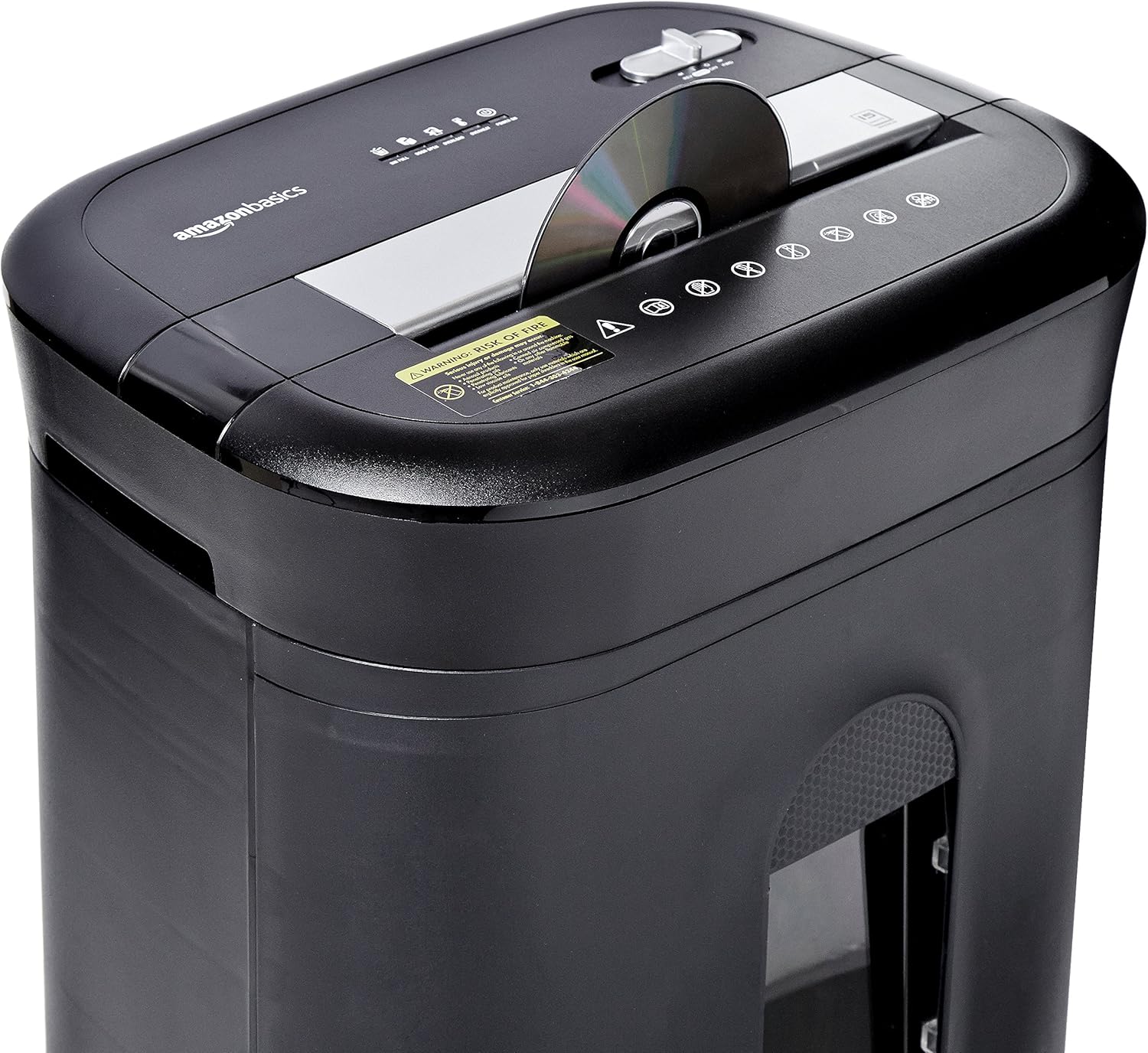
Figure 2: Diagram illustrating key features of the shredder.
Ṣeto
Tẹle awọn igbesẹ wọnyi lati ṣeto shredder rẹ:
- Yọọ kuro: Ni ifarabalẹ yọ gbogbo awọn paati kuro ninu apoti.
- Ipo: Place the shredder on a flat, stable surface. Ensure the waste bin is securely closed and properly inserted into the main unit.
- So agbara: Plug the power cord into a standard 120-volt AC outlet.
Video 1: Official product video demonstrating the setup and basic operation of the Amazon Basics 15-Sheet Cross-Cut Shredder.
Awọn ilana Iṣiṣẹ
Yipada Ipo Agbara:
The shredder features a 4-mode slide switch located on the top panel:
- AUTO (I): The shredder will automatically start when paper is inserted and stop when shredding is complete. This is the recommended setting for normal use.
- PA (O): Turns off all shredder functions. Always select this setting when emptying the waste bin or when the shredder is not in use.
- FORWARD (▶▶): Manually activates the shredder to continuously cut. Useful for clearing minor jams.
- REVERSE (◀◀): Reverses the shredder mechanism to help clear paper jams.

Figure 3: Close-up of the control panel with the 4-mode switch.
Iwe Idinku:
- Ensure the power mode switch is set to AUTO (I).
- Insert up to 15 sheets of paper (20 lb. bond) straight into the paper entry slot. The shredder will automatically start and stop.
- Maṣe fi agbara mu iwe sinu shredder. Ti o ba ti shredder Ijakadi, din awọn nọmba ti sheets.

Figure 4: Inserting paper into the shredder.
Shredding Credit Cards and CDs/DVDs:
- Ensure the power mode switch is set to AUTO (I).
- Insert one credit card or CD/DVD at a time into the dedicated slot.
- Aṣọ ìfọṣọ naa yoo bẹrẹ laifọwọyi ati duro.

Figure 5: Shredding a credit card.
Itoju
Emptying the Shredder Bin:
Regularly empty the waste bin to prevent paper jams and ensure optimal performance.
- Set the power mode switch to PA (O) ki o si yọọ shredder.
- Fa jade ni egbin bin lati iwaju shredder.
- Sọ ohun elo ti a ge kuro.
- Slide the waste bin back into the shredder until it clicks securely into place.

Figure 6: Pull-out waste bin for easy emptying.
Oiling the Shredder:
To maintain the shredder's performance and longevity, it is recommended to oil the cutting blades periodically, especially after emptying the bin multiple times or if performance decreases.
- Apply shredder oil (or vegetable oil) in a zigzag pattern across the paper entry slot.
- Set the power mode switch to FORWARD (▶▶) fun 2-3 aaya lati pin kaakiri epo.
- Then, set the switch to REVERSE (◀◀) fun 2-3 aaya.
- Shred a few sheets of paper to remove any excess oil.
Laasigbotitusita
The shredder is equipped with LED indicators to help diagnose common issues:
- Standby (Green): Tọkasi shredder ti wa ni titan ati setan fun isẹ.
- Overheat (Red): The shredder has exceeded its maximum operating temperature. Allow it to cool down for approximately 20-30 minutes before resuming use.
- Overload (Red): Too much material has been inserted. Use the REVERSE (◀◀) function to clear the jam, then reduce the amount of material.
- Door Open (Red): The waste bin is not properly closed or inserted. Ensure the bin is fully pushed in.
- Bin Full (Red): The waste bin is full and needs to be emptied.
| Isoro | Owun to le Fa | Ojutu |
|---|---|---|
| Shredder ko tan. | Not plugged in; Power switch in OFF position; Waste bin not properly inserted. | Check power connection; Set switch to AUTO; Re-insert waste bin securely. |
| Shredder duro lakoko iṣẹ. | Overheat protection activated; Overload protection activated; Bin full. | Allow to cool down; Clear jam using REVERSE, then reduce material; Empty bin. |
| Jam iwe. | Too much paper inserted; Paper inserted at an angle. | Use REVERSE function; Reduce paper quantity; Insert paper straight. |
Awọn pato
| Ẹya ara ẹrọ | Sipesifikesonu |
|---|---|
| Brand | Amazon Awọn ipilẹ |
| Nọmba awoṣe | PBH-49976 |
| Shred Iru | Agbelebu Ge |
| Iwon Shred | 3/16" x 1-7/32" (4.7 x 31mm) |
| Aabo Ipele | P-4 |
| Agbara dì | 15 sheets (20 lb. paper) |
| Tesiwaju Run Time | 20 iṣẹju |
| Itura-isalẹ Time | 30 iṣẹju |
| Egbin Bin Agbara | 6 galonu |
| Iwọn Nkan | 22 iwon |
| Ọja Mefa | 11 x 14.4 x 20.9 inches |
| Àwọ̀ | Dudu |
Atilẹyin ọja ati Support
For warranty information or technical support, please refer to the documentation included with your product or contact Amazon Basics customer service.
Iṣẹ́ Àbójútó Oníbàárà: 1-844-303-4244
Fun awọn orisun afikun, ṣabẹwo si Amazon Ipilẹ itaja.