
1. Ifihan
This manual provides essential information for the safe and efficient operation of your Argox OX-330 Barcode Monochrome Printer. Please read this manual thoroughly before using the printer and retain it for future reference. The Argox OX-330 is designed for direct thermal and thermal transfer printing, offering a resolution of 203 dpi for clear and precise label output.
2. Alaye Aabo
- Ibi ti ina elekitiriki ti nwa: Use only the power adapter supplied with the printer. Ensure the power outlet matches the voltage ibeere.
- Ibi: Place the printer on a stable, level surface. Avoid locations with excessive dust, humidity, or direct sunlight.
- Afẹfẹ: Do not block ventilation openings. Ensure adequate airflow around the printer.
- Mimu: Avoid touching the print head immediately after printing, as it may be hot.
- Ninu: Disconnect the power cord before cleaning the printer. Use a soft, dry cloth. Do not use liquid or aerosol cleaners.
- Awọn atunṣe: Do not attempt to repair the printer yourself. Refer all servicing to qualified service personnel.
3. Ọja Ipariview
The Argox OX-330 is a compact desktop thermal label printer capable of both direct thermal and thermal transfer printing. It features 8MB DRAM (5MB user available) and 4MB Flash ROM (2MB user available) for efficient data processing and storage.
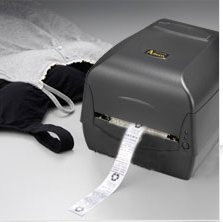
Nọmba 3.1: Argox OX-330 Barcode Monochrome Printer. This image shows the printer actively producing a label, demonstrating its primary function.
Awọn eroja pataki:
- Ori titẹjade: Responsible for transferring the image onto the label.
- Media Guides: Ensure proper alignment of labels.
- Ibi iwaju alabujuto: Includes buttons and indicator lights for printer status and basic operations.
- Ibudo Agbara: Fun sisopọ ohun ti nmu badọgba agbara.
- Awọn ibudo data: For connecting to a computer (e.g., USB, Wi-Fi).
- Media Compartment: Where label rolls and ribbons (for thermal transfer) are loaded.
4. Eto
4.1 Ṣiṣii silẹ
- Fara yọọ itẹwe ati gbogbo awọn ẹya ẹrọ kuro ninu apoti.
- Verify that all components listed in the package contents are present.
- Remove any protective films or packing materials from the printer.
4.2 Nsopọ Agbara
- So ohun ti nmu badọgba agbara pọ si ibudo agbara itẹwe.
- Pulọọgi okun agbara sinu iṣan itanna to dara.
- Do not power on the printer until all other connections are made.
4.3 Nsopọ si Kọmputa kan
The Argox OX-330 supports Wi-Fi connectivity for seamless integration with your PC.
- Asopọ Wi-Fi: Refer to the separate Wi-Fi setup guide for detailed instructions on connecting your printer to a wireless network. This typically involves installing the printer driver and utility software on your PC.
- USB Connection (if applicable): If using a USB cable, connect one end to the printer and the other to an available USB port on your PC.
4.4 Loading Labels and Ribbon
The OX-330 supports both Direct Thermal and Thermal Transfer printing methods. The loading procedure varies slightly depending on the method.
- Ṣí ideri orí ẹ̀rọ ìtẹ̀wé náà.
- Adjust the media guides to the width of your label roll.
- Place the label roll onto the media spindle, ensuring the labels feed correctly.
- Fun Gbigbe Gbigbe printing, also load the ribbon according to the diagrams inside the printer's media compartment. Ensure the ribbon is taut and correctly threaded.
- Pa oke ideri.
5. Awọn ilana Iṣiṣẹ
5.1 Titan / Pa a
- Lati Fi agbara: Press the power button located on the printer. The indicator light will illuminate.
- Lati Paarẹ: Press and hold the power button until the printer shuts down.
5.2 Fifi sori ẹrọ awakọ ati sọfitiwia
Before printing, install the appropriate printer drivers and label design software on your PC. These are typically provided on a CD with the printer or available for download from the Argox official webojula. Tẹle awọn ilana loju iboju fun fifi sori.
5.3 Títẹ̀wé Àmì kan
- Ensure the printer is powered on and connected to your PC (via Wi-Fi or USB).
- Open your label design software or application from which you wish to print.
- Create or open your label design.
- Go to the 'Print' option in your software.
- Select the Argox OX-330 as your printer.
- Configure print settings such as label size, print quantity, and printing method (Direct Thermal or Thermal Transfer) if applicable. The printer supports a resolution of 203 dpi.
- Click 'Print'. The printer will begin printing your labels.
6. Itọju
Regular maintenance ensures optimal performance and extends the life of your Argox OX-330 printer.
6.1 Ninu awọn Print Head
The print head is a critical component and should be cleaned regularly, especially if print quality degrades.
- Pa ẹ̀rọ ìtẹ̀wé náà kí o sì yọ okùn agbára náà kúrò.
- Ṣii ideri oke lati wọle si ori titẹ.
- Using a lint-free cloth moistened with isopropyl alcohol (99% pure), gently wipe the print head surface.
- Gba ori titẹjade laaye lati gbẹ patapata ṣaaju pipade ideri ki o tun agbara pọ si.
6.2 Gbogbogbo Cleaning
- Fi aṣọ rírọrùn tí ó gbẹ nu òde ẹ̀rọ ìtẹ̀wé náà.
- Use a soft brush or compressed air to remove dust and debris from inside the media compartment.
7. Laasigbotitusita
This section addresses common issues you might encounter with your Argox OX-330 printer.
7.1 Ko si Agbara
- Ensure the power cord is securely connected to both the printer and the electrical outlet.
- Rii daju pe iṣan agbara n ṣiṣẹ nipa pilogi sinu ẹrọ miiran.
7.2 Ko dara Print Didara
- Clean the print head as described in Section 6.1.
- Ensure you are using the correct type of labels for your printing method (Direct Thermal or Thermal Transfer).
- Check if the ribbon (for thermal transfer) is correctly loaded and not depleted.
- Adjust print darkness settings in your printer driver.
7.3 Itẹwe Ko fesi
- Check the connection between the printer and your PC (Wi-Fi or USB).
- Tun bẹrẹ mejeeji itẹwe ati kọmputa rẹ.
- Ensure the correct printer driver is installed and updated.
- Check the printer's status indicator lights for error messages.
7.4 Labels Not Feeding Correctly
- Rí i dájú pé àwọn àmì náà wà ní oríṣiríṣi ọ̀nà tó tọ́ àti pé àwọn ìtọ́sọ́nà ìròyìn náà wà ní ìbámu pẹ̀lú ìwọ̀n àmì náà.
- Check for any obstructions in the media path.
- Calibrate the printer for the label size if necessary (refer to printer utility software).
8. Awọn pato
| Ẹya ara ẹrọ | Sipesifikesonu |
|---|---|
| Brand | Argox |
| Orukọ awoṣe | OX-330 |
| Imọ-ẹrọ titẹ sita | Igbona (Gbigbe Gbigbe Igbona Taara ati Gbigbe Gbona) |
| Titẹ Ipinnu | 203 dpi |
| Ijade itẹwe | Monochrome |
| Asopọmọra Technology | Wi-Fi |
| Iranti | 8MB DRAM (5MB user available), 4MB Flash ROM (2MB user available) |
| Awọn ẹrọ ibaramu | PC |
| Printing Media Type | Awọn akole |
| Iwọn Nkan | 1800 giramu |
| Awọn iwọn Ọja (D x W x H) | 16D x 6W x 10H |
| Pataki Ẹya | Iwapọ |
| Titẹ sita-meji | Bẹẹni |
| Duplex | Laifọwọyi |
9. Atilẹyin ọja ati Support
9.1 atilẹyin ọja Alaye
The Argox OX-330 Barcode Monochrome Printer comes with a 1-odun atilẹyin ọja from the date of purchase. This warranty covers manufacturing defects under normal use. It does not cover damage caused by misuse, accidents, unauthorized repairs, or consumables.
9.2 Imọ Support
For technical assistance, troubleshooting beyond this manual, or warranty claims, please contact Argox customer support. Refer to the Argox official website or your purchase documentation for contact details and support resources.


