
Ọrọ Iṣaaju
This manual provides instructions for the proper setup, operation, and maintenance of your Targus W600 Wireless Optical Mouse. Please read this manual thoroughly before using the device to ensure optimal performance and longevity.
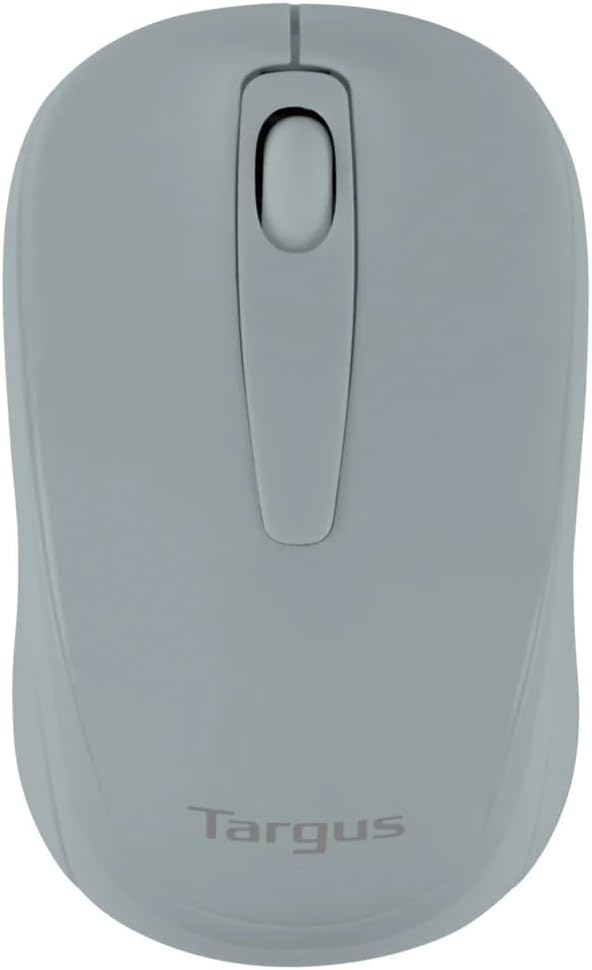
Figure 1: Targus W600 Wireless Optical Mouse (Quarry Gray)
Package Awọn akoonu
Rii daju pe gbogbo awọn nkan wa ninu package:
- Targus W600 Wireless Optical Mouse
- Olugba USB
- Afowoyi Olumulo (iwe-ipamọ yii)
Note: 1 AA battery is required and sold separately.
Ọja Awọn ẹya ara ẹrọ
- 2.4 GHz Wireless Technology for reliable connection
- 1600 DPI Optical Sensor for precise tracking
- Apẹrẹ Ergonomic fun lilo itunu
- Ni ibamu pẹlu Windows ati Mac awọn ọna šiše
- Integrated USB receiver storage compartment
Ṣeto
1. Fifi Batiri naa sori ẹrọ
- Turn the mouse over to locate the battery compartment cover.
- Gently slide the cover off.
- Fi ọkan (1) AA batiri sii, aridaju ti o tọ polarity (+/-).
- Rọpo ideri iyẹwu batiri.
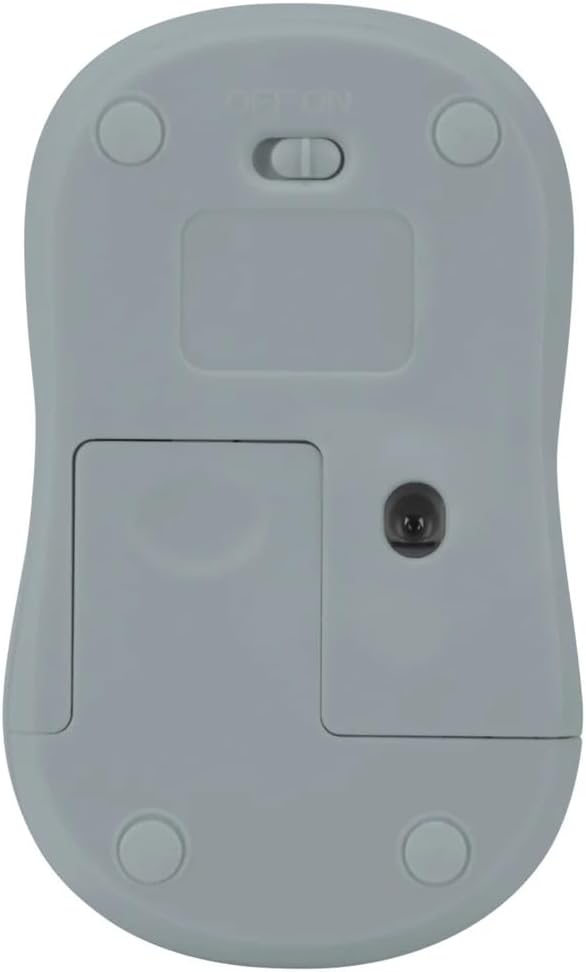
olusin 2: Isalẹ view of the mouse with battery compartment and power switch.
2. Nsopọ Olugba USB
- Locate the USB receiver, typically stored inside the mouse's battery compartment or a dedicated slot.
- Pulọọgi olugba USB sinu ibudo USB ti o wa lori kọnputa rẹ.
- Kọmputa rẹ yẹ ki o ṣawari laifọwọyi ati fi awọn awakọ pataki sii. Eyi le gba awọn iṣẹju diẹ.
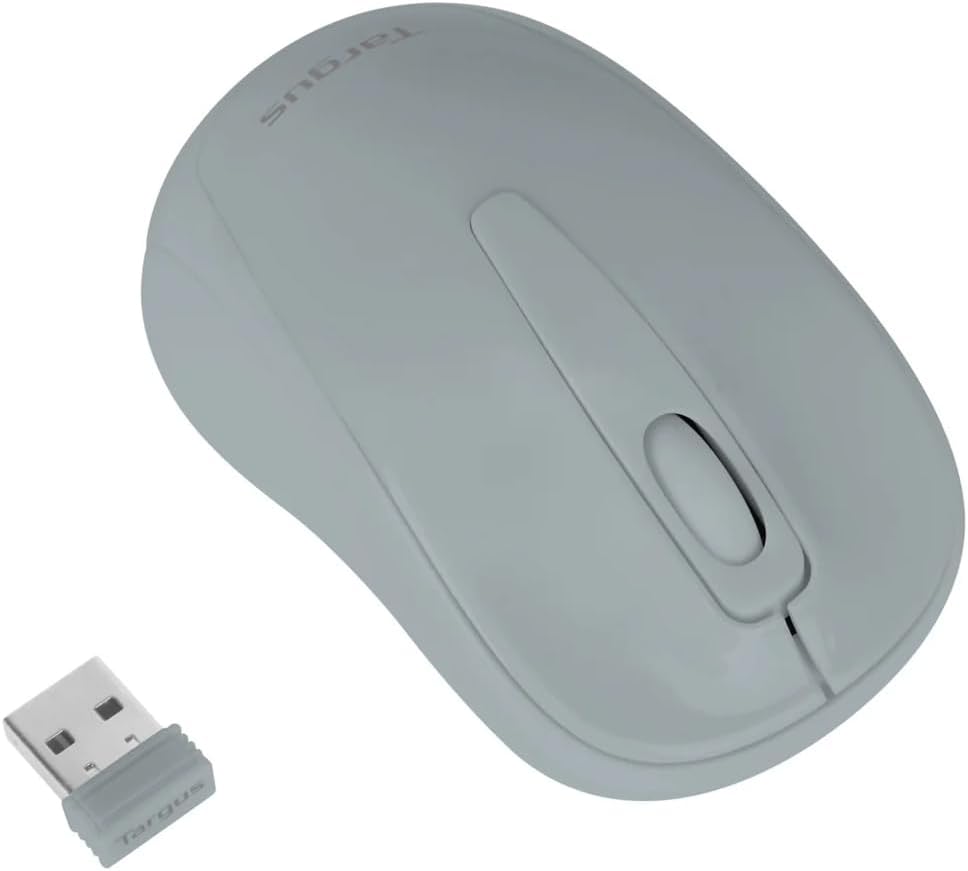
Figure 3: Targus W600 mouse and its USB receiver.

Figure 4: USB receiver plugged into a laptop, with the mouse nearby.
3. Agbara Lori Asin
On the bottom of the mouse, slide the ON/OFF switch to the "ON" position. The mouse is now ready for use.
Ṣiṣẹ Asin
The Targus W600 Wireless Optical Mouse functions like a standard 3-button mouse. It features a left button, a right button, and a scroll wheel that also acts as a middle button.
- Tẹ osi: Primary action, selection, opening items.
- Tẹ-ọtun: Ṣii awọn akojọ aṣayan ọrọ-ọrọ.
- Yi lọ Kẹkẹ: Yi lọ awọn iwe aṣẹ ati web pages vertically. Pressing the scroll wheel acts as a middle click, often used for opening links in new tabs or specific application functions.
The 1600 DPI optical sensor provides smooth and accurate cursor control on most surfaces. For best performance, use on a mouse pad or a non-reflective, uniform surface.
Itoju
Ninu
Láti nu àsin rẹ, fi pẹ̀lẹ́pẹ̀lẹ́ nu ojú náà pẹ̀lú ohun rírọrùn, damp cloth. Avoid using harsh chemicals or abrasive cleaners, as these can damage the finish or internal components. Ensure no liquid enters the mouse.
Batiri Rirọpo
When the mouse performance degrades or stops responding, it may be time to replace the battery. Follow the steps outlined in the "Installing the Battery" section to replace the AA battery. Dispose of used batteries responsibly according to local regulations.
Laasigbotitusita
| Isoro | Ojutu |
|---|---|
| Asin ko dahun |
|
| Iṣipopada kọsọ aiṣedeede |
|
| Iwọn alailowaya kukuru |
|
Awọn pato
| Nọmba awoṣe | AMW60006AP-55 |
| Asopọmọra | Alailowaya 2.4 GHz (olugba USB) |
| Ọna ẹrọ | Opitika |
| DPI | 1600 DPI |
| Nọmba ti Awọn bọtini | 3 (Osi, ọtun, Yi lọ Kẹkẹ/Tẹ Aarin) |
| Orisun agbara | 1 x AA Batiri (ko si) |
| Ibamu Awọn ọna ṣiṣe | Windows, Mac |
Akiyesi: Awọn alaye ni o wa labẹ iyipada laisi akiyesi.
Atilẹyin ọja ati Support
For warranty information and technical support, please refer to the official Targus webojula tabi kan si wọn onibara iṣẹ. Tọju iwe-ẹri rira rẹ bi ẹri rira fun awọn iṣeduro atilẹyin ọja.
Targus Oṣiṣẹ Webojula: www.targus.com