
Ọrọ Iṣaaju
The Tripp Lite U442-DOCK1 USB 3.1 Gen 1 USB-C Docking Station transforms your computer, laptop, or tablet into a versatile workstation. By connecting its integrated USB-C cable to your device, you gain the ability to connect an external display, access Gigabit Ethernet networks, transfer data, and utilize various peripherals.
This docking station supports a wide range of functionalities, including high-definition video output, multiple USB-A ports for peripherals, memory card access, and power delivery to your host device.
Awọn ẹya ara ẹrọ
- Atilẹyin Atẹle Meji: Connects two displays simultaneously for enhanced multitasking. Compatible with Thunderbolt 3. Supports extended, mirror, or video wall modes. Note: HDMI and VGA video ports do not operate simultaneously.
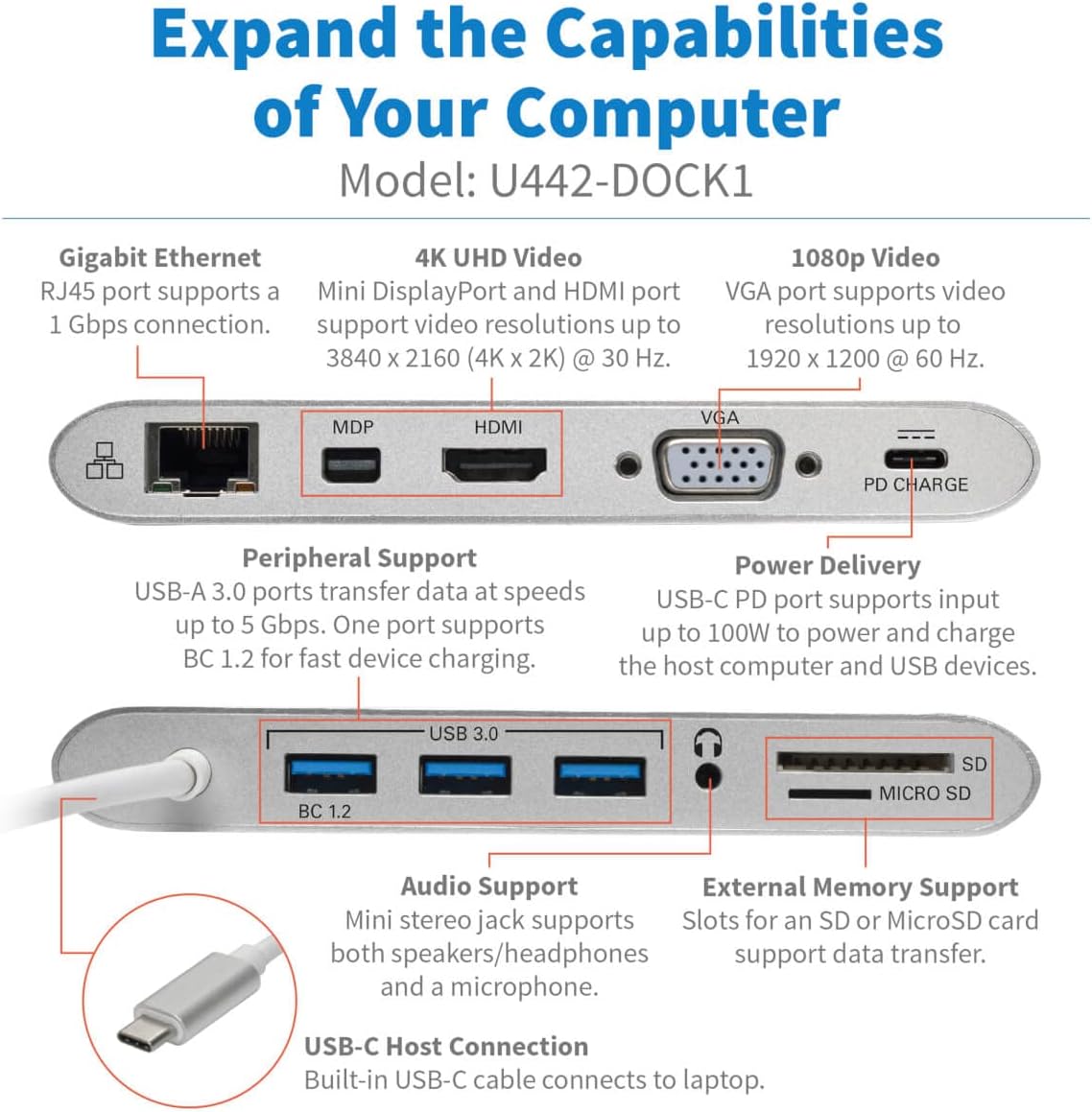
- Itumọ fidio ti o ga julọ: Mini DisplayPort (mDP) and HDMI ports support Ultra HD video resolutions up to 3840 x 2160 (4K x 2K) at 30 Hz. The VGA port supports HD resolutions up to 1920 x 1200, including 1080p, at 60 Hz.
- Gigabit-Eternet: RJ45 port provides true 10/100/1000 Mbps network speeds.
- USB-A Hub: Three USB-A 3.2 Gen 1 ports offer data transfer speeds up to 5 Gbps for connecting flash drives, mice, keyboards, and printers. One dedicated BC 1.2-compliant USB port provides up to 1.5A for fast charging.
- Ibudo Olohun A 3.5mm mini stereo jack allows connection of speakers, headphones, or a microphone.
- Iho kaadi iranti: Micro SD and SD/MMC slots provide access to external memory.
- Ifijiṣẹ Agbara USB-C (PD): Supports power input up to 20V 3A (60W) to power the connected device and peripherals.
- Plug-and-Play: Requires no software drivers or external power for basic functionality.
Package Awọn akoonu
- U442-DOCK1 USB 3.1 Gen 1 USB-C docking Station
- Afowoyi eni
Ṣeto
Follow these steps to set up your Tripp Lite U442-DOCK1 docking station:
- Connect the integrated USB-C cable from the U442-DOCK1 to an available USB-C port on your host device (laptop, tablet, or computer).
- If power delivery is desired, connect a USB-C wall charger (not included) to the USB-C PD port on the docking station. This will power the docking station and charge your host device.
- Connect your desired peripherals and displays to the appropriate ports on the docking station as described in the Operating Instructions section.
Aworan: Pariview of the Tripp Lite U442-DOCK1 USB-C Docking Station, showcasing its compact design and available ports.
Awọn ilana Iṣiṣẹ
1. Nsopọ Awọn ifihan
The U442-DOCK1 supports connecting one or two external displays. Note that HDMI and VGA ports cannot be used simultaneously for video output. For dual display, use Mini DisplayPort with either HDMI or VGA.
- Ibudo HDMI: Connect an HDMI cable from your display to the HDMI port on the docking station. Supports resolutions up to 4K (3840 x 2160) at 30 Hz.
- Mini DisplayPort (mDP): Connect a Mini DisplayPort cable from your display to the mDP port. Supports resolutions up to 4K (3840 x 2160) at 30 Hz.
- Ibudo VGA: Connect a VGA cable from your display to the VGA port. Supports resolutions up to 1920 x 1200 (1080p) at 60 Hz.

Image: Diagram showing how to configure dual monitors in Extended Mode (e.g., 4K mDP + 1080p HDMI) and Mirror Mode (e.g., 1080p mDP + 1080p HDMI).

Aworan: Alaye view of the docking station's ports, including Gigabit Ethernet, 4K UHD Video (mDP, HDMI), 1080p Video (VGA), PD Charge, Peripheral Support (USB 3.0, BC 1.2), Audio Support, External Memory Support (SD, Micro SD), and USB-C Host Connection.
2. USB-A Peripheral Connections
Connect USB devices such as keyboards, mice, flash drives, or external hard drives to the three USB 3.0 ports. The port labeled 'BC 1.2' provides enhanced charging capabilities for compatible devices.
3. Gigabit àjọlò
For a wired network connection, connect an Ethernet cable (RJ45) from your network router or switch to the Gigabit Ethernet port on the docking station.
4. Audio Asopọ
Plug headphones, speakers, or a microphone into the 3.5mm audio jack for audio input/output.
5. Memory Card Access
Insert SD or Micro SD memory cards into the corresponding slots to access data from external memory.
6. Ifijiṣẹ Agbara
If your host device supports USB-C Power Delivery, connect its original USB-C power adapter to the PD CHARGE port on the docking station. This will pass power through to charge your host device while also powering the docking station and connected USB peripherals.

Image: Illustration of the U442-DOCK1 connecting to a host laptop and supporting various peripherals including network, multiple monitors, power adapter, smartphone, USB flash drive, mouse, headset, and SD/MicroSD memory cards.
Itoju
To ensure optimal performance and longevity of your Tripp Lite U442-DOCK1 docking station:
- Keep the device clean by wiping it with a soft, dry cloth. Avoid using liquid or aerosol cleaners.
- Ma ṣe fi ẹrọ naa han si awọn iwọn otutu to gaju, ọriniinitutu, tabi imọlẹ orun taara.
- Yago fun sisọ silẹ tabi tẹriba ẹrọ si awọn ipa to lagbara.
- Rii daju pe fentilesonu to dara ni ayika ẹrọ lakoko iṣẹ.
Laasigbotitusita
If you encounter issues with your U442-DOCK1, try the following steps:
- Ko si Abajade Ifihan:
- Ensure the USB-C cable is securely connected to both the docking station and your host device.
- Verify that the display cable (HDMI, mDP, or VGA) is firmly connected to both the docking station and the monitor.
- Check your host device's display settings to ensure the external monitor is detected and configured correctly (e.g., extended, mirrored).
- Remember that HDMI and VGA ports cannot be used simultaneously for video output.
- Awọn ẹrọ USB ko mọ:
- Ensure the USB device is properly inserted into the docking station's USB-A port.
- Try connecting the USB device to a different USB-A port on the docking station or directly to your host device to rule out device issues.
- If using a high-power USB device, ensure the docking station is connected to a power source via its USB-C PD port.
- Ko si Isopọ Nẹtiwọọki:
- Verify the Ethernet cable is securely connected to both the docking station and your network.
- Check your host device's network settings to ensure the Ethernet adapter is recognized and enabled.
- Ifijiṣẹ Agbara Ko Ṣiṣẹ:
- Ensure your USB-C wall charger is connected to the PD CHARGE port and is functional.
- Confirm your host device supports USB-C Power Delivery.
- Awọn ọrọ ohun:
- Check that your audio device (headphones/speakers) is correctly plugged into the 3.5mm audio jack.
- Verify your host device's audio output settings are configured to use the docking station's audio output.
Awọn pato
| Ẹya ara ẹrọ | Sipesifikesonu |
|---|---|
| Nọmba awoṣe | U442-DOCK1 |
| Brand | TRIPP LITE |
| Ni wiwo Hardware | USB Iru C |
| Awọn ẹrọ ibaramu | Kọǹpútà alágbèéká, Tabulẹti, Foonuiyara |
| Lapapọ Awọn ibudo USB | 5 (3x USB 3.0, 1x BC 1.2, 1x USB-C PD) |
| Awọn iwọn Ọja (L x W x H) | 7" x 5" x 1" (17.78 cm x 12.7 cm x 2.54 cm) |
| Iwọn Nkan | 0.5 iwon (0.23 kg) |
| Lapapọ HDMI Ports | 1 |
| Total Mini DisplayPort (mDP) | 1 |
| Total VGA Ports | 1 |
| Gigabit àjọlò | 1 (RJ45) |
| Jack ohun | 1 (3.5mm) |
| Iho kaadi iranti | SD, Micro SD |
| Ifijiṣẹ Agbara (PD) Input | Up to 100W (20V 3A) |
| HDMI Ipinnu | Titi di 4K (3840 x 2160) @ 30 Hz |
| Mini DisplayPort Resolution | Titi di 4K (3840 x 2160) @ 30 Hz |
| Ipinnu VGA | Up to 1920 x 1200 (1080p) @ 60 Hz |

Image: Physical dimensions of the U442-DOCK1, showing length, width, height, and cable length.
Atilẹyin ọja ati Support
This Tripp Lite product is covered by a 1-year limited warranty. For technical support or warranty inquiries, please refer to the official Tripp Lite website or contact their customer service. Keep your purchase receipt for warranty validation.
For the most current support information, visit the Tripp Lite webojula: www.tripplite.com