
Ọrọ Iṣaaju
Welcome to the user manual for your DIGOO BB-M1 Wireless IP Camera. This guide provides detailed instructions for setting up, operating, and maintaining your device. Please read this manual thoroughly before use to ensure proper functionality and safety. The DIGOO BB-M1 is designed for home security and baby monitoring, offering 720P HD video, two-way audio, and remote control capabilities.
Package Awọn akoonu
Jọwọ ṣayẹwo awọn akoonu ti package farabalẹ. Ti awọn ohun kan ba nsọnu tabi bajẹ, kan si alagbata rẹ.
- 1 x DIGOO BB-M1 IP Camera Monitor
- 1 x Itọsọna olumulo Gẹẹsi
- 1 x Ipilẹ
- 1 x Okun USB
- 1 x Install Accessories Set
Ọja Pariview
Awọn Irinṣẹ Kamẹra
This image displays the rear view of the DIGOO BB-M1 camera, highlighting its various ports and components. Visible are the LAN port, Micro SD card slot, 5V power supply input, and the reset button. The camera lens, light sensor, microphone, and speaker are also indicated.
Pan ati Pulọọgi Iṣẹ
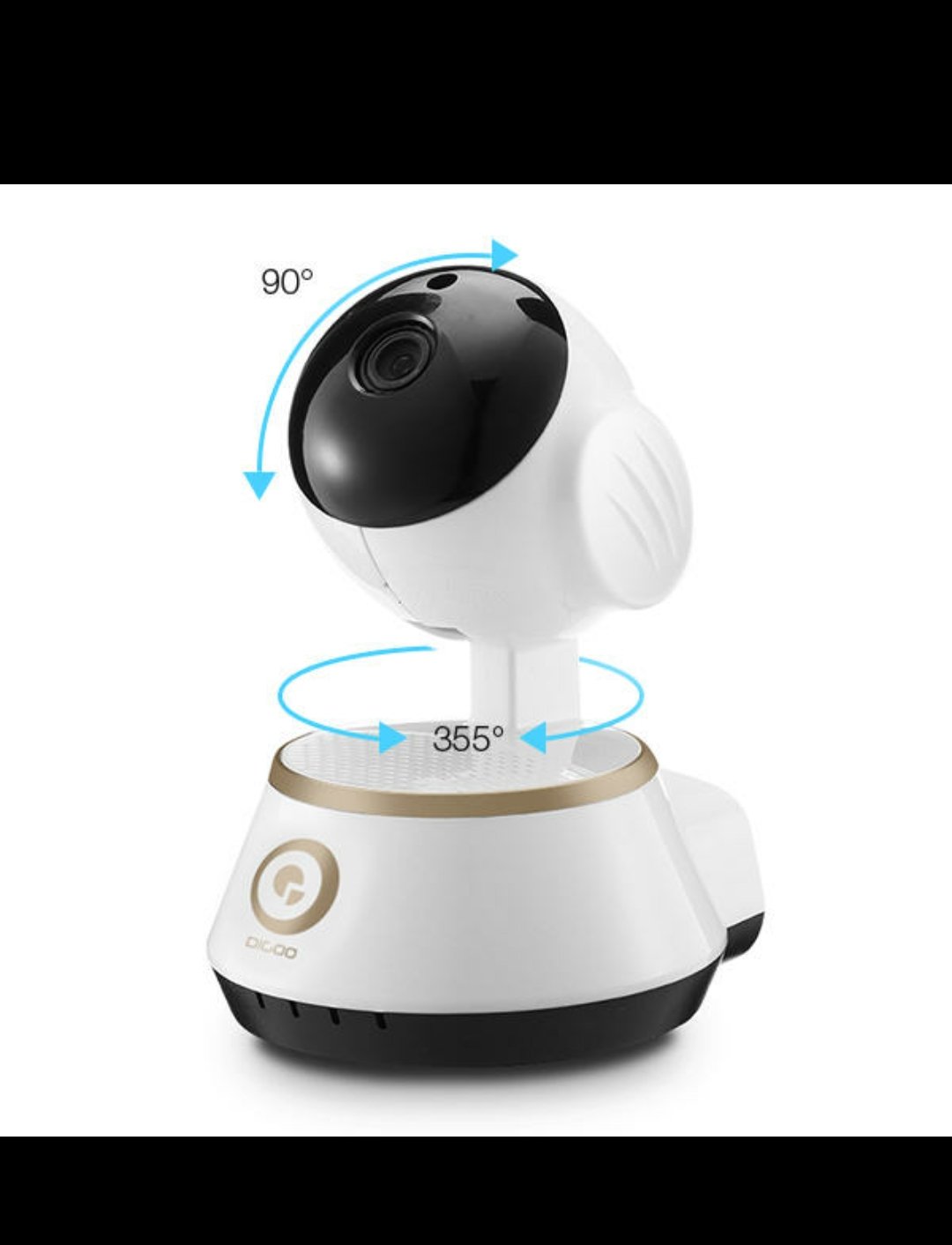
This image illustrates the pan and tilt capabilities of the DIGOO BB-M1 camera. It shows a horizontal rotation of 355 degrees and a vertical tilt of 90 degrees, allowing for extensive coverage.
Optical Lens and Night Vision

This image details the optical lens specifications, including a 3.6mm lens, F2.0 iris, and a 1/4 inch CMOS sensor. It also highlights the infrared HD night vision feature, powered by 3mm red infrared LEDs for clear viewwọ inu awọn ipo ina kekere.
Eto Itọsọna
1. Agbara Lori Kamẹra
Connect the provided USB cable to the camera's 5V power input and plug it into a compatible USB power adapter or port. The camera will initiate its startup sequence, indicated by a flashing LED light.
2. Asopọ nẹtiwọki
The DIGOO BB-M1 supports both Wi-Fi and wired LAN connections.
Eto Wi-Fi
- Download the official DIGOO application from your smartphone's app store.
- Ṣẹda iroyin tabi wọle.
- Follow the in-app instructions to add a new device. This typically involves scanning a QR code on the camera or entering your Wi-Fi credentials. Ensure your Wi-Fi network is 2.4GHz, as 5GHz networks may not be supported.
- Wait for the camera to connect to your Wi-Fi network. The LED indicator will change to a solid color once connected.
Asopọ LAN
For a stable wired connection, insert an Ethernet cable into the camera's LAN port and connect the other end to your router. The camera should automatically connect to the network.
3. Iṣagbesori Kamẹra
The camera can be placed on a flat surface or mounted to a ceiling or wall using the included base and installation accessories. Ensure the mounting location provides a clear view and is within Wi-Fi range if using a wireless connection.

This image shows the DIGOO BB-M1 camera mounted upside down, typically for ceiling installation. This demonstrates the camera's versatile mounting options.
Awọn ilana Iṣiṣẹ
Latọna Abojuto
Access the live video feed from your smartphone using the DIGOO application. You can view the camera's perspective from anywhere with an internet connection.
Pan ati Pulọọgi Iṣakoso
Within the mobile application, use the on-screen controls to remotely adjust the camera's horizontal (pan) and vertical (tilt) angles to cover different areas. Swipe gestures on the live view typically control movement.

This image demonstrates how to remotely control the camera's pan and tilt functions using a mobile application. A smartphone screen shows directional arrows, indicating the ability to move the camera view up, down, left, and right.
Ona Meji Audio
The camera features built-in two-way audio, allowing you to listen to the environment around the camera and speak through its speaker using your smartphone. Activate the microphone icon in the app to speak.

This image highlights the two-way audio communication feature of the camera, enabling users to interact remotely.
Night Vision Activation
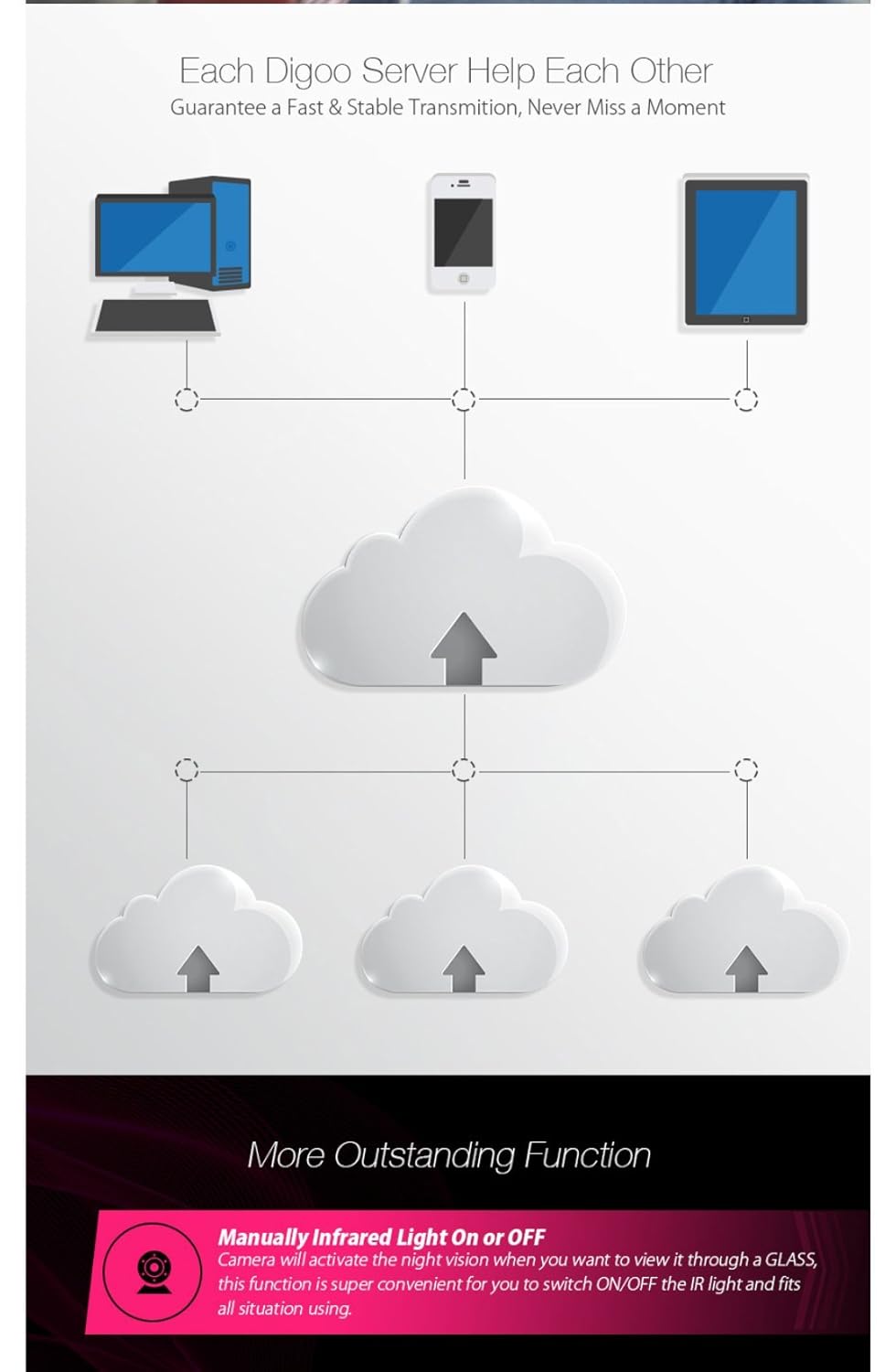
The camera automatically switches to infrared night vision in low-light conditions. You can also manually control the infrared light through the application if needed, especially when viewing through glass to avoid reflections.
To ti ni ilọsiwaju Awọn ẹya ara ẹrọ
Local Storage (TF Card Recording)
Insert a Micro SD card (up to 64GB, SDHC/SDXC) into the designated slot for local video recording. The camera supports continuous recording or motion-triggered recording. Configure recording settings within the mobile application.
This image illustrates the TF card recording capability, showing a Micro SD card being inserted into the camera. It also depicts the estimated recording durations for different card sizes (16GB, 32GB, 64GB) and hints at cloud storage options.
Awọsanma Ibi ipamọ
The DIGOO BB-M1 supports cloud storage services for secure off-site video backup. Refer to the DIGOO application for subscription details and setup procedures.
Išipopada erin ati titaniji
Configure motion detection settings in the application to receive alerts on your smartphone when movement is detected within the camera's field of view. Adjust sensitivity levels to minimize false alarms.
Atilẹyin ONVIF
The camera supports the ONVIF protocol, allowing integration with compatible Network Video Recorders (NVRs) and other surveillance systems for broader compatibility and management.
Itoju
Ninu
Gently wipe the camera lens and body with a soft, dry cloth. Avoid using harsh chemicals, abrasive materials, or excessive moisture, as these can damage the device.
Famuwia Awọn imudojuiwọn
Periodically check the DIGOO application for available firmware updates. Keeping your camera's firmware up-to-date ensures optimal performance, security, and access to new features.
Ntun kamẹra naa pada
If the camera experiences persistent issues or you need to reconfigure it, you can perform a factory reset. Locate the reset button (typically a small pinhole near the ports) and press and hold it for several seconds (usually 5-10 seconds) until the indicator light changes or you hear a prompt. This will restore the camera to its default settings.
Laasigbotitusita
Kamẹra Ko Sopọ mọ Wi-Fi
- Check Wi-Fi Band: Ensure your Wi-Fi network is 2.4GHz. The camera may not support 5GHz networks.
- Jẹrisi Ọrọigbaniwọle: Double-check that the Wi-Fi password entered is correct.
- Agbara ifihan agbara: Gbe kamẹra naa sunmọ olutọpa Wi-Fi rẹ lati mu agbara ifihan pọ si.
- Kamẹra Tunto: Ṣe atunto ile-iṣẹ kan ki o gbiyanju ilana iṣeto naa lẹẹkansii.
Ko si Fidio kikọ sii
- Ṣayẹwo agbara: Ensure the camera is powered on and the indicator light is active.
- Isopọ Ayelujara: Verify your internet connection is stable on both your camera and viewohun elo.
- Tun awọn ẹrọ bẹrẹ: Tun kamẹra ati olulana rẹ bẹrẹ.
Audio-Ona Meji Ko Ṣiṣẹ
- Eto App: Check microphone and speaker settings within the mobile application.
- Iwọn Ẹrọ: Rii daju pe iwọn didun foonu rẹ ti wa ni titan.
- Awọn idilọwọ: Daju pe ko si awọn idiwọ ti o dina gbohungbohun kamẹra tabi agbọrọsọ.
Awọn pato
| Ipinnu Yaworan fidio | 720p |
| Àwọ̀ | FUNFUN |
| Imọ-ẹrọ Ibaraẹnisọrọ Alailowaya | Wi-Fi |
| Iwọn fireemu | 30 awọn fireemu fun keji |
| Flash Memory Iru | SDHC, SDXC (up to 64GB) |
| Iru Itaniji | Išipopada Nikan |
| Imọlẹ Orisun Orisun | Infurarẹẹdi |
| Fidio Yaworan kika | AVI |
| Fọto sensọ Technology | CMOS |
| International Idaabobo Rating | IP65, IP67 (Note: Product description states 'Not Water Resistant' for general use, but IP ratings suggest dust/water resistance for specific components. Refer to product packaging for exact environmental use.) |
| Ọna Iṣakoso | Voice (via app), Mobile App |
| Pataki Ẹya | Night Vision, Two-Way Audio, Pan/Tilt |
| inu ile / ita gbangba Lilo | Indoor, Outdoor (Refer to IP rating for specific outdoor conditions) |
| Awọn ẹrọ ibaramu | Foonu alagbeka (Android, iOS) |
| Orisun agbara | USB (5V) |
| Ilana Asopọmọra | ONVIF, Wi-Fi |
| Adarí Iru | Android (via app) |
| Iṣagbesori Iru | Surface Mount, Ceiling Mount |
| Package Mefa | 14.28 x 8.71 x 8.71 cm |
| Iwọn Nkan | 300 g |
Atilẹyin ọja ati Support
For detailed warranty information, technical support, and customer service, please refer to the documentation provided at the time of purchase or visit the official DIGOO website. Keep your purchase receipt or proof of purchase for any warranty claims.