
BOND BD-1000
BOND Bridge User Manual
Awoṣe: BD-1000
Ọrọ Iṣaaju
The BOND Bridge is a smart device designed to integrate your remote-controlled ceiling fans, fireplaces, and motorized shades with your smartphone and smart home assistants like Amazon Alexa and Google Home. It allows you to activate devices, control speeds, and switch lights on or off directly from your mobile device, replicating the functions of your original remote control.

Figure 1: The BOND Bridge device, featuring a sleek black design with a prominent blue LED ring indicating its status.
Awọn pato ọja
| Sipesifikesonu | Ẹ̀kúnrẹ́rẹ́ |
|---|---|
| Brand | BOND |
| Orukọ awoṣe | BD-1000 |
| Àwọ̀ | Dudu |
| Ọja Mefa | 3.8"D x 3.8"W x 1.1"H |
| Iwọn Nkan | 7.2 iwon (0.45 iwon) |
| Orisun agbara | AC |
| Wi-Fi Asopọmọra | 2.4 GHz |
| RF Reach | Titi di 2,500 sq. |
| Device Control Capacity | Up to 30 devices per BOND Bridge |
| Ọna Iṣakoso | App, Latọna jijin, Ohùn (Alexa, Ile Google) |
| Awọn irinše to wa | BOND Bridge Unit, AC adapter, USB cable, Manual |
| Olupese | Olibra LLC |
| UPC | 612520601607 |

Figure 2: Detailed product specifications for the BOND Bridge.
Eto Itọsọna
- Agbara Tan: Plug in the BOND Bridge device using the provided AC adapter and USB cable. The device will power on and its LED ring will indicate readiness.
- Ṣe igbasilẹ ohun elo naa: Download the official BOND Home app from the Google Play itaja (for Android) or the Apple App itaja (fun iOS).
- Se akanti fun ra re: Open the app and follow the on-screen instructions to create a new BOND account or log in if you already have one.
- Sopọ si Wi-Fi: The app will guide you through connecting the BOND Bridge to your home's 2.4 GHz Wi-Fi network. Ensure your Wi-Fi is working correctly.
- Fi ẹrọ kun: Once connected, select "Add Device" in the app. Choose the type of device you wish to control (e.g., Ceiling Fan, Electric Fireplace, Motorized Shades).
- Program Remote: Point your existing remote control for the device at the BOND Bridge. The app will instruct you to press a button on your remote to allow the BOND Bridge to learn its signal. The BOND Bridge can learn and transmit both RF (radio frequency) and IR (infrared) signals.
- Awọn iṣẹ idanwo: After programming, test the functions within the app to ensure all commands (e.g., fan speed, light dimmer settings) are correctly recognized and operational.

Figure 3: Simple setup process: plug in, download the app, and program your remote control.
Awọn ilana Iṣiṣẹ
Using the BOND Home App:
- Iṣakoso ẹrọ: Open the BOND Home app. Your configured devices will be listed. Tap on a device to access its control interface.
- Iṣakoso Afẹfẹ: For ceiling fans, you can typically control power, fan speeds (e.g., Speed 1, 2, 3), and reverse motor direction (if supported by your fan).
- Iṣakoso ina: For devices with lights, you can turn lights on/off and adjust brightness (dimmer up/down) if your original remote supports these functions.
- Iṣeto: Set schedules for your devices to turn on/off or adjust settings automatically based on time or day/dusk.
- Iṣakojọpọ: Ṣe akojọpọ awọn ẹrọ pupọ papọ fun iṣakoso nigbakanna.
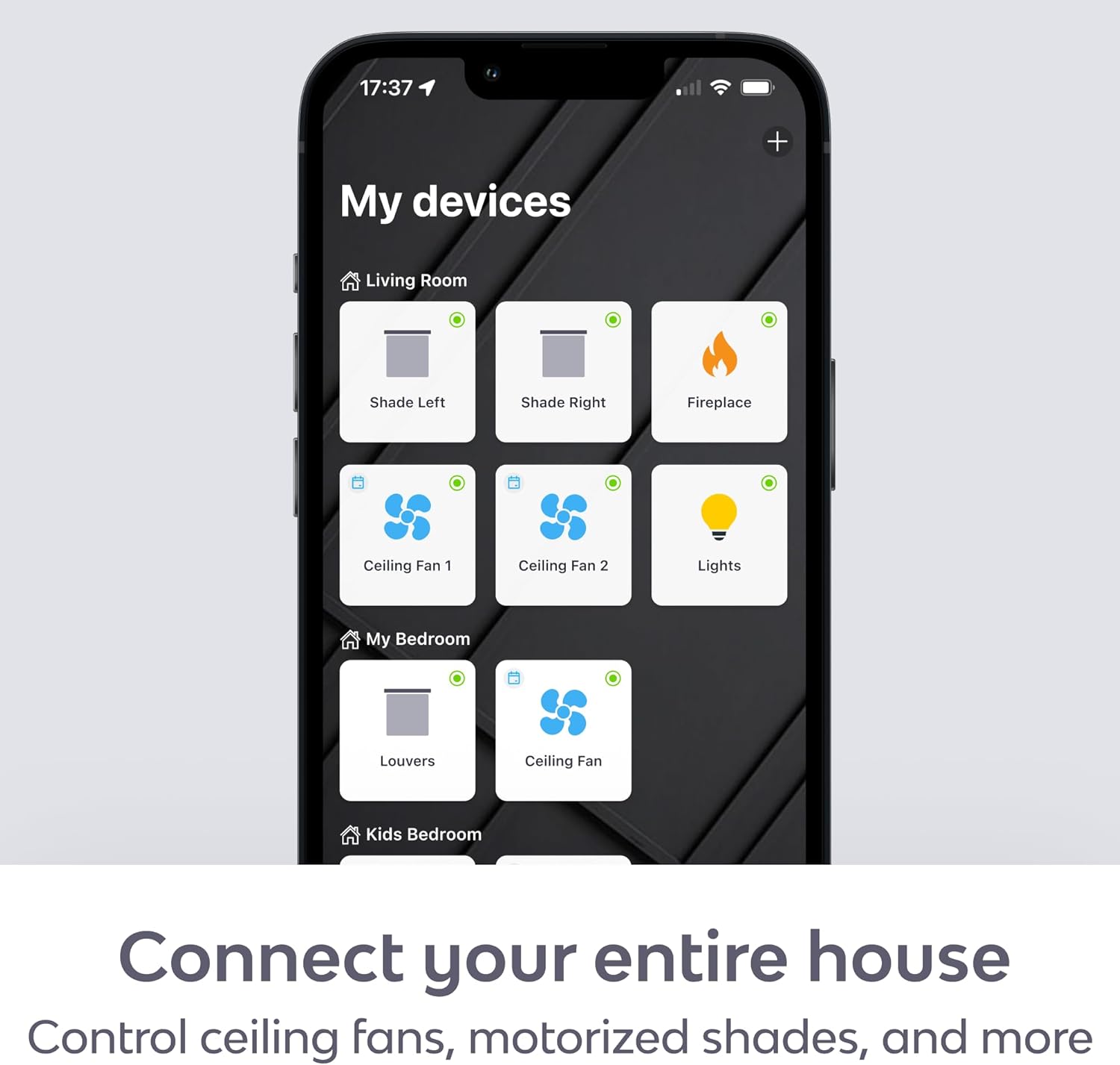
Figure 4: The BOND Home app provides a centralized interface for all your connected devices.
Iṣakoso ohun (Alexa & Ile Google):
- Àwọn Àkọọ́lẹ̀ Ìsopọ̀: Enable the BOND skill in your Amazon Alexa or Google Home app and link your BOND account.
- Awọn pipaṣẹ ohun: Use simple voice commands to control your devices. Example:
- "Alexa, tan afẹfẹ yara gbigbe."
- "Hey Google, set the bedroom fan to speed 3."
- "Alexa, turn off the fireplace."
- "Hey Google, dim the dining room light."
Itoju
- Ninu: Wipe the BOND Bridge with a soft, dry cloth. Do not use liquid cleaners or aerosol sprays.
- Awọn imudojuiwọn famuwia: Ensure your BOND Bridge firmware is up to date through the BOND Home app to receive the latest features and performance improvements.
- Ibi: For optimal performance, place the BOND Bridge in a central location within the area where your remote-controlled devices are located. It has an RF reach of up to 2,500 sq. ft., but physical obstructions can affect signal strength. Consider adding additional BOND Bridges for extended coverage in larger homes.

Figure 5: Multiple BOND Bridges can be used to expand coverage in larger homes.
Laasigbotitusita
- Ẹrọ Ko Dahun:
- Ensure the BOND Bridge is powered on and connected to your Wi-Fi network (check the LED indicator).
- Verify that the BOND Bridge is within range of the device you are trying to control.
- Re-program the remote signal for the device in the BOND Home app.
- Check if the original remote control is working correctly.
- Awọn pipaṣẹ ohun Ko Ṣiṣẹ:
- Confirm that your Amazon Alexa or Google Home account is correctly linked to your BOND account in their respective apps.
- Ensure your smart speaker is online and functioning.
- Gbiyanju lati tun ṣawari awọn ẹrọ ninu ohun elo Alexa tabi Google Home rẹ.
- Awọn ọran Asopọmọra Wi-Fi:
- Ensure your Wi-Fi router is powered on and broadcasting a 2.4 GHz network.
- Move the BOND Bridge closer to your Wi-Fi router if signal strength is an issue.
- Restart your Wi-Fi router and the BOND Bridge.
- Fireplace Turns On/Off by Itself:
- If your fireplace turns on or off unexpectedly, try removing the batteries from its original factory remote control. This can prevent conflicting signals.
Atilẹyin ọja ati Support
For warranty information and technical support, please refer to the official BOND website or contact Olibra LLC directly. The BOND Bridge comes with a standard manufacturer's warranty covering defects in materials and workmanship.
Awọn orisun Ayelujara:
For further assistance, you can reach out to BOND customer support through the app or their webojula.
Ask a question about this manual
Ask about setup, troubleshooting, compatibility, parts, safety, or missing instructions. Manuals+ will review the question and use this page’s manual context to help answer it.