
Ọrọ Iṣaaju
This manual provides instructions for setting up, operating, maintaining, and troubleshooting your Logitech Slim Folio Keyboard Case for iPad (5th and 6th Generation). Please read this manual thoroughly before using the product to ensure optimal performance and longevity.
Ṣeto
1. Check iPad Compatibility
Ensure your iPad is a 5th or 6th Generation model. The model numbers for compatible iPads are A1822 and A1823.
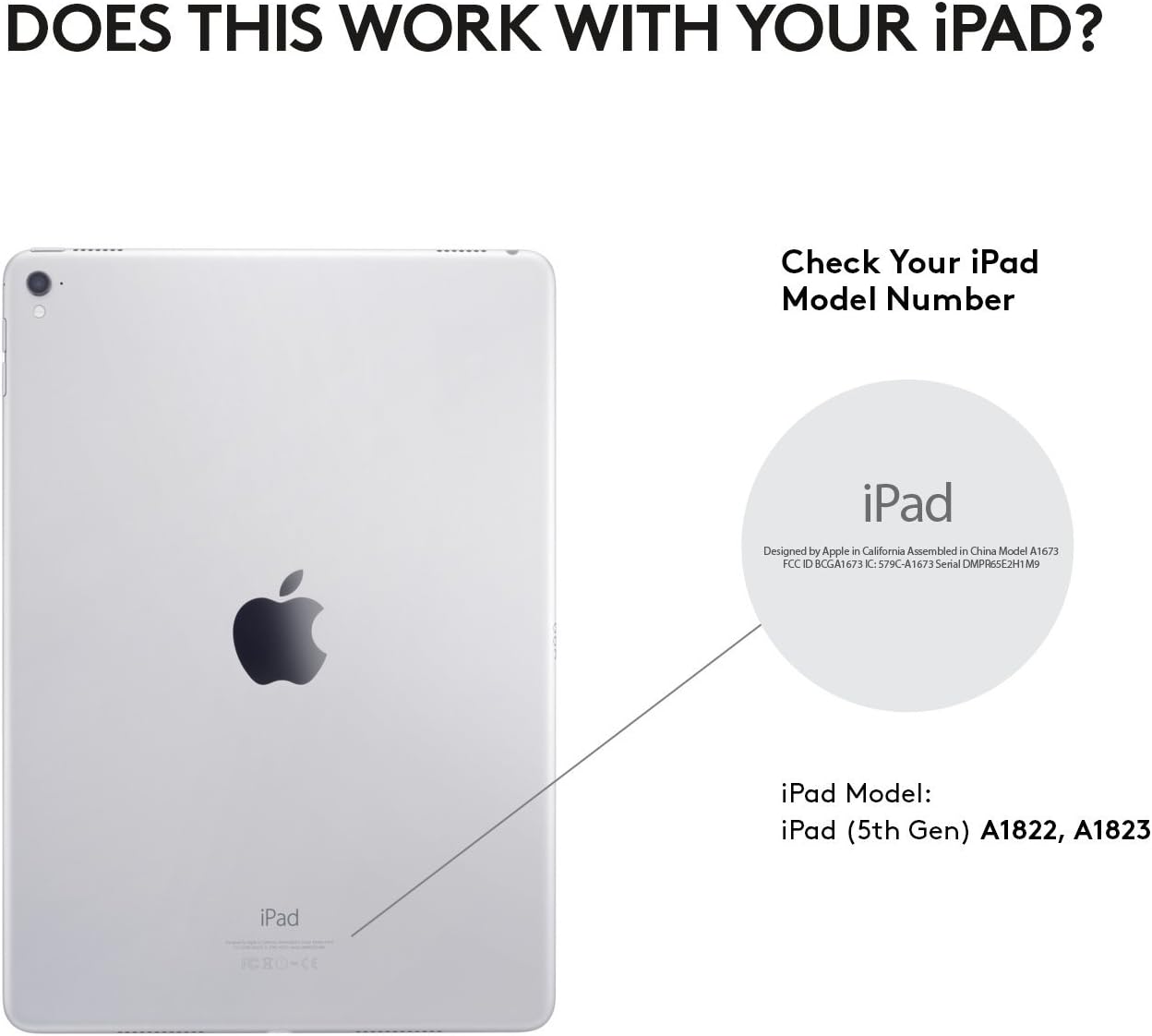
Nọmba 1: Locate your iPad model number on the back of your device to confirm compatibility.
2. Insert iPad into the Case
Carefully align your iPad with the case and press it firmly into place. Ensure all ports, buttons, and the camera are accessible through the case's cutouts.

Nọmba 2: The Slim Folio case provides comprehensive front and back protection for your iPad, with precise cutouts for all functionalities.
3. Initial Keyboard Activation and Bluetooth Pairing
The keyboard is powered by replaceable coin cell batteries, designed for a long lifespan. To activate the keyboard and pair it with your iPad:
- Open the Slim Folio case and place your iPad into the typing position. The keyboard will automatically power on.
- Lori iPad rẹ, lọ si Eto > Bluetooth.
- Select "Logitech Slim Folio" from the list of available devices to pair.
- A green light on the keyboard indicates it is powered on and ready for connection.

Nọmba 3: The Slim Folio features a replaceable battery with up to 4 years of life (based on 2 hours daily use) and an auto sleep/wake function.
For a visual guide on setting up your Logitech Slim Folio, please watch the official video below:
Fidio 1: Official Logitech video demonstrating the setup process for the iPad Keyboard Case.
Awọn ilana Iṣiṣẹ
Typing Mode
To use the keyboard, simply open the case and position your iPad in the magnetic typing stand. The keyboard will automatically activate, allowing you to type comfortably. The keys are well-spaced for a laptop-like typing experience.

Nọmba 4: The Slim Folio transforms your iPad into a laptop-like device, offering a comfortable typing experience with perfectly spaced keys and iOS shortcut keys.
Viewipo Inng
For media consumption or browsing, you can fold the keyboard behind the iPad. The case is designed to hold the iPad securely at an optimal viewing angle. The keyboard will automatically deactivate in this mode to prevent accidental key presses and conserve battery.

Nọmba 5: The Slim Folio offers versatile modes for typing, viewing, and protecting your iPad.
Awọn bọtini ọna abuja iOS
The keyboard features a dedicated row of iOS shortcut keys for quick access to common functions:
- Ile: Pada si iboju ile.
- Siri: Mu Siri ṣiṣẹ.
- Imọlẹ iboju: Ṣatunṣe imọlẹ iboju.
- Wa Open the search function.
- Awọn iṣakoso Media: Ṣiṣẹ / sinmi, fo awọn orin.
- Awọn iṣakoso iwọn didun: Ṣatunṣe iwọn didun ohun.
- Ati siwaju sii.
Itoju
Ninu ọran naa
The Slim Folio case is made from water-repellent, easy-to-clean fabric and durable plastic material. To clean, gently wipe with a damp asọ. Yẹra fun awọn kẹmika lile tabi awọn olutọpa abrasive.
Batiri Rirọpo
The keyboard uses replaceable coin cell batteries (CR2032). The battery life is approximately 4 years based on 2 hours of daily use. When the battery is low, the indicator light on the keyboard may flash. To replace the battery:
- Locate the battery compartment on the side of the keyboard.
- Use a small coin or tool to open the compartment.
- Yọ awọn batiri atijọ kuro ki o si fi awọn batiri CR2032 tuntun sii, ni idaniloju pe o yẹ polarity.
- Pa yara batiri naa ni aabo.
Laasigbotitusita
Keyboard Ko Dahun
- Ṣayẹwo Batiri: Ensure the batteries are not depleted. Replace if necessary.
- Tun Bluetooth so pọ: Go to iPad Settings > Bluetooth, forget the "Logitech Slim Folio" device, and then re-pair it.
- Tun iPad bẹrẹ: Nígbà míìrán, àtúnṣe díẹ̀ ti iPad rẹ lè yanjú àwọn ìṣòro ìsopọ̀.
Awọn bọtini Ko Ṣiṣẹ ni deede
- Awọn bọtini mimọ: Rii daju pe ko si idoti ti o wa labẹ awọn bọtini.
- Imudojuiwọn Software: Check if your iPad's iOS is up to date.
iPad Not Staying in Typing Position
The magnetic strip that holds the iPad in typing position is strong. If your iPad is not staying securely, ensure it is correctly aligned with the magnetic strip and that no foreign objects are interfering with the connection.
Awọn pato
| Brand | Logitech |
| Nọmba awoṣe | 920-008617 |
| Awọn ẹrọ ibaramu | iPad 5th Generation, iPad 6th Generation (Models A1822, A1823) |
| Asopọmọra Technology | Bluetooth LE |
| Apejuwe Keyboard | Ẹ̀yà ara |
| Nọmba ti Awọn bọtini | 78 |
| Batiri Iru | Replaceable Coin Cell (CR2032) |
| Ifoju batiri Life | Up to 4 years (based on 2 hours daily use) |
| Ohun elo | Plastic, Water-repellent Fabric |
| Àwọ̀ | Erogba Black |
| Iwọn Nkan | 1 iwon |
Atilẹyin ọja ati Support
The Logitech Slim Folio Keyboard Case comes with a 1-odun lopin atilẹyin ọja. For warranty claims, technical support, or further assistance, please visit the official Logitech support webojula tabi kan si wọn onibara iṣẹ.
For additional information and resources, please visit: www.logitech.com