
Xerox C505/X
Xerox VersaLink C505/X Color Laser MFP User Manual
Model: C505/X
1. Ifihan
This manual provides detailed instructions for the setup, operation, and maintenance of your Xerox VersaLink C505/X Color Laser Multifunction Printer. The C505/X is designed for efficient performance in fast-paced work environments, offering print, copy, scan, and fax functionalities.
Key features include a customizable 7-inch color touchscreen for intuitive control, mobile and cloud connectivity, and robust security measures.
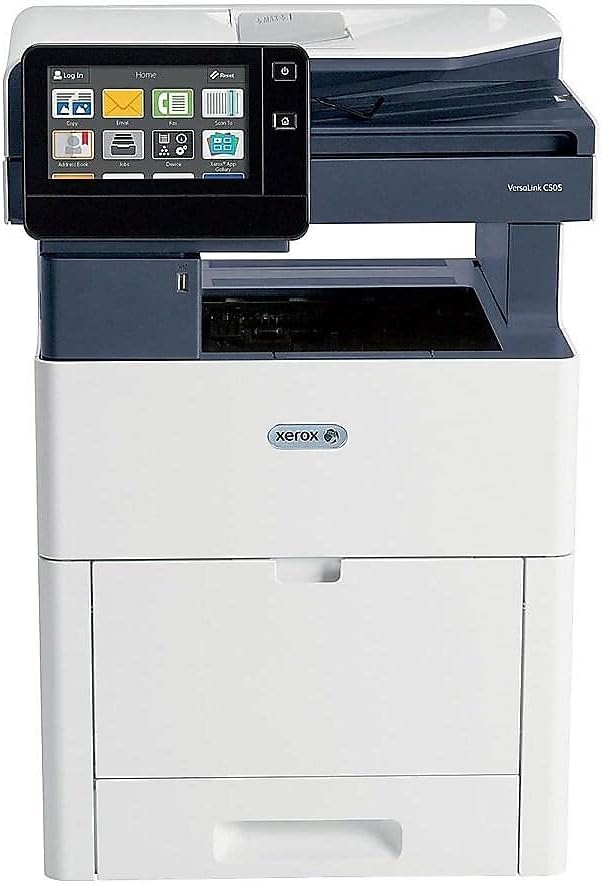
olusin 1: Iwaju view of the Xerox VersaLink C505/X Multifunction Printer.
2. Eto
2.1 Unpacking ati Ibẹrẹ ayewo
Carefully remove the printer from its packaging. Verify that all components listed below are present and undamaged:
- Xerox VersaLink C505 Color MFP
- Starter capacity toner cartridges (one each of cyan, magenta, yellow: 2,400 capacity; black: 5,000 capacity)
- Software ati iwe CD
- Fifi sori Itọsọna
- Quick User Guides
- Okun agbara
2.2 Asopọ agbara
- Gbe itẹwe sori iduro, ipele ipele.
- Connect the provided power cord to the printer's power input and then to a grounded electrical outlet.
- Do not power on the device until all other connections are made.
2.3 Toner Katiriji fifi sori
Install the starter toner cartridges into their respective slots. Refer to the Quick User Guides for specific instructions on opening the toner access panel and inserting cartridges.

Figure 2: Toner cartridge access panel open, showing toner installation.
2.4 Nẹ́tíwọ́ọ̀kì àti Ìsopọ̀ USB
The printer supports both Ethernet and USB connectivity.
- Àjọlò: So okùn Ethernet kan lati ibudo Ethernet ti itẹwe si olulana nẹtiwọọki rẹ tabi yipada.
- USB: Connect a USB cable from the printer's USB port to your computer.
2.5 Software fifi sori
Insert the provided software and documentation CD into your computer's CD/DVD drive. Follow the on-screen instructions to install the necessary drivers and utilities. Alternatively, visit the official Xerox support webojula fun awọn titun awakọ.
3. Ṣiṣẹ itẹwe
3.1 Fọwọkan Interface
The 7-inch color touchscreen provides access to all printer functions. Navigate through menus by tapping and swiping, similar to a smartphone. The home screen displays icons for various functions such as Print, Copy, Scan, and Fax.

Figure 3: Close-up of the 7-inch color touchscreen control panel.
3.2 Titẹ sita
Lati tẹjade awọn iwe aṣẹ:
- Rí i dájú pé ẹ̀rọ ìtẹ̀wé náà ti so mọ́ kọ̀ǹpútà tàbí nẹ́tíwọ́ọ̀kì rẹ.
- Open the document on your computer and select the print option.
- Choose the Xerox VersaLink C505/X from the list of available printers.
- Adjust print settings (e.g., color/monochrome, duplex printing, paper size) as needed. The printer supports up to 43 ppm color and 45 ppm monochrome, with automatic duplexing.
- Confirm the print job.
3.3 didaakọ
Lati ṣe awọn ẹda:
- Place the original document on the scanner glass or in the automatic document feeder (ADF).
- On the touchscreen, tap the "Copy" icon.
- Select desired settings such as number of copies, color/black and white, and two-sided copying. The maximum copy speed is 45 ppm (black & white) with resolutions up to 1200 x 2400 dpi.
- Tẹ bọtini "Bẹrẹ".
3.4 Ṣiṣayẹwo
Láti ṣe àyẹ̀wò àwọn ìwé:
- Gbe iwe naa sori gilasi ọlọjẹ tabi ni ADF.
- On the touchscreen, tap the "Scan" icon.
- Choose the scan destination (e.g., email, network folder, USB drive) and adjust scan settings.
- Tẹ bọtini "Bẹrẹ".
3.5 Faxing
Láti fi fakisi ranṣẹ:
- Gbe iwe naa sori gilasi ọlọjẹ tabi ni ADF.
- On the touchscreen, tap the "Fax" icon.
- Tẹ nọmba faksi olugba sii.
- Ṣe àtúnṣe sí àwọn ètò fax tó yẹ.
- Tẹ bọtini "Bẹrẹ".
3.6 Mobile and Cloud Connectivity
The VersaLink C505/X offers out-of-the-box connectivity to cloud services like Google Drive, Microsoft OneDrive, and DropBox. Additional options are available through the Xerox App Gallery, allowing for flexible workflow integration.
4. Itọju
4.1 Toner katiriji Rirọpo
When a toner cartridge is low or empty, the printer's display will indicate which cartridge needs replacement. Always use genuine Xerox toner cartridges for optimal performance and print quality.
- Ṣí ojú ìtẹ̀wé iwájú.
- Carefully remove the empty toner cartridge by pulling it straight out.
- Tú káàtírììtì tónẹ́ẹ̀tì tuntun náà kí o sì fì pẹ̀lẹ́pẹ̀lẹ́ gbọ̀n ọ́n kí ó lè pín in síta.
- Fi katiriji tuntun sinu iho ti o baamu titi ti yoo fi tẹ sinu ipo rẹ.
- Ti panẹli iwọle iwaju.
4.2 Ninu
Mimọ deede ṣe iranlọwọ lati ṣetọju didara titẹ ati fa igbesi aye itẹwe rẹ gbooro.
- Òde: Mu ese ita gbangba pẹlu asọ, damp, lint-free asọ.
- Gilasi Scanner: Use a soft cloth moistened with glass cleaner to clean the scanner glass. Ensure no residue remains.
- Awọn eroja inu: Refer to the detailed user manual on the software and documentation CD for instructions on cleaning internal components, such as the print heads or rollers, if necessary.
5. Laasigbotitusita
This section addresses common issues you might encounter with your Xerox VersaLink C505/X. For more complex problems, consult the full user manual or contact support.
5.1 Iwe Jams
If a paper jam occurs, the touchscreen will display an error message indicating the location of the jam. Follow the on-screen instructions to clear the jammed paper. Always pull paper in the direction of the paper path to avoid tearing.
5.2 Print Didara oran
If printouts show streaks, faded areas, or incorrect colors:
- Ṣàyẹ̀wò ìpele toner kí o sì rọ́pò àwọn katiriji tí kò ní ìwúwo.
- Rí i dájú pé o ń lo ìwé tó yẹ fún iṣẹ́ ìtẹ̀wé rẹ.
- Ṣe àyẹ̀wò dídára ìtẹ̀wé láti ibi ìṣàkóṣo ẹ̀rọ ìtẹ̀wé náà.
- Clean the print heads or other internal components as instructed in the detailed manual.
5.3 Asopọmọra Isoro
If the printer is not communicating with your computer or network:
- Verify that all cables (power, USB, Ethernet) are securely connected.
- Tun atẹwe bẹrẹ ati kọmputa rẹ / olulana.
- Check network settings on the printer's touchscreen.
- Ensure the correct printer drivers are installed on your computer.
6. Awọn pato
| Ẹya ara ẹrọ | Ẹ̀kúnrẹ́rẹ́ |
|---|---|
| Orukọ awoṣe | Xerox C505/X VersaLink |
| Awọn iṣẹ | Tẹjade, Daakọ, Ṣiṣayẹwo, Faksi |
| Imọ-ẹrọ titẹ sita | Lesa awọ |
| Iyara Titẹjade ti o pọju (Monochrome) | 45ppm |
| Iyara Titẹjade ti o pọju (Awọ) | 43ppm |
| Ìpinnu Ìtẹ̀wé Tó Pọ̀ Jùlọ (B&W) | 2400 dpi |
| Ìpinnu Ìtẹ̀wé Tó Pọ̀ Jùlọ (Àwọ̀) | 1200 x 2400 dpi |
| Ile oloke meji Printing | Laifọwọyi |
| Scanner Iru | Iwe aṣẹ |
| Iyara Daakọ Pupọ julọ (B&W) | 45ppm |
| Ìpinnu Ẹ̀dà Púpọ̀ jùlọ (Àwọ̀) | Titi di 1200 x 2400 dpi |
| Ọna Iṣakoso | App, Touch (7-inch display) |
| Asopọmọra | USB, àjọlò |
| O pọju Input dì Agbara | 3250 iwe |
| Standard Trays | 2 (550 Sheet Tray, 150 Sheet Multi Purpose Tray) |
| Awọn iwọn Media atilẹyin | Letter (8.5 x 11 inches), Legal (8.5 x 14 inches) |
| Inki Iru | Toner (Black, Cyan, Magenta, Yellow) |
| Agbara Ibi ipamọ Iranti | 4096 MB |
| Ọja Mefa | 26"D x 23"W x 31"H |
| Iwọn Nkan | 77.2 iwon |
| Wattage | 600 watt |
7. Atilẹyin ọja ati Support
7.1 Atilẹyin ọja
The Xerox VersaLink C505/X Color Laser MFP comes with a standard one-year full warranty from the date of purchase. This warranty covers defects in materials and workmanship under normal use. For detailed terms and conditions, please refer to the warranty documentation included with your product or visit the official Xerox webojula.
7.2 Onibara Support
For technical assistance, troubleshooting, or service requests, please contact Xerox customer support. Support contact information can be found on the Xerox webaaye tabi ninu iwe ti a pese pẹlu itẹwe rẹ.
Awọn orisun Ayelujara: Visit the official Xerox support website for FAQs, driver downloads, and additional user guides.
Ask a question about this manual
Ask about setup, troubleshooting, compatibility, parts, safety, or missing instructions. Manuals+ will review the question and use this page’s manual context to help answer it.