
1. Ifihan
The Zooz Z-Wave Plus Power Switch ZEN15 is a smart plug designed to provide Z-Wave control and energy monitoring for heavy-duty 110V appliances. This device allows integration of appliances such as AC units, sump pumps, and humidifiers into your Z-Wave smart home system, offering remote control and detailed energy usage reports. It also functions as a Z-Wave signal repeater to strengthen your network.

Nọmba 1: The Zooz Z-Wave Plus Power Switch ZEN15. This image shows the compact, white circular main unit with a flexible cord extending to a standard three-prong plug on one end and a three-prong outlet on the other.
2. Alaye Aabo pataki
- Ẹrọ yii jẹ ipinnu fun inu ile nikan.
- Maṣe fi oju ojo tabi omi han.
- Ensure the connected appliance's power requirements do not exceed the switch's maximum load capacity (15 Amps, 1800 Watts at 110V AC).
- Ma ṣe gbiyanju lati tunto tabi yi ẹrọ naa pada.
- Jeki kuro lati awọn ọmọde.
- Máa yọ ẹ̀rọ náà kúrò nínú ibi tí agbára ń gbé jáde kí o tó fi mọ́ tàbí nígbà tí o kò bá lò ó fún ìgbà pípẹ́.
3. Package Awọn akoonu
The package for the Zooz Z-Wave Plus Power Switch ZEN15 typically includes:
- 1 x Zooz Z-Wave Plus Power Switch ZEN15
- 1 x Itọsọna olumulo (iwe yii)

Nọmba 2: Packaging for the Zooz ZEN15 Power Switch. The image displays the product box, which is black with green accents, showing the power switch coiled inside.
4. Ọja Ipariview
The ZEN15 Power Switch features a robust design for reliable operation. Key components include:
- Ẹka akọkọ: Houses the Z-Wave chip and control electronics.
- Okun Agbara: Extra-thick flexible cord for durability.
- Pulọọgi Igun: A 45-degree angled plug design allows two smart switches to fit into a single duplex receptacle.
- Controlled Outlet: The receptacle where your appliance plugs in.
- Atọka LED: Pese esi ipo.

Nọmba 3: Bugbamu view of the Zooz ZEN15 Power Switch. This image highlights internal components such as the 800 Series Z-Wave chip, strong relay, solid enclosure, and extra-thick flexible cord, emphasizing its robust hardware.
5. Eto ati fifi sori
5.1 Pre-fifi sori Akojọ ayẹwo
- A Z-Wave certified hub is required for smart control (sold separately).
- Ensure the installation location is indoors and within the operating temperature range of 14°F to 104°F (-10°C to 40°C).
- Verify the appliance to be controlled is 110V AC and does not exceed 15 Amps tabi 1800 Wattis.
5.2 Fifi sori ti ara
- Plug the Zooz ZEN15 Power Switch into a standard 110V AC wall receptacle.
- Plug your appliance into the controlled outlet of the ZEN15 Power Switch.

Nọmba 4: The 45-degree angled plug of the Zooz ZEN15. This design allows two ZEN15 switches to be plugged into a standard duplex wall outlet simultaneously without obstructing each other.
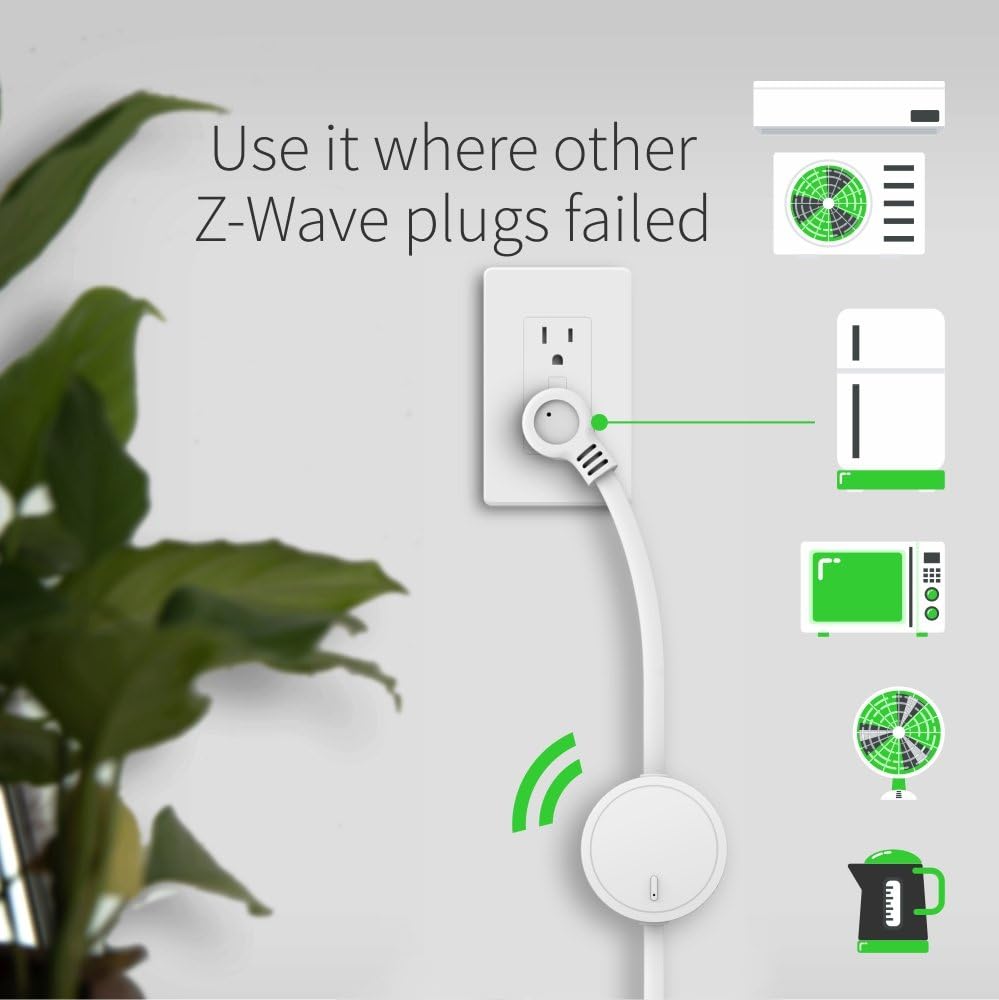
Nọmba 5: The Zooz ZEN15 Power Switch in use, demonstrating its ability to control various heavy-duty appliances such as an AC unit, refrigerator, microwave, fan, and kettle, plugged into a wall outlet.
5.3 Z-Wave Inclusion (Pairing)
Follow these steps to add the ZEN15 Power Switch to your Z-Wave network:
- Initiate the inclusion (pairing) mode on your Z-Wave hub. Refer to your hub's instruction manual for specific steps.
- Press the Z-Wave button on the ZEN15 Power Switch ni igba mẹta ni kiakia. The LED indicator will flash to confirm inclusion mode.
- Your hub should detect and add the device. The LED on the ZEN15 will turn solid when successfully paired.
- If inclusion fails, try excluding the device first (see 5.4) and then repeat the inclusion process.
5.4 Z-Wave Exclusion (Removal)
To remove the ZEN15 Power Switch from your Z-Wave network:
- Initiate the exclusion (removal) mode on your Z-Wave hub. Refer to your hub's instruction manual for specific steps.
- Press the Z-Wave button on the ZEN15 Power Switch ni igba mẹta ni kiakia. The LED indicator will flash to confirm exclusion mode.
- Your hub should confirm the device has been removed. The LED on the ZEN15 will turn off.
6. Awọn ilana Iṣiṣẹ
6.1 Ipilẹ Tan / Pa Iṣakoso
- Iṣakoso Afowoyi: Press the Z-Wave button once to manually turn the connected appliance ON or OFF.
- Iṣakoso Z-Wave: Use your Z-Wave hub's interface or associated voice assistant (if configured) to remotely turn the appliance ON or OFF.
6.2 Agbara Abojuto
The ZEN15 Power Switch can report real-time energy usage data (Watts, kWh, Amps, Volts) to your Z-Wave hub. This feature requires a Z-Wave hub that supports energy monitoring. Consult your hub's documentation for how to access and interpret this data.
Akiyesi: This device is not a power outage monitor. It reports current energy usage, not power loss events.

Nọmba 6: Key Z-Wave features of the ZEN15 Power Switch. This graphic illustrates the device's capabilities including Z-Wave Plus Repeater functionality, a Z-Wave Range Test Tool, Secure Signal Encryption, and Energy Use Monitoring.
7. Awọn ẹya ara ẹrọ ti ilọsiwaju
- Z-Wave Plus and 800 Series Chip: Utilizes the latest Z-Wave technology for improved range, speed, and security.
- Z-Wave Long Range (LR) Ready: Compatible with Z-Wave Long Range networks for extended communication distances.
- S2 Authenticated Security: Provides enhanced security for your Z-Wave network.
- Signal Repeater: Boosts your Z-Wave network by repeating signals from other devices.
- Range Test Tool: A built-in tool to help assess Z-Wave signal strength (consult your hub's documentation for activation).
- Agbara Outage Imularada: The switch can be configured to restore its last on/off state after a power failure.
- Ibamu: Works with certified Z-Wave hubs for basic on/off control. Advanced settings and energy monitoring are typically available with open systems like Z-Box Hub (recommended), SmartThings (custom driver may be required), Hubitat, Home Assistant, and HomeSeer.
8. Itọju
- Nu ẹrọ naa pẹlu asọ ti o tutu, ti o gbẹ. Maṣe lo awọn kẹmika ti o lewu tabi awọn afọmọ abrasive.
- Rii daju pe ẹrọ naa ti yọọ kuro ṣaaju ṣiṣe mimọ.
- Regularly check for any signs of damage to the cord or housing. If damaged, discontinue use and contact support.
9. Laasigbotitusita
9.1 Device Not Pairing with Z-Wave Hub
- Check Hub Mode: Ensure your Z-Wave hub is in inclusion (pairing) mode.
- Tẹ Mẹta: Confirm you are pressing the Z-Wave button on the ZEN15 three times quickly.
- Àkọ́kọ́ ìyọkúrò: Try performing an exclusion (removal) process first, even if the device was never paired. This can reset the device.
- Ijinna: Move the ZEN15 closer to your Z-Wave hub during the pairing process.
9.2 Appliance Not Responding
- Ṣayẹwo Agbara: Ensure the ZEN15 is properly plugged into a live outlet and the appliance is securely plugged into the ZEN15.
- Idanwo Ọwọ: Try pressing the Z-Wave button on the ZEN15 to manually toggle the appliance. If it works manually, the issue might be with your Z-Wave network or hub.
- Appliance Power: Verify the appliance itself is functional by plugging it directly into a wall outlet.
- Agbara fifuye: Ensure the appliance's power draw does not exceed the ZEN15's maximum load (15A, 1800W).
9.3 Energy Monitoring Not Displaying Data
- Ibamu ibudo: Confirm your Z-Wave hub supports energy monitoring features.
- Custom Drivers: For some hubs (e.g., SmartThings), a custom device handler or driver may be required to access advanced features like energy monitoring. Refer to the Zooz Support Portal for details.
- Iṣeto Ẹrọ: Check your hub's interface for any specific settings or parameters related to energy reporting for the ZEN15.
10. Awọn pato
| Nọmba awoṣe: | ZEN15 |
| Agbara: | 110V AC, 60Hz |
| Ikojọpọ ti o pọju: | 15 Amps, 1800 Wattis |
| Igbohunsafẹfẹ Z-Wave: | 908.42 MHz (AMẸRIKA) |
| Iwọn Iṣiṣẹ: | 14°F si 104°F (-10°C si 40°C) |
| Awọn iwọn: | Approximately 20 x 2.6 x 1.1 inches (cable length included) |
| Ìwúwo: | 10.8 iwon |
| Awọn iwe-ẹri: | ETL ifọwọsi |
11. Atilẹyin ọja ati Support
For warranty information and technical support, please visit the official Zooz website or contact their customer service directly. The Zooz Support Portal often provides detailed guides, custom device drivers, and troubleshooting resources for their products.
Olupese: ZOOZ