
1. Ifihan
This manual provides essential information for the installation, operation, and maintenance of your AMD Radeon Pro WX 9100 Graphics Card. Please read this manual thoroughly before installing and using the product to ensure optimal performance and safety.
The AMD Radeon Pro WX 9100 is a high-performance graphics card designed for professional workstations, offering 16 GB of HBM2 memory and advanced features for demanding visual computing tasks, including VR and multi-display setups.
2. Alaye Aabo
Ṣe akiyesi awọn iṣọra aabo wọnyi lati yago fun ibajẹ si ọja tabi ipalara si ara rẹ:
- Máa yọ agbára kúrò lórí kọ̀ǹpútà rẹ kí o tó fi àwọn èròjà tàbí àwọn ohun èlò mìíràn sí i.
- Wọ okun ọwọ-atako-aimi lati ṣe idiwọ isọjade elekitirotatiki (ESD) ibajẹ si awọn paati ifura.
- Handle the graphics card by its edges to avoid touching the gold connectors or components.
- Ensure adequate ventilation within your computer case to prevent overheating.
- Ma ṣe fi kaadi eya aworan han si ọrinrin tabi awọn iwọn otutu to gaju.
3. Package Awọn akoonu
Jẹrisi pe gbogbo awọn ohun kan wa ninu package:
- AMD Radeon Pro WX 9100 Graphics Card
- 4 Mini-DisplayPort to DisplayPort adapters
- 1 Mini-DisplayPort to HDMI 1.4 passive adapter
- 1 Mini-DisplayPort to DVI passive adapter
- 1 "flat" board retention bracket for OEM chassis
- 1 "Bent" board retention bracket for OEM chassis
- 1 3D stereo sync cable
4. Ọja Ipariview
The AMD Radeon Pro WX 9100 is engineered for professional applications requiring high graphical fidelity and computational power. Key features include:
- 16GB HBM2 Memory: Provides high bandwidth for large datasets and complex models.
- PCIe 3.0 x16 Interface: Ensures high-speed data transfer with the motherboard.
- Designed for VR: Optimized for virtual reality content creation and experiences.
- Atilẹyin Ifihan pupọ: Capable of driving up to six high-resolution displays.

olusin 1: Iwaju view of the AMD Radeon Pro WX 9100 Graphics Card, showing the blue shroud and fan.
5. Eto ati fifi sori
5.1 System Awọn ibeere
- Available PCIe 3.0 x16 slot.
- Sufficient power supply with required PCIe power connectors. Refer to your system's power supply documentation for compatibility.
- Eto iṣiṣẹ ti o baamu (Windows, macOS, Linux).
5.2 Fifi sori ti ara
- Ṣeto eto rẹ: Pa kọmputa rẹ kuro ki o ge gbogbo awọn kebulu kuro. Ṣii apoti kọnputa.
- Wa Iho PCIe: Ṣe àwárí ibi tí PCIe 3.0 x16 wà lórí kọ̀ǹpútà rẹ.
- Remove slot cover: Remove the metal slot cover(s) from the back of your computer case corresponding to the PCIe slot.
- Insert graphics card: Carefully align the graphics card with the PCIe slot and press down firmly until it is securely seated. Ensure the retention clip locks into place.
- Ṣe aabo kaadi naa: Fasten the graphics card to the computer case using the screw or retention mechanism.
- Sopọ agbara: Connect the necessary PCIe power cables from your power supply to the graphics card. The Radeon Pro WX 9100 typically requires external power connectors.
- Close case and reconnect: Pa apoti kọnputa rẹ ki o tun gbogbo awọn kebulu so pọ.
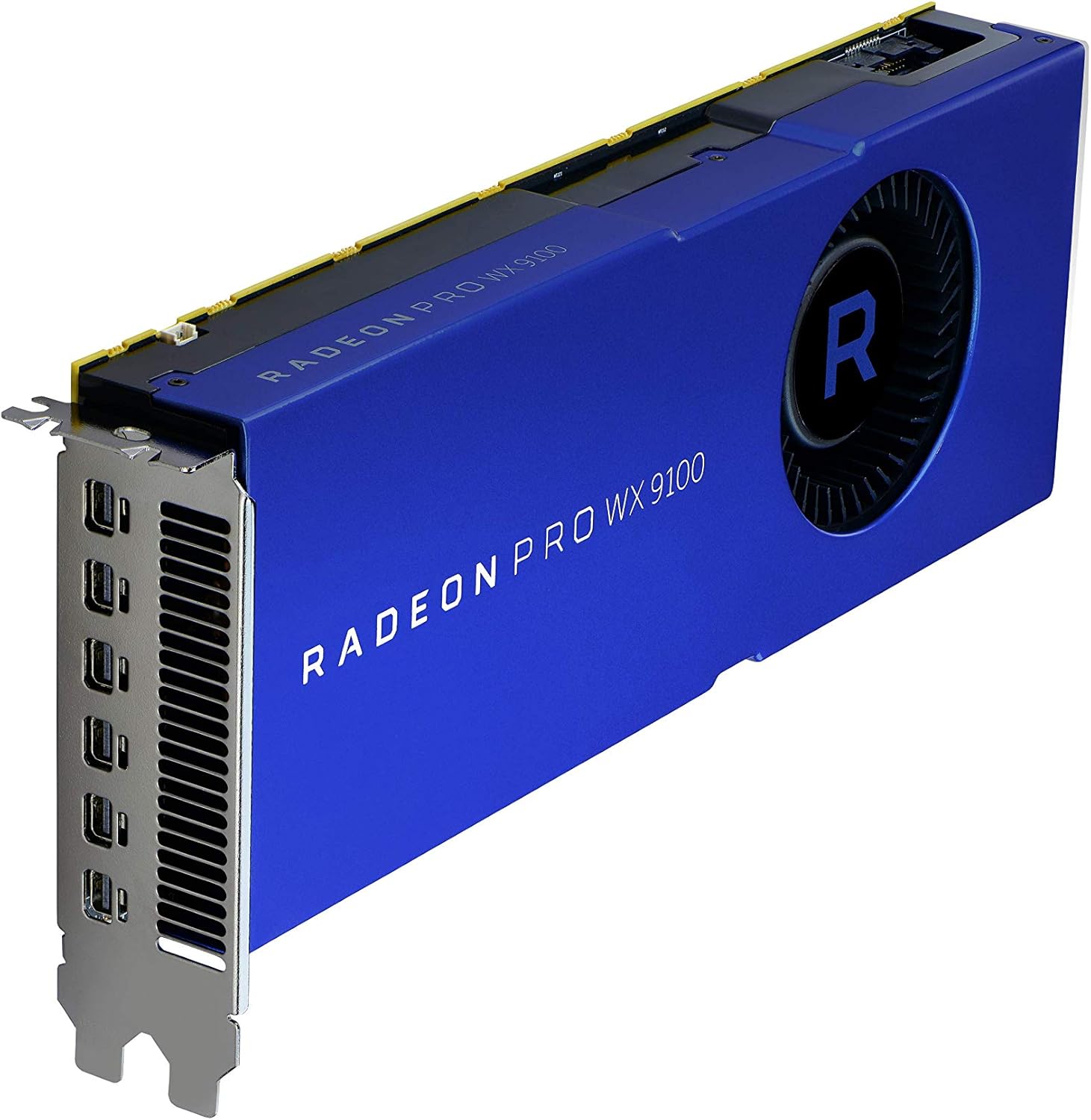
olusin 2: Angled view of the graphics card, highlighting the multiple Mini-DisplayPort outputs.
5.3 Driver fifi sori
After physical installation, power on your computer. The operating system may automatically detect the new hardware. For optimal performance and full functionality, install the latest drivers:
- Ṣabẹwo si AMD osise webojula: www.amd.com/support
- Navigate to the "Drivers & Support" section.
- Select "Graphics" and then locate the "Radeon Pro WX 9100" model.
- Download the appropriate driver package for your operating system.
- Run the installer and follow the on-screen instructions. A system restart may be required.
6. Ṣiṣẹ Kaadi Graphics
6.1 Nsopọ Awọn ifihan
The AMD Radeon Pro WX 9100 features multiple Mini-DisplayPort outputs. Use the provided adapters to connect your monitors. It supports resolutions up to 7680x4320.
- Connect Mini-DisplayPort to DisplayPort, HDMI, or DVI using the included adapters.
- For optimal performance with high-resolution displays (e.g., 4K, 5K, 8K), ensure you use high-quality, certified cables and adapters.
- The card can drive up to six displays simultaneously. Configure display settings through your operating system's display settings or the AMD Radeon Pro Software.
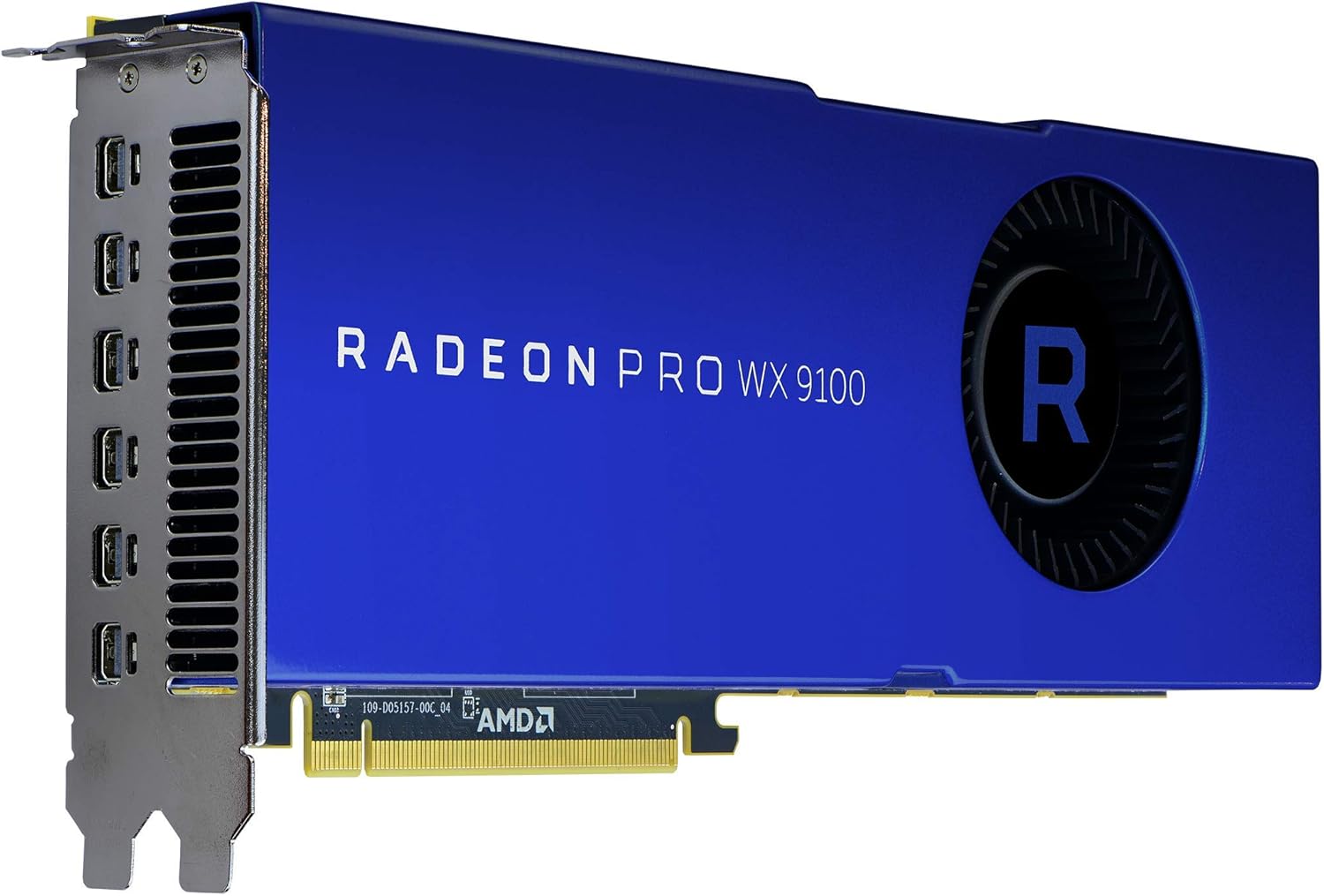
olusin 3: Ẹyìn view of the graphics card, showing the cooling fan and power input connectors.
6.2 AMD Radeon Pro Software
The AMD Radeon Pro Software suite provides advanced controls for your graphics card, including:
- Awọn imudojuiwọn Awakọ: Keep your drivers current for performance and stability.
- Iṣeto ni Ifihan: Manage multi-display setups, resolutions, and refresh rates.
- Ohun elo Profiles: Optimize settings for specific professional applications.
- Abojuto Iṣẹ ṣiṣe: Monitor GPU usage, temperature, and fan speed.
7. Itọju
Regular maintenance helps ensure the longevity and performance of your graphics card:
- Yiyọ eruku kuro: Periodically clean dust from the fan and heatsink using compressed air. Ensure the computer is powered off and unplugged before cleaning.
- Awọn imudojuiwọn Awakọ: Keep your graphics drivers updated to benefit from performance improvements and bug fixes.
- Ètò afẹ́fẹ́: Ensure your computer case has good airflow to prevent heat buildup, which can affect card performance and lifespan.
8. Laasigbotitusita
Ti o ba pade awọn ọran, tọka si awọn igbesẹ laasigbotitusita ti o wọpọ wọnyi:
| Isoro | Owun to le Fa | Ojutu |
|---|---|---|
| Ko si igbejade ifihan | Asopọ okun ti ko tọ, kaadi ko joko daradara, awọn okun agbara ko sopọ mọ. | Check all display and power cable connections. Reseat the graphics card in its PCIe slot. Ensure monitor input is set correctly. |
| System instability or crashes | Outdated drivers, insufficient power supply, overheating. | Update graphics drivers. Verify your power supply meets the card's requirements. Check system temperatures and ensure adequate cooling. |
| Overheating during heavy load | Poor case airflow, dust buildup on heatsink/fan, aggressive overclocking (if applicable). | Improve case ventilation. Clean dust from the card's fan and heatsink. Ensure fan profiles are set appropriately via AMD Radeon Pro Software. |
| Display issues (flickering, artifacts) | Faulty display cable, driver issues, monitor incompatibility. | Try a different display cable. Reinstall or update graphics drivers. Test with a different monitor if possible. |
9. Awọn pato
| Ẹya ara ẹrọ | Ẹ̀kúnrẹ́rẹ́ |
|---|---|
| Nọmba awoṣe | 100-505957 |
| Olupilẹṣẹ Graphics | AMD Radeon Pro WX 9100 |
| Eya Kaadi Ramu Iwon | 16 GB HBM2 |
| Iyara Iranti | 945 MHz |
| Ipinnu Iboju ti o pọju | 7680x4320 |
| Video o wu Interface | DisplayPort (via Mini-DisplayPort) |
| Iwọn Nkan | 12.3 iwon (nipa 348 giramu) |
| Awọn iwọn Ọja (LxWxH) | 2.87 x 11.5 x 9.49 inches |
| Olupese | AMD |
| Ọjọ Akọkọ Wa | Oṣu Kẹwa Ọjọ 9, Ọdun 2017 |
10. Atilẹyin ọja ati Support
The AMD Radeon Pro WX 9100 Graphics Card is backed by AMD's 3-year manufacturer's warranty. For warranty claims or technical support, please contact AMD directly.
AMD atilẹyin Webojula: For the latest drivers, FAQs, and support resources, visit www.amd.com/support.
Jọwọ ni nọmba awoṣe ọja rẹ (100-505957) ati rira alaye ṣetan nigbati o ba kan si atilẹyin.