
InFocus IN112XV
InFocus IN112XV Presentation Projector User Manual
Model: IN112XV | Brand: InFocus
1. Ifihan
This manual provides essential information for the safe and efficient operation of your InFocus IN112XV Presentation Projector. The IN112XV is designed for business presentations and educational use, offering a long lamp life, high brightness, and clear image quality.
- Ti o gbooro sii Lamp Igbesi aye: Enjoy over 15,000 hours of viewing.
- Imọlẹ giga: 3800 lumens for clear images in various lighting conditions.
- Ipin Itansan: 26000:1 for distinct whites and blacks.
- Rọ Viewing: Projects images from 28 inches to 300 inches diagonally.
- Asopọmọra: Features HDMI input and SVGA (800 x 600) resolution.
2. Package Awọn akoonu
Daju pe gbogbo awọn nkan ti a ṣe akojọ rẹ si isalẹ wa ninu package rẹ:
- InFocus IN112XV Projector
- Okun agbara
- Isakoṣo latọna jijin
- Okun VGA
- Awọn iwe-ipamọ (ifọwọyi yii ati awọn itọsọna miiran)
3. Ọja Ipariview
Familiarize yourself with the components and controls of your InFocus IN112XV projector.
3.1 Iwaju View
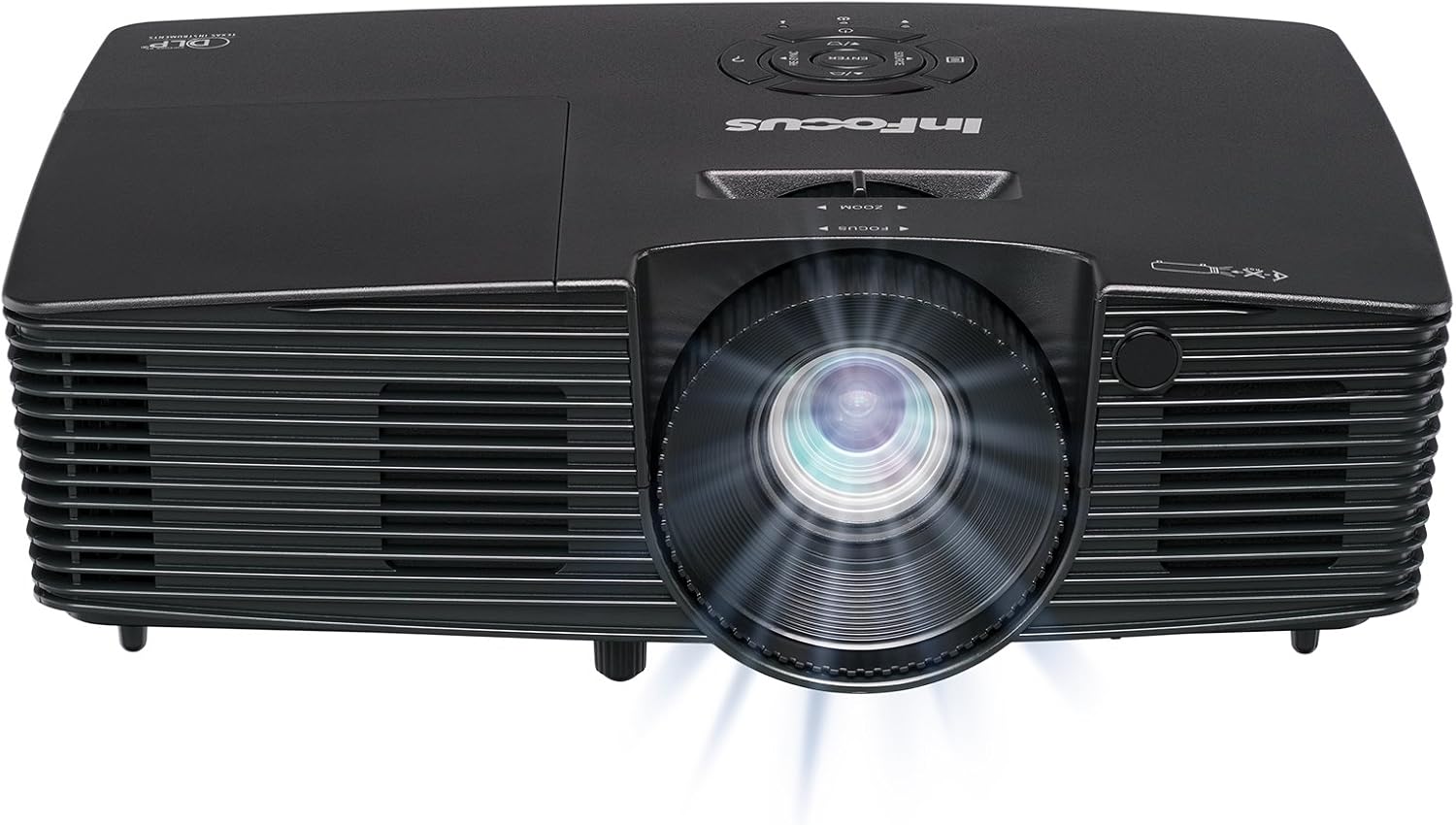
Aworan 3.1: Iwaju view of the InFocus IN112XV projector. This image highlights the main projection lens and the front ventilation grilles.
3.2 oke View ati Ibi iwaju alabujuto

Aworan 3.2: Oke view of the InFocus IN112XV projector. The control panel is visible on the right, featuring buttons for power, source selection, menu navigation, keystone adjustment, and volume. The focus and zoom adjustment rings are located around the lens.
The control panel on the top of the projector allows for basic operation without the remote. Key buttons include:
- Agbara: Yi pirojekito tan tabi pa.
- Orisun: Yiyipo nipasẹ awọn orisun igbewọle to wa.
- Akojọ: Wọle si akojọ aṣayan iboju iboju (OSD).
- Wọle: Ó ń fi ìdí àwọn àṣàyàn múlẹ̀ nínú àkójọ OSD.
- Awọn bọtini itọka: Navigate menu options and adjust settings.
- Re-Sync: Synchronizes the image.
3.3 Ẹyìn View ati Asopọmọra Ports

Aworan 3.3: Ẹyìn view of the InFocus IN112XV projector. This image displays the available connection ports, including Video In, S-Video In, Computer In (VGA), HDMI, and the power input.
The rear panel provides various ports for connecting external devices:
- Fidio Ninu: For composite video sources.
- S-Video In: For S-Video sources.
- Computer In (VGA): For connecting to computers via VGA cable.
- HDMI: Fun awọn orisun fidio oni-nọmba ati ohun.
- Iṣẹ: Fun awọn idi iṣẹ ati itọju.
- Iṣagbewọle agbara: Connects the power cord to an electrical outlet.
3.4 Iṣakoso latọna jijin

Aworan 3.4: Remote control for the InFocus IN112XV projector. The remote provides full control over the projector's functions, including power, source selection, menu navigation, keystone correction, and volume.
The remote control offers convenient access to all projector functions. Ensure batteries are correctly installed.
4. Eto
4.1 Ibi
Position the projector on a stable, flat surface or mount it securely. Ensure there is adequate space around the projector for ventilation.
4.2 Asopọ agbara
- So okùn agbára pọ̀ mọ́ ibudo ìtẹ̀wọlé agbára ti ẹ̀rọ atọ́nà náà.
- Pulọọgi opin miiran ti okun agbara sinu iṣan itanna ti o wa lori ilẹ.
4.3 Nsopọ Awọn orisun Input
The projector supports various input sources. Choose the appropriate cable for your device:
- HDMI: Connect an HDMI cable from your source device (e.g., laptop, media player) to the projector's HDMI port.
- VGA (Computer In): Connect a VGA cable from your computer to the projector's Computer In port. This is a plug-and-play connection.
- Video In / S-Video In: Use composite video or S-Video cables for older video sources.
- Awọn ẹrọ Alagbeka: To connect an iPad or smartphone, a LightCast Key (sold separately) is required.
5. Awọn ilana Iṣiṣẹ
5.1 Titan / Pa a
- Lati Fi agbara: Tẹ awọn Agbara button on the projector's control panel or the remote control. The power indicator light will change.
- Lati Paarẹ: Tẹ awọn Agbara button again. A confirmation message may appear. Press again to confirm shutdown. Allow the projector to cool down before unplugging.
5.2 Selecting an Input Source
After connecting your source device, select the correct input:
- Tẹ awọn Orisun button on the projector's control panel or the remote control to cycle through available inputs (HDMI, VGA, Video, S-Video).
- Alternatively, use the dedicated input buttons (HDMI, VGA, Video) on the remote control.
5.3 Ṣíṣe àtúnṣe Ìfojúsùn àti Sún-ún
For a clear and appropriately sized image, adjust the lens rings:

Aworan 5.1: Manual Focus Adjustment. This image illustrates the effect of adjusting the focus ring, transforming a blurry projection into a clear and sharp image.
- Idojukọ: Yiyi awọn Idojukọ ring on the projector lens until the image appears sharp and clear.
- Sun-un: Yiyi awọn Sun-un ring on the projector lens to adjust the size of the projected image.
5.4 Keystone Atunse
If the projected image appears trapezoidal (wider at the top or bottom), use keystone correction to square it:
- Tẹ awọn Keystone + or Keystone- buttons on the remote control to adjust the image geometry.
5.5 Lilọ kiri Akojọ aṣyn
Access the On-Screen Display (OSD) menu for advanced settings:
- Tẹ awọn Akojọ aṣyn button on the remote or control panel.
- Lo awọn bọtini itọka lati lọ kiri nipasẹ awọn aṣayan akojọ aṣayan.
- Tẹ Wọle láti yan àṣàyàn kan tàbí láti jẹ́rìí sí ètò kan.
- Tẹ Akojọ aṣyn lẹẹkansi lati jade kuro ni OSD.
6. Itọju
6.1 Lamp Igbesi aye
Pirojekito lamp has an estimated life of over 15,000 hours. When the lamp reaches the end of its life, the projector may display a warning message or the image brightness may significantly decrease. Refer to the full service manual for lamp replacement procedures if necessary.
6.2 Ninu
- Pirojekito Casing: Use a soft, dry cloth to wipe the exterior of the projector. Do not use abrasive cleaners or solvents.
- Lẹnsi: Gently clean the lens with a lens cleaning cloth and specialized lens cleaning solution. Avoid touching the lens surface with your fingers.
- Awọn ṣiṣi atẹgun: Periodically check and clean the ventilation openings to ensure proper airflow and prevent overheating. Use a soft brush or compressed air to remove dust.
7. Laasigbotitusita
Abala yii n ṣalaye awọn ọran ti o wọpọ ti o le ba pade pẹlu pirojekito rẹ.
| Isoro | Owun to le Fa | Ojutu |
|---|---|---|
| Ko si aworan han |
|
|
| Aworan jẹ blurry |
|
|
| Aworan jẹ trapezoidal |
|
|
| Projector runs hot or smells of burning plastic |
|
|
| Ko si ohun |
|
|
Akiyesi pataki: This projector is not recommended for high-definition movie viewing. While it can accept a 1080p input signal, it projects at its native SVGA (800 x 600) resolution.
8. Awọn pato
| Ẹya ara ẹrọ | Ẹ̀kúnrẹ́rẹ́ |
|---|---|
| Nọmba awoṣe | IN112XV |
| Ifihan ọna ẹrọ | DLP |
| Ipinnu abinibi | SVGA (800 x 600) |
| Imọlẹ | 3800 Lumens |
| Ipin Itansan | 26000:1 |
| Lamp Igbesi aye | Titi di wakati 15,000 |
| Asopọmọra | HDMI, VGA (Computer In), Video In, S-Video In |
| Pataki Ẹya | 3D-Ṣetan |
| Niyanju Lilo | Business, Education |
| Ọja Mefa | 8.8 x 12.4 x 4 inches |
| Iwọn Nkan | 5.5 iwon |
9. Atilẹyin ọja ati Support
9.1 atilẹyin ọja Alaye
The InFocus IN112XV projector is backed by a 2-odun atilẹyin ọja. Atilẹyin ọja yi ni wiwa awọn abawọn ninu awọn ohun elo ati iṣẹ ṣiṣe labẹ lilo deede. Jọwọ ṣe idaduro ẹri rira rẹ fun awọn iṣeduro atilẹyin ọja.
9.2 Onibara Support
For technical assistance, troubleshooting beyond this manual, or warranty service, please contact InFocus customer support. Contact information can typically be found on the official InFocus webaaye tabi ninu iwe ti o wa pẹlu ọja rẹ.