
Ọrọ Iṣaaju
O ṣeun fun riraasing the Klip Xtreme BluWave II KWS-616 2.1 Channel Stereo System. This system is designed to provide a rich audio experience for music, games, and movies. It features Bluetooth connectivity, USB and SD card playback, and an auxiliary input for versatile audio sources. Please read this manual thoroughly before operating the device to ensure proper use and to maximize your listening experience.
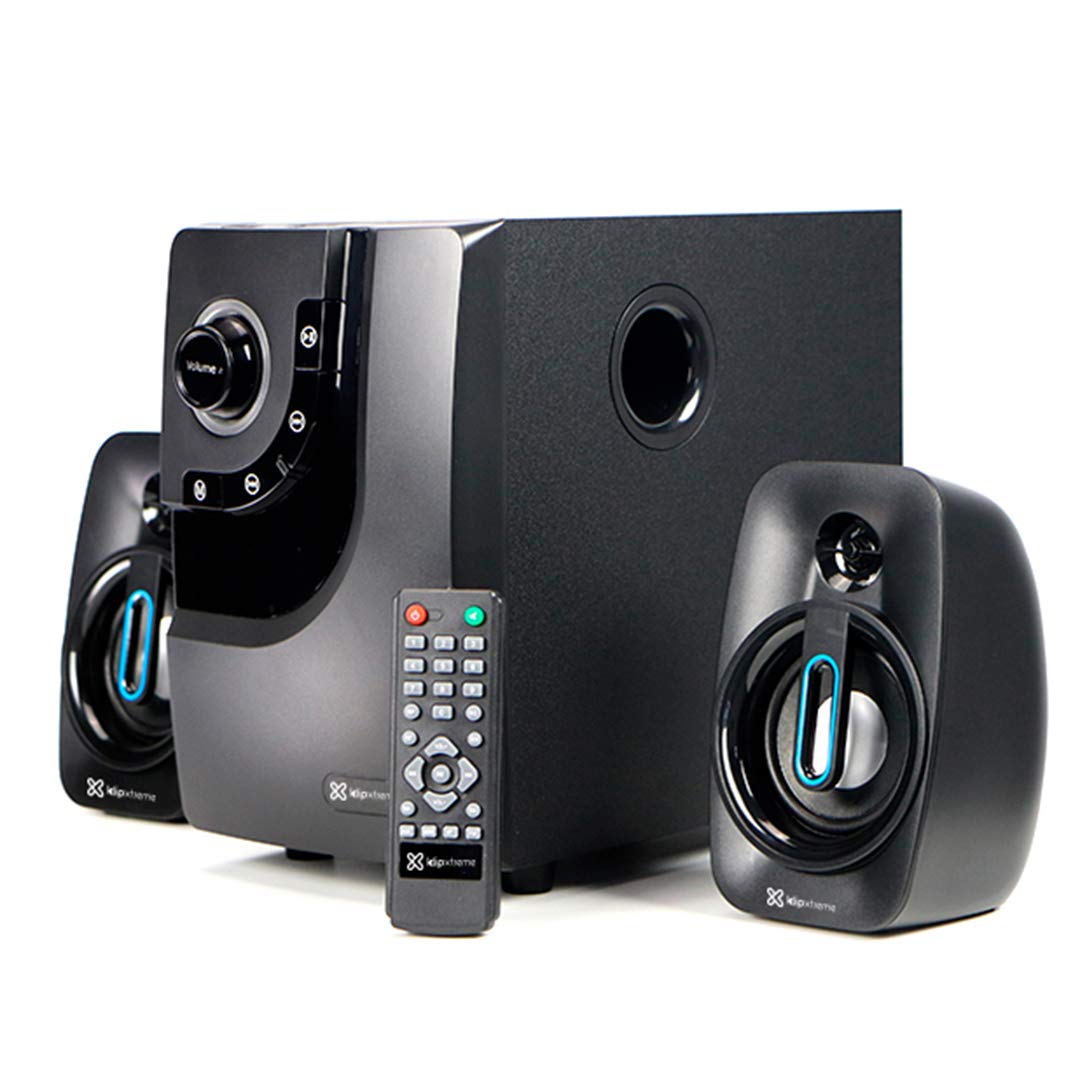
Image: The Klip Xtreme BluWave II KWS-616 system, including the subwoofer, two satellite speakers, and remote control, shown with its packaging and connecting cables.
Package Awọn akoonu
Jọwọ rii daju pe gbogbo awọn nkan wa ninu package:
- Ẹ̀rọ subwoofer
- Àwọn Agbọrọsọ Sátẹ́láìtì (x2)
- Isakoṣo latọna jijin
- 3.5mm Audio USB
- Afowoyi Olumulo (iwe-ipamọ yii)

Image: The Klip Xtreme BluWave II KWS-616 system components, including the subwoofer, satellite speakers, remote, and cables, displayed alongside its retail packaging.
Ọja Pariview
Subwoofer Front Panel Controls

Aworan: A alaye view of the subwoofer's front panel, showing the volume knob with blue LED illumination, mode button, playback controls, and digital display.
- Bọtini Iwọn didun: Rotate to adjust the master volume. Press to change input mode (Bluetooth, USB, SD, AUX).
- Knob Bass: Ṣe atunṣe ipele baasi.
- Awọn idari Sisisẹsẹhin: Mu ṣiṣẹ/Duro, Orin ti tẹlẹ, Orin atẹle.
- Ifihan Digital: Shows current mode, track number, or volume level.
Àwọn Ìsopọ̀ Ẹ̀yìn Pánẹ́lì Subwoofer

Image: The rear panel of the subwoofer, displaying input and output ports, power switch, and AC power input.
- Input (R/L): Iṣagbewọle sitẹrio RCA fun sisopọ awọn orisun ohun afetigbọ ita.
- Output (R/L): Connects to the satellite speakers.
- Ibudo USB: Fun awọn awakọ filasi USB.
- Iho kaadi SD: For SD memory cards.
- Agbara Yi pada: Turns the system ON or OFF.
- Iṣawọle AC: Sopọ si okun agbara.
Ṣeto
1. Agbọrọsọ Asopọ
- Connect the cables from the satellite speakers to the "Output (R/L)" ports on the rear panel of the subwoofer. Ensure correct polarity.
- Position the satellite speakers to the left and right of your listening area for optimal stereo separation. The subwoofer can be placed on the floor or a sturdy surface.
2. Asopọ agbara
- Ensure the power switch on the rear of the subwoofer is in the OFF position.
- Connect the AC power cord to the "AC Input" on the subwoofer's rear panel.
- Plug the other end of the power cord into a standard wall outlet (110V/220V 60Hz/50Hz auto-sensing).
Awọn ilana Iṣiṣẹ
Titan / Paa
Flip the power switch on the rear panel of the subwoofer to the ON position to power on the system. Flip it to the OFF position to power off.
Volume and Bass Control
- Iwọn didun: Rotate the large knob on the front of the subwoofer or use the volume buttons on the remote control to adjust the overall volume.
- Bass: Use the dedicated bass knob on the front of the subwoofer or the bass control buttons on the remote to adjust the bass intensity.
Awọn ọna igbewọle
Press the Volume knob on the front panel or the "Mode" button on the remote control to cycle through available input modes: Bluetooth, USB, SD, and AUX.
Asopọ Bluetooth
- Switch the system to Bluetooth mode. The digital display will show "BT" and an indicator light may flash, indicating it's in pairing mode.
- Lori ẹrọ Bluetooth ti o ṣiṣẹ (foonuiyara, tabulẹti, kọmputa), mu Bluetooth ṣiṣẹ ki o wa awọn ẹrọ to wa.
- Select "Klip Xtreme KWS-616" (or similar name) from the list of devices.
- Once paired, the system will confirm the connection, and you can begin playing audio from your device. The effective wireless range is approximately 33 feet (10 meters).
USB/SD Sisisẹsẹhin
- Insert a USB flash drive or an SD card containing audio files into the respective port on the subwoofer's rear panel.
- Switch the system to USB or SD mode. The system will automatically detect and begin playing audio files.
- Use the playback controls on the front panel or remote control to play, pause, skip tracks, or adjust volume.
AUX Asopọ
- Connect one end of the provided 3.5mm audio cable to the "Input (R/L)" RCA ports on the subwoofer (using an adapter if necessary).
- Connect the other end of the 3.5mm audio cable to the headphone jack or audio output of your external audio device (e.g., TV, DVD player, gaming console, MP3 player).
- Switch the system to AUX mode.
- Mu ohun ṣiṣẹ lati ẹrọ ti o sopọ.
Awọn iṣẹ iṣakoso latọna jijin
The included remote control provides convenient access to all major functions:
- Agbara: Turns the system on/off (standby).
- Ipo: Cycles through input sources (Bluetooth, USB, SD, AUX).
- Iwọn didun +/-: Ṣe atunṣe iwọn didun titunto si.
- Bass +/-: Ṣe atunṣe ipele baasi.
- Pa ẹnu mọ́: Mutes/mu ohun silẹ.
- Ṣiṣẹ/Daduro: Controls playback for USB/SD/Bluetooth.
- Ti tẹlẹ/Itele: Skips tracks for USB/SD/Bluetooth.
Itoju
- Keep the system away from direct sunlight, heat sources, and moisture.
- Clean the exterior surfaces with a soft, dry cloth. Do not use abrasive cleaners or solvents.
- Ensure proper ventilation around the subwoofer to prevent overheating.
- Do not block the subwoofer's bass port.
Laasigbotitusita
| Isoro | Owun to le Solusan |
|---|---|
| Ko si agbara |
|
| Ko si ohun |
|
| Sisopọ Bluetooth kuna |
|
| Ohun ti o daru |
|
Awọn pato

Image: The Klip Xtreme BluWave II KWS-616 subwoofer and satellite speakers displayed with rulers to indicate their physical dimensions.
| Ẹrọ Iru | 2.1 speaker system with Bluetooth technology |
| Ijade agbara ti o pọju (RMS) | 40W (Agbara Gigaju 80W) |
| Iṣagbewọle AC | 110V/220V 60Hz/50Hz (autosensing) |
| Satellite Driver Unit | 3 inches (76mm) |
| Agbára RMS Satẹlaiti | 10W each (20W total) |
| Satellite Frequency Response | 120Hz-18kHz |
| Satellite Impedance | 8Ω |
| Subwoofer Driver Unit | 4 inches (102mm) |
| Agbara RMS Subwoofer | 20W |
| Idahun Igbohunsafẹfẹ Subwoofer | 20Hz-150Hz |
| Impedance Subwoofer | 4Ω |
| Ifihan agbara si Noise Ratio | 60dB |
| Asopọmọra | Bluetooth, SD, USB, 3.5mm (via RCA input) |
| Alailowaya Ibiti | Titi de 33 ẹsẹ (10 mita) |
| Awọn iwọn Subwoofer (WxHxD) | 6.1 x 9.8 x 10.8 inches (15.5 x 24.9 x 27.4 cm) |
| Satellite Dimensions (WxHxD) | 3.9 x 6.3 x 3.8 inches (9.9 x 16.0 x 9.7 cm) |
| Iwọn Ọja | 6.8 lbs (3.08 kg) |
| USB Ipari | ẹsẹ 4.9 (mita 1.5) |
| Nọmba awoṣe | KWS-616 |
Atilẹyin ọja ati Support
The Klip Xtreme BluWave II KWS-616 system comes with a ọkan-odun lopin atilẹyin ọja Láti ọjọ́ tí a rà á. Àtìlẹ́yìn yìí bo àwọn àbùkù nínú àwọn ohun èlò àti iṣẹ́ ọwọ́ lábẹ́ lílò déédéé. Kò bo ìbàjẹ́ tí ó wáyé nípasẹ̀ ìlòkulò, jàmbá, àtúnṣe tí a kò fún ní àṣẹ, tàbí àwọn okùnfà láti òde.
For technical support or warranty claims, please contact your local Klip Xtreme authorized dealer or visit the official Klip Xtreme webojula fun alaye olubasọrọ.