
BenQ EX3501R
BenQ EX3501R Ultrawide Curved Gaming Monitor User Manual
Model: EX3501R
1. Eto
1.1 Ṣíṣí àpò Atẹle náà
Ni ifarabalẹ yọ gbogbo awọn paati kuro ninu apoti. Rii daju pe gbogbo awọn nkan ti o wa ni isalẹ wa:
- BenQ EX3501R Monitor
- Iduro Iduro (Ipilẹ ati Ọrun)
- Adapter agbara
- Okun agbara
- Okun HDMI
- Okun DisplayPort
- Okun USB-C
- Afowoyi Olumulo (iwe-ipamọ yii)
1.2 Nto Iduro
Tẹ̀lé àwọn ìgbésẹ̀ wọ̀nyí láti so ìdúró mọ́ àtẹ̀gùn rẹ:
- Fi oju atẹle naa si isalẹ lori asọ ti o mọ, asọ ti o mọ lati ṣe idiwọ awọn idọti.
- Attach the stand neck to the back of the monitor. Ensure it clicks securely into place.
- Connect the stand base to the neck, tightening any screws as indicated in the quick start guide.

olusin 1: Iwaju view of the BenQ EX3501R monitor with its stand.
1.3 Nsopọ Awọn okun
Connect the necessary cables to the monitor and your computer. The monitor supports various input options:
- Agbara: So ohun ti nmu badọgba agbara pọ si atẹle ati lẹhinna si iṣan agbara kan.
- Input fidio: Use either the HDMI, DisplayPort, or USB-C cable to connect your computer to the monitor.
- USB-C: The USB-C port supports video, data transfer, and power delivery, allowing for a single-cable connection with compatible devices.
- Awọn ibudo USB 3.0: Utilize the integrated USB 3.0 ports for connecting peripherals.
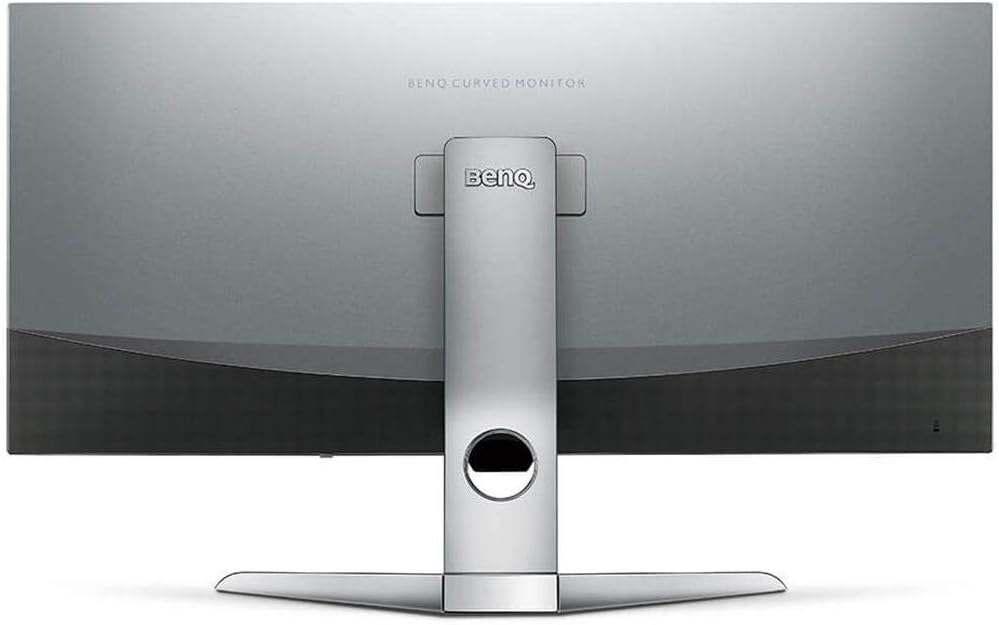
olusin 2: Ẹyìn view of the monitor displaying the connectivity ports.
2. Ṣiṣẹ Atẹle
2.1 Agbara Tan / Pa
Press the power button, usually located on the bottom right side of the monitor, to turn it on or off. The power indicator light will illuminate when the monitor is active.
2.2 Ifihan Oju-iboju (OSD) Lilọ kiri
Use the joystick or buttons located on the monitor's underside to navigate the On-Screen Display (OSD) menu. This menu allows you to adjust various settings such as brightness, contrast, color modes, and input sources.
2.3 Display Features and Eye-Care Technology
The BenQ EX3501R incorporates several technologies designed to enhance viewing experience and reduce eye strain:
- Brightness Intelligence Plus (B.I.+): This patented technology automatically senses ambient lighting conditions and adjusts the screen's brightness and color temperature to provide optimal viewing comfort and protect your eyes during extended use.
- Imọlẹ Buluu Kekere: Filters out harmful blue light emissions to reduce eye fatigue. Multiple levels of blue light reduction are available.
- ZeroFlicker™: Eliminates screen flickering at all brightness levels, further reducing eye strain and discomfort.
- HDR (Iwọn Yiyi to gaju): Offers enhanced brightness and contrast, bringing greater detail and vibrancy to HDR video content.
Fidio 1: Ipariview of BenQ's Eye-Care technology, including Low Blue Light, ZeroFlicker, and Brightness Intelligence Plus, demonstrating how these features work to reduce eye strain and adjust screen settings automatically based on ambient light.
2.4 O ga ati Sọ oṣuwọn
The monitor features a QHD (3440x1440) resolution and a 100Hz refresh rate, providing a smooth and detailed visual experience. The 21:9 ultrawide aspect ratio offers ample screen space for multitasking, such as viewing multiple documents side-by-side without needing a second monitor.
2.5 AMD FreeSync
For a fluid gaming experience, the monitor supports AMD FreeSync technology, which synchronizes the monitor's refresh rate with your graphics card's frame rate to eliminate screen tearing and stuttering.
3. Itọju
3.1 Ninu Atẹle
To maintain optimal performance and appearance, regularly clean your monitor:
- Iboju: Fi aṣọ rírọ̀ tí kò ní àwọ̀ rẹ́rẹ́ nu ibojú náà. Fún àwọn ìdọ̀tí líle, lo omi ìwẹ̀nùmọ́ pàtó kan tí a fi sí aṣọ náà, kì í ṣe tààrà sí ibojú náà.
- Òde: Use a soft, dry cloth to wipe dust and debris from the monitor casing and stand.
Yẹra fún lílo àwọn ohun ìfọṣọ, ìpara, tàbí àwọn ohun olómi nítorí wọ́n lè ba ojú monitor náà jẹ́.
3.2 Awọn imọran Itọju Gbogbogbo
- Ma ṣe dina awọn ṣiṣi afẹfẹ lori atẹle.
- Yago fun gbigbe atẹle naa sinu imọlẹ orun taara tabi sunmọ awọn orisun ooru.
- Mu atẹle naa pẹlu iṣọra lati yago fun ibajẹ ti ara.
4. Laasigbotitusita
If you encounter issues with your BenQ EX3501R monitor, refer to the following common troubleshooting steps:
4.1 No Display or Black Screen
- Rii daju pe okun agbara ti sopọ ni aabo si atẹle mejeeji ati iṣan agbara.
- Daju pe okun fidio (HDMI, DisplayPort, tabi USB-C) ti ni asopọ ni iduroṣinṣin si atẹle mejeeji ati kọnputa rẹ.
- Ṣàyẹ̀wò bóyá a yan orísun ìtẹ̀wọlé tó tọ́ nínú àkójọ OSD ti monitor náà.
- Tun kọmputa rẹ bẹrẹ.
4.2 Àwòrán tó ń tàn yanranyanran tàbí tó ń dẹ́kun
- Ensure the ZeroFlicker™ feature is enabled in the OSD menu.
- Ṣayẹwo awọn asopọ okun fidio alaimuṣinṣin.
- Ṣe imudojuiwọn awọn awakọ kaadi eya rẹ si ẹya tuntun.
- Ti o ba nlo AMD FreeSync, rii daju pe o ti tunto daradara ni awọn eto kaadi eya rẹ.
4.3 Color or Brightness Issues
- Ṣatunṣe imọlẹ, itansan, ati awọn eto awọ nipasẹ akojọ OSD.
- Enable or disable Brightness Intelligence Plus (B.I.+) to see if it resolves the issue.
- Ṣe atunto ile-iṣẹ nipasẹ akojọ aṣayan OSD.
5. Awọn pato
Key technical specifications for the BenQ EX3501R monitor:
| Ẹya ara ẹrọ | Sipesifikesonu |
|---|---|
| Iwon iboju | 35 inches |
| Ipinnu Iboju ti o pọju | 3440 x 1440 Pixels (QHD Ultrawide) |
| Apakan Ipin | 21:9 |
| Oṣuwọn sọtun | 100 Hz |
| ìsépo | 1800R |
| Panel Iru | VA (Titete Inaro) |
| Asopọmọra | USB-C, HDMI, DisplayPort |
| Pataki Awọn ẹya ara ẹrọ | AMD FreeSync, Brightness Intelligence Plus, Low Blue Light, ZeroFlicker |
| Iwọn Nkan | 21.3 iwon |
| Ọja Mefa | 6.88 x 3.47 x 12.93 inches |
6. Atilẹyin ọja ati Support
6.1 Atilẹyin ọja
The BenQ EX3501R monitor typically comes with a 3-year manufacturer's warranty. Please refer to the warranty card included in your product packaging for specific terms and conditions, or visit the official BenQ webaaye fun alaye atilẹyin ọja alaye.
6.2 Onibara Support
For further assistance, technical support, or warranty claims, please contact BenQ customer service. You can find contact information and support resources on the official BenQ webojula: www.benq.com/en-us/support.html