
1. Ifihan
This manual provides comprehensive instructions for the installation, operation, and maintenance of your Aigo Aurora RGB LED 120mm Case Fan. Please read this manual carefully before installation and retain it for future reference. This product is designed to enhance the cooling performance and aesthetic appeal of your desktop computer system.
2. Alaye Aabo
- Rí i dájú pé kọ̀ǹpútà rẹ ti pa àti pé ó ti yọ ìsopọ̀ mọ́ ibi ìtajà ògiri kí o tó fi sori ẹ̀rọ náà.
- Mu awọn paati pẹlu iṣọra lati yago fun ibajẹ.
- Má ṣe gbìyànjú láti yí afẹ́fẹ́ tàbí àwọn okùn rẹ̀ padà. Àwọn àtúnṣe tí a kò fún ní àṣẹ lè sọ àtìlẹ́yìn rẹ di òfo kí ó sì fa ewu ààbò.
- Jẹ́ kí afẹ́fẹ́ náà jìnnà sí omi àti ọ̀rinrin tó pọ̀ jù.
- This product is intended for use in desktop computer cases only.
3. Package Awọn akoonu
The Aigo Aurora RGB LED 120mm Case Fan package typically includes:
- 1 x Aigo Aurora RGB LED 120mm Case Fan
- 4 x Iṣagbesori skru
Note: An Aigo C3 RGB controller is required to change the fan's RGB lighting colors, modes, and speed. The C3 controller is sold separately and is not included with a single fan unit.
4. Awọn ẹya Ọja
- Itutu Iṣiṣẹ Giga: Designed for efficient heat dissipation within your PC case.
- Imọlẹ LED RGB gbigbọn: Features adjustable colorful lighting for aesthetic customization.
- Iṣafẹfẹ Afẹfẹ: Engineered for high air volume movement.
- Iṣẹ Ariwo Kekere: Operates at a quiet 23.5 Decibels.
- Àwọn Páàdì Ìdènà Gbígbọ̀n: Equipped with silicone pads to reduce operational noise and vibration.
- Standard 120mm Size: Compatible with most PC case fan mounts.

Aworan yii ṣe afihan iwaju view of the Aigo Aurora 120mm case fan, showcasing its vibrant RGB LED lighting effects.
5. Awọn pato
| Brand | aigo |
| Awoṣe | Aurora RGB LED 120mm Case Fan |
| Fan Dimensions | 120mm x 120mm x 25mm |
| Asopọ agbara | 4-Pin |
| Oṣuwọn Voltage | 12 Volts |
| Oṣuwọn Wattage | 1.92 watt |
| Ọna Itutu | Afẹfẹ |
| Ariwo Ipele | 23.5 Decibels |
| Iyara Yiyipo ti o pọju | 1200 RPM |
| Awọn ẹrọ ibaramu | Awọn kọmputa tabili |
| Material (Anti-Vibration Pads) | Silikoni |
| UPC | 609015766972 |

This image provides the physical dimensions of the Aigo Aurora case fan, indicating a standard 120mm width and a 25mm thickness, suitable for most PC case fan mounts.

Ohun exploded view of the Aigo Aurora fan, detailing its construction. Key components include a transparent ring, a 7-blade transparent fan, a plastic frame, a back cushion, and a front shock pad, all designed for optimal performance and reduced vibration.
6. Eto ati fifi sori
- Mura Eto Rẹ: Power off your computer and unplug it from the power outlet. Open your computer case to access the fan mounting locations.
- Ṣe idanimọ Ibi Iṣagbesori: Determine where you want to install the fan. Common locations include the front, rear, top, or bottom of the case. Ensure there is adequate space.
- Pinnu Itọsọna Afẹfẹ: Fans have a designated airflow direction. Typically, air flows from the open side (where the fan blades are most visible) towards the side with the motor support struts. Position the fan to draw cool air into the case or exhaust hot air out.
- Gbe Fan naa: Align the fan with the screw holes in your PC case. Use the provided mounting screws to secure the fan firmly. Do not overtighten.
- So agbara: Locate the 4-pin fan connector on your Aigo Aurora fan.
- For RGB and Speed Control: Connect the fan's 4-pin connector to an available fan port on an Aigo C3 RGB controller (sold separately). The C3 controller will then connect to your power supply.
- For Basic Operation (No RGB/Speed Control): If you do not have a C3 controller, you can connect the fan's 4-pin connector directly to a compatible 4-pin fan header on your motherboard or power supply. In this configuration, the fan will operate at a fixed speed, and RGB lighting functionality may be limited or unavailable.
- Iṣakoso USB: Route the fan cables neatly to avoid interference with other components and to improve airflow within the case.
- Pa Apo ati Agbara Tan: Once all connections are secure, close your computer case, plug it back in, and power it on.

This diagram illustrates the directional airflow of the Aigo Aurora fan, indicating how it draws in cool air and expels hot air from the PC case for efficient cooling.
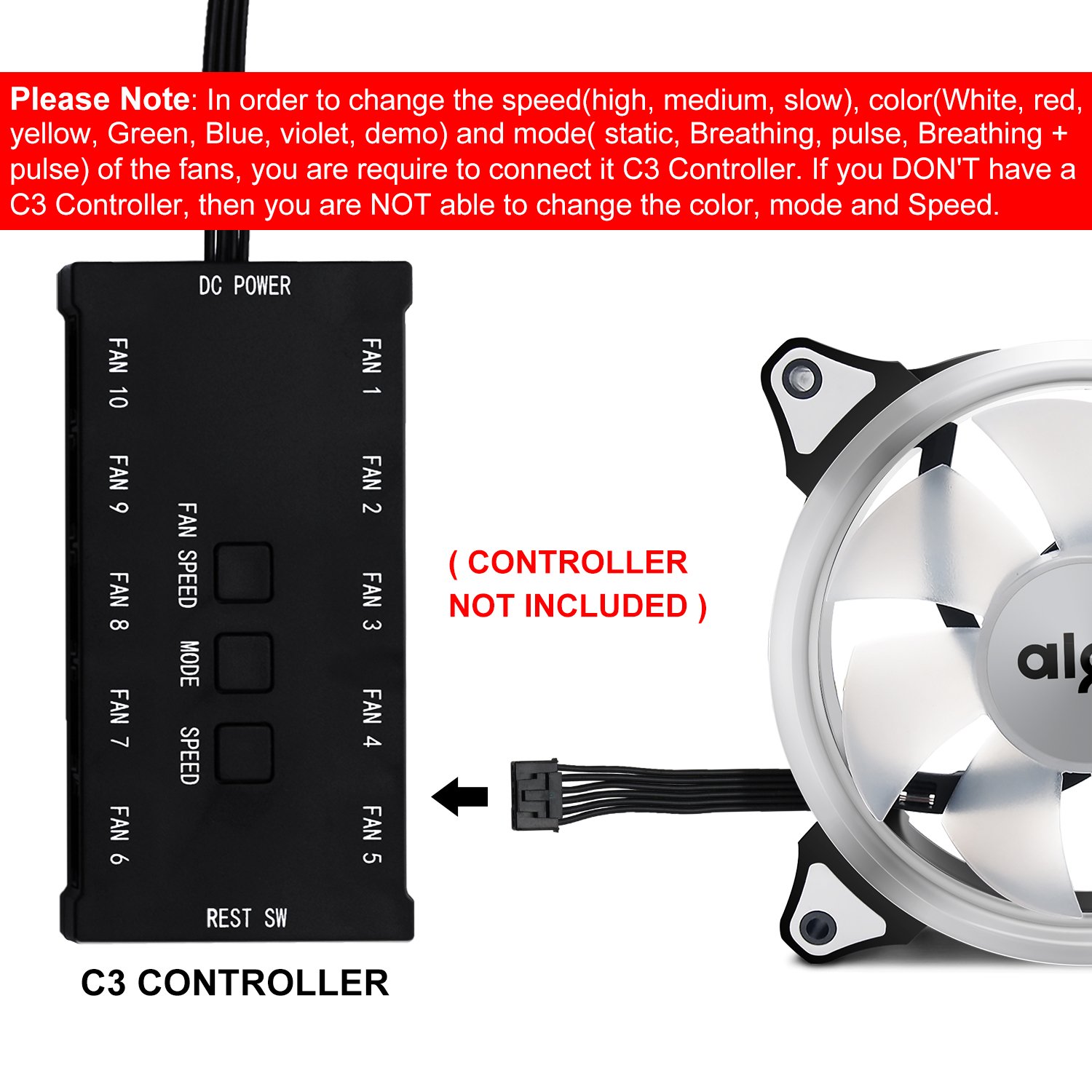
This detailed diagram displays the Aigo C3 controller, showing its various ports for connecting up to 10 fans, DC power input, and buttons for adjusting fan speed and RGB lighting modes. It emphasizes that the controller is not included with the fan.

This image highlights that a separate C3 controller is necessary to adjust the fan's RGB lighting colors, modes, and speed settings. The controller is not included with the single fan unit.
7. Awọn ilana Iṣiṣẹ
Upon powering on your computer, the Aigo Aurora fan will begin to spin and illuminate. The specific functionality depends on whether a C3 controller is used.
- Without C3 Controller: The fan will operate at its default speed (1200 RPM) and may display a default RGB lighting effect, or no lighting, depending on the motherboard header's capabilities. Speed and lighting adjustments are not possible.
- With Aigo C3 Controller (Sold Separately):
If connected to an Aigo C3 controller, you can customize the fan's performance and aesthetics:
- Iṣakoso iyara: Use the "SPEED" buttons on the C3 controller to cycle through different fan speeds (e.g., high, medium, slow).
- Iṣakoso ipo: Use the "MODE" button to change RGB lighting effects (e.g., static, breathing, pulse, rainbow).
- Iṣakoso awọ: Use the "COLOR" button to select specific static colors (e.g., white, red, yellow, green, blue, violet).

This image shows the Aigo Aurora 120mm case fan illuminated with a solid red RGB light, demonstrating one of its color options.
8. Itọju
- Ninu: Periodically clean the fan blades and frame to prevent dust buildup, which can impede airflow and reduce cooling efficiency. Use a soft brush or compressed air. Ensure the computer is powered off and unplugged before cleaning.
- Ṣayẹwo Awọn isopọ: Occasionally verify that all fan cables are securely connected to prevent intermittent operation.
- Yẹra fún fífún ní òróró: The fan bearings are factory-sealed and do not require lubrication. Attempting to lubricate them may cause damage.
9. Laasigbotitusita
- Olufẹ Ko Yiyi:
- Ensure the 4-pin power connector is securely plugged into a functional fan header on the motherboard or C3 controller.
- Check if the computer's power supply is functioning correctly.
- If using a C3 controller, ensure the controller itself is powered and connected correctly.
- RGB Lights Not Working or Incorrect:
- Verify that the fan is connected to an Aigo C3 RGB controller. Without the controller, full RGB functionality is not available.
- If using a C3 controller, ensure it is properly powered and that the fan is connected to one of its fan ports.
- Try cycling through modes and colors using the C3 controller buttons.
- Ensure no software conflicts if using motherboard RGB control (though this fan primarily relies on the C3 controller).
- Ariwo Pupọ:
- Rí i dájú pé a gbé afẹ́fẹ́ náà sí ibi tí ó dára, kí ó má sì mì tìtì sí àpótí náà.
- Ṣayẹwo fun eyikeyi awọn kebulu tabi awọn idena ti o kan awọn abẹfẹfẹ afẹfẹ.
- Nu eyikeyi eruku kọ lori awọn abẹfẹlẹ àìpẹ.
10. Atilẹyin ọja ati Support
Aigo products are manufactured to high-quality standards. For warranty information and technical support, please refer to the official Aigo webojú òpó wẹ́ẹ̀bù tàbí kí o kàn sí olùtajà rẹ. Jọ̀wọ́ pa ẹ̀rí ìrajà rẹ mọ́ fún àwọn ẹ̀tọ́ ìdánilójú.
Fun iranlọwọ siwaju sii, o le ṣabẹwo si aigo Store on Amazon.