
1. Ifihan
Thank you for choosing the Hanwha Techwin Wisenet QND-6020R 2 Megapixel Network Camera. This manual provides essential information for the safe and efficient installation, operation, and maintenance of your new surveillance camera. Please read this manual thoroughly before using the product and retain it for future reference.
2. Alaye Aabo
Ṣe akiyesi awọn iṣọra ailewu atẹle lati yago fun ipalara tabi ibajẹ ọja naa:
- Orisun Agbara: Use only the specified power adapter (AC/DC) for this device. Incorrect voltage le fa ina tabi ina mọnamọna.
- Fifi sori: Ensure the camera is securely mounted to prevent it from falling. Wall mounting is recommended.
- Omi ati Ọrinrin: This camera has an IP65 waterproof rating, meaning it is protected against dust and low-pressure water jets. However, avoid submerging the camera in water or exposing it to high-pressure water.
- Ninu: Ge asopọ agbara ṣaaju ṣiṣe mimọ. Lo asọ asọ ti o gbẹ. Ma ṣe lo olomi tabi awọn olutọpa aerosol.
- Iwọn Iṣiṣẹ: Do not operate the camera outside its specified temperature range.
- Ṣiṣẹ: Maṣe gbiyanju lati ṣiṣẹ ọja yi funrararẹ. Tọkasi gbogbo iṣẹ si oṣiṣẹ oṣiṣẹ ti o peye.
3. Package Awọn akoonu
Jẹrisi pe gbogbo awọn ohun kan wa ninu package:
- Hanwha Techwin Wisenet QND-6020R Network Camera
- Iṣagbesori skru ati ìdákọró
- Fifi sori Itọsọna
- Adapter Agbara (AC/DC)
4. Ọja Ipariview
The Hanwha Techwin Wisenet QND-6020R is a 2-megapixel network dome camera designed for reliable surveillance. It features advanced video compression (H.264, H.265, Motion JPEG), 1080p video capture, and a 3.60 mm lens. Key features include night vision up to 65.62 ft and motion detection capabilities.
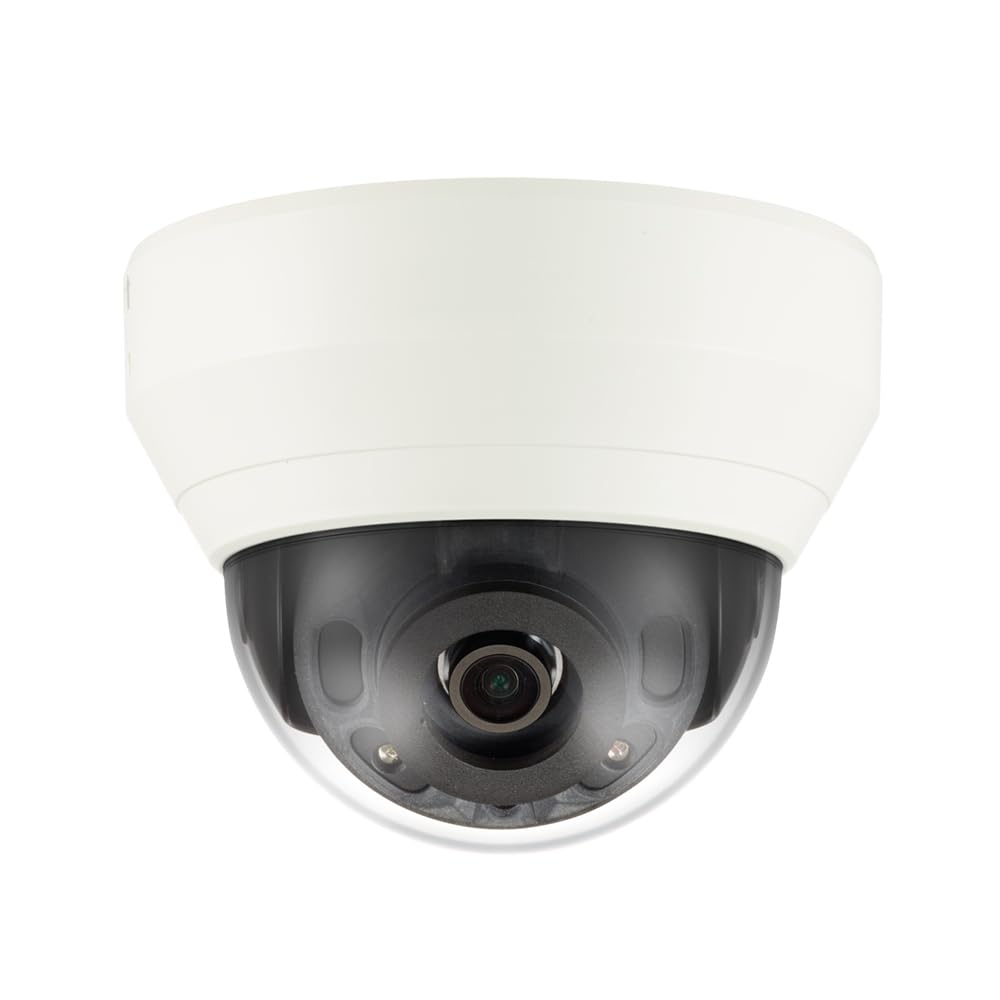
Nọmba 4.1: Iwaju view of the Hanwha Techwin Wisenet QND-6020R 2 Megapixel Network Dome Camera. This image shows the compact dome design, suitable for discreet surveillance installations. The camera features a dark housing and a clear dome covering the lens, indicating its robust construction for various environments.
5. Eto
5.1 Iṣagbesori Kamẹra
- Yan Ibi kan: Choose a suitable wall location for optimal surveillance coverage. Ensure the surface is strong enough to support the camera.
- Awọn iho iho: Use the provided mounting template (if applicable) to mark and drill pilot holes for the mounting screws.
- Ṣe aabo Oke naa: Attach the camera's mounting base to the wall using the screws and anchors.
- Ṣatunṣe Igun: Once mounted, adjust the camera's viewing igun bi ti nilo.
5.2 Agbara ati Asopọ nẹtiwọki
- Asopọ agbara: Connect the supplied AC/DC power adapter to the camera's power input port and then to a power outlet.
- Asopọ nẹtiwọki (Ti firanṣẹ): For a wired connection, connect an Ethernet cable from the camera's network port to your network router or switch.
- Network Connection (Wi-Fi): For Wi-Fi connectivity, refer to the camera's initial setup wizard or the dedicated network configuration section in the full digital manual for pairing instructions. The camera supports Wi-Fi connectivity.
5.3 Iṣeto ni ibẹrẹ
After connecting power and network, the camera will boot up. Access the camera's web interface via a browser using its IP address (refer to your network's DHCP client list or use the manufacturer's discovery tool). Follow the on-screen prompts to set up administrator credentials, network settings, and initial video configurations.
6. Awọn ilana Iṣiṣẹ
6.1 Live View ati Gbigbasilẹ
Wọle si kamẹra laaye view nípasẹ̀ rẹ̀ web interface or a compatible network video recorder (NVR) / surveillance software. Configure recording schedules, motion-triggered recording, and continuous recording settings as desired. Video is captured at 1080p resolution in MP4 format.
6.2 Wiwa išipopada
The camera features a motion sensor. Configure motion detection zones and sensitivity settings within the camera's web interface. You can set up alerts (e.g., email notifications) to be triggered upon motion detection.
6.3 Night Vision
The QND-6020R is equipped with night vision capabilities, providing clear images in low-light conditions up to 65.62 ft. The camera automatically switches between day and night modes based on ambient light levels. Night vision is in color.
7. Itọju
7.1 Ninu
Regularly clean the camera's lens and housing with a soft, dry cloth to ensure optimal image quality. Avoid using harsh chemicals or abrasive materials.
7.2 famuwia imudojuiwọn
Periodically check the Hanwha Techwin webAaye fun awọn imudojuiwọn famuwia. Mimu famuwia kamẹra rẹ wa ni imudojuiwọn yoo rii daju pe iṣẹ ṣiṣe to dara julọ, aabo, ati iwọle si awọn ẹya tuntun.
8. Laasigbotitusita
- Ko si Agbara: Ensure the power adapter is securely connected to both the camera and a working power outlet. Verify the outlet has power.
- Ko si Fidio/Aisinipo: Check network cable connections (if wired) or Wi-Fi signal strength (if wireless). Verify the camera's IP address and network settings. Restart the camera and your network router.
- Didara Aworan Ko dara: Nu lẹnsi kamẹra naa. Rii daju pe ko si awọn idena ninu aaye kamẹra naa view. Check lighting conditions.
- Iwari išipopada Ko Ṣiṣẹ: Review motion detection zone settings and sensitivity in the camera's web interface. Ensure the feature is enabled.
- Ko le Wiwọle Web Ni wiwo: Verify the camera's IP address. Ensure your computer is on the same network segment as the camera. Try a different web kiri ayelujara.
9. Awọn pato
| Ẹya ara ẹrọ | Apejuwe |
|---|---|
| Nọmba awoṣe | QND-6020R |
| Brand | HANWHA |
| Niyanju Lilo | Abojuto |
| Pataki Awọn ẹya ara ẹrọ | Sensọ išipopada, Night Vision |
| Orisun agbara | AC/DC |
| Ilana Asopọmọra | Wi-Fi |
| Adarí Iru | H.264 |
| Oke Iru | Ògiri Ògiri |
| Iru Itaniji | Išipopada Nikan |
| Mabomire Rating | IP65 |
| Alailowaya Technology | Wi-Fi |
| Fọto sensọ Technology | CMOS |
| Ipinnu Yaworan fidio | 1080p |
| Fidio Yaworan kika | MP4 |
| Alẹ Iranran | Night Awọ |
| Olupese | Hanwha Group |
10. Atilẹyin ọja ati Support
This Hanwha Techwin product is covered by a manufacturer's warranty provided by Hanwha Group. For detailed warranty terms and conditions, please refer to the warranty card included with your product or visit the official Hanwha Techwin website. For technical support, troubleshooting assistance, or service inquiries, please contact Hanwha Techwin customer support through their official channels.