
Ọrọ Iṣaaju
This manual provides detailed instructions for the TECWARE Phantom 87 Key RGB Mechanical Gaming Keyboard. Please read this manual thoroughly before using the product to ensure proper operation and to maximize your experience.
Alaye Aabo
- Ma ṣe fi bọtini itẹwe han si awọn olomi tabi ọrinrin pupọ.
- Yago fun awọn iwọn otutu to gaju.
- Do not attempt to disassemble or modify the keyboard. This may void your warranty.
- Jeki kuro ni arọwọto awọn ọmọde.
- Lo pẹlu awọn ẹrọ ibaramu nikan ati awọn orisun agbara.
Package Awọn akoonu
Daju pe gbogbo awọn nkan wa ninu apo rẹ:
- TECWARE Phantom 87 Key RGB Mechanical Gaming Keyboard
- 4x Spare Mechanical Switches (Outemu Red)
- 1x Yipada Puller
- 1x Keycap Puller
- 1x Itọsọna olumulo

Figure 1: TECWARE Phantom 87 Key RGB Mechanical Gaming Keyboard with key features such as low latency, 16.8M RGB colors, gaming-oriented design, full N-key rollover, and durable fiberglass PCB.
Ṣeto
1. Nsopọ Keyboard
- Locate the USB-A cable attached to your TECWARE Phantom keyboard.
- Plug the USB-A connector into an available USB port on your computer.
- The keyboard will automatically be detected and drivers will install (Windows/macOS).
2. Fifi sori ẹrọ Software (Aṣayan)
For advanced customization, including per-key RGB lighting, macro recording, and user profiles, download the TECWARE software from the official TECWARE webojula. Tẹle awọn ilana loju iboju fun fifi sori.

Figure 2: The TECWARE software allows for custom per-key RGB lighting, 18 lighting effects control, macro recording and assignment, and up to 3 user profiles, along with brightness and speed adjustments.
Awọn ilana Iṣiṣẹ
Awọn iṣẹ ipilẹ
- Titẹ: The keyboard features Outemu Red linear switches for a smooth and quiet typing experience.
- N-Kọtini Rollover: All key presses are registered simultaneously, preventing ghosting during rapid input.
- Titii pa Windows: Use the dedicated Windows Lock key (often Fn + Win key) to disable the Windows key during gaming to prevent accidental interruptions.
Iṣakoso Imọlẹ RGB
The Phantom keyboard offers 16.8 million RGB colors and 18 pre-set lighting effects. These can be controlled directly on the keyboard or through the TECWARE software.
- Iyipada Awọn ọna Imọlẹ: Use the Fn key combined with specific function keys (refer to your keyboard's keycaps for symbols) to cycle through the 18 pre-set lighting modes.
- Siṣàtúnṣe Imọlẹ/Iyara: Use Fn + Arrow keys (or other designated keys) to adjust the brightness and speed of the lighting effects.
- Isọdi: For per-key lighting and advanced effects, use the TECWARE software.
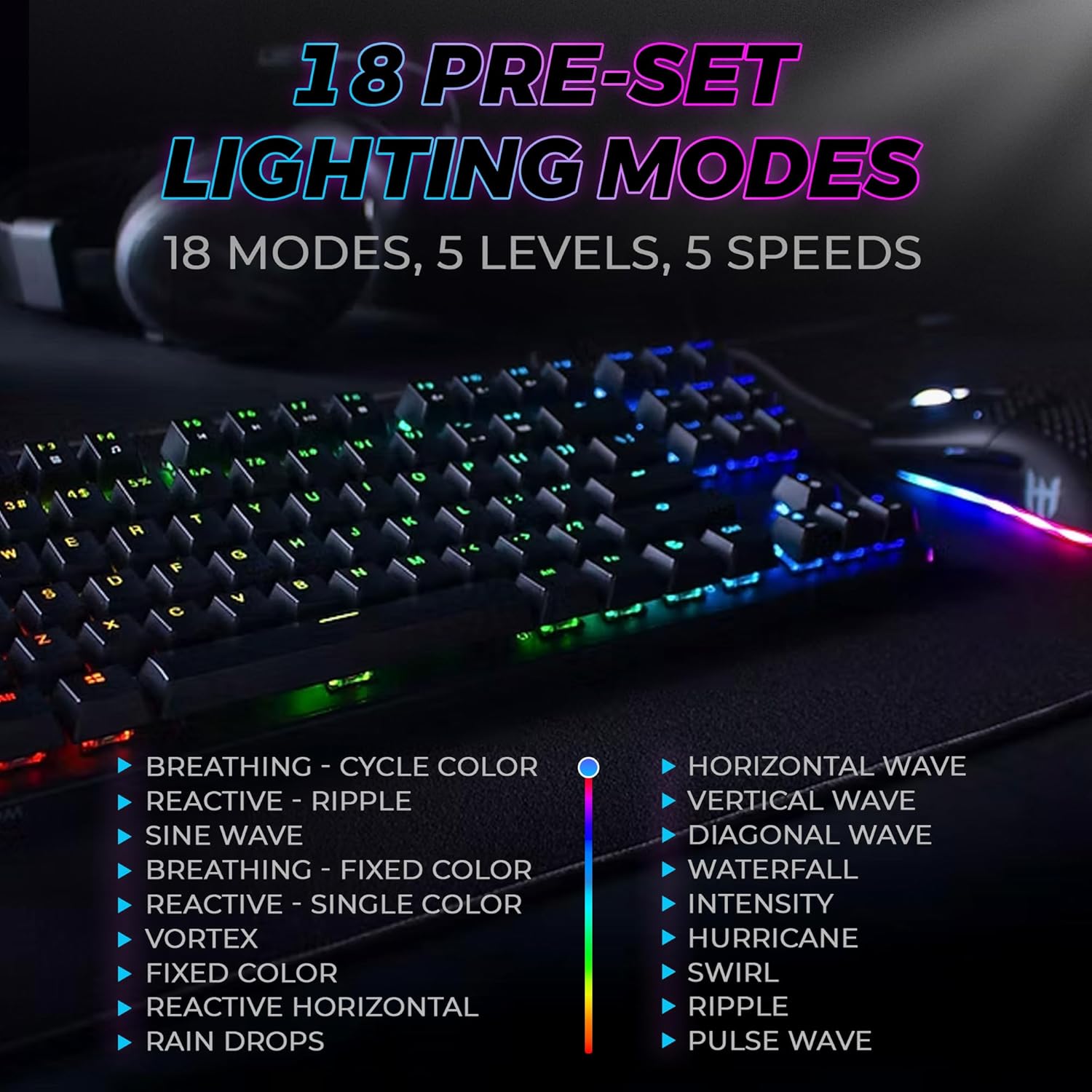
Figure 3: The keyboard features 18 pre-set lighting modes with 5 levels of brightness and 5 levels of speed, including effects like Breathing, Ripple, Sine Wave, Vortex, Waterfall, and Pulse Wave.
Awọn bọtini Multimedia
Access multimedia controls by pressing the Fn key in combination with the F-keys (F1-F12). The specific functions are typically indicated by icons on the keycaps.
- Example: Fn + F7 (Play/Pause), Fn + F8 (Stop), Fn + F9 (Mute).
Video 1: Official TECWARE branded video showcasing various products, including the Phantom keyboard, highlighting its features and design philosophy.
Itoju
Ninu
- Ge asopọ keyboard kuro lati kọnputa rẹ ṣaaju ṣiṣe mimọ.
- Lo aṣọ rirọ ati gbigbẹ lati nu awọn ideri bọtini ati chassis naa kuro.
- For deeper cleaning, use the provided keycap puller to remove keycaps and compressed air to clear debris from under the keys.
Yipada Rirọpo
The TECWARE Phantom keyboard features hot-swappable Outemu mechanical switches, allowing for easy replacement without soldering.
- Nípa lílo ohun tí a fi ń fa ìbòrí ìbòrí tí a pèsè, fi pẹ̀lẹ́pẹ̀lẹ́ yọ ìbòrí ìbòrí tí a fẹ́ kúrò.
- Use the provided switch puller to carefully grip the switch and pull it straight up to remove it.
- Mö awọn pinni ti awọn titun yipada pẹlu awọn iho lori PCB.
- Rọra tẹ iyipada tuntun si aaye titi ti o fi tẹ ni aabo.
- Tun bọtini bọtini somọ.
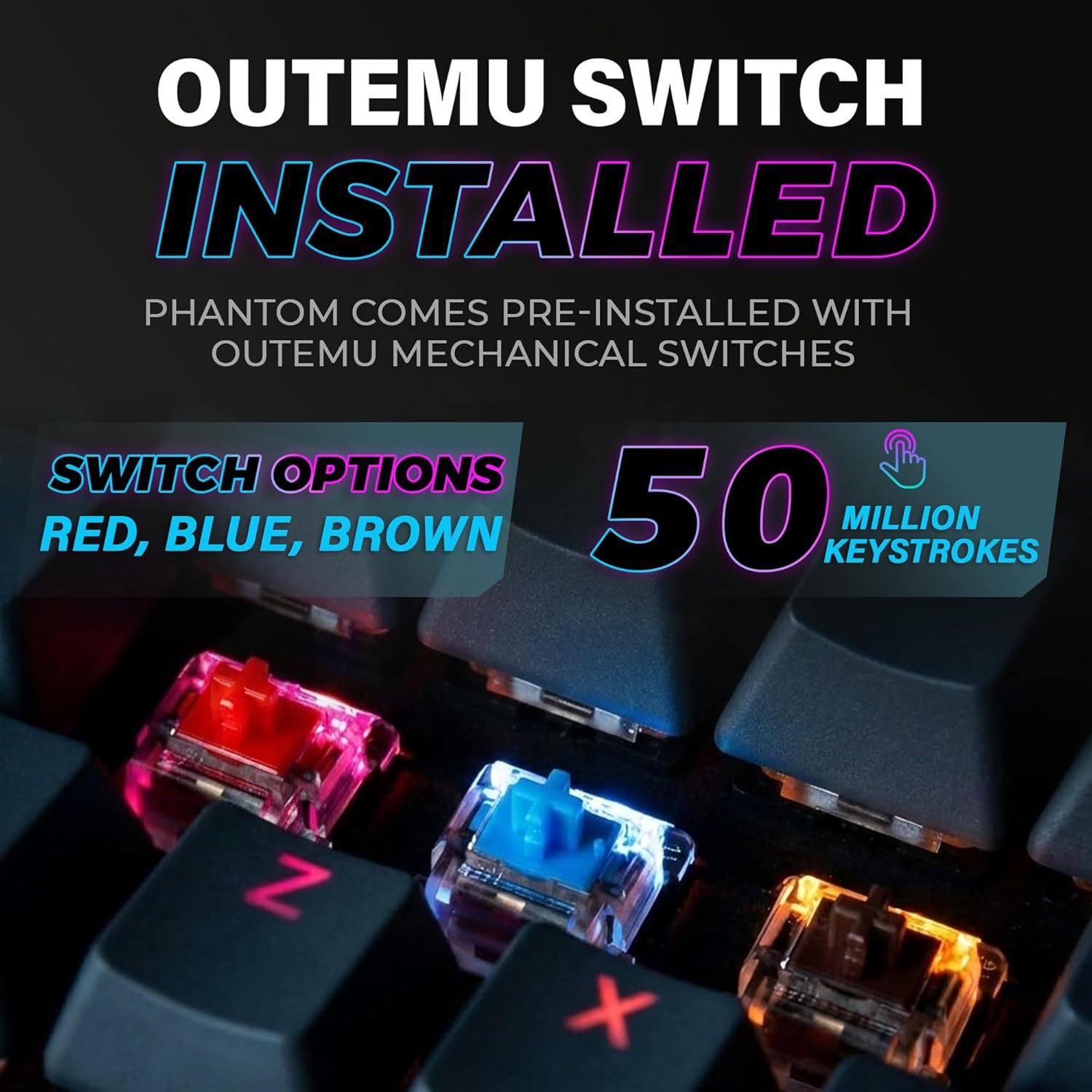
Figure 4: The keyboard comes with pre-installed Outemu switches, available in Red, Blue, and Brown options, rated for 50 million keystrokes.

Figure 5: An Outemu Red linear switch, detailing its pre-travel of 2.00mm, operating force of 45 gf/CN, and total travel of 4.00mm.
Laasigbotitusita
| Oro | Owun to le Solusan |
|---|---|
| Keyboard ko fesi | Ensure the USB cable is securely connected to both the keyboard and the computer. Try a different USB port or computer. |
| Imọlẹ RGB ko ṣiṣẹ | Check if the lighting is turned off or set to minimum brightness using the Fn key combinations. Reinstall the TECWARE software if using custom profiles. |
| Awọn bọtini pato ko ṣiṣẹ | If you have hot-swappable switches, try replacing the faulty switch with one of the spare switches provided. Ensure the switch is properly seated. |
| Keys feel inconsistent | Ensure keycaps are fully pressed down. Clean under the keycaps for any debris. |
Video 2: Official TECWARE Phantom video demonstrating various features and functionalities of the keyboard.
Awọn pato
| Ẹya ara ẹrọ | Ẹ̀kúnrẹ́rẹ́ |
|---|---|
| Nọmba awoṣe | TWKB-P87ZORD |
| Yipada Iru | Outemu Red Mechanical (Linear) |
| Nọmba bọtini | 87 Awọn bọtini |
| Imọlẹ RGB | 16.8 Million Colors, 18 Pre-set Modes |
| Idibo Oṣuwọn | 1000Hz |
| N-Kọtini Rollover | Full N-Key Rollover |
| Asopọmọra | Ti firanṣẹ USB-A |
| PCB | Dual-layer Fiberglass PCB |
| Awọn iwọn (L x W x H) | 14.21 x 5.24 x 1.61 inches |
| Iwọn | 2.53 iwon |
Atilẹyin ọja & Atilẹyin
TECWARE products are designed for durability and performance. For warranty information, technical support, or to download the latest software and drivers, please visit the official TECWARE webojula tabi kan si wọn onibara iṣẹ. Tọju iwe-ẹri rira rẹ bi ẹri rira fun awọn iṣeduro atilẹyin ọja.
Awọn orisun Ayelujara:
- Official TECWARE Webojula: www.tecware.co
- Oju-iwe Atilẹyin Ọja: TECWARE Amazon Store


