
Ọrọ Iṣaaju
This manual provides detailed instructions for the proper use and maintenance of your Sharp EL-W531TG-WH Scientific School Calculator. This calculator features a 4-line WriteView display, D.A.L. input method, and 414 pre-programmed functions, making it suitable for various mathematical and scientific calculations required in secondary education.

Image: The Sharp EL-W531TG-WH Scientific Calculator, showcasing its keypad and 4-line WriteView ifihan.
Ṣeto
Orisun agbara
The Sharp EL-W531TG-WH calculator operates using both solar power and a backup battery (1 LR44 battery included). The solar panel provides power in well-lit environments, while the battery ensures operation in low-light conditions.
Batiri sori / Rirọpo
- Rii daju pe ẹrọ iṣiro ti wa ni pipa.
- Wa ideri iyẹwu batiri ni ẹhin ẹṣiro naa.
- Using a small screwdriver, carefully remove the screw securing the battery cover.
- Remove the cover and replace the old LR44 battery with a new one, ensuring correct polarity (+/-).
- Rọpo ideri batiri ki o ni aabo pẹlu dabaru.
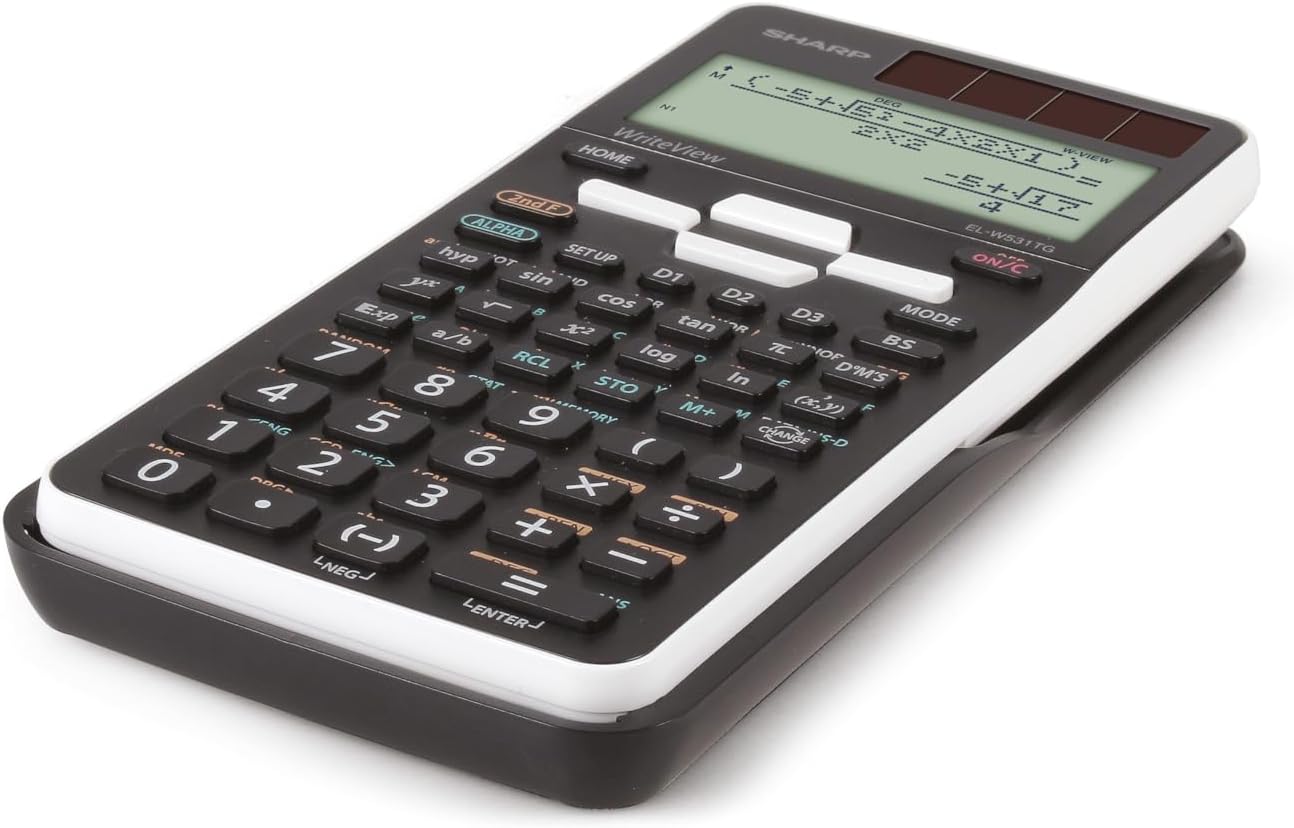
Aworan: Ẹgbẹ profile of the Sharp EL-W531TG-WH calculator, illustrating its compact design.
Awọn ilana Iṣiṣẹ
Titan / Paa
- Lati tan-an: Tẹ awọn ON/C bọtini.
- To turn off: Press 2nd F lẹhinna PAA (usually located above the ON/C key).
Display Modes (WriteView / Line)
The calculator features a WriteView display that shows fractions, roots, and formulas as they appear in textbooks. You can switch to a traditional line mode if preferred.
- To toggle between WriteView and Line mode: Press MODE and select the desired display option. Refer to the on-screen menu for specific selections.
Awọn Iṣiṣẹ Iṣiro Ipilẹ
Enter numbers and operations in sequence. The D.A.L. (Direct Algebraic Logic) input method allows you to input equations exactly as they are written.
- Afikun: +
- Iyokuro: -
- Ilọpo: x
- Pipin: ÷
- O dọgba: =
Awọn iṣẹ ijinle sayensi
The calculator includes 414 pre-programmed functions covering statistics, n-base calculations, logical operators, trigonometry, logarithms, and more. Access these functions using the dedicated keys or by pressing 2nd F followed by the key with the desired secondary function.
- Awọn iṣẹ Trigonometric: ese, kos, tan and their inverse functions (accessed via 2nd F).
- Awọn iṣẹ Logarithmic: wọle, ln.
- Agbara ati Awọn iṣẹ gbongbo: x², √, xʸ.
- Awọn iṣiro: Enter STAT mode via MODE to perform statistical calculations.
- N-Base Calculations: Perform calculations in binary, octal, decimal, and hexadecimal bases.
Awọn iṣẹ iranti
The calculator features 4 shortcut memory buttons (D1, D2, D3, D4) for quick access to frequently used functions or constants. Additionally, standard memory functions (M+, M-, RCL, STO) are available.
- STO (Store): Stores a value into a memory variable.
- RCL (Recall): Recalls a value from a memory variable.
- M+/M-: Adds to or subtracts from the independent memory.

Aworan: Alaye view of the calculator's keypad, showing various function keys and their secondary operations.
Itoju
Ninu
To clean the calculator, wipe it gently with a soft, dry cloth. Do not use abrasive cleaners, solvents, or wet cloths, as these can damage the casing tabi ti abẹnu irinše.
Ibi ipamọ
When not in use for extended periods, store the calculator in a cool, dry place away from direct sunlight and extreme temperatures. Keep it in its protective cover to prevent scratches and damage.
Itọju Batiri
If the calculator will not be used for a very long time, it is advisable to remove the LR44 battery to prevent potential leakage and damage to the device.
Laasigbotitusita
Ifihan Awọn oran
- Ifihan òfo: Check battery level. Replace the LR44 battery if necessary. Ensure sufficient light for solar operation.
- Ifihan Irẹwẹsi: This may indicate a low battery. Replace the LR44 battery.
Awọn Iṣiro Ti Ko Tọ
- Awọn abajade ti ko tọ: Verify the input method (D.A.L.) and ensure all values are entered correctly. Check if the calculator is in the correct mode (e.g., DEG/RAD for trigonometric functions, STAT mode for statistics).
- Ifiranṣẹ aṣiṣe: Refer to the calculator's on-screen error codes (if any) for specific issues. Common errors include division by zero or invalid function arguments.
Atunto Ẹrọ iṣiro
If the calculator behaves erratically or freezes, a reset may resolve the issue. Locate the small reset button (often on the back or side, requiring a thin object like a paperclip to press) or perform a soft reset via the ṢETO menu. Note that resetting may clear all memory and settings.
Awọn pato
| Ẹya ara ẹrọ | Ẹ̀kúnrẹ́rẹ́ |
|---|---|
| Awoṣe | EL-W531TG-WH |
| Ifihan Iru | Dot Matrix LCD, 4-line (96 x 32 mm) |
| Iwọn Ifihan | 2.5 inches |
| Ọna titẹ sii | D.A.L. (Direct Algebraic Logic) |
| Awọn iṣẹ | 414 pre-programmed functions (statistics, n-base, logical operators, etc.) |
| Orisun agbara | Solar and Battery Operated (1 x LR44 included) |
| Awọn iwọn (L x W x H) | 16.6 x 8 x 1.5 cm |
| Iwọn | 108 g |
| Ohun elo | Ṣiṣu |
Atilẹyin ọja ati Support
For warranty information and technical support, please refer to the documentation included with your purchase or visit the official Sharp website. A PC simulator for this model may be available for download from the manufacturer's support page.