
1. Ifihan
The VisionTek VT1000 Universal Dual Full HD USB 3.0 Laptop Monitor Docking Station is designed to expand the connectivity of your laptop, whether it runs Windows, macOS, or Chrome OS. This docking station allows you to connect to dual displays and a variety of peripherals through a single USB connection, transforming your laptop into a complete workstation.
Ọja Pariview
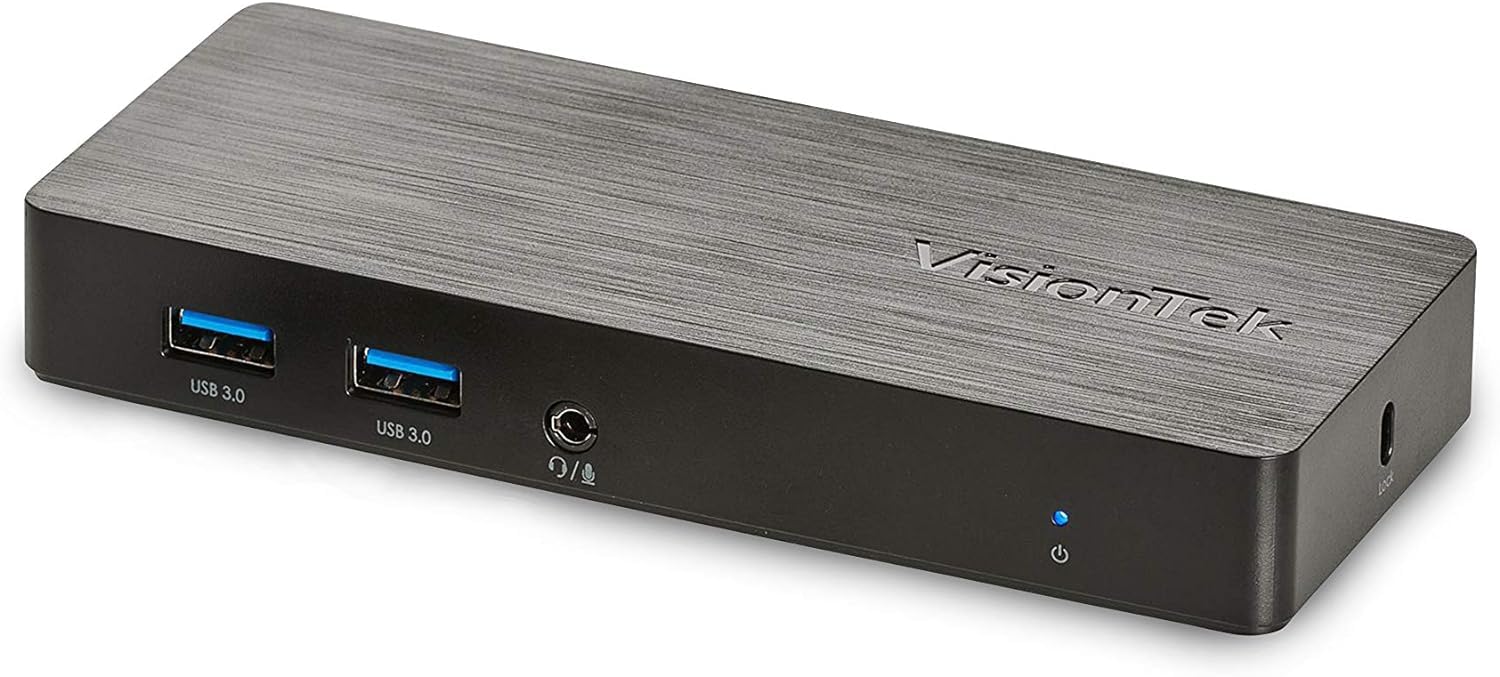
Aworan: Iwaju view of the VisionTek VT1000 docking station.
Ohun ti o wa ninu Apoti
- VT1000 Meji Ifihan Universal USB 3.0 docking Station
- Okun USB 3.0 USB
- User Manual (Quick Installation Guide)
- Adapter agbara

Image: The VisionTek VT1000 docking station and its included accessories.
2. Key Awọn ẹya ara ẹrọ
- Dual Full HD Displays: Connect two monitors to your laptop with full HD resolution (1920 x 1080 @ 60Hz) via 1x DisplayPort, 1x HDMI, and 1x 1080P VGA.
- Asopọmọra gbooro: Features 3x USB 3.0 ports (5 Gbps transfer speed), 1x RJ45 (10/100/1000) Gigabit Ethernet port, and a headphone audio line in/out jack.
- Plug and Display: Utilizes DisplayLink drivers for plug-and-play functionality, simplifying setup for various workspaces.
- Ibamu Eto Iṣiṣẹ gbooro: Compatible with Ultrabook, MacBook, Microsoft Surface Pro, Chromebook, Windows 11, Windows 10, Windows 8.1, Windows 7, and Mac OS 10.13 and up operating systems.
- Apẹrẹ Iwapọ: Designed to be compact, taking up minimal desk space while providing extensive functionality.
3. Awọn ibudo ati awọn Atọka
The VT1000 docking station provides a comprehensive set of ports for various connectivity needs. Refer to the video below for a visual guide to the ports.
Iwaju Panel
- 2x USB 3.0 Ports: Fun sisopọ awọn ẹrọ USB ti o ga julọ.
- Audio Out (Headphone Jack): Fun sisopọ olokun tabi awọn agbohunsoke ita.
- Gbohungbohun Ninu: Fun sisopọ gbohungbohun kan.
- LED Atọka Agbara: Illuminates when the dock is powered on.
Ru Panel
- 1x VGA Port: For connecting a VGA monitor.
- Ibudo HDMI 1x: For connecting an HDMI monitor.
- 1x DisplayPort: Fun pọ kan DisplayPort atẹle.
- 1x RJ45 Gigabit Ethernet Port: Fun asopọ nẹtiwọki ti a firanṣẹ.
- 1x USB 3.0 Port: Fun sisopọ awọn ẹrọ USB ti o ga julọ.
- USB-B Port (Upstream): For connecting the dock to your laptop via the included USB 3.0 cable.
- Input agbara DC 5V: Fun sisopọ ohun ti nmu badọgba agbara.
- Iho Titiipa Aabo: For securing the docking station.
Official Product Video: VisionTek VT1000 Universal Dual Display USB 3.0 Dock
Video: This official VisionTek video provides a visual overview of the VT1000 docking station, highlighting its features, ports, and connectivity options. It demonstrates how the dock can expand your laptop's capabilities into a full workstation.
4. Awọn ilana iṣeto
- So agbara: Plug the included power adapter into the DC 5V input port on the rear of the VT1000 docking station, then plug the adapter into a power outlet. The power indicator LED on the front of the dock should illuminate.
- Sopọ si Kọǹpútà alágbèéká: Use the provided USB 3.0 cable to connect the USB-B port on the rear of the docking station to an available USB 3.0 port on your laptop.
- Awọn diigi Sopọ: Connect your external monitors to the desired video output ports on the rear of the docking station (HDMI, DisplayPort, or VGA). The VT1000 supports dual displays.
- Awọn Agbeegbe Sopọ: Connect your keyboard, mouse, external hard drives, printers, webcams, or other USB devices to the USB 3.0 ports on the front and rear of the docking station.
- Nẹtiwọọki Sopọ (Aṣayan): For a wired internet connection, connect an Ethernet cable from your router or network switch to the RJ45 Gigabit Ethernet port on the rear of the docking station.
- So Audio (Aṣayan): If desired, connect headphones or speakers to the audio out jack and a microphone to the mic in jack on the front of the docking station.
- Fifi sori Awakọ: The VT1000 features DisplayLink Plug and Play technology, typically requiring no manual driver installation on compatible operating systems. If prompted, follow on-screen instructions or visit the VisionTek support website for the latest DisplayLink drivers.
5. Awọn ilana Iṣiṣẹ
Once the VT1000 docking station is set up, it operates seamlessly with your connected laptop.
- Iṣeto ni Ifihan: After connecting your monitors, your operating system should automatically detect them. You can configure display settings (e.g., extend, duplicate, primary display) through your computer's display settings.
- Lilo Ẹrọ USB: Connected USB devices will function as if directly connected to your laptop.
- Wiwọle Nẹtiwọọki: Ibudo Gigabit Ethernet n pese asopọ nẹtiwọọki onirin ti o duro ṣinṣin ati iyara.
- Ise Olohun: The audio ports allow for external audio output and microphone input. Ensure your operating system's sound settings are configured to use the docking station's audio device.
- Isakoso Agbara: The docking station requires external power and does not supply power to your laptop. Ensure your laptop's power adapter is connected for charging.
6. Awọn pato
| Ẹya ara ẹrọ | Ẹ̀kúnrẹ́rẹ́ |
|---|---|
| Brand | VisionTek |
| Nọmba awoṣe | 901147 (VT1000 Series) |
| Ibamu System isẹ | Windows 11, Windows 10, Windows 8.1, Windows 7, macOS 10.13 and later, Chrome OS |
| Iwọn Nkan | 8 iwon |
| Awọn iwọn Ọja (LxWxH) | 5.95 x 2.8 x 0.8 inches |
| Ni wiwo Hardware | DisplayPort, Ethernet, HDMI, USB, USB 3.0, VGA |
| Awọn ẹrọ ibaramu | Kọǹpútà alágbèéká |
| Lapapọ Awọn ibudo USB | 3 (USB 3.0) |
| Lapapọ HDMI Ports | 1 |
| Wattage | 20 Wattis |
7. Laasigbotitusita
- Ko si Abajade Ifihan:
- Ensure the docking station's power adapter is securely connected and the power indicator LED is on.
- Verify that the USB 3.0 cable connecting the dock to your laptop is firmly seated at both ends.
- Check that monitor cables (HDMI, DisplayPort, VGA) are securely connected to both the dock and the monitors.
- Confirm that your monitors are powered on and set to the correct input source.
- Tun kọmputa rẹ ati ibudo iduro rẹ bẹrẹ.
- Ensure DisplayLink drivers are installed and up-to-date, if necessary. Although typically plug-and-play, some systems may benefit from manual driver installation from the DisplayLink webojula.
- Awọn ẹrọ USB Ko Ṣiṣẹ:
- Ensure the docking station is powered on and connected to your laptop.
- Try connecting the USB device to a different USB port on the dock or directly to your laptop to rule out device issues.
- Some high-power USB devices may require their own external power supply.
- Awọn oran Isopọ nẹtiwọki:
- Verify the Ethernet cable is securely connected to both the dock and your network.
- Check your laptop's network settings to ensure the Ethernet adapter is enabled.
- Restart your router/modem, the docking station, and your laptop.
- Audio Ko Ṣiṣẹ:
- Check your laptop's sound settings to ensure the docking station's audio output is selected as the default playback device.
- Ensure headphones/speakers are properly connected to the audio out jack.
- Adjust volume levels on both your laptop and the connected audio device.
8. Itọju
- Ninu: Use a soft, dry cloth to clean the exterior of the docking station. Avoid using liquid cleaners or solvents.
- Ibi ipamọ: Store the docking station in a cool, dry place away from direct sunlight and extreme temperatures when not in use for extended periods.
- Iṣakoso USB: Rí i dájú pé àwọn okùn náà kò ní ìtẹ̀ tàbí dídì púpọ̀ jù láti dènà ìbàjẹ́.
9. Atilẹyin ọja ati Support
The VisionTek VT1000 Universal Dual Full HD USB 3.0 Laptop Monitor Docking Station comes with a 2-odun lopin atilẹyin ọja. To ensure coverage, register your product with VisionTek within 30 days of purchase.
VisionTek offers excellent US-based customer support for any technical assistance or inquiries you may have. For support, please visit the official VisionTek webaaye tabi tọka si alaye olubasọrọ ti a pese ninu apoti ọja rẹ.
For further information and driver downloads, please visit: VisionTek Support