
Ọrọ Iṣaaju
This manual provides detailed instructions for the setup, operation, maintenance, and troubleshooting of your Trust Urban Bluetooth Wireless Headphones, Model 22764. Please read this manual carefully before using the product to ensure proper functionality and to maximize your listening experience.
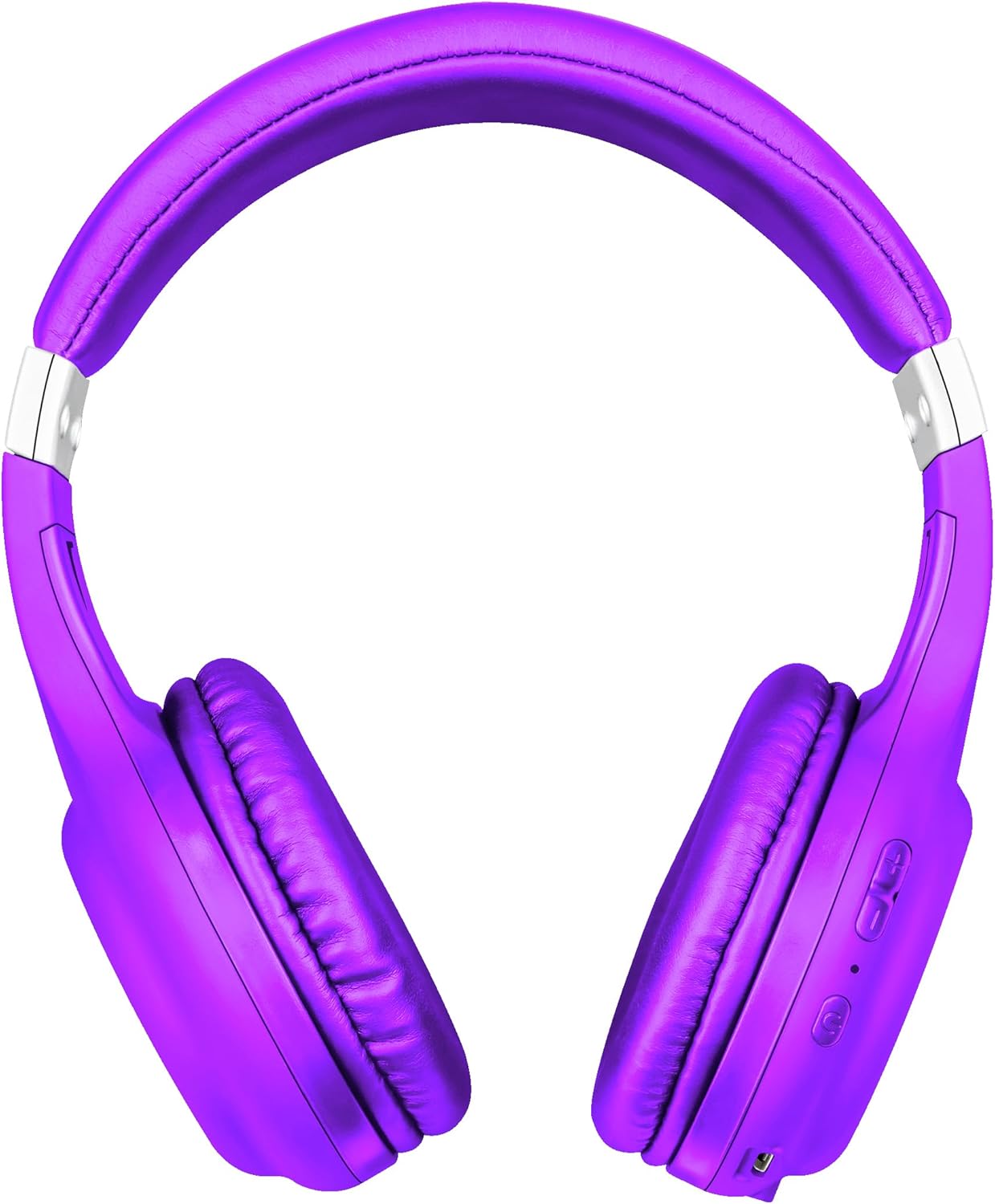
Aworan: Iwaju view of the Trust Urban Bluetooth Wireless Headphones in purple.
Ṣeto
1. Ngba agbara si awọn Agbekọri
Before first use, fully charge your headphones. A USB charging cable is included.
- So opin kekere ti okun gbigba agbara USB pọ si ibudo gbigba agbara lori awọn agbekọri.
- Connect the larger end of the USB cable to a USB power source (e.g., computer USB port, USB wall adapter).
- Àmì LED tó wà lórí agbekọri náà yóò fi ipò agbára hàn. Ó sábà máa ń pa tàbí ó máa ń yí àwọ̀ padà nígbà tí ó bá ti gba agbára tán.
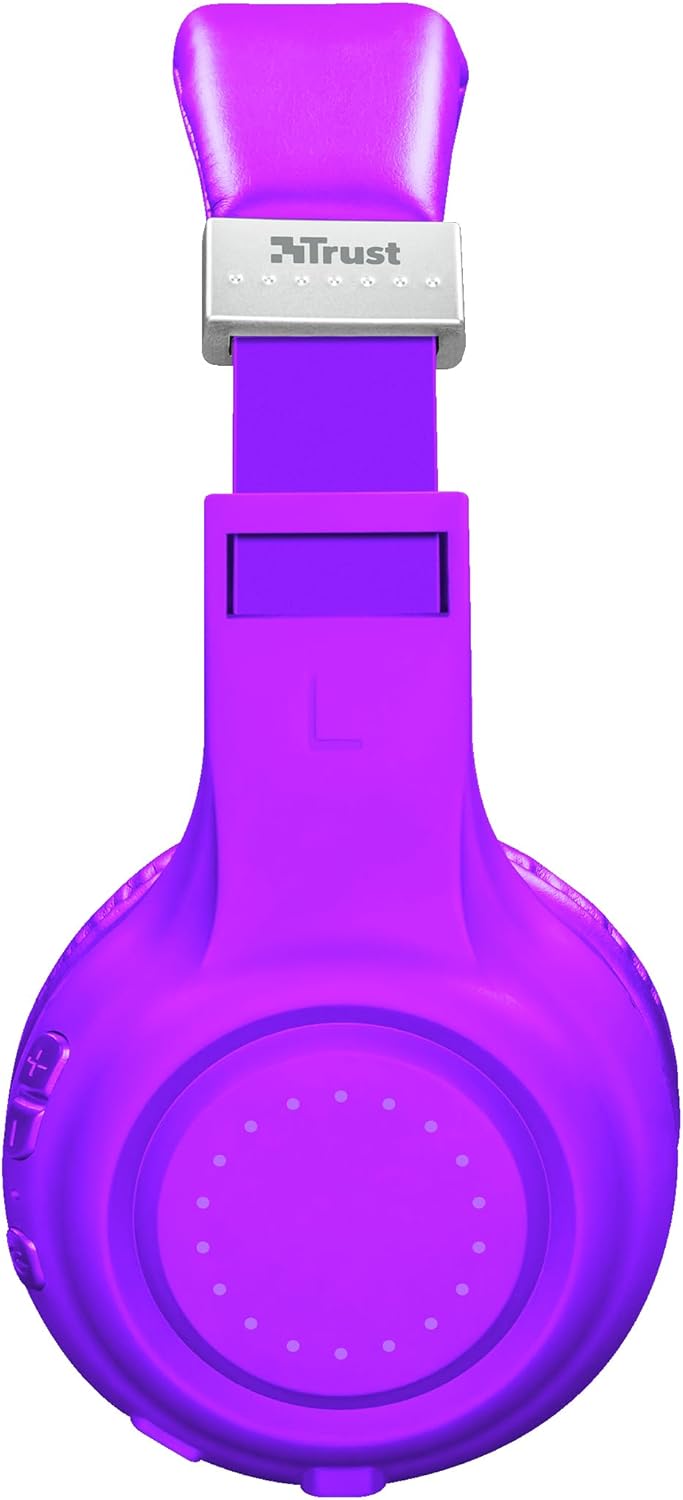
Aworan: Apa view of the headphones, highlighting the charging port and control buttons.
2. Sisopọ Bluetooth
To connect your headphones wirelessly to a device:
- Rii daju pe awọn agbekọri ti gba agbara ati pipa.
- Press and hold the Power button on the headphones until the LED indicator flashes rapidly (usually blue and red), indicating pairing mode.
- Lori ẹrọ rẹ (foonuiyara, tabulẹti, kọǹpútà alágbèéká), mu Bluetooth ṣiṣẹ ki o wa awọn ẹrọ titun.
- Select "Trust Dura" or a similar name from the list of available devices.
- Once connected, the LED indicator on the headphones will typically flash slowly or turn solid blue.
The headphones have a wireless range of up to 10 meters.
3. Asopọ onirin (Aṣayan)
You can also use the headphones with a 3.5mm audio cable (not always included, check packaging) for a wired connection, which is useful when the battery is low or for devices without Bluetooth.
- Connect one end of the 3.5mm audio cable to the headphone jack on the headphones.
- So opin miiran pọ si iṣelọpọ ohun afetigbọ 3.5mm ti ẹrọ rẹ.
- Awọn agbekọri yoo yipada laifọwọyi si ipo ti firanṣẹ.
Awọn ilana Iṣiṣẹ
Titan / Paa
- Agbara Tan: Tẹ mọlẹ bọtini agbara fun isunmọ awọn aaya 3.
- Agbara Pa: Press and hold the Power button for approximately 3-5 seconds.
Sisisẹsẹhin Orin
- Ṣiṣẹ/Daduro: Tẹ bọtini Multi-function (nigbagbogbo bọtini Power) lẹẹkan.
- Orin t’okan: Tẹ mọlẹ bọtini Iwọn didun Up (+).
- Tẹlẹ Orin: Tẹ mọlẹ bọtini Iwọn didun isalẹ (-).
Iṣakoso iwọn didun
- Mu iwọn didun pọ si: Tẹ bọtini Iwọn didun Up (+).
- Din iwọn didun silẹ: Tẹ bọtini Iwọn didun isalẹ (-).
Isakoso Ipe
Àwọn agbekọri náà ní gbohungbohun tí a ṣe sínú rẹ̀ fún àwọn ìpè tí kò ní ọwọ́.
- Idahun/Ipe Ipari: Tẹ bọtini Olona-iṣẹ lẹẹkan.
- Kọ Ipe: Tẹ bọtini Multi-function ki o si mu fun bii iṣẹju-aaya meji.
- Nọmba Ikẹhin Tun Tun: Tẹ bọtini Olona-iṣẹ lẹẹmeji.
Oluranlọwọ ohun
Quickly access your smartphone's voice assistant (Siri, Google Assistant, etc.):
- Mu Oluranlọwọ Ohun ṣiṣẹ: Press the Voice Assistant button (if available, or a specific combination as per device). Refer to your device's manual for specific button functions if not clearly marked.
Itoju
- Ninu: Lo asọ asọ ti o gbẹ lati nu agbekọri naa. Ma ṣe lo abrasive ose tabi epo.
- Ibi ipamọ: Tọju awọn agbekọri naa ni itura, aye gbigbẹ kuro lati orun taara ati awọn iwọn otutu to gaju.
- Itọju Batiri: Lati pẹ aye batiri, yago fun gbigba agbara si batiri ni kikun nigbagbogbo. Gba agbara si awọn agbekọri nigbagbogbo, paapaa ti ko ba wa ni lilo fun awọn akoko ti o gbooro sii.
- Yago fun Ọrinrin: Ma ṣe fi awọn agbekọri han si omi tabi ọrinrin pupọ.
Laasigbotitusita
| Isoro | Ojutu |
|---|---|
| Awọn agbekọri ko tan. | Rii daju pe awọn agbekọri ti gba agbara ni kikun. So wọn pọ mọ orisun agbara nipa lilo okun USB. |
| Ko le so pọ pẹlu ẹrọ kan. |
|
| Ko si ohun tabi iwọn kekere. |
|
| Gbohungbohun ko ṣiṣẹ. |
|
Awọn pato
| Orukọ awoṣe | Dura |
| Nọmba awoṣe | 22764 |
| Brand | Gbekele |
| Àwọ̀ | eleyi ti |
| Fọọmù ifosiwewe | Lori-eti |
| Asopọmọra Technology | Wireless (Bluetooth), Wired (3.5mm jack) |
| Alailowaya Ibiti | 10 mita |
| Igbesi aye batiri (akoko ere) | Titi di wakati 6 |
| Batiri Iru | Lithium-ion (rechargeable, included) |
| Gbigba agbara Port | USB (okun to wa) |
| Gbohungbohun ti a ṣe sinu | Bẹẹni |
| Iṣakoso Iru | Buttons for volume, media, call management, voice assistant access |
| Awọn ẹrọ ibaramu | Mobile phones, Tablets, Laptops, Desktop computers |
| Ohun elo | Ṣiṣu |
| Ọja Mefa | 4 x 5.5 x 9.5 cm; 190g |
Alaye atilẹyin ọja
Trust products are manufactured to high quality standards. For detailed warranty terms and conditions, please refer to the official Trust website or the warranty card included with your purchase. Typically, Trust offers a limited warranty against defects in materials and workmanship from the date of original purchase.
Jọwọ ṣe idaduro ẹri rira rẹ fun eyikeyi awọn ibeere atilẹyin ọja.
Atilẹyin
For further assistance, technical support, or frequently asked questions, please visit the official Trust support webojula:
You may also find additional resources and contact information on their webojula.